Support Document
 Support Document
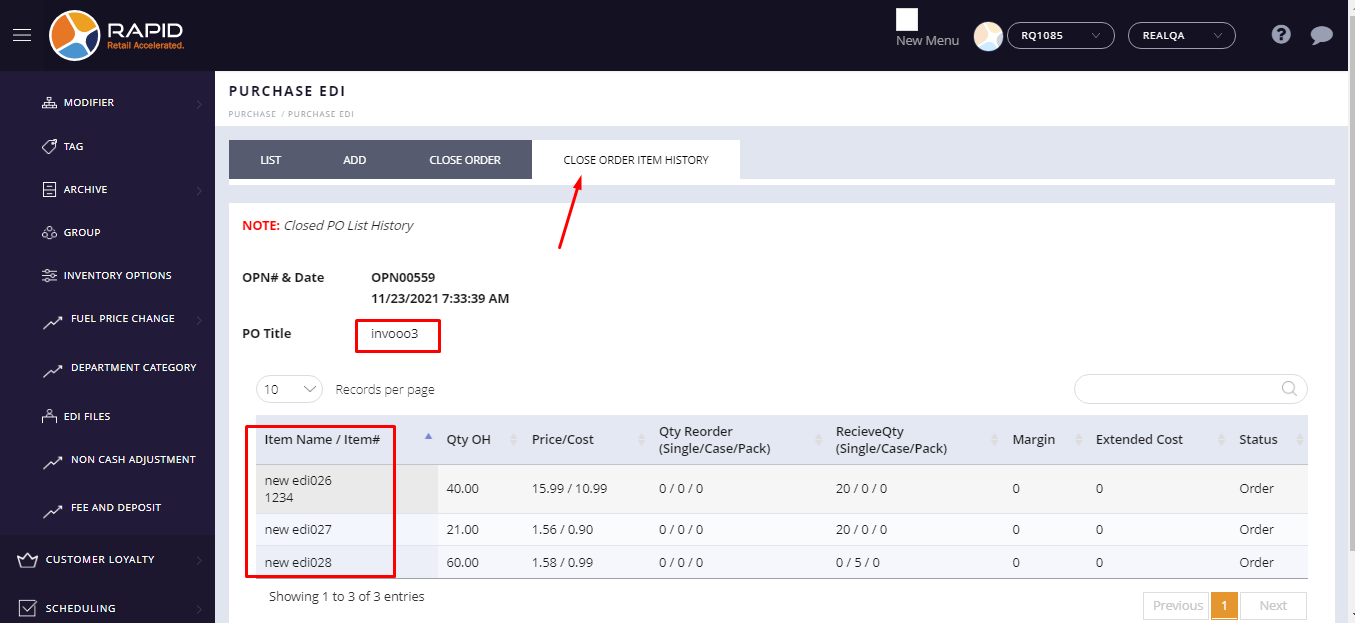
Where can I see close order History?
After the reconcile EDI file store can check close order history.
Follow below steps to reconcile items
Follow below steps to reconcile items
- Open any browser, Go to https://www.rapidrms.com/Account/Branchlogin
- In the Sign in page, Login with your store credential.
- In the Left side menu, In inventory go to EDI File option.
- For adding a new EDI file click on add new option.
- From import edi window, select file, upload edi file, select vendor, select vendor, choose open order, enter invoice # and click on ‘import’ button.
- After import the edi file, the page would be redirected to the reconcile page.
- From the Reconcile page, click on the reconcile button.
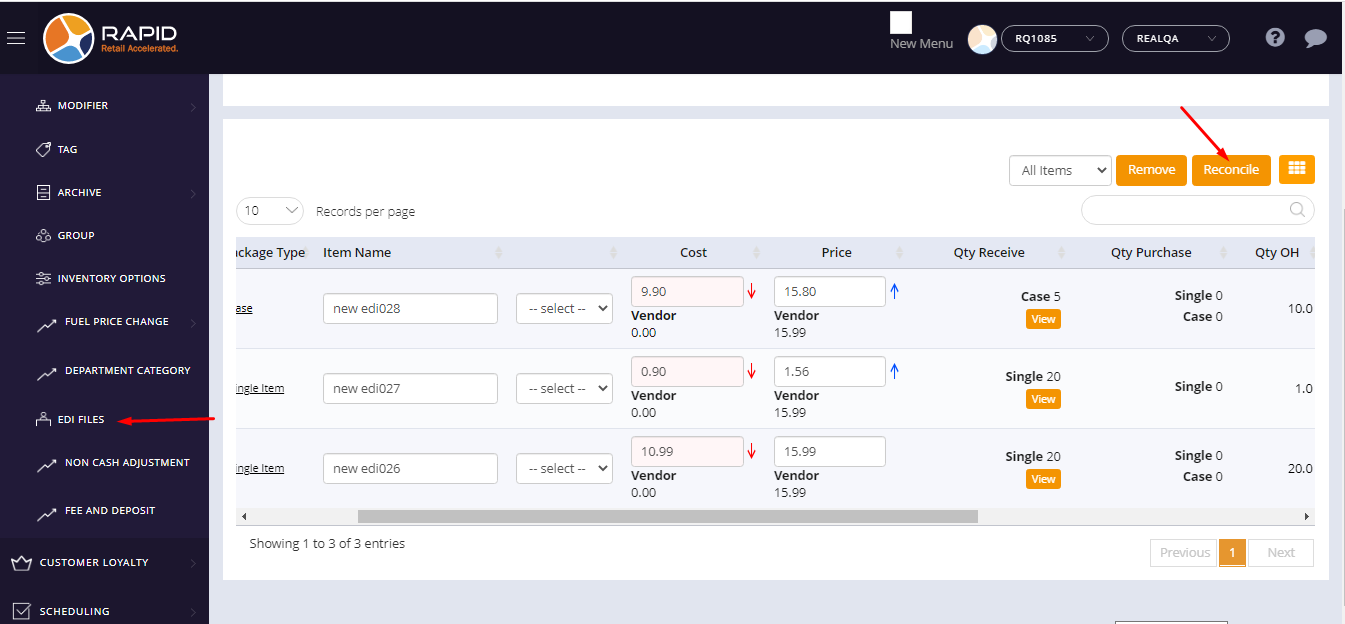
- After Reconcile, the page would be redirect on ‘close order’ page.
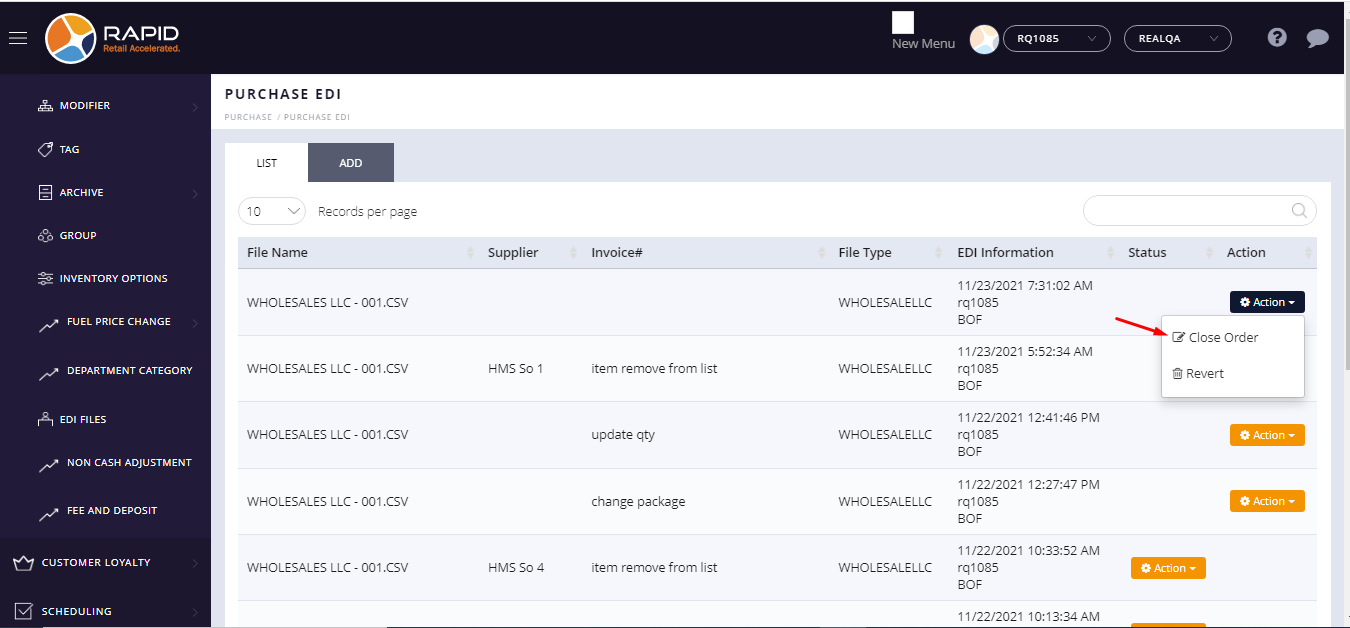
- When again I want to open close order of different edi or same edi then go to list page.
- List page, in action column click on Action -> Close order option.
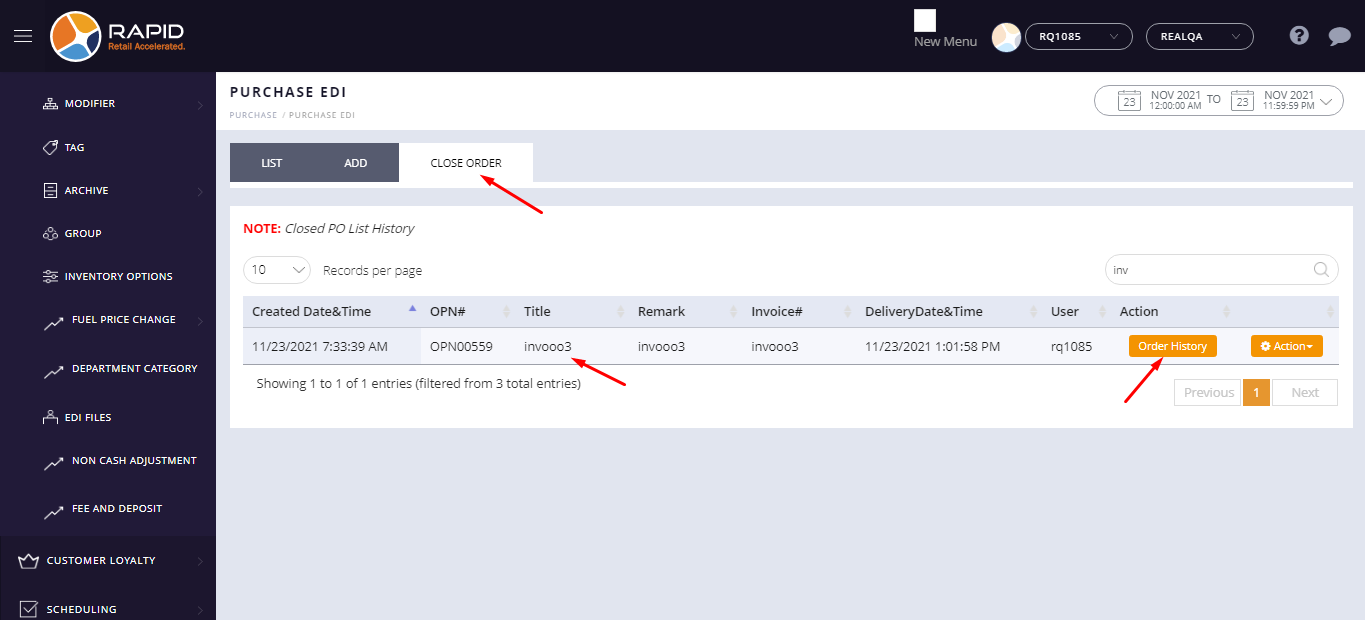
- Close order page would be open.
- Click on ‘Order history’.
- Close order item history page would be open with item list.