Support Document
 Support Document
If the Bluetooth printer doesn’t work and red flashing light showed what I do?
It could be printer roll problem maybe you didn’t set up properly printer roll. If printer roll is correct,
and still you will see a red flashing light or printer receipt will not print Move to below step.
If still printer is not connected then follow below step.
- Check if the printer is connected to the iPad via Bluetooth
- Open setting on the iPad, click Bluetooth and find the printer you would like to connect. If your printer is not listed then click the printer you wish to connect.
If still printer is not connected then follow below step.
- Power on the printer and hold down the pair red button located on the back of the printer near the power/cash drawer cable for 5 seconds.
- Open setting on the iPad, click Bluetooth and find the printer.
- Click the printer to pair/connect.
- it might be that you have not enabled receipts to print for the customer’s payment method. How to
enable: -
- Go to dashboard setting at the bottom screen
- On the right, click on tender configuration then check in cash, credit, debit, gift card which is below tender type that is that print option enable or not. If it is not then you will have to enable.
- Go to dashboard setting at the bottom screen
- On the right, click on tender configuration then check in cash, credit, debit, gift card which is below tender type that is that print option enable or not. If it is not then you will have to enable.
- Once you have enabled receipt to print for the tender, return to the cash register module. Click the last invoice in the bottom left corner.
- A popup will appear saying “do you want to print last receipt” click yes
- A receipt will print for the transaction.
How do I check IP address in Pax?
- In the Pax, there are two option to open the main menu: -
a) click on the menu. then it will ask you to enter a password. If it will not ask you about entering a password. follow step B or if it will ask you about entering password skip step B. follow step 2.
b) hit FUNC and 1 both key push together then it will ask you enter a password. Follow step 2. - Enter today’s date as a password. for example, today’s date 08/27/2017. You will have to type this date. If Pax says the wrong password then try next day date as a password. For example, tomorrow’s date 08/28/2017. You will have to type this date.
- It will popup main menu. Then, click on down arrow which is left side from the menu on the screen.
- You will see the communication function. Click on communication.
- Repeat step 2.
- Then you will see Lan parameters. Click on Lan parameters.
- It will popup Lan parameters menu. Then, you will see the IP address then, click on the IP address.
Now you will see Pax IP address.
How to check IP port number in the Pax?
- In the Pax, there are two option to open the main menu: -
a) Click on the menu. then it will ask you to enter a password. If it will not ask you about entering a password. follow step B or if it will ask you about entering password skip step B. follow step 2.
b) Hit FUNC and 1 both key push together then it will ask you enter a password. Follow step 2. - Enter today’s date as a password. for example, today’s date 08/27/2017. You will have to type this date. If Pax says the wrong password then try next day date as a password. For example, tomorrow’s date 08/28/2017. You will have to type this date.
- It will popup main menu. Then, click on down arrow which is left side from the menu on the screen.
- You will see the communication function. Click on communication.
- You will see ECR communication Type next to Lan Parameters. You will have to click on the ECR communication Type.
- Then, you will see the ECR communication Type menu. Then, you will have to click on Ethernet. After clicked on Ethernet you will see port number 1009. This is your port number.
If printer receipt will not print what I do?
Follow this step: -
- Once you have enabled receipt to print for the tender, return to the cash register module. Click the last invoice in the bottom left corner.
- A popup will appear saying “do you want to print the last receipt” click yes
- A receipt will print for the transaction.
- It could be printer roll problem maybe you didn’t set up properly printer roll. If printer roll is correct, and still you will see red fleshing light or printer receipt will not print Move to step 2.
- Check if the printer is connected to the iPad via Bluetooth
- Open setting on the iPad, click Bluetooth and find the printer you would like to connect. If your printer is not listed move to step 3.
- Click the printer you wish to connect. If the printer does not connect, move to step 3.
- Power on the printer and hold down the pair red button located on the back of the printer near the power/cash drawer cable for 5 seconds.
- Open setting on the iPad, click Bluetooth and find the printer.
- Click the printer to pair/connect.
- it might be that you have not enabled receipts to print for the customer’s payment method. How to
enable: -
- Go to dashboard setting at the bottom screen
- On the right, click on tender configuration then check in cash, credit, debit, gift card which is below tender type that is that print option enables or not. If it is not then you will have to enable.
- Once you have enabled receipt to print for the tender, return to the cash register module. Click the last invoice in the bottom left corner.
- A popup will appear saying “do you want to print the last receipt” click yes
- A receipt will print for the transaction.
Bluetooth printer won’t reconnect what I do?
- Make sure your printer is paired with your iPad.
- Download the star setting utility app from the Apple App Store.
- Open the star setting utility app and select your paired printer from the list
- Click the auto-connect toggle to turn on auto-connect, then select done.
- When prompted, click update.
- To finish the configuration process, turn off the printer. Wait 5 seconds and then turn the printer back on.
- Go to Settings on your iPad to re-establish the connection between your printer and iPad.
How to PAIR Datalogic Bluetooth scanner with iPad?
How to PAIR Datalogic Bluetooth scanner with iPad?
To successfully pair the scanner with the iPad, you will need to print Datalogic Scanner Manual from Rapid
Support page or print the Datalogic Scanner manual from the manufacturer. We will be doing the following
steps:
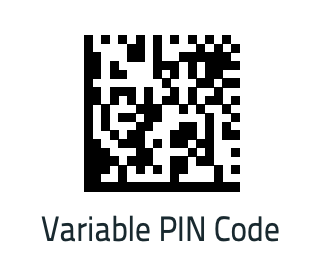
Step 1: Enable scanner for Variable PIN Code
Some Bluetooth drivers on the Host require a Variable PIN Code. When attempting connection, the application presents a window that includes a PIN Code which is to be input using the scanner.
Scan Variable PIN Code with your scanner.
Step 2: Open Bluetooth settings on your iPad
Go to iPad Settings > Bluetooth.
Scan Link to PC in HID with your scanner.

Step 3: Detect your scanner under search and select to continue…
If your scanner does not detect under search in Bluetooth Settings, please scan the code above and wait for your scanner to detect. Repeat the steps as needed.
Select the scanner [ name ] that appears on the screen.
CONTINUE TO STEP 4 ON NEXT PAGE...
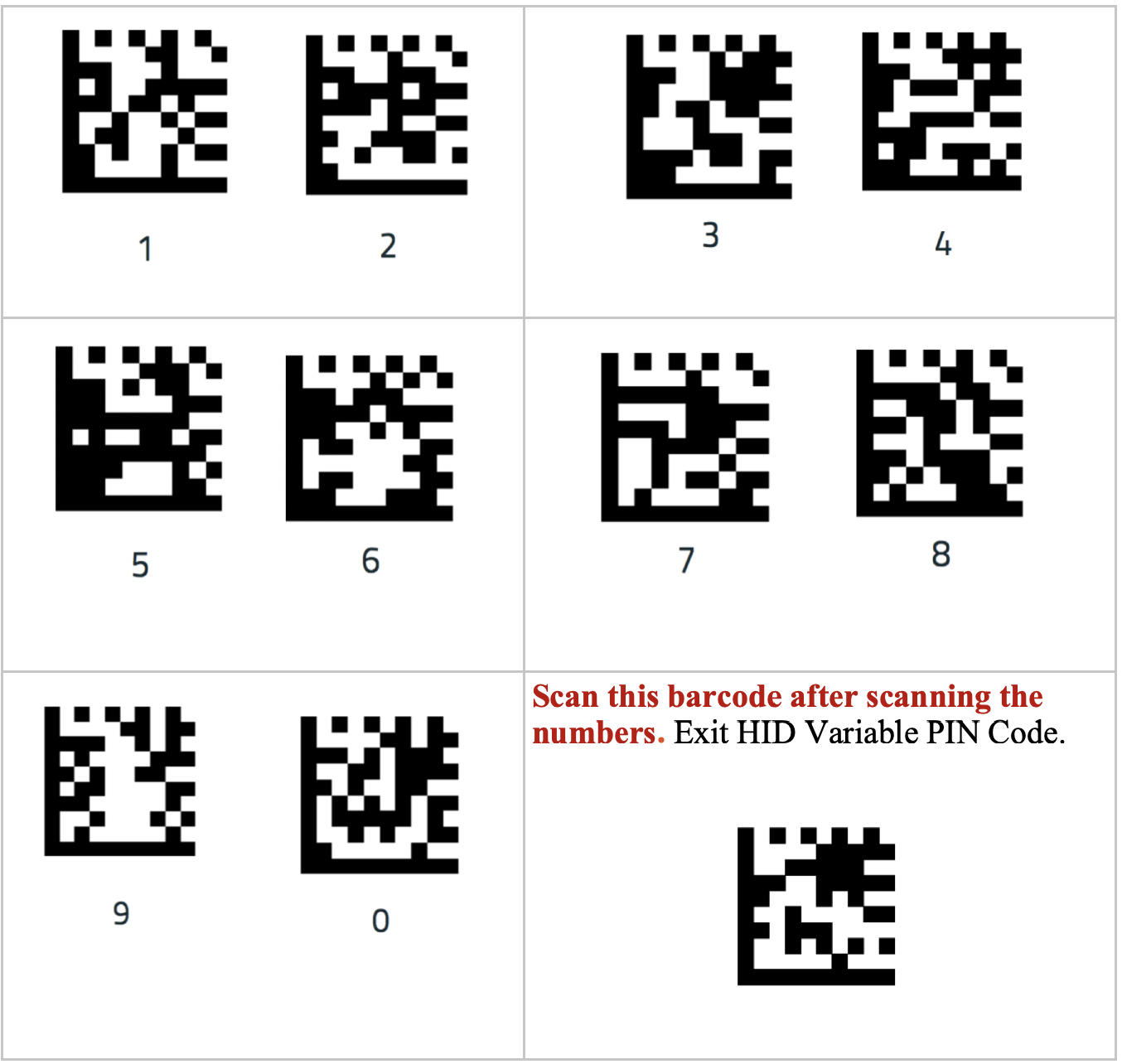
WARNING: When promoted on STEP 4, you must scan all numbers and scan Exit HID Variable within less than 10 to 20 seconds to successfully connect, otherwise it will NOT connect.
Step 4: Scan Numbers
A series of a number will appear on the screen, please scan number(s) below using your scanner. Scan Exit HID Variable Pin Code.
Continue Step 1 to 4 if you fail to connect the scanner.
- Open Bluetooth on the iPad.
- Search for the scanner.
- Select the scanner.
- Scan the PIN variable using the number page.
- Scan Exit the PIN variable to complete the connection.
Step 1: Enable scanner for Variable PIN Code
Some Bluetooth drivers on the Host require a Variable PIN Code. When attempting connection, the application presents a window that includes a PIN Code which is to be input using the scanner.
Scan Variable PIN Code with your scanner.
Step 2: Open Bluetooth settings on your iPad
Go to iPad Settings > Bluetooth.
Scan Link to PC in HID with your scanner.
Step 3: Detect your scanner under search and select to continue…
If your scanner does not detect under search in Bluetooth Settings, please scan the code above and wait for your scanner to detect. Repeat the steps as needed.
Select the scanner [ name ] that appears on the screen.
CONTINUE TO STEP 4 ON NEXT PAGE...
WARNING: When promoted on STEP 4, you must scan all numbers and scan Exit HID Variable within less than 10 to 20 seconds to successfully connect, otherwise it will NOT connect.
Step 4: Scan Numbers
A series of a number will appear on the screen, please scan number(s) below using your scanner. Scan Exit HID Variable Pin Code.
Continue Step 1 to 4 if you fail to connect the scanner.
Can the customer pay apple pay through do I need to do any set up in the Pax for apple pay?
No, you don’t need to set up any for Apple Pay. But when Pax will ask you to swipe your card or insert the
chip at that time you need to keep your device on the Pax screen which is through you will pay.
If I want to change the IP address on iPad what I do?

If handheld scanner will not scan what I do?
Scanner not charge and when we unplug charge and try to scan it won’t scan but if it’s a plugin with the
charger it will scan so what is the problem?
There are a lot of reasons that is not working
a) Open Settings on iPad, click Bluetooth and find the scanner to ensure there is a connection.
Note: If the scanner is not connected, you will need to follow the scanner’s manual on how to connect to Bluetooth.
b) Open Rapid RMS App, click Settings on the login page.
c) Click UPC Scanner and select the appropriate scanner type (device scanner or Bluetooth scanner).
- It could be a charger problem.
- It could be a scanner battery dead.
- Scanner socket chip was dead.
There are a lot of reasons that is not working
- It could be your cursor move another side from UPC toolbar which is near to search box option on the sales screen. You need to touch in the UPC toolbar. If UPC toolbar cursor in the UPC box then, follow below step
- It could be a handheld scanner off:-
a) Open Settings on iPad, click Bluetooth and find the scanner to ensure there is a connection.
Note: If the scanner is not connected, you will need to follow the scanner’s manual on how to connect to Bluetooth.
b) Open Rapid RMS App, click Settings on the login page.
c) Click UPC Scanner and select the appropriate scanner type (device scanner or Bluetooth scanner).