Support Document
 Support Document
How to set memo pop up for item ring up ?
When user want to add memo pop up for no sales then it can be set from BOF.
Follow below procedure to set memo for no sales.
Follow below procedure to set memo for no sales.
- Log in with web URL.
- Go to setting tab.
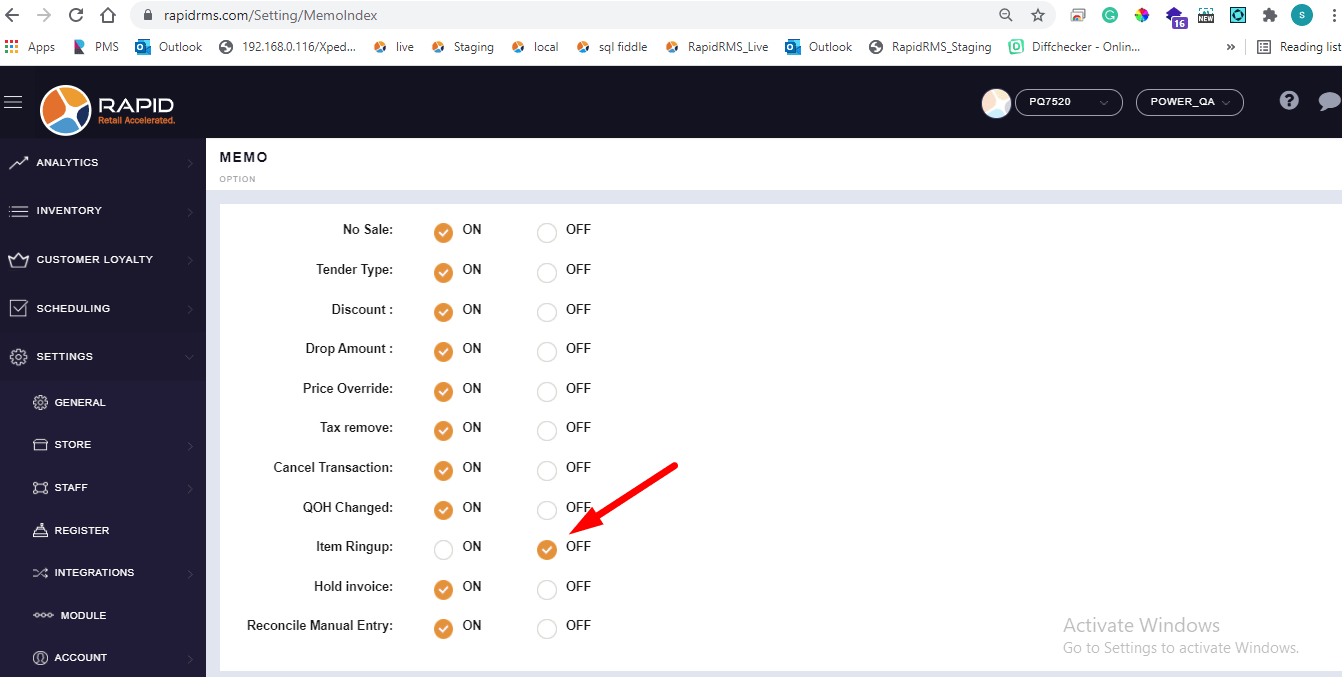
- Select memo option.
- When memo open then many of ON/OFF switch display for different option.
- Review there is one option for no sale.
- Keep memo optio OFF.
- Now open rapid rms application.
- Go to inventory management module.
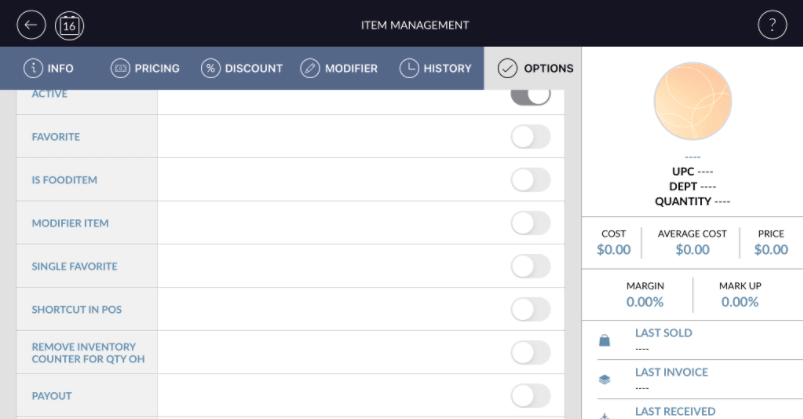
- Open any item in edit mode.
- Go to option tab.
- There is no memo ON/OFF button available.
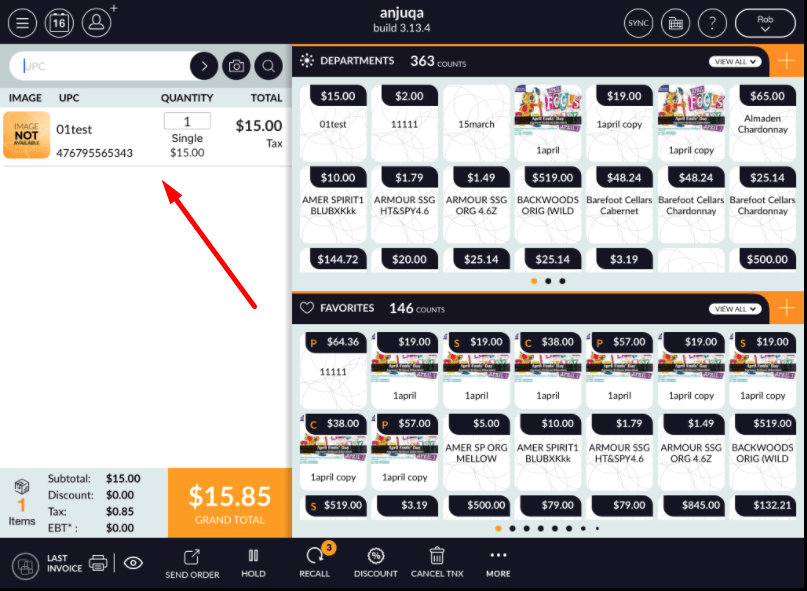
- Now go to cash register and ring up any item.
- Memo pop up would not display and item will ring up without any memo pop up.
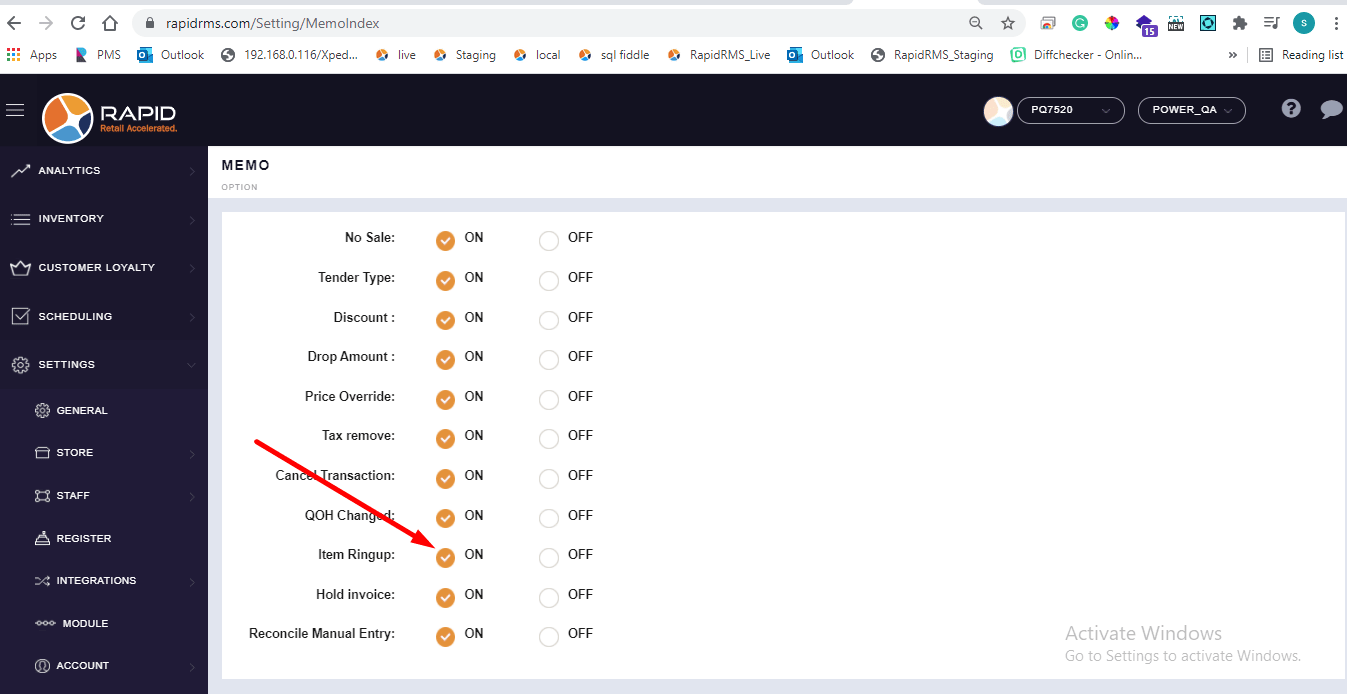
- Now go to BOF and keep memo option for item ring up ON.
- Restart application as any of bof changes will reflect in POS after restart application.
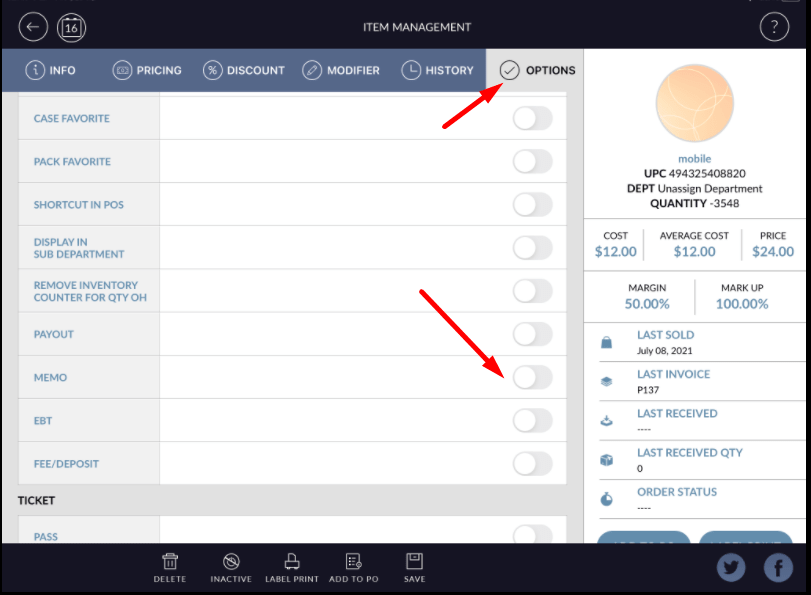
- Open inventory management module and open any item in edit mode.
- Note that there is memo option available in option tab.
- By default memo option would OFF for item.
- Now go to cash register and ring up that item.
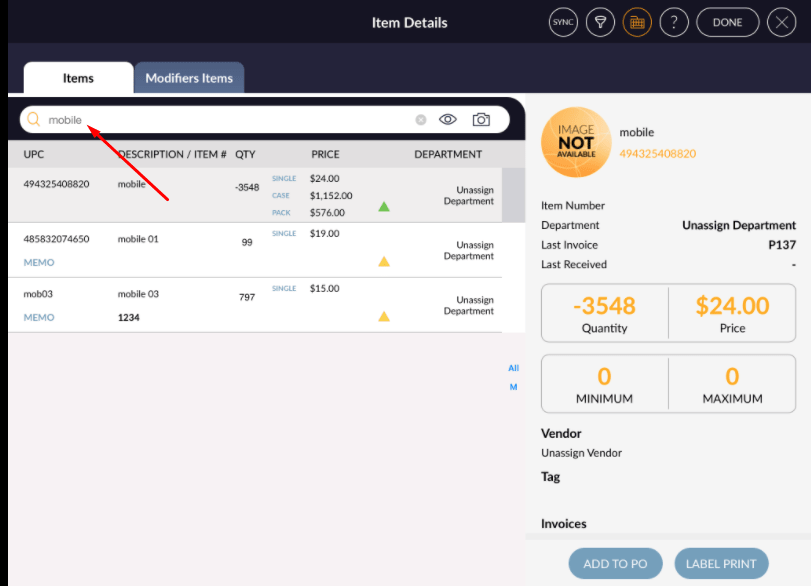
- Item will ring up without any memo pop up.
- Now go to inventory management module and open that item in edit mode again.
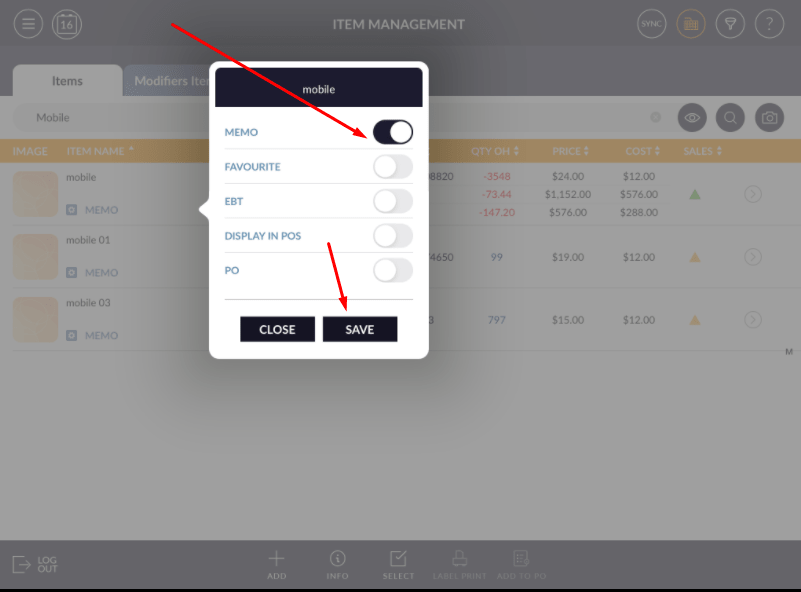
- Open option tab and keep memo option ON.
- Save changes.
- From item shortcut also you cab ON memo.
- Go to cash register module and ring up same item.
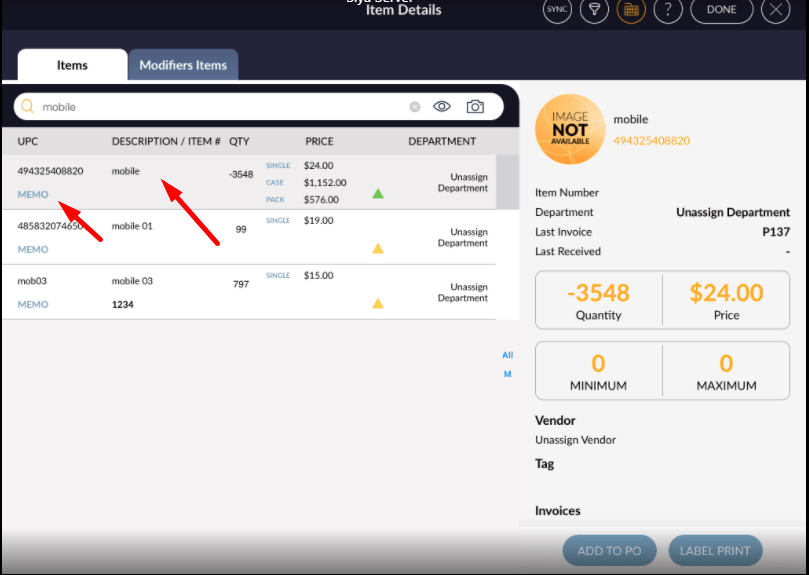
- When ring up item at that item memo pop up would display.
- Either select text from suggestion or enter valid text in memo pop up.
- Apply save.
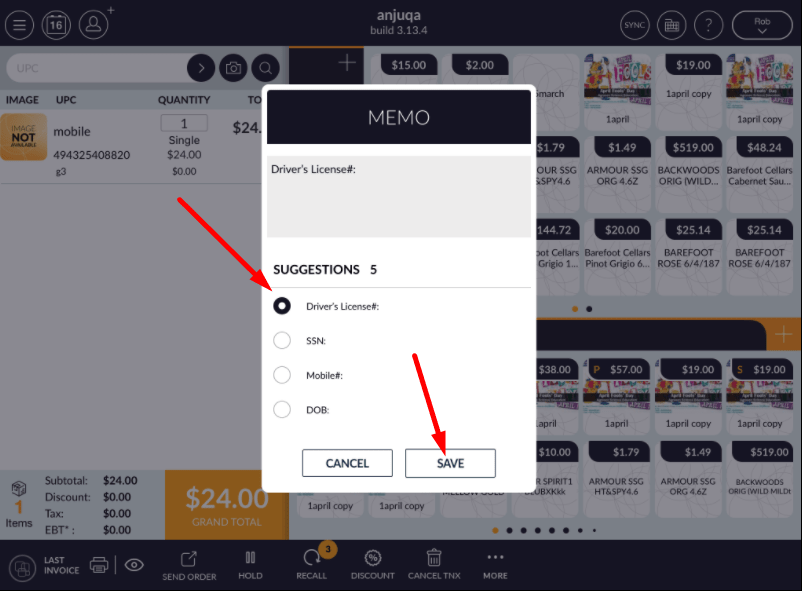
- Memo text will save in item ring up.
- By this way you can set memo pop up in item ring up.
- When from BOF and from POS memo option ON for item ring up then only at the time of item ring up memo pop up would display.