Support Document
 Support Document
How to set up Bluetooth printer?
Set up a Wi-Fi Network
Pair the Printer and the iPad
Connect the Printer and the Cash Drawer (optional)
Enable Printer Settings in Rapid RMS
- The Bluetooth printer connects wirelessly to an iPad using Bluetooth technology, avoiding a Wi-Fi connection. However, you will need Internet access to complete credit card transaction and the cloud-based features.
- A network setup depends primarily on the Internet service provider and may include a router or modem device to have a Wi-Fi network.
Pair the Printer and the iPad
- Plug the power cable into the right-most port on the back of the printer.
- Power the printer on.
- Load a roll of paper into the printer.
- Hold the PAIR button for 15 seconds. Note: You have 60 seconds to pair your iPad. Make sure you have it nearby!
- Open your iPad Settings and open Bluetooth menu.
- Click the Star Micronics printer listed in Other Devices.
- Once your printer and iPad are connected, the back of the printer will have a solid blue light to confirm the connection.
Connect the Printer and the Cash Drawer (optional)
- Make sure the printer and the iPad are paired.
- Plug the cable included with the cash drawer into the DK port on the back of the printer.
- Connect the larger end of the cable to the underside of the cash drawer.
Enable Printer Settings in Rapid RMS
- Open Rapid RMS app.
- Select Settings at the bottom on the screen.
- On the right, under hardware, click printer.
- Click TCP Bluetooth/TCP.
- Select Bluetooth
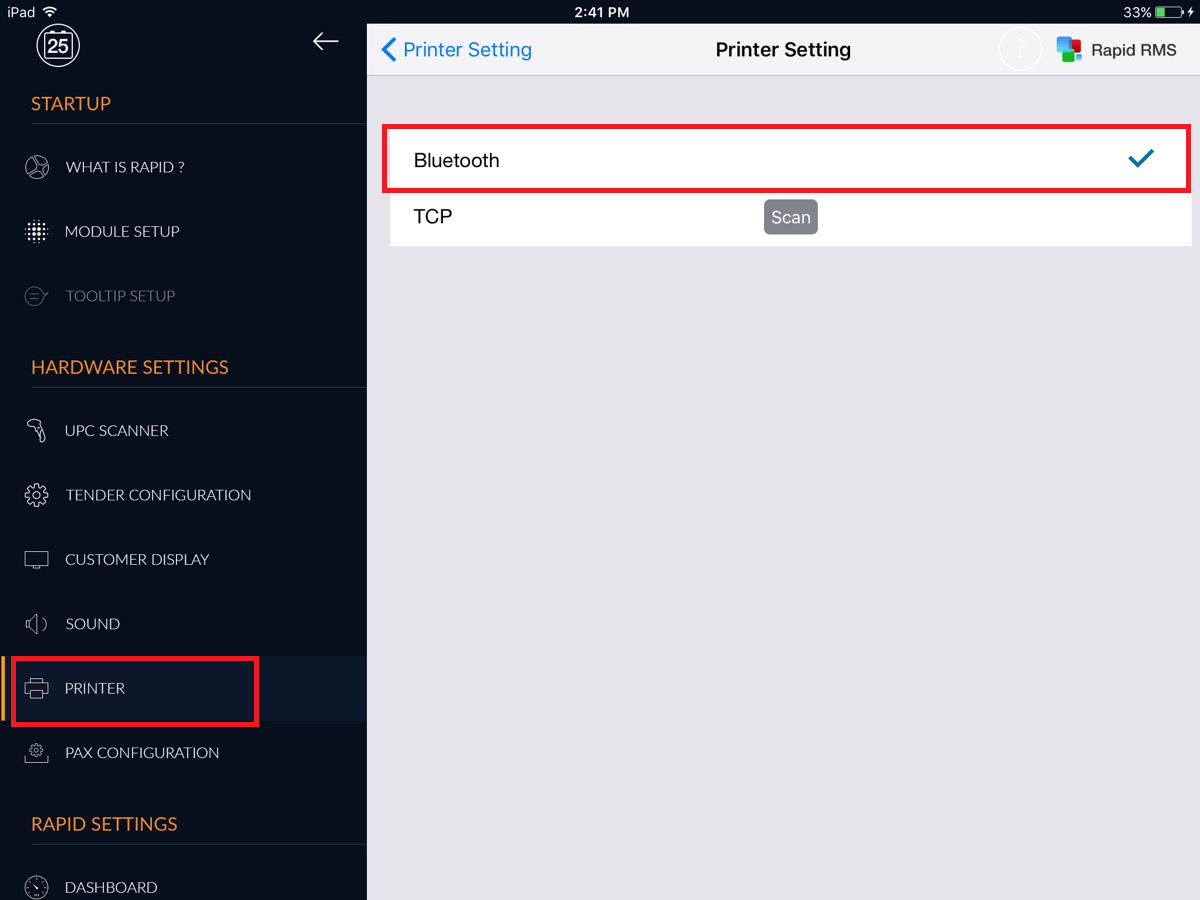 Your printer is now ready to go! You can establish a tender print receipt configuration.