Support Document
 Support Document
How to review Z history from manager report?
In Z history all the z reports of the current month display with related data.
- Open rapid RMS application.
- Go to daily report.
- Open manager report.
- Tap to z history which is placed in the second column.
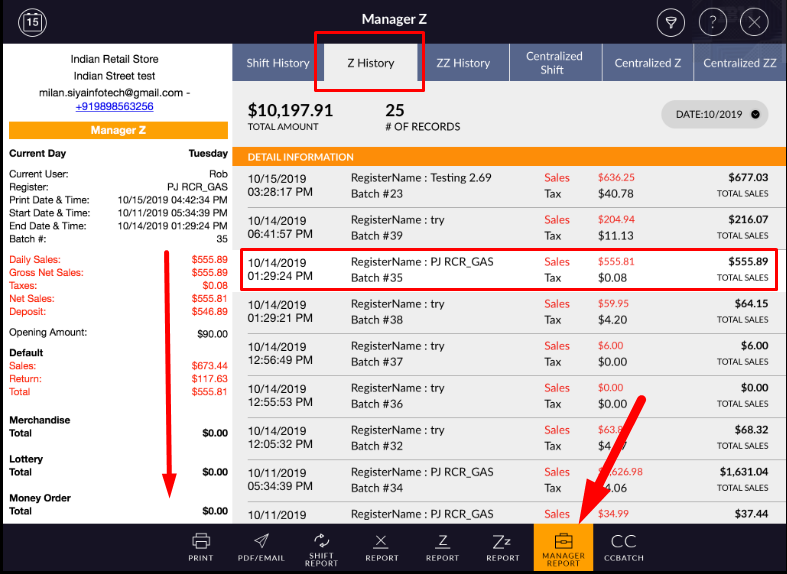
- In Z history all applied z reports display.
- In right-side, all Z are listed with Z applied to date, register name, batch #, Sales amount, tax
amount and with total sales amount.

- Whichever Z report you select, in left side all detail information of that particular report will display.
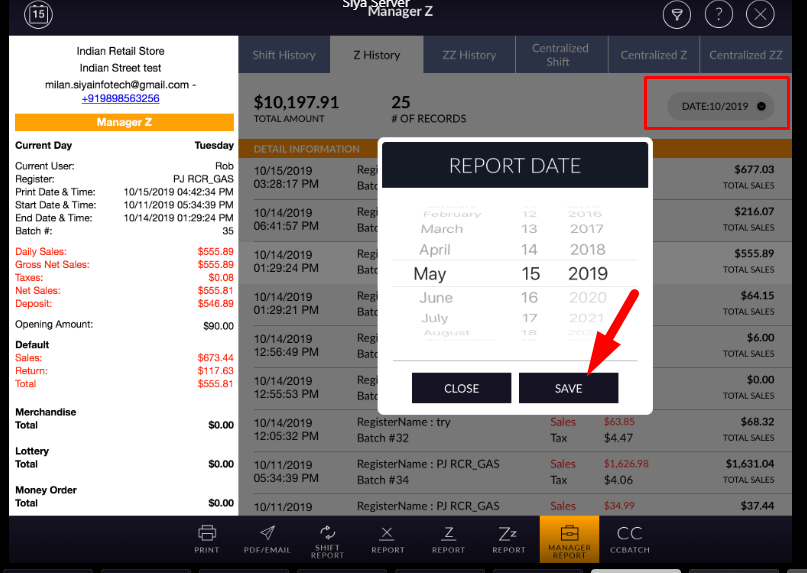
- If you want to see another month Z report then there is one menu named as a date.
- Select month and year in the scrollbar.
- And apply to save.
- Selected month Z will display in the list.
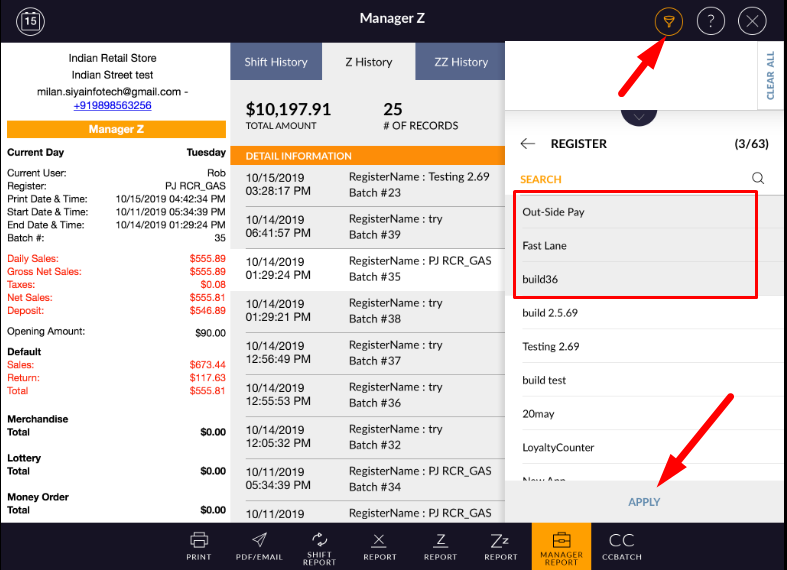
- In Z history all the Z reports are listed but if you want to review particular register’s Z then you can filter by register.
- Apply filter.
- Select register.
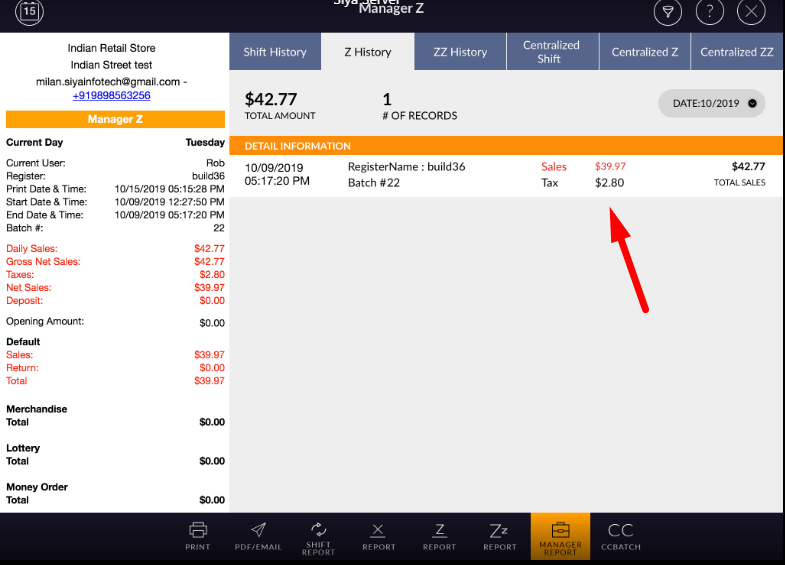
- Selected registered Z report would display.
- Register filter will remove from clear all option.