Support Document
 Support Document
How to Return inventory from PO?
Follow below steps to return inventory item(s) from PO.
- Open Rapid rms application.
- Go to Purchase Order module.
- Go to PO list page either directly ‘PO list’ option or Generate PO list from generate order page.
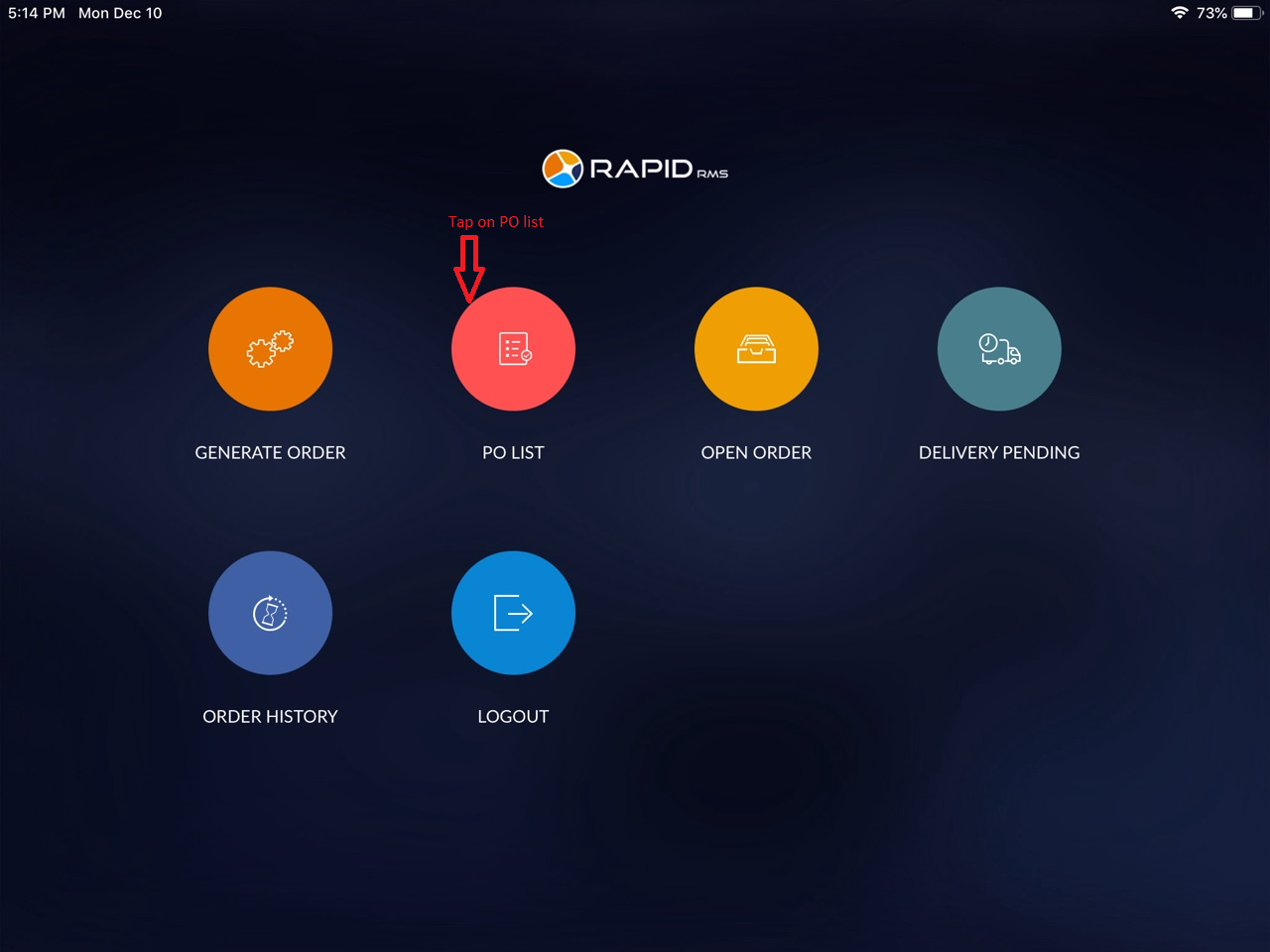
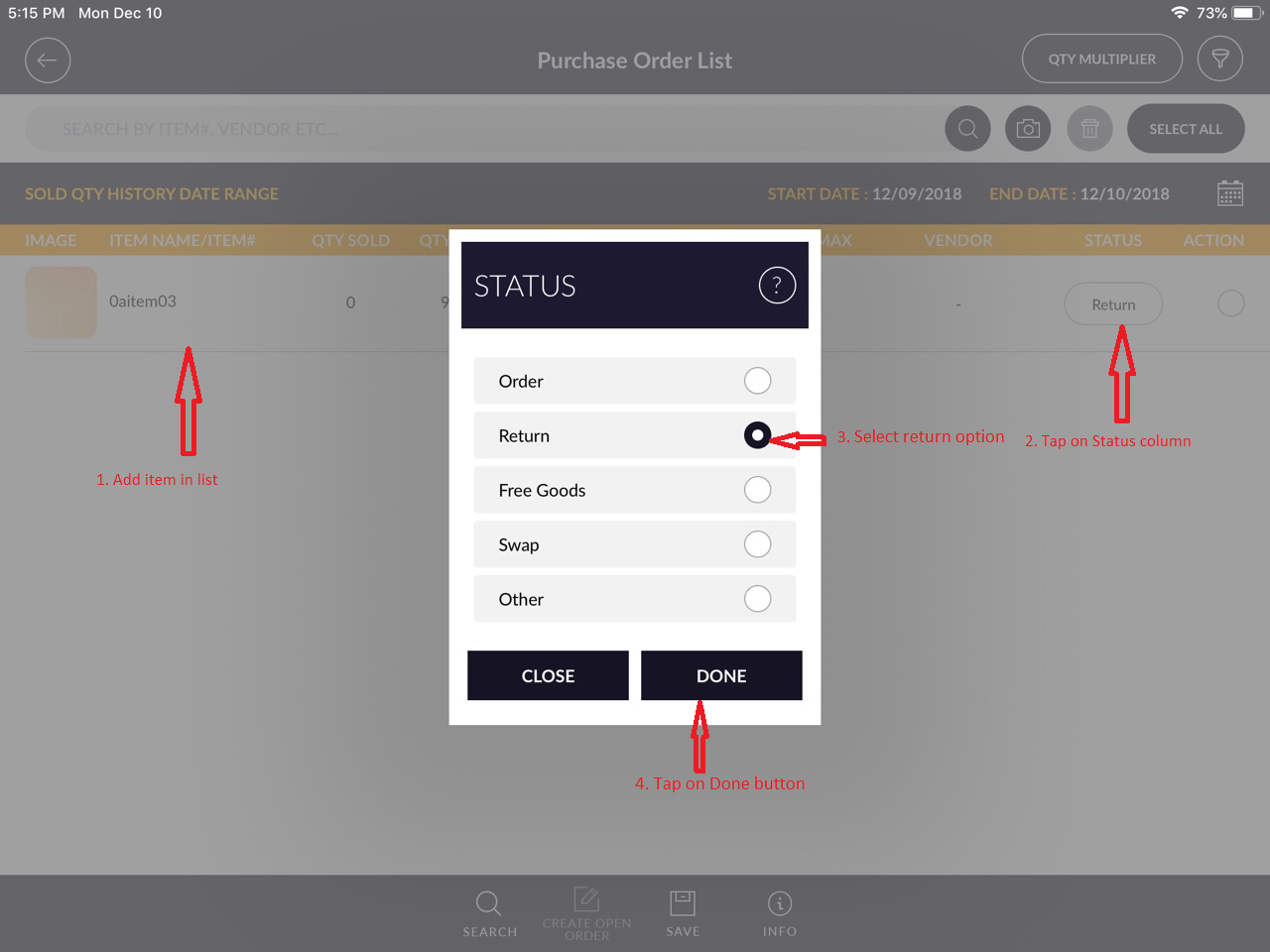
- Now in ‘Purchase Order list’ page, Add that item which you want to return.
- Tap on ‘QTY reorders’ column for entering return Qty.
- Now you will see a new popup with the item detail, enter return qty number and click on the done button.
- Now tap on the ‘Status’ column for change status.
- From Status popup,select ‘Return’ option and click on Done button.
- Now select that item and put it on Open order list by create open order button.
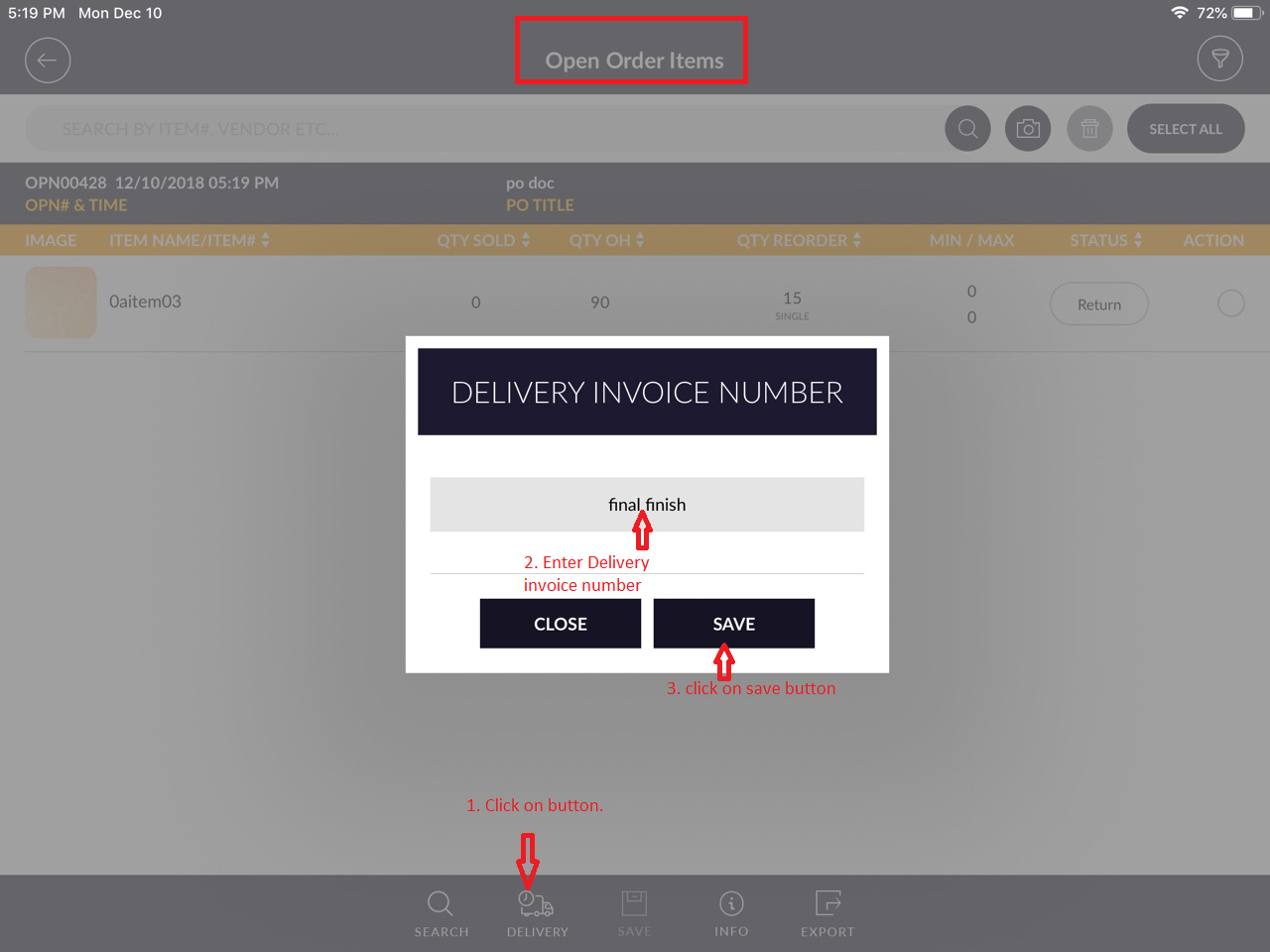
- From open order items page, user can change ‘status’ and ‘Qty Reorder’.
- From open order items page, select item and click on Delivery button and enter delivery invoice number
and save it.
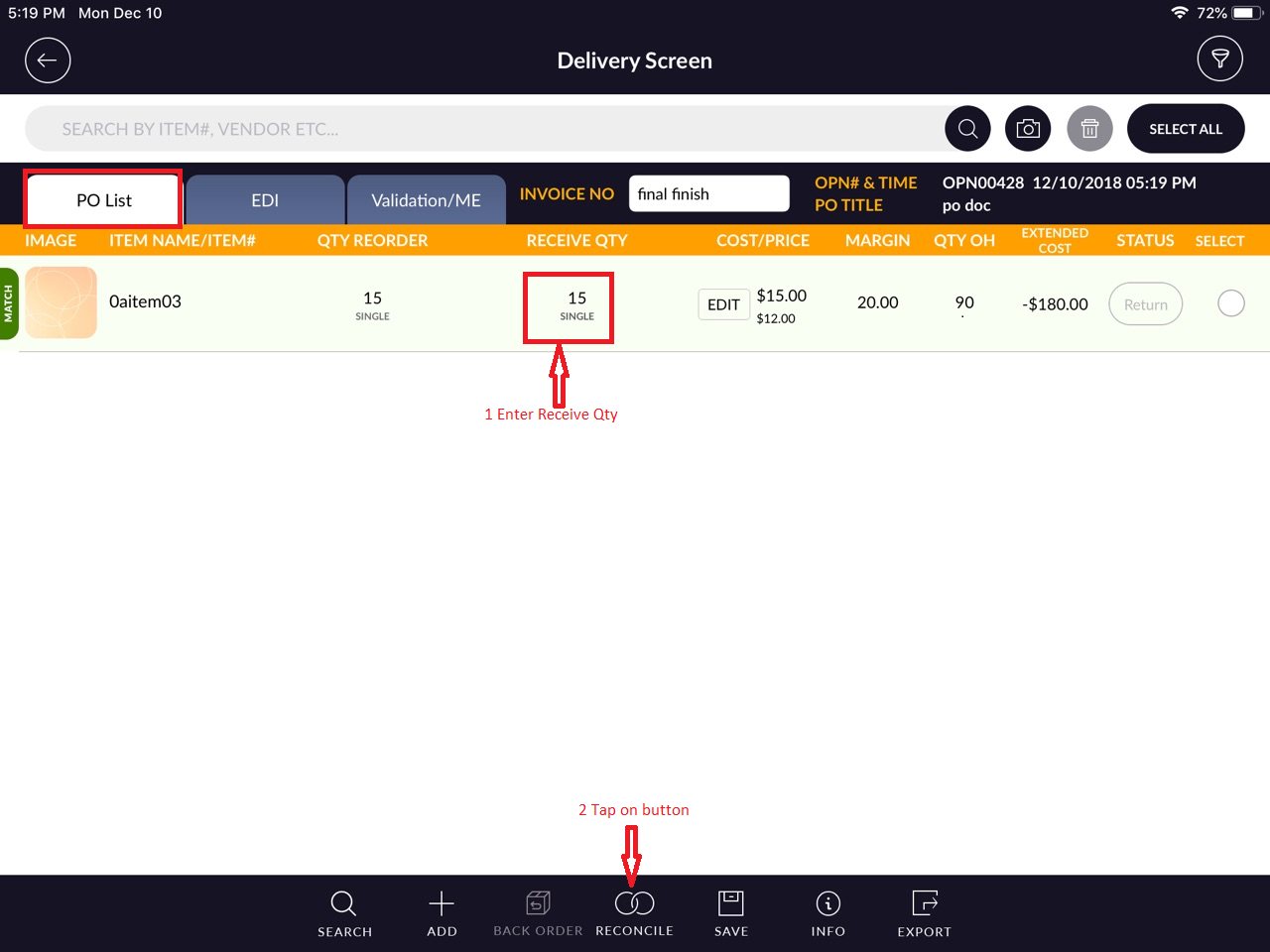
- Now in Delivery Screen page, tap on the ‘Receive Qty’ column and enter qty.
- Select that item and click on the reconcile button.
 Now you will see return Qty will be minus from that item’s Qty OH.( RIM -> Item list -> Tap on return item
-> Check new Qty OH).
Now you will see return Qty will be minus from that item’s Qty OH.( RIM -> Item list -> Tap on return item
-> Check new Qty OH).