Support Document
 Support Document
How Can I delete Role from Role Management?
- Some of our customers frequently ask a question to create a new item or edit or delete existing item permission from Inventory Management.
- The New RapidRMS allows you to give permission to your user to create a new item or edit or delete an existing item from Inventory Management.
- You can set up and manage a role to create a new item, edit or delete an existing one from Role management.
If you do not know how to edit a role, please click here! (Need to add link)
If you do not know how to create a new role, please click here! (Need to add link)
Please follow the below steps:-
- Login into the Back office with your credentials.
- Click on the Settings option.
- Click on the Staff menu.
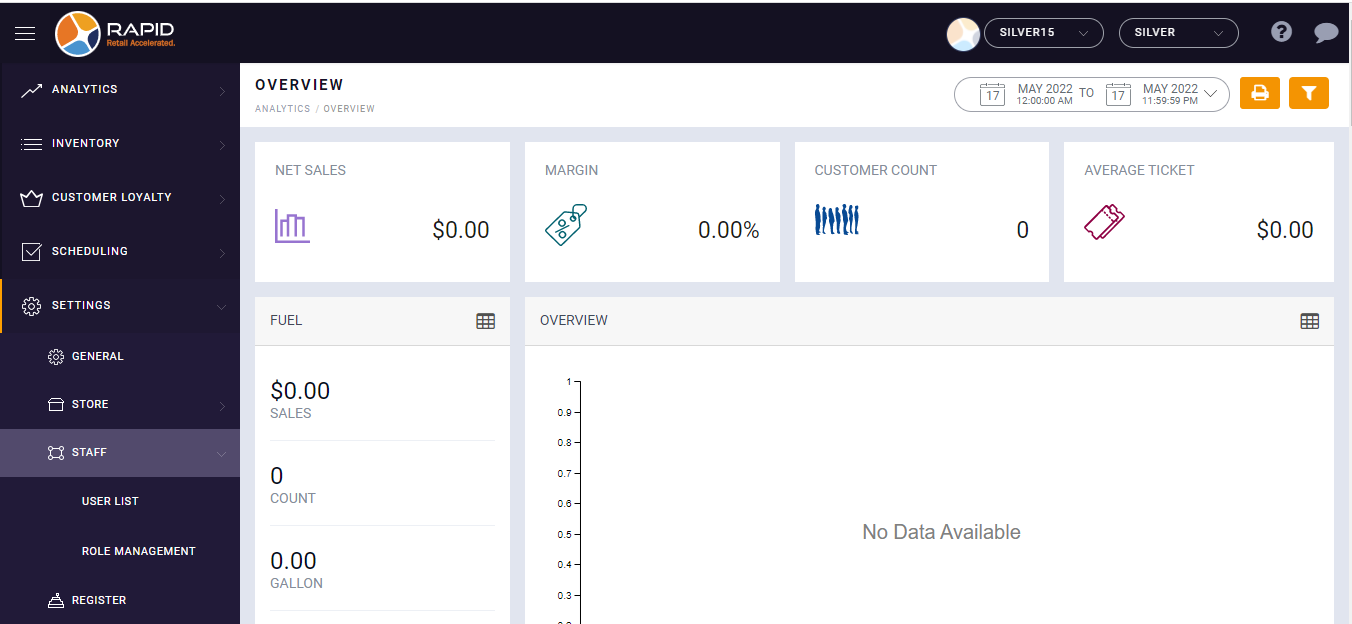
- It will appear the list of an existing role.
- Click on the action button next to a role that you wish to edit.

- Select Edit option.

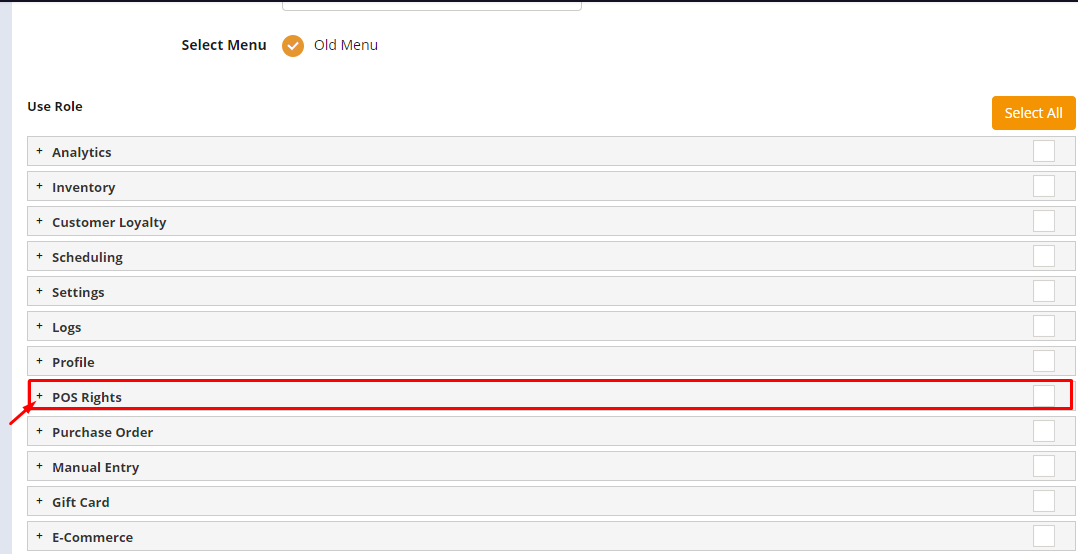
- Click on + button next to POS Rights option. You may need to scroll
down for POS right option.
- Click on + button next to the Inventory Info option.
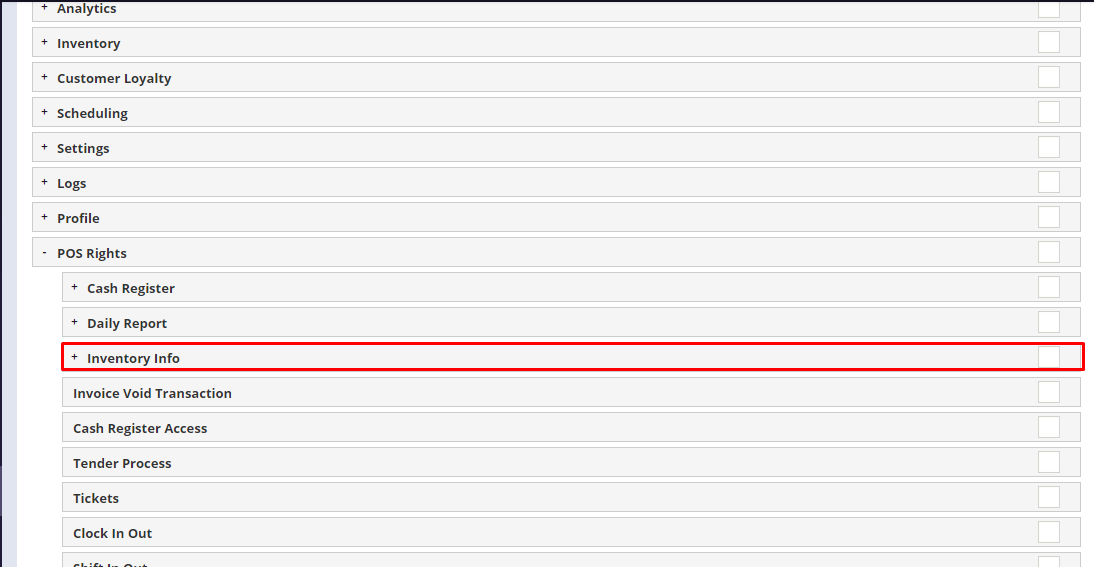
- Check/Uncheck the permission you wish to give the user. For example:- If you do not
want to give permission to add a new item uncheck the Item add role from the page.
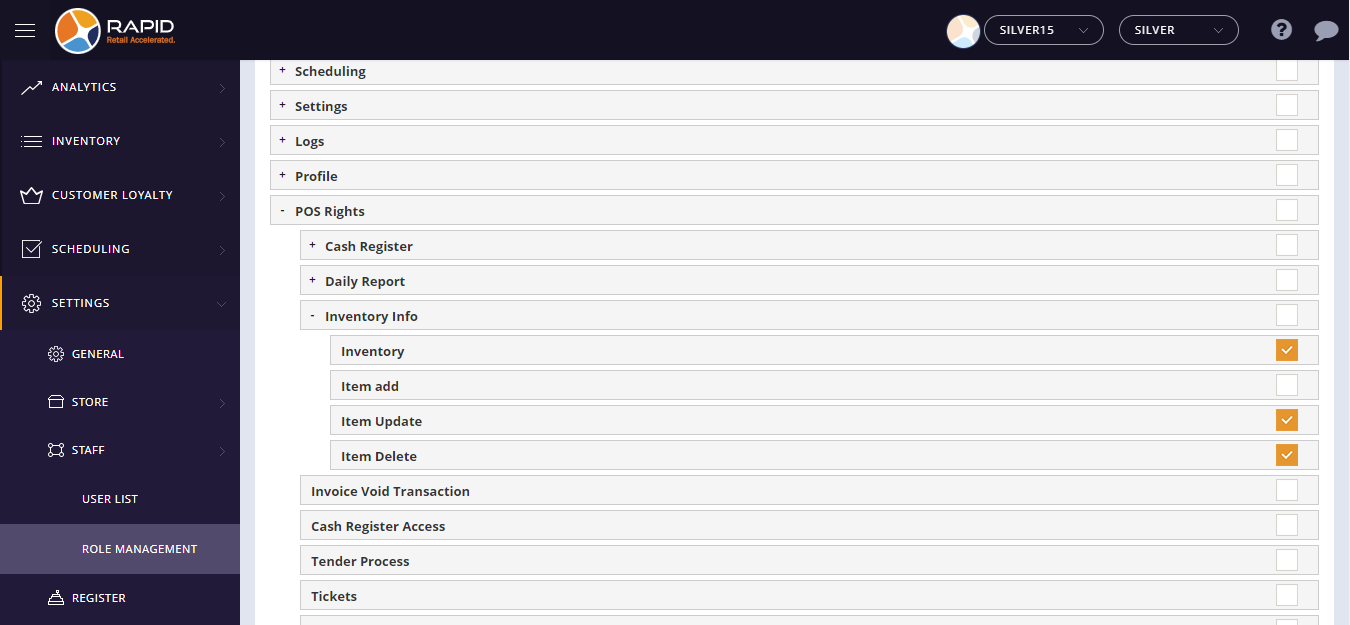
- Click Save.
- Now, assign the role to the user you want to.
If you do not know how to assign a role to a user, click here!
If you do not know how to create a user, click here!
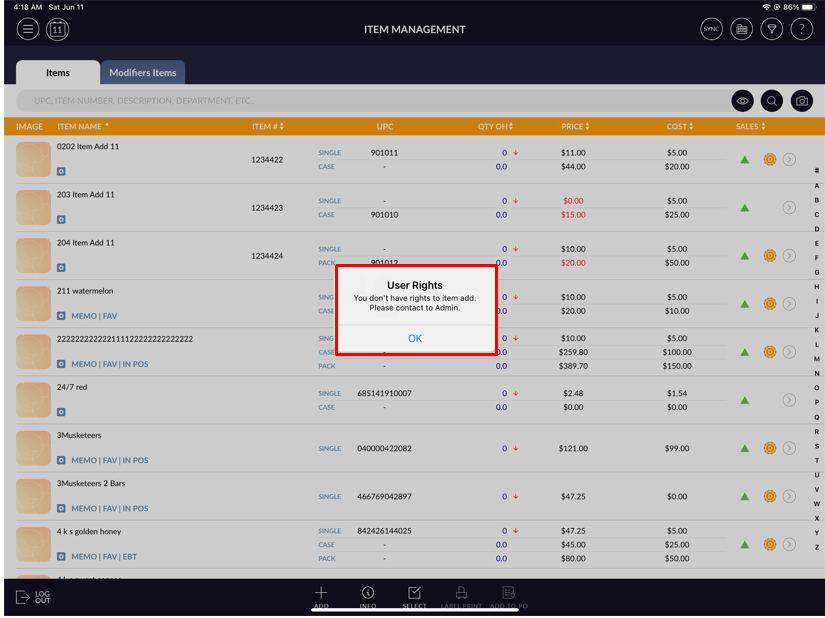
- 12. It will appear below the message when users want to add a new item or edit or delete an existing
item.