Support Document
 Support Document
If the transaction doesn’t upload in the cloud what I do?
If the transaction doesn’t upload in the cloud then might be system is not connected properly with the
internet.
- Press home button.
- Go to setting.
- Turn on wi fi.
- Do proper connection of internet.
- Then try to upload the offline invoice in the cloud it would upload successfully.
If I lost internet connection can I sale item?
When I sale item and internet connection is lost then also item can be sale and transaction complete.
But that transaction goes in offline. When system get internet then that all offline invoices uploaded.
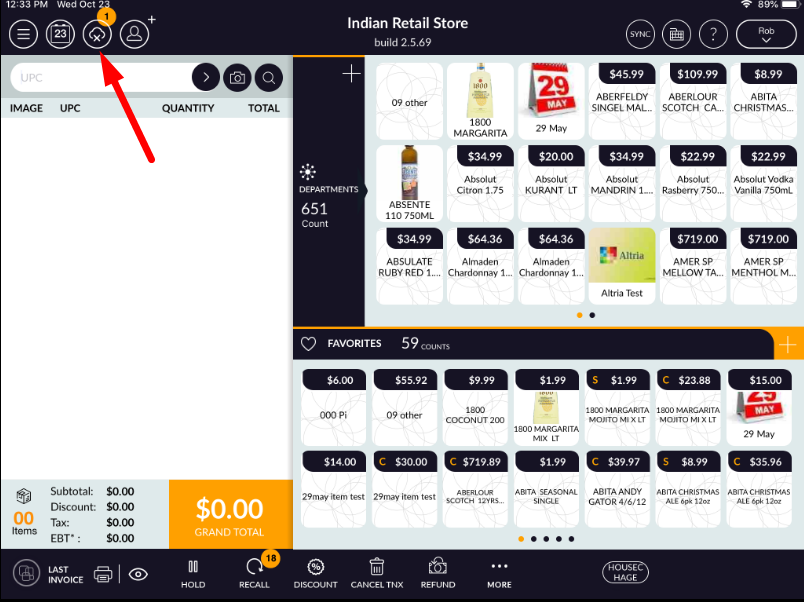
When the Internet is connected to the system then from POS screen upload all offline invoices items would go in the cloud.
But that transaction goes in offline. When system get internet then that all offline invoices uploaded.
When the Internet is connected to the system then from POS screen upload all offline invoices items would go in the cloud.
Transaction is completed or not
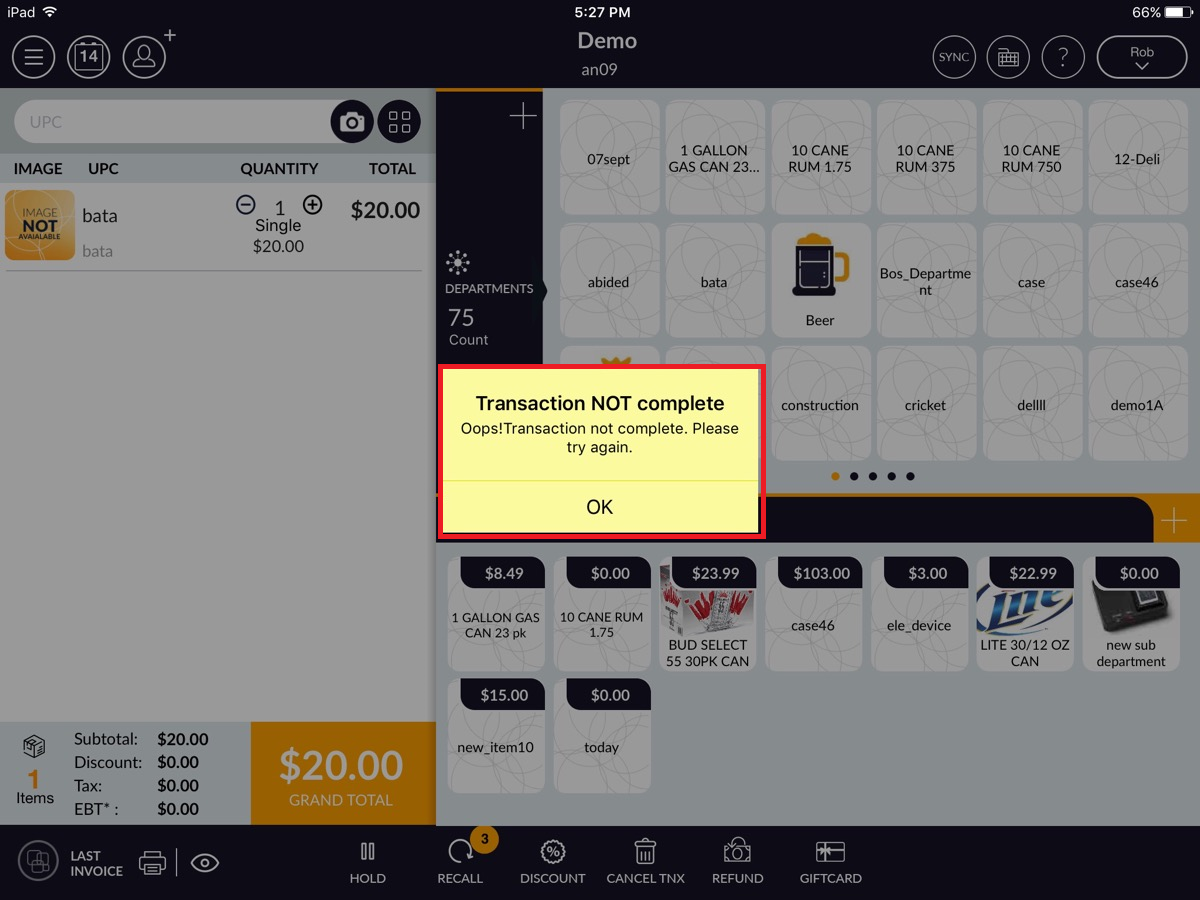
When you reopen the application, a message will pop up on the sales screen in yellow colour. It will say
“oops your transaction is not completed” or “your transaction is completed”.
If the cash drawer will not open what I do?
- Select the cash register icon. Enter the 4-digits password.
- Click the menu button in the top left-hand corner.
- Select No sale.
- A message will prompt you if you would like to open the cash drawer. Select Yes. Your cash drawer should open. If drawer won’t open move to step 5.
- check the connection between printer and drawer. You will have to check the printer is flashing red light or not? If the printer is flash red light that means you will have to check printer and drawer all cable wire sometimes it could be a loose wire.
- Then, check your drawer cable which is connected to the printer. It could be a loose wire.
Customer credit/debit card doesn’t swipe or chip doesn’t work
If customer credit/debit card doesn’t swipe or chip doesn’t work so can I do manually enter a pin number and
how do I do it?
Yes, you can do manually follow this step if you want to manually transaction: -
Yes, you can do manually follow this step if you want to manually transaction: -
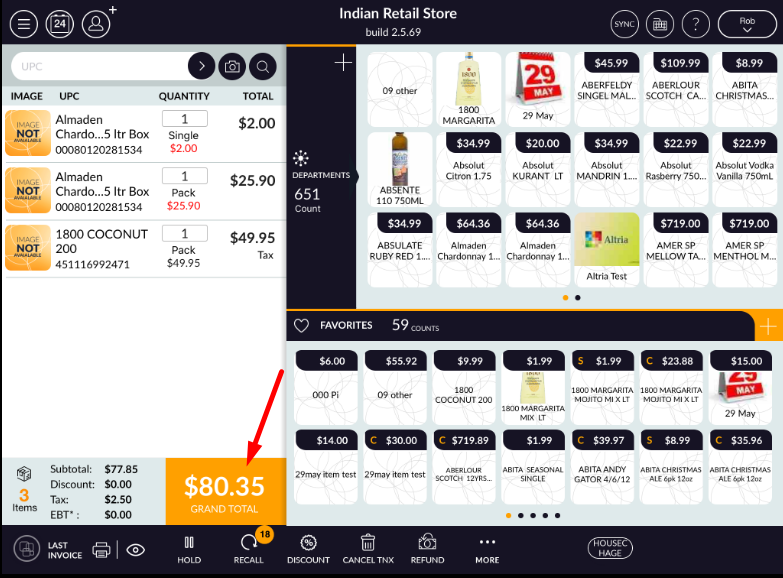
- First ring up all item which one customer wants to buy items.
- Then, click on credit/debit in the iPad. Which is a short cut available at the bottom on the sales
screen Or you can go from the tender screen also.
- Make sure from the setting , in your card swipe option ON.
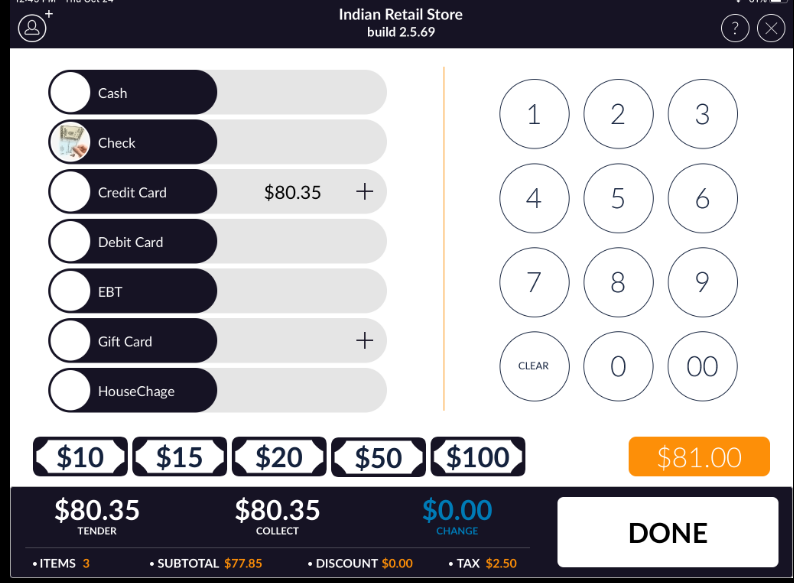
- Now direct punch credit card number which is on the credit/card number then click send button.
- It will ask you Enter expiry date then enter expiry date which is at the bottom on the card front side.
- It will ask you Enter 3-digit CVV number then enter 3-digit which is behind the card.
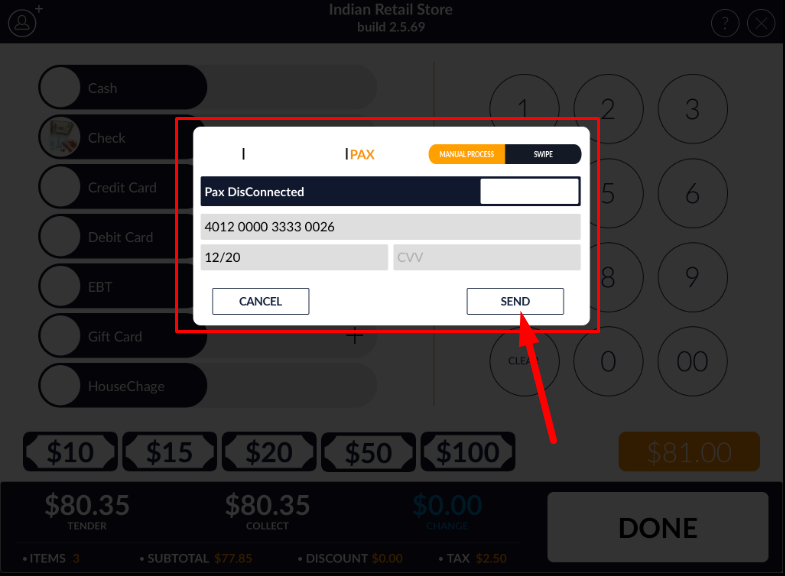
- It will ask you enter address this is optional you could enter customer address or you could direct hit send button without type address.
- It will ask you to enter zip code. Then, enter zip code then hit send button.
Pax is not working when I click credit/debit on I-pad it doesn’t pop on Pax?
The possible issue with iPad and Pax. Follow below steps: -
And If they are both same networks follow bellow step.
- Check your network. make sure Pax and iPad network in the same network or not? if they are not in the same network, you will have to connect in the same network.
And If they are both same networks follow bellow step.
- Now, you will have to check the iPad IP address. Make sure iPad IP address must be matched with Pax IP address. if iPad IP address different than Pax IP address so, you need to enter Pax IP address in the iPad. for example, Pax IP address is 192.168.0.123 so, you will have to enter the same IP address 192.168.0.123 in the iPad.
- After you entered the IP address in the iPad, you will have to save.
- If you want to check if it will work or not. You will have to click on Pax connection after you saved. It will tell you that your Pax IP address will have connected or not.