Support Document
 Support Document
How to Add or edit Price and price level from RapidRMS?
You can manage the cost and price of your item with margin/markup for single, item case, and pack wise. You
can also set different levels of pricing based on your conditions and apply them accordingly. You can also
specify your initial Item stock when creating a new item.
Please follow the below steps:-
Assign the Price level to an item
The price level is mostly used to apply the discount for a selected customer of the store.
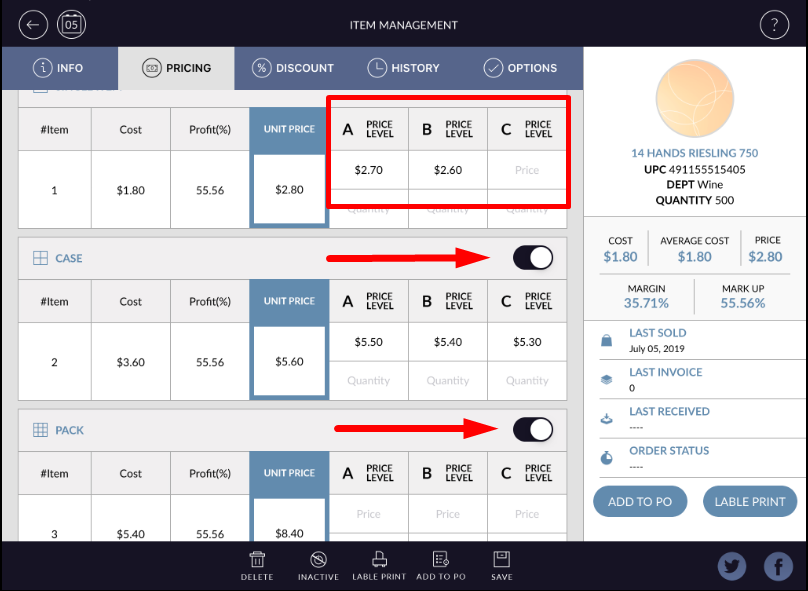
Users can configure the price level for Single, Case, and pack items from Pricing Tab.
There are three price levels provided by RapidRMS. 1) Price Level A 2) Price Level B 3) Price Level C
To assign a price level to an item, follow these steps:-
Notification button
When you turn on notification button, it will appear case and pack item with single item in pop up window while search item by single barcode else it will not appear case and pack item in pop up window while search item by single barcode.
Please follow the below steps:-
- Open the RAPID RMS application from your Ipad.
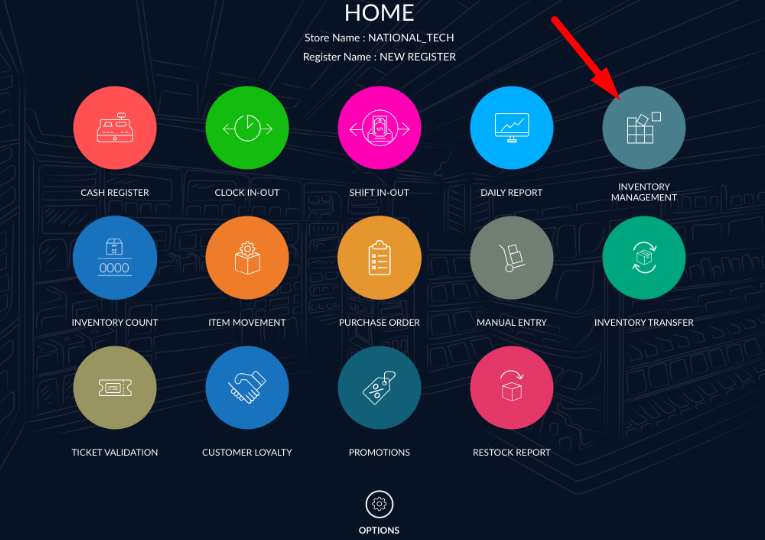
- Select inventory management module from Dashboard.
- Enter your Quick access password.
- To add a new item, click on the + add button from the bottom bar or choose any existing item you want to update the price.
- After you click on the + add button, you will need to enter all necessary details like item name, UPC barcode along with Cost and retail price of an item.
- If you want to update the cost and retail price of an existing item, click on the existing item.
- It will appear Info, Pricing, Discount, and Modifier (Optional), History, and options tab.
- The price information section is used to set Qty On the hand, Cost, Retail price, and Child Quantity.
As you can see in the below image, you can add or edit the price of an item.
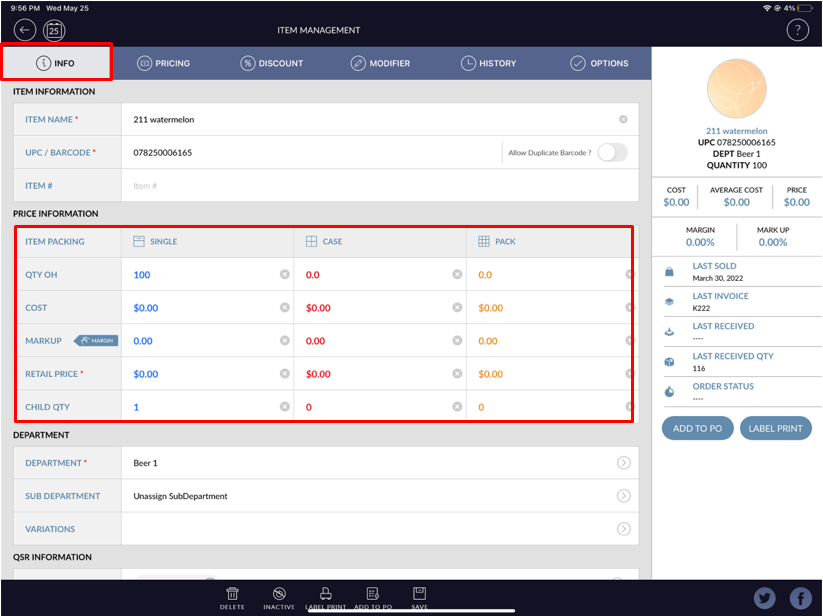
Tab Name Field name Description Info Info It indicates the available quantity of an item in the store of Single, Case, and Pack. Note:- Case or Pack quantity will appear automatically when you enter the child quantity of Case or Pack item, based on entered single item quantity. Info Cost If you want to note the prep cost of your items. You can enter the value into the cost field. Info Retail price Retail price to be required to save records. If you do not enter the Retail price, it will prompt a confirmation message to save the item without entering Retail price. Info Margin/Markup Margin/mark-up indicates profit calculation. It will appear automatically according to retail price and cost set for single, case, and, pack items. You can also set the margin and mark up both values manually. Info Child Quantity It is a field for qty enter that you want to define. In single by default value is 1. You cannot change # of qty for single. Case and pack are user define. How many items you want to put in one bundle or bunch is entered in the case and pack. The value of the case and pack should not be the same. For example value of # of qty for the case could be 5 and the pack could be 7.
Assign the Price level to an item
The price level is mostly used to apply the discount for a selected customer of the store.
Users can configure the price level for Single, Case, and pack items from Pricing Tab.
There are three price levels provided by RapidRMS. 1) Price Level A 2) Price Level B 3) Price Level C
To assign a price level to an item, follow these steps:-
- Select an item to edit the price level.
- At the top, click on the Pricing tab.
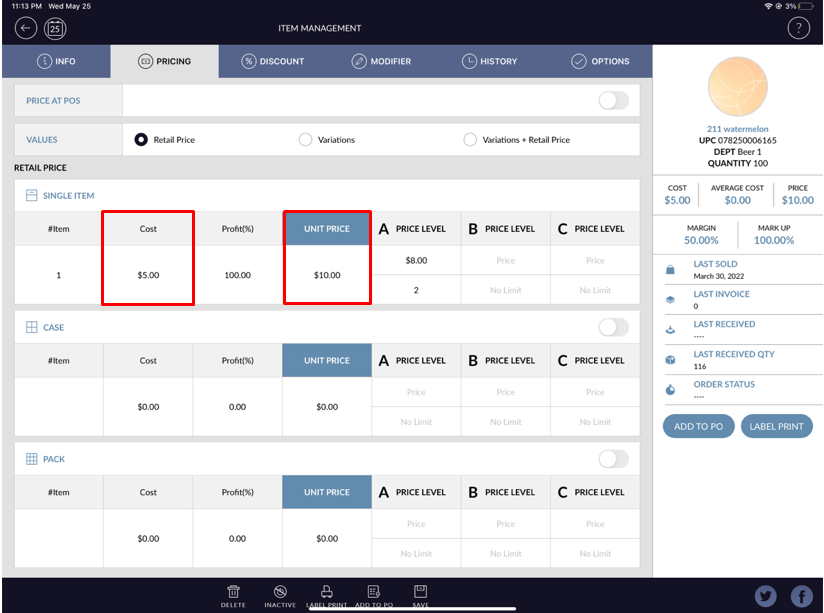
- 3. Users will be able to see the same cost and retail price of an item here. If a user wants to update
or change the cost or retail price of an item, they can also update her.
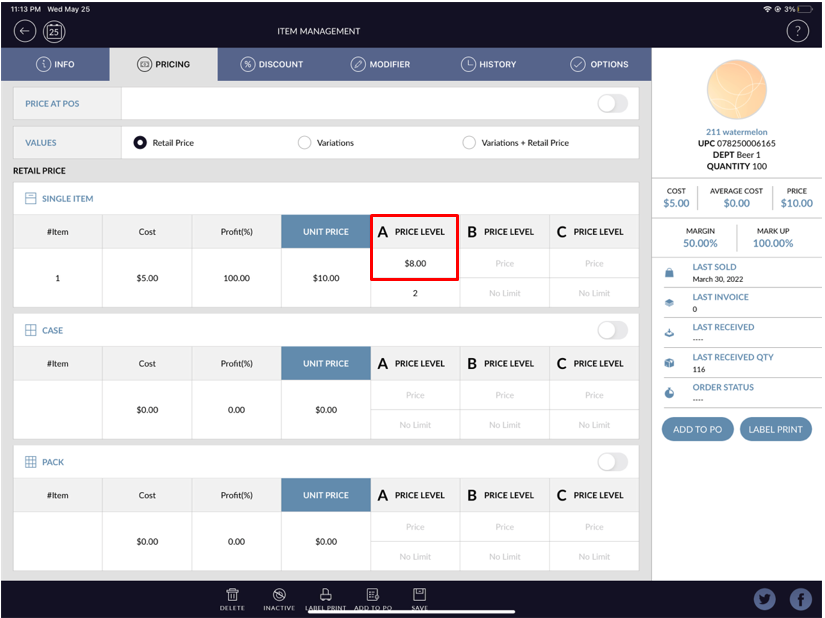
- To assign a price level, enter a price into Price levels A, B, or C for Single, Case,
or Pack items.
For Example:- As shown in the above image, the user has been assigned an $8 price for a single item. So when you ring up the item and the user selects the customer which is assigned to Price level A from customer loyalty. It will be configured price level A - $8 price at Cash Register.
Notification button
When you turn on notification button, it will appear case and pack item with single item in pop up window while search item by single barcode else it will not appear case and pack item in pop up window while search item by single barcode.