Support Document
 Support Document
How to manage item stock through manual entry?
Manual entry is a module of RAPID RMS application by which you can manage stock of inventory item(s). In
manual entry just keep a record of items which you want to buy (receive).
Add stock of an item in the manual entry which you want to receive from any vendor.
Add stock of an item in the manual entry which you want to receive from any vendor.
- Open rapid RMS application.
- Go to manual entry module.
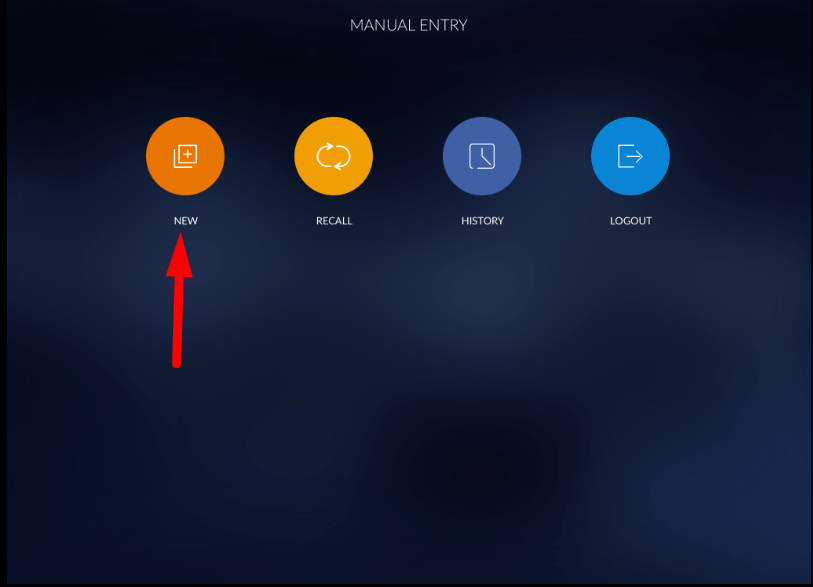
- Create a new manual entry.
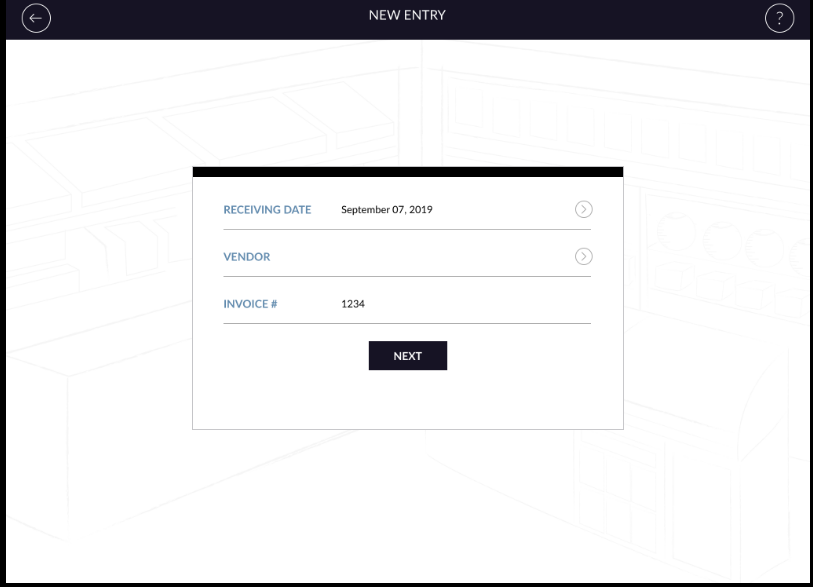
- Fill up all the details.
- Enter date at when you want to receive item stock.
- If you want to receive stock from a specific vendor then add vendor. Selecting a vendor from the existing list. This is not compulsory to add vendor for creating a new manual entry.
- Enter invoice #. It is user-defined. It could be any text or numerical value.
- Click on next button.
 Add an item for receive
You can search item in three ways which already exist in inventory.
- Item number search.
- Barcode search.
- Search all items.
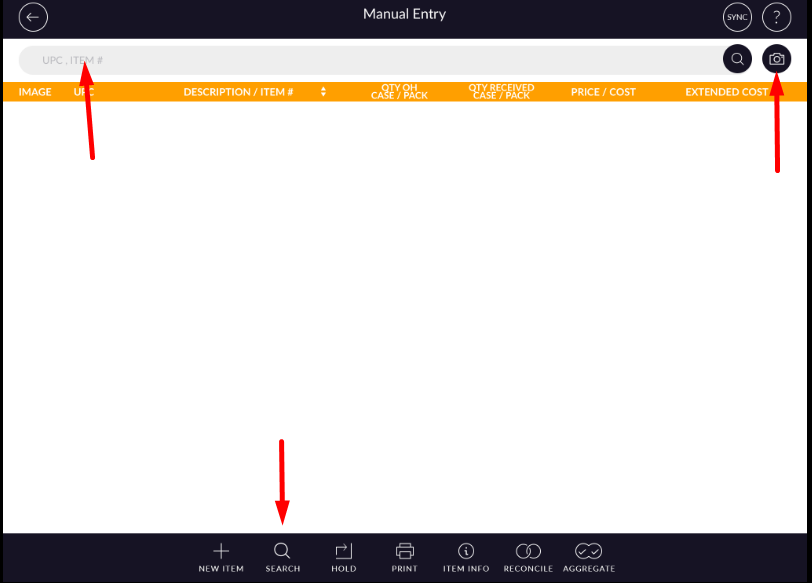
- Create a new item from the new button. (give link)
For adding item via search
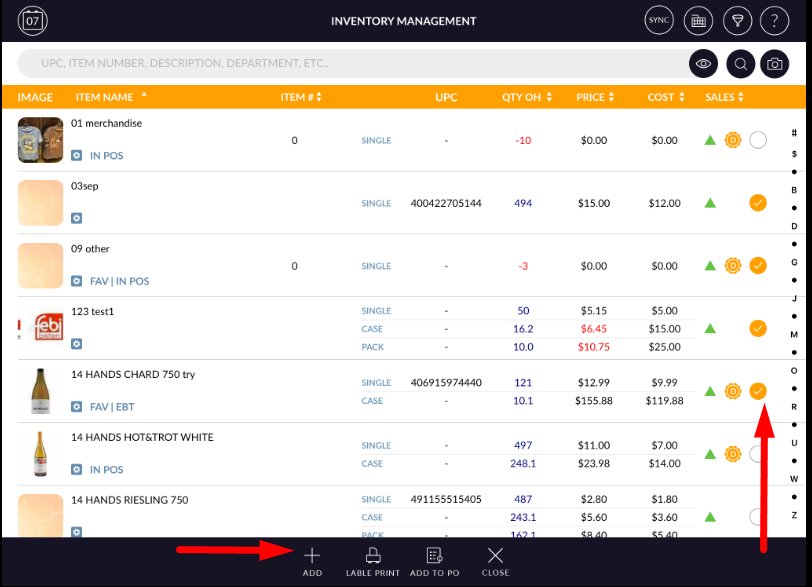
- Click on the search button.
- If the vendor is selected at a time of invoice creation, items which belong to that vendor will display and if not then all items display.
- Select items you want to receive.
- Click on add button.
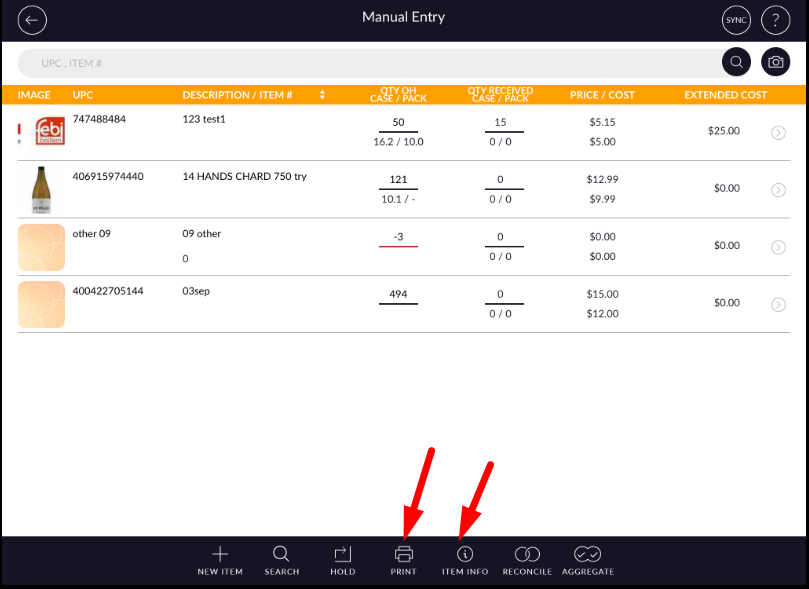
 Selected items will display in the screen with Image, UPC, item name, Qty OH, Qty received, Cost and
price and with an extended cost.
Selected items will display in the screen with Image, UPC, item name, Qty OH, Qty received, Cost and
price and with an extended cost.
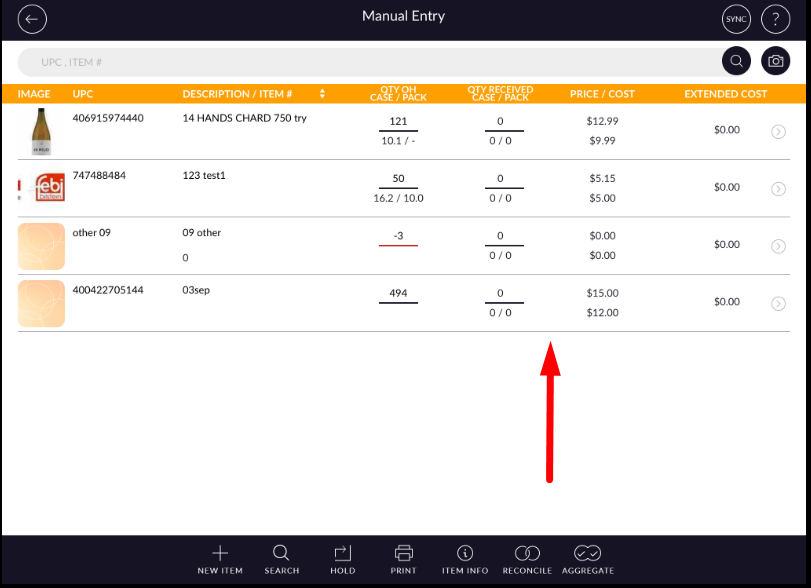
- Click on an item to open in edit mode.
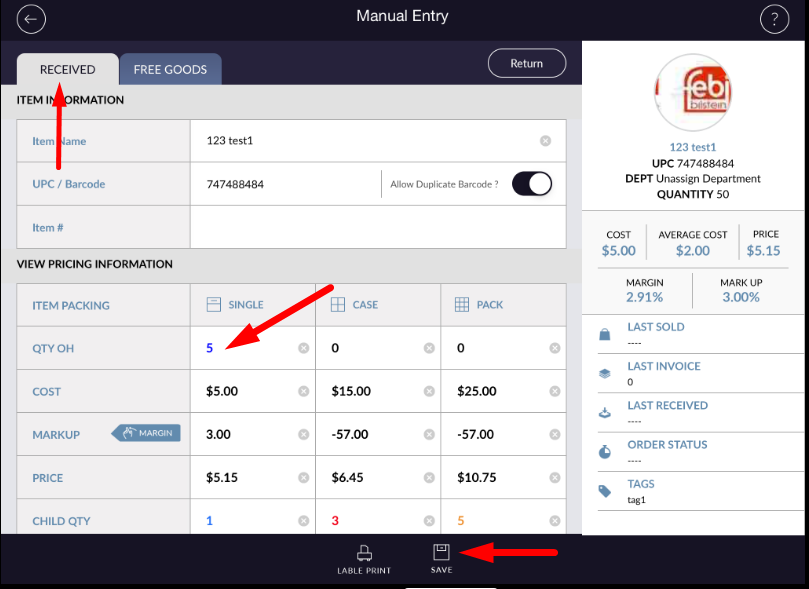
- When item open in edit mode then the item is with the item name, number image and with UPC. Also, the pricing table is same which is in inventory with the same value in case and pack.
- You can change all the details from here also. Edited detail will update in every place in the system.
- Qty which you want to receive add in single, case and pack of Qty OH.
There are two ways to receive.
- Receive qty
- Free goods.
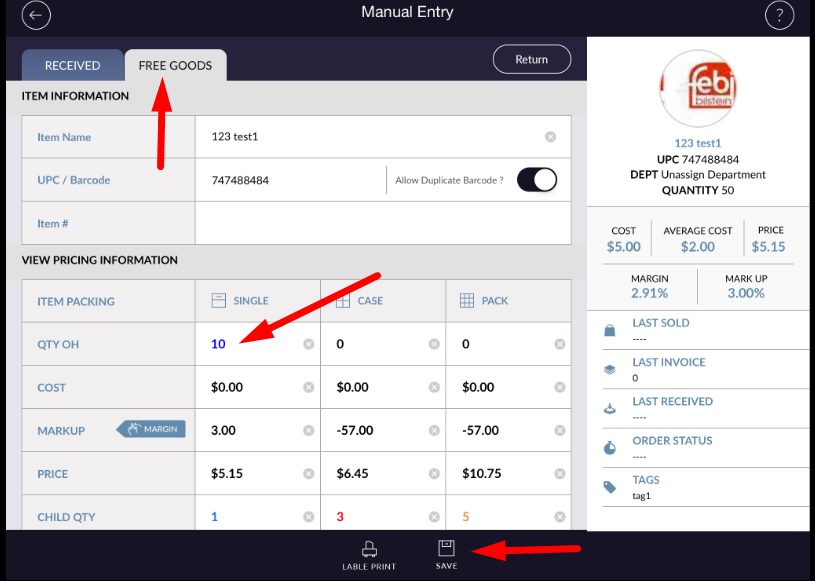
- Enter Value in received which you want to receive and enter Qty in free goods which are free with receive item.
- Also application gives facility to keep record of return items. Click on return button and enter value in Qty OH.
- Extended cost is total cost of received goods.
- Return and free goods qty will not calculate in extended cost.
- If you want to receive items then click on reconcile. Item stock will update and if at present you
don’t want to receive item then just add item and save and click on hold button. Your invoice will stay
on hold.
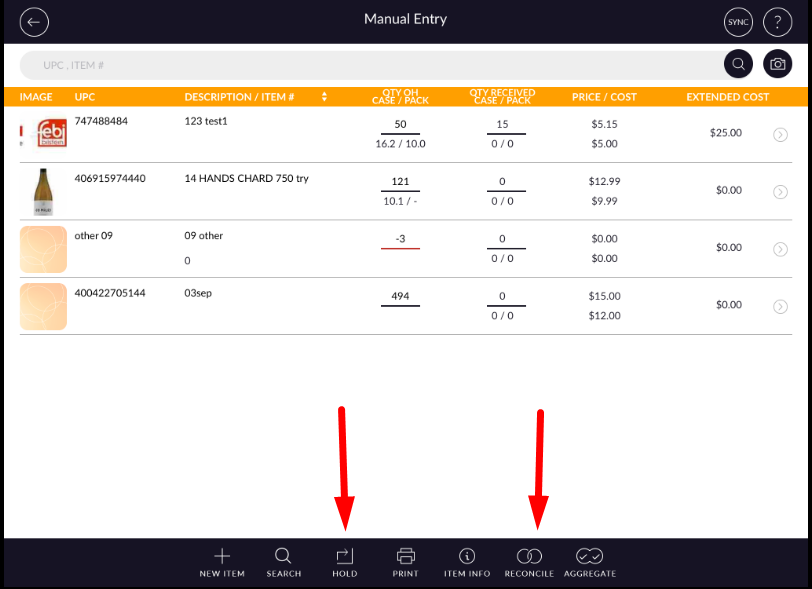
- For printing, invoice detail clicks on the print button.
- The info button will give you the detail of the current invoice.