Support Document
 Support Document
How to reconcile order ?
When you receive or deliver order from open order section, the order will move to receiving pending section.
The receiving pending section is mainly used to update inventory received by vendor.
When you have received your given order from the vendor. We need to reconcile the order to update the inventory in our store.
The receiving pending section is mainly used to update inventory received by vendor.
When you have received your given order from the vendor. We need to reconcile the order to update the inventory in our store.
- Go to rapid RMS application.
- Open purchase order module from the dashboard.
- Select receiving pending option from the list.
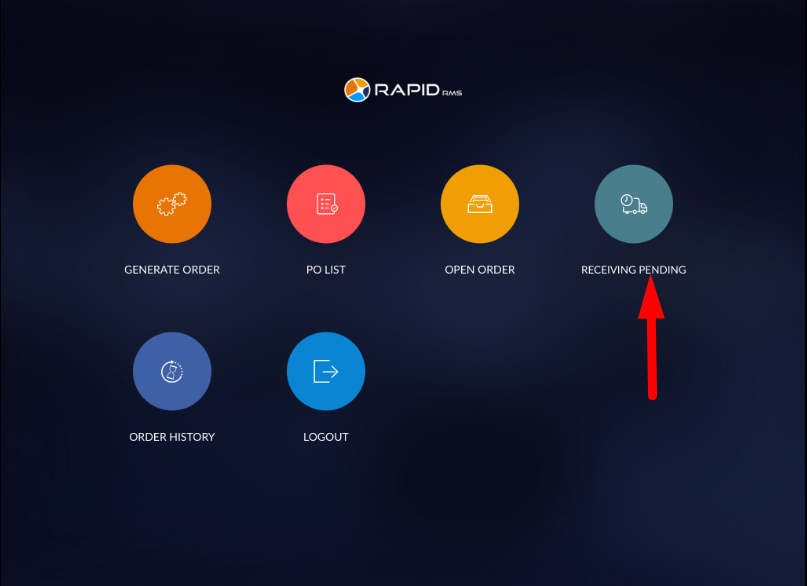
- All the received and delivered order from open order will display in receiving pending list.
- It will display order details like Created Date & time, OPN#, title, invoice, delivery date & time,
user and status of an order in the action field.
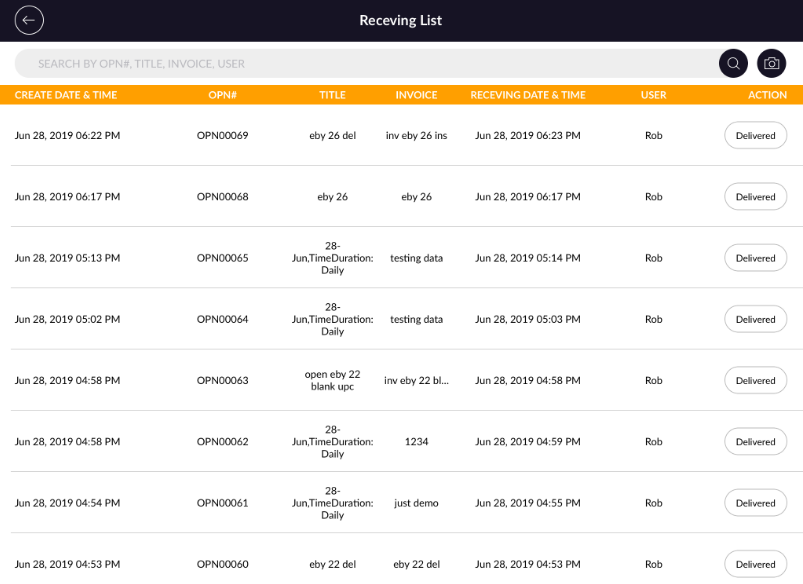
- Select order which you want to reconcile.
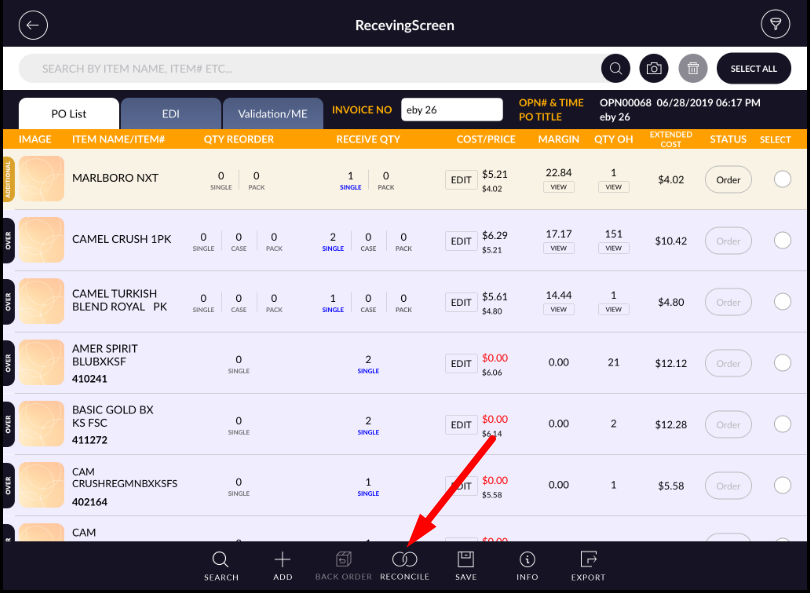
- Enter the received quantity in receive Qty field.
- Select the item which you want to reconcile.
- At bottom, click on reconcile button.
- It will appear a confirmation message. Click on yes option.
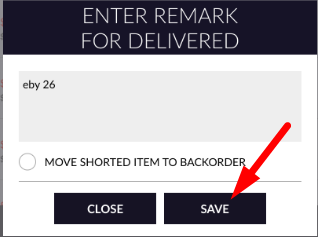
- Now, it will appear pop up window by named “Enter remark for delivered”.
- Enter Valid Remarks.
- Click on save.
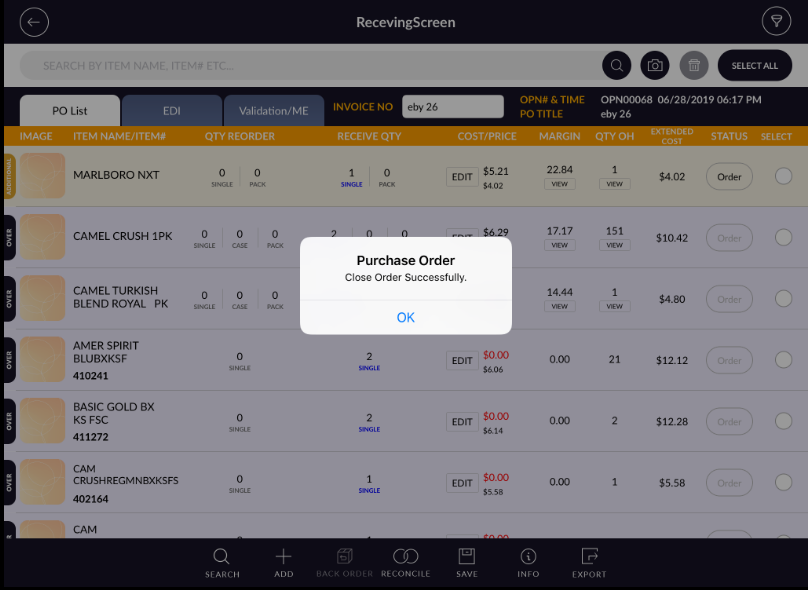
- ●After the reconciliation, it will appear the confirmation message for close order successfully.