Support Document
 Support Document
How to give tips?
Tip is a sum of money given by a customer to certain service sector workers for the service they have
performed, in addition to the basic price of the service. Tips and their amount are a matter of social
custom and etiquette, and the custom varies between countries and between settings.
When the customer wants to give tip, we can easily add it to the payment from our system.
Please follow the below procedure to set up Tip from Application:-
How to give or apply tip from Cash Register?
Please follow the below procedure to set up Tip from Application:-
There are three ways to add TIP:-
From Tender screen
From change screen
From Signature screen
NOTE:-
User can remove Tips from all options.
It must affect only the latest added tips. It will remove Previously added tips.
You cannot do a payment of tips through a credit card after completion of the CC batch or the payment type is not credit card payment.
When the customer wants to give tip, we can easily add it to the payment from our system.
Note:- For set tips in payment type tips option must be ON from the back office. If
the Tip option does not appear in the Application. Please follow the below procedure.
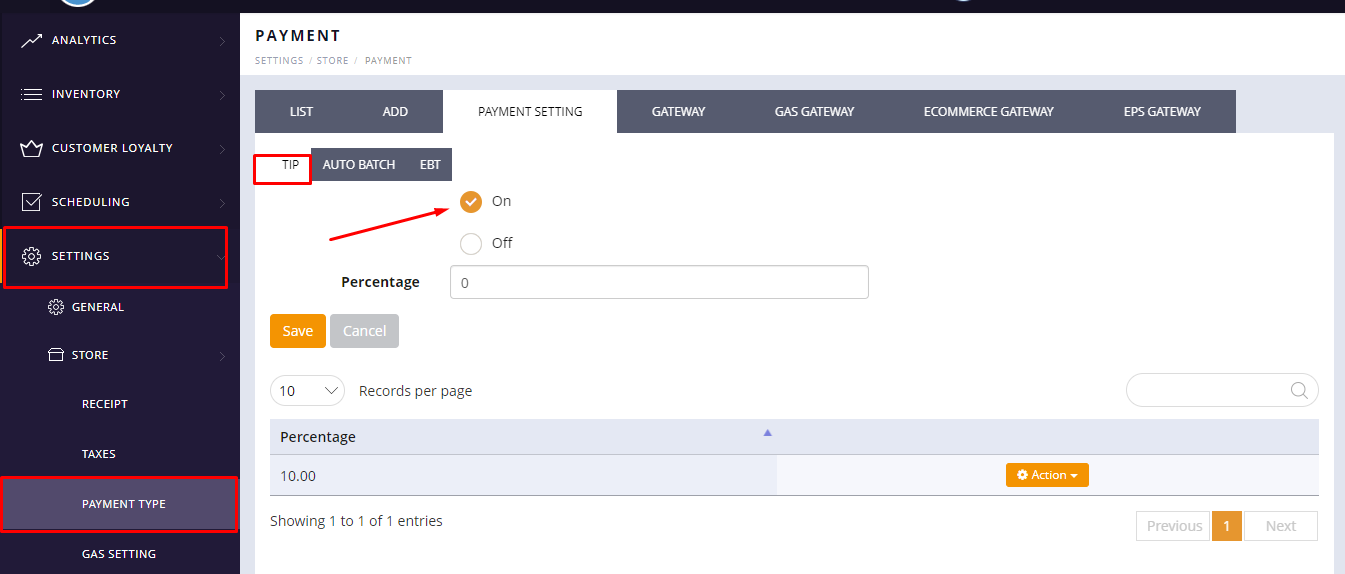
Please follow the below procedure to turn on the Tip option from the Back office:-
- Login to Back office.
- Go to Settings > Store > Payment type.
- Select Payment settings.
- Select the ON radio button to turn on the TIP option.
Please follow the below procedure to set up Tip from Application:-
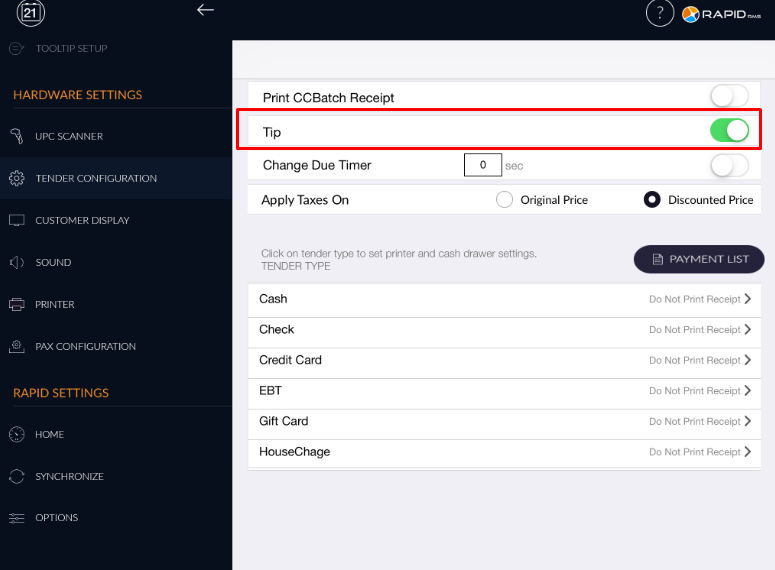
- Open rapid RMS application.
- Click on the Settings button from the dashboard.
- Select tender Configuration.
- There is a tip option available above the tender type section.
- Turn on the tip toggle button.
How to give or apply tip from Cash Register?
Please follow the below procedure to set up Tip from Application:-
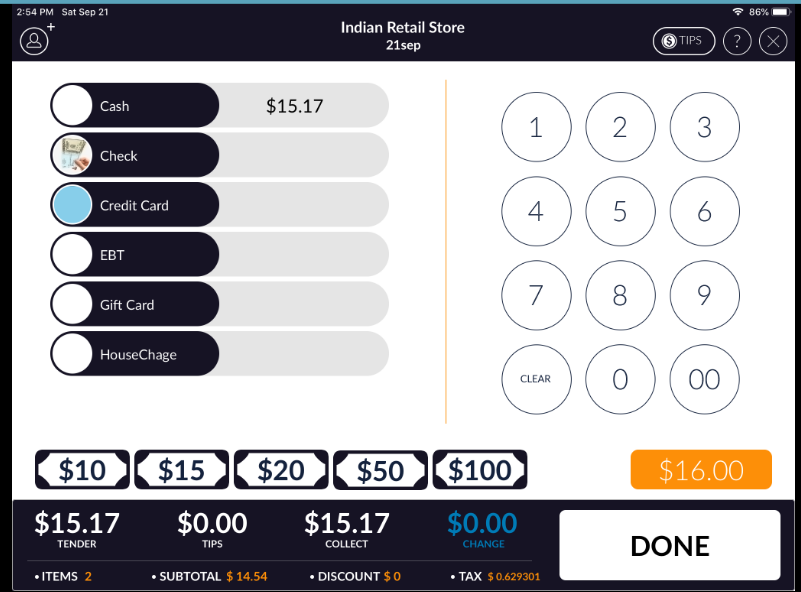
- Go to the cash register.
- Ring up some items.
- Click on the subtotal button from the Cash register.
- Select the payment type.
There are three ways to add TIP:-
- Add Tip from the tender screen
- Add Tip from the tender screen Change screen
- Add Tip from the tender screen Signature screen.
- Add Tip from the invoice
- Add Tip from CC batch
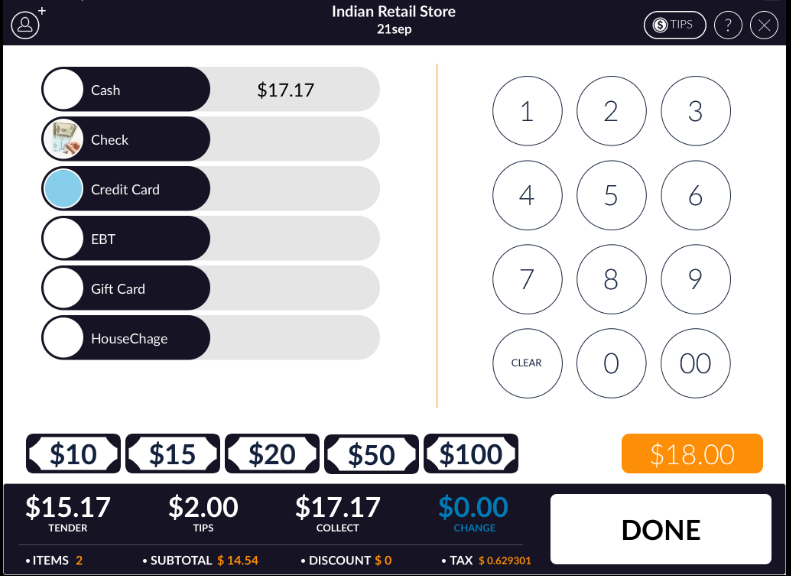
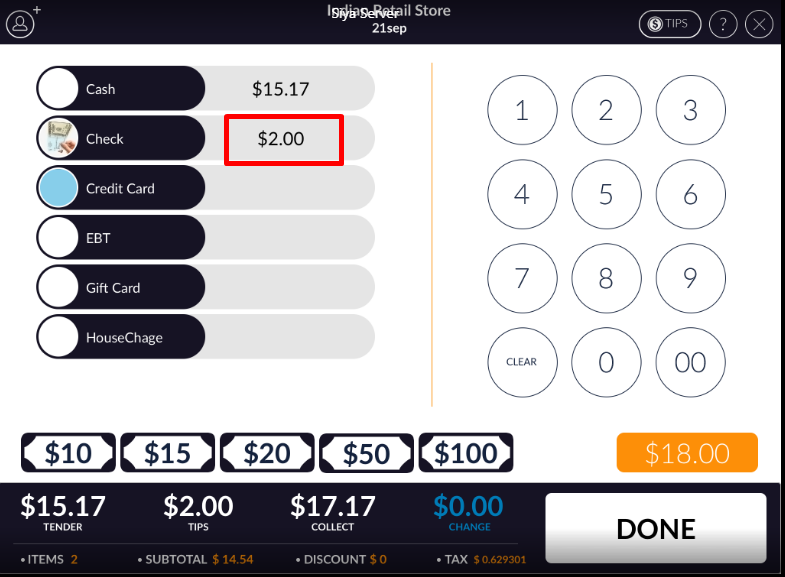
From Tender screen
- User can give tips at the time of payment.
- There is a tip option available at the top right side corner of the screen.
- When you click on the tip button, the TIPS pop-up window with the Number pad will open to enter the
TIP amount.
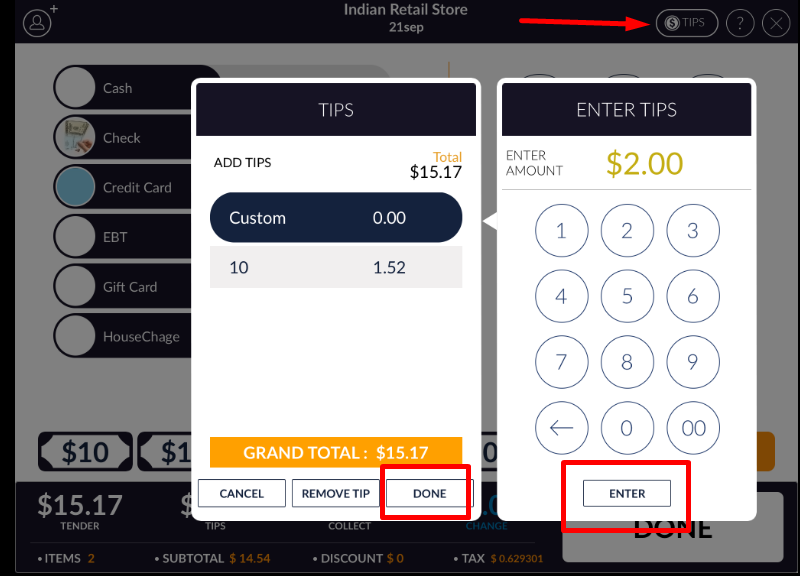
- User can select predefined tips amount from the TIPS pop-up window.
- User can also enter customize or manual Tip amount.
- To enter customize or manual tips click on the custom option and enter the tip amount from the number pad.
- User can give Tips with the same payment type and separate payment types also.
From change screen
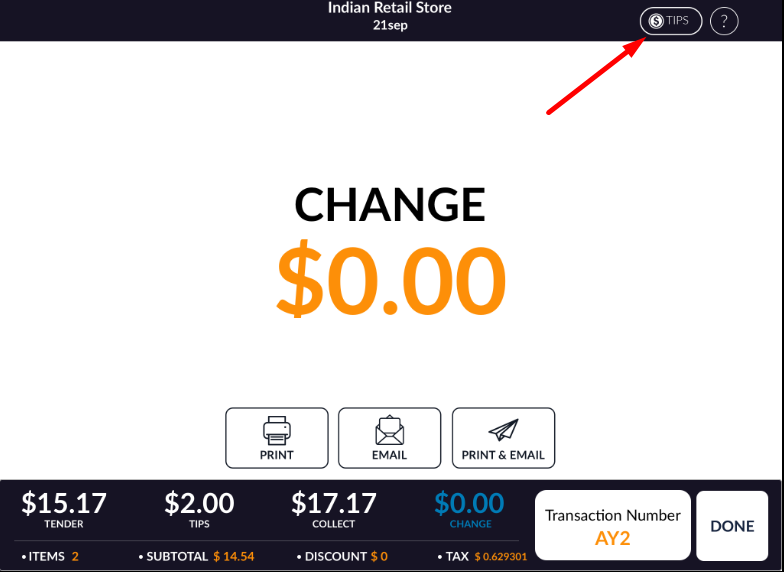
- After compting the transaction, the change screen will appear.
- There is a tip option available at the top right side corner of the screen.
- When you click on the tip button, the TIPS pop-up window with the Number pad will open to enter the TIP amount.
- You can give Tips from the Change screen too.
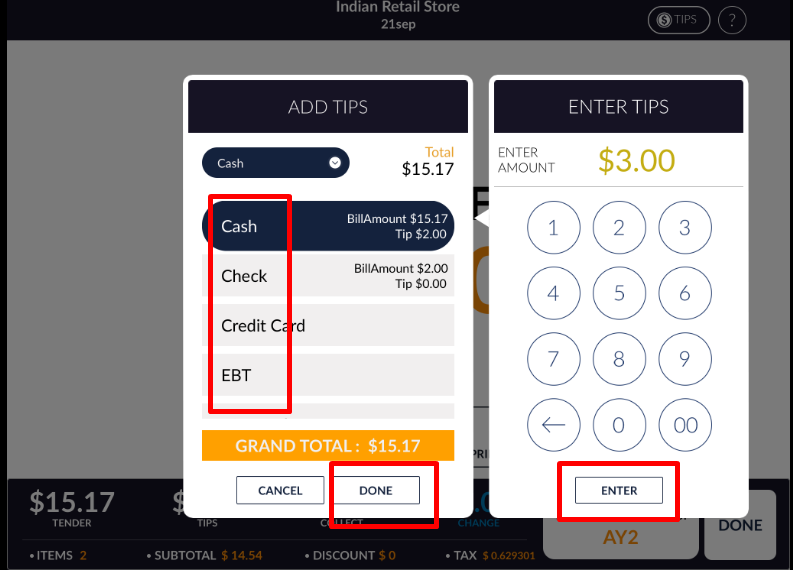
- For tips value, you can select a different payment type also.
From Signature screen
- When you complete a transaction by credit/debit card.
- There is a tip option available at the top right side corner of the screen.
- When you click on the tip button, the TIPS pop-up window with the Number pad will open to enter the TIP amount.
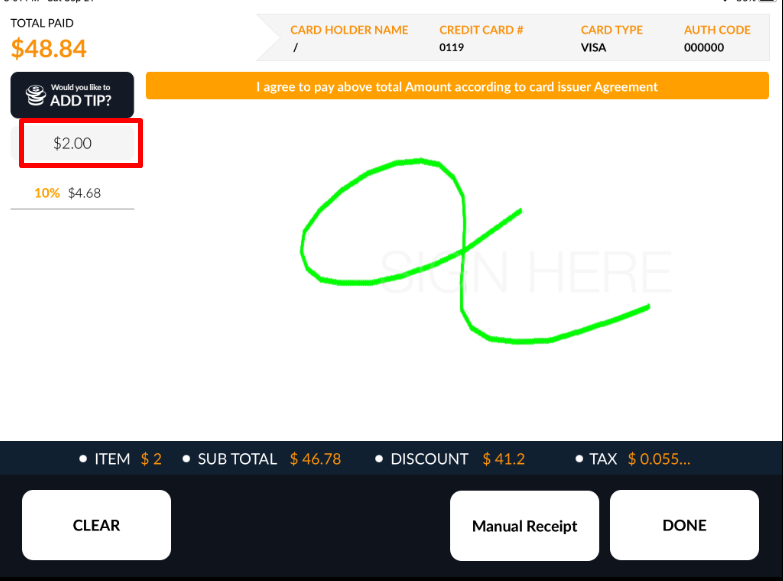
- You can give Tips from the Signature screen too.
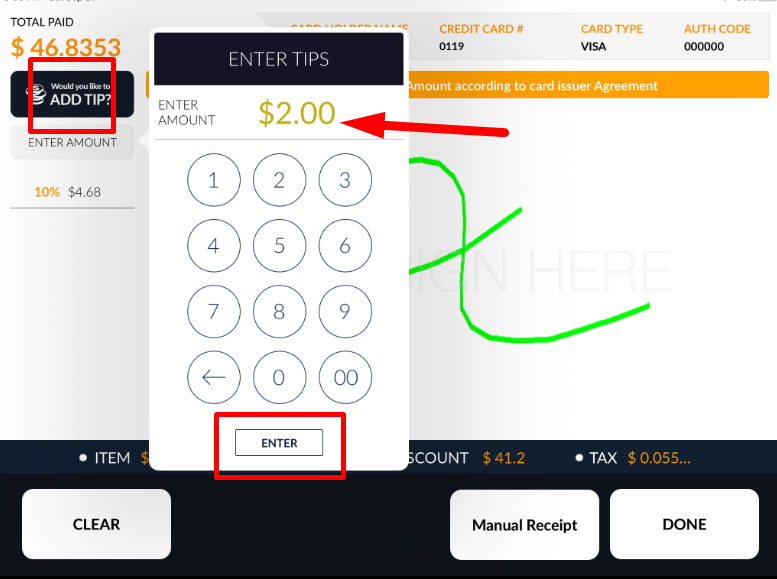
- Tips will automatically be adjusted with the selected payment type from the tender screen.
NOTE:-
User can remove Tips from all options.
It must affect only the latest added tips. It will remove Previously added tips.
You cannot do a payment of tips through a credit card after completion of the CC batch or the payment type is not credit card payment.