Support Document
 Support Document
How to filter old and new items in the reconcile page?
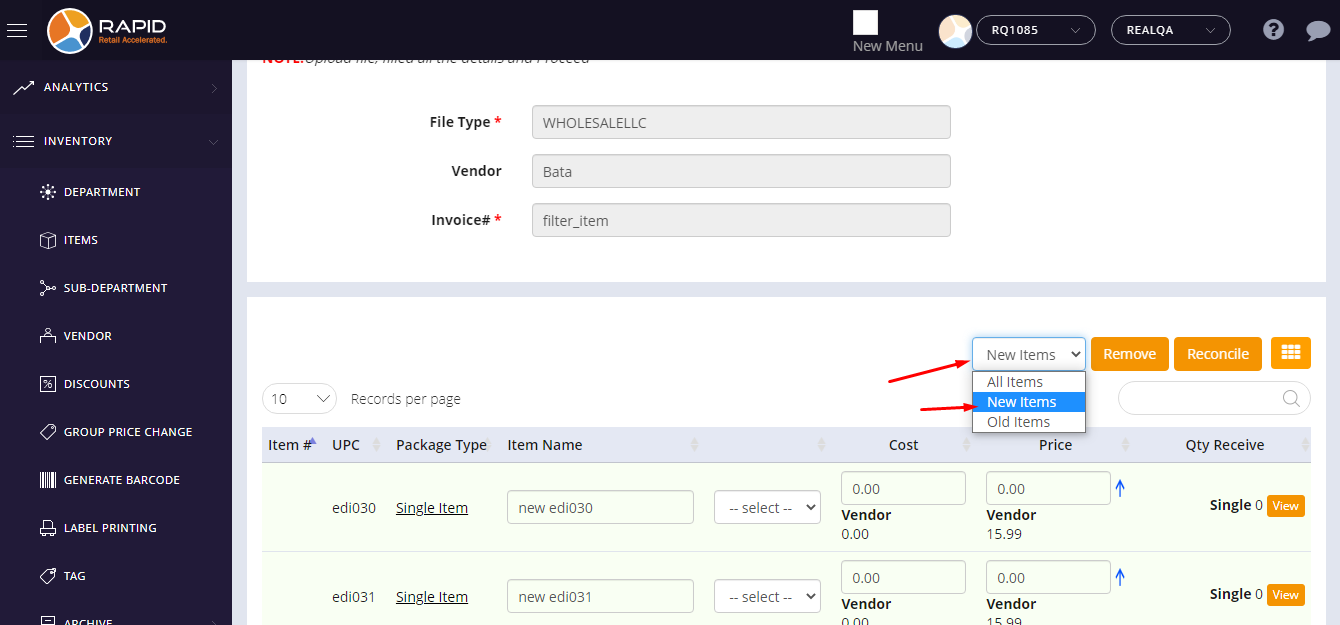
If stores have lots of items in the reconcile page then they can filter new and old items.
Follow below steps to import EDI File.
Follow below steps to import EDI File.
- Open any browser, Go to https://www.rapidrms.com/Account/Branchlogin
- In the Sign in page, Login with your store credential.
- In the Left side menu, in Inventory go to EDI File option.
- For adding a new EDI file click on add new option.
- After clicking on add new option then window for import EDI file data would open.
- From the drop down list, select file type (Ex. Fintech, EbyBrown, WLpetrey, Amcon, WholeSalellc and HTHackney) which is already defined.
- Upload file from your pc based on selected file type and after it, uploaded file would display with its name and extension.
- In Vendor field, select vendor if vendor not present under uploaded file if present then it automatically fetch from EDI file.
- From the Open order field, choose ‘Create new open order’ for new order.
- Enter Invoice number.
- Click on ‘Import’ button
- After import, the page will redirect on the reconcile and imported EDI file’s data would be displayed there.
- In the reconcile page, click on the option for filter items.
- From the list, click on ‘new items’.
- New items would be displayed.