Support Document
 Support Document
How to create an item with single, case, and pack relation?
In simple terms, case or pack are a quantity of the same item that the manufacturer packages together and
distributes to their customer – whether a retailer or directly to the end user.
RapidRMS provides features to create case or pack item with single item conjointly, It provides an Inventory Management system to tracks received case or pack as well as the inner products that make up the quantities within them. If you have any items packages together to make the Case or Pack item, you can create case or pack item with single item conjointly
In RapidRMS, you do not have to create separate item for Case and Pack bundle.
Please follow the below steps:-
RapidRMS provides features to create case or pack item with single item conjointly, It provides an Inventory Management system to tracks received case or pack as well as the inner products that make up the quantities within them. If you have any items packages together to make the Case or Pack item, you can create case or pack item with single item conjointly
In RapidRMS, you do not have to create separate item for Case and Pack bundle.
Please follow the below steps:-
- Open the RapidRMS App.
- Select the Inventory Management Module from Dashboard.
- Enter your quick access password.
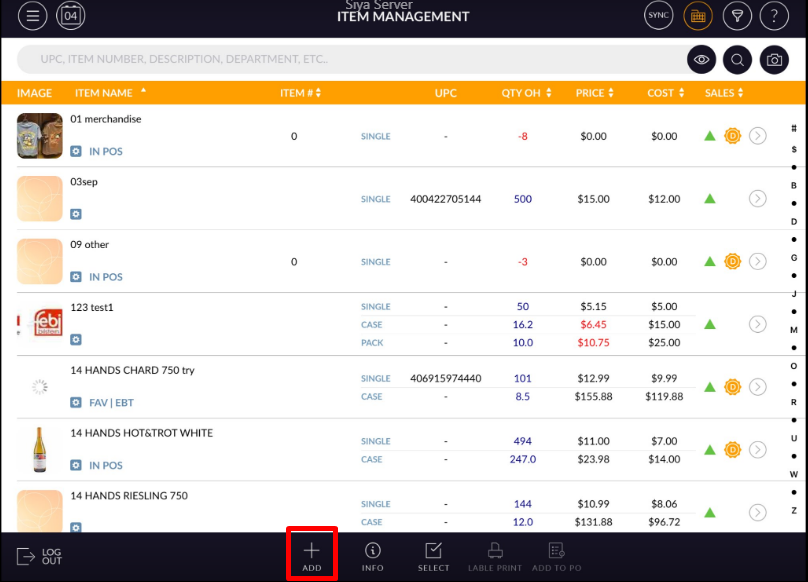
- To create a Case or Pack item, open an existing item or click on Add+ button from
bottom bar.
- Now, enter Your Item name and UPC Barcode.
- It will display Pricing tab below the item section.
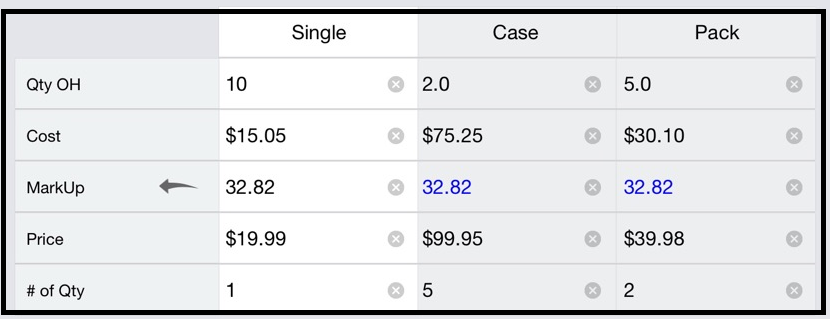
- The above pricing table provides relationship with Single, Case or Pack item cordially.
- In the table, the Field # of Qty for single is only setted bydefault 1. You are not able to edit or update the # of Qty for single. Initially, when you create new item, all other fields of single, case and pack are setted Zero excepting # of Qty of the single item.
- First column is for single item; in this first field is Qty OH which displays number of qty available for single item. Another field displays cost of that item for single item, and another field displays price of single item. Margin/markup value set according to enter the Cost and Price of an item.
- It will appear Markup value bydefault, If you swipe right, margin value will display for an item.
- If change in cost then margin/markup value set according to price. And same for price if we change price then according to cost Margin/mark up value change. But if there is any change in margin/ mark up then only price affected, cost remain as it is.
- Same functionally apply for case and pack. When value added in # of Qty for case and pack according to single all value set automatically. Though all values are allow to change or reenter.
- If any change in qty OH in case and pack according to that in single Qty OH value set.
- Value of case and pack for # of Qty never same and it must not zero. As per value available in Qty OH, Case and pack # of Qty divided.
- Initially value of any field display in black color but if once it edited then it display in blue color. Though after save item all values display with black color.
- By clicking on 'x' button of every field values allow to remove.
- Now, select and enter all necessary details, Click on save button.
- Now go to Cash register module from RapidRMS Application.
- When you ringup an item from Cash register, it will ask you to select the Single, Case or Pack item.