Support Document
 Support Document
How to create a new tender from POS?
- Click on the settings option available at the bottom of the DashBoard.

- Enter your quick access password.
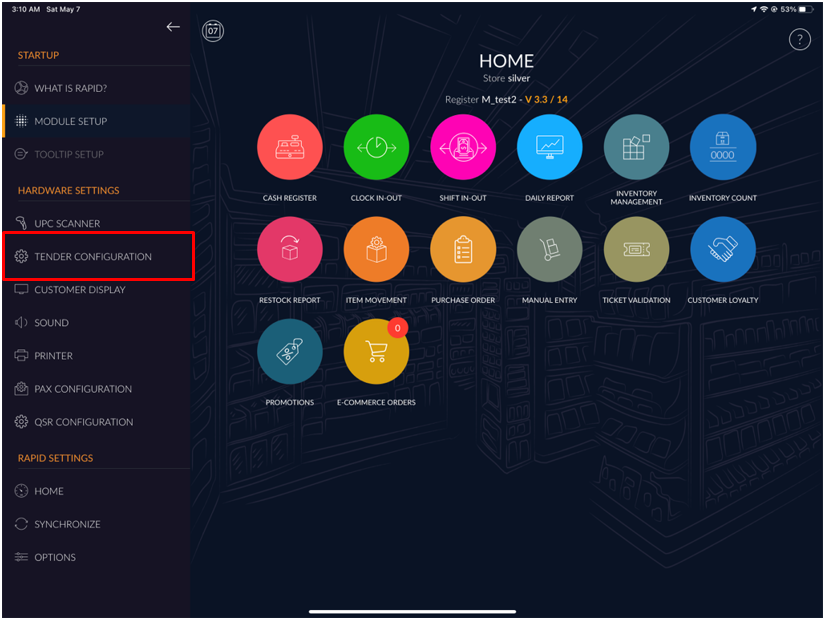
- Select the Tender configuration option from the right side menu.
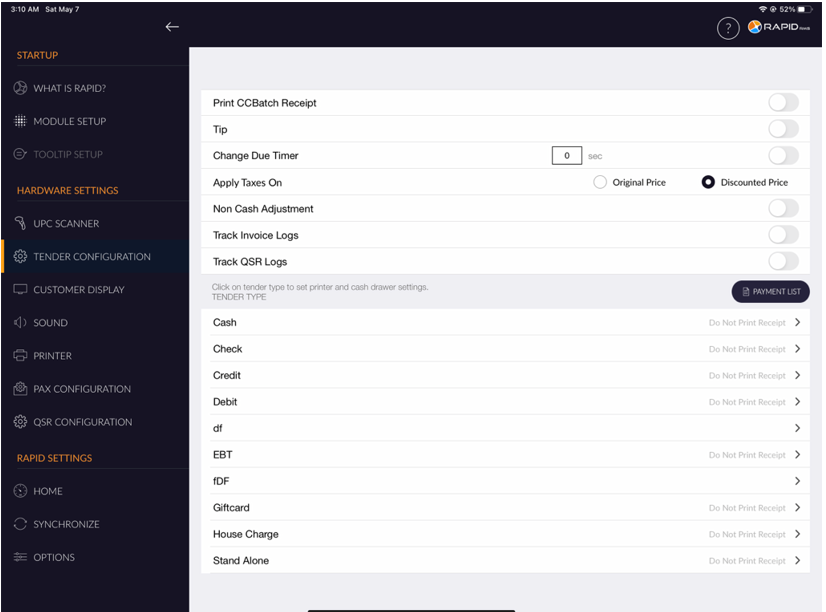
- On the below right side, click on the payment list button.
- When you click on the Payment list button, It will appear the list of an existing tender.
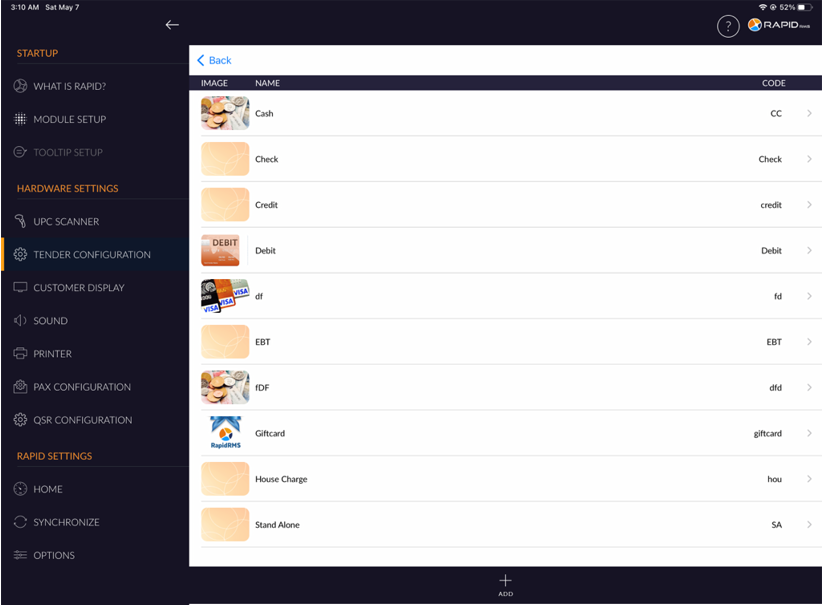
- To create a new tender, click on add button from the bottom of the screen.
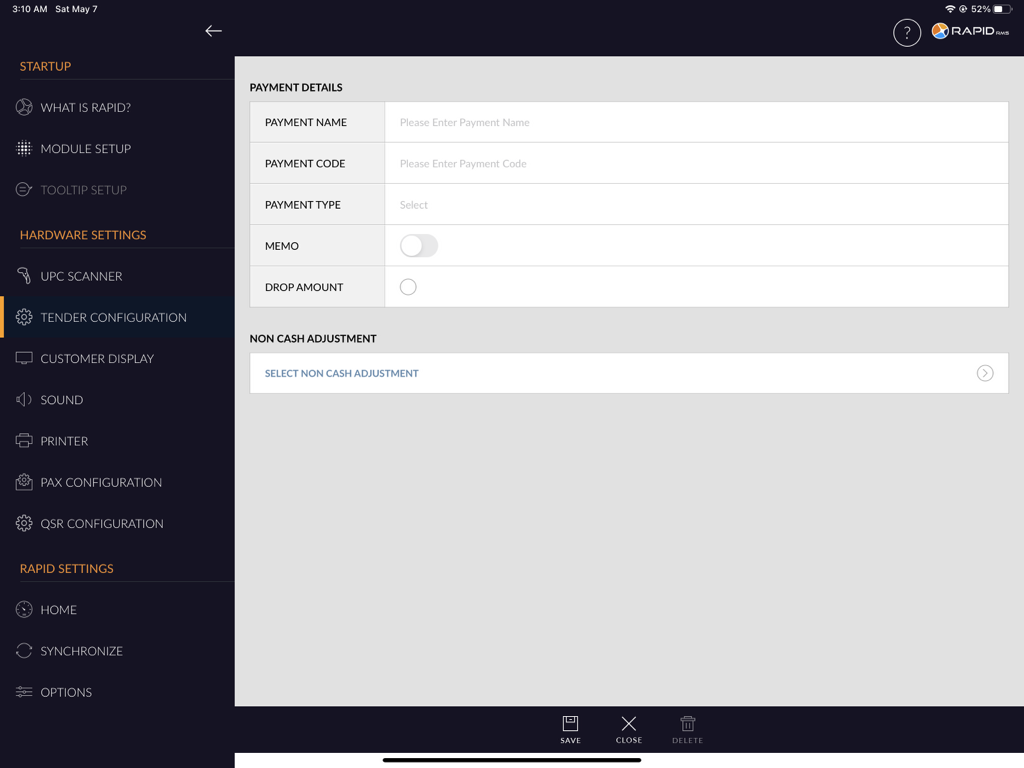
| Field | Description |
|---|---|
| Payment Name | It describes the name of the tender. Payment name is a mandatory field. |
| Payment Code | It describes the code of the tender. Payment code is a mandatory field. |
| Payment type | It describes the payment type. By default, it is selected other payment type. |
| On/Off Memo | It allows the user to enter any remarks or memos for the tender. |
| Drop Amount | It allows user to remove excess money from the register to deposit it into a secure location at the store. When you have selected the drop amount check box, it allows the user to drop by the tender. By default, the drop amount check box is unchecked. |
- Enter Payment Name.
- Enter Payment Code
- Select payment type from the drop-down list. Ex:- Credit, Debit, Cash, Check, etc.
- Tap or click on the save button.