Support Document
 Support Document
How to create a new tender from BOS?
- Log in to the Back office with your credentials.
- Now go to settings. You may need to scroll down to select the settings option.
- Select the Store option from the list.
- Click on the payment type option from the list.
- To create a new tender, select add tab beside the list tab.
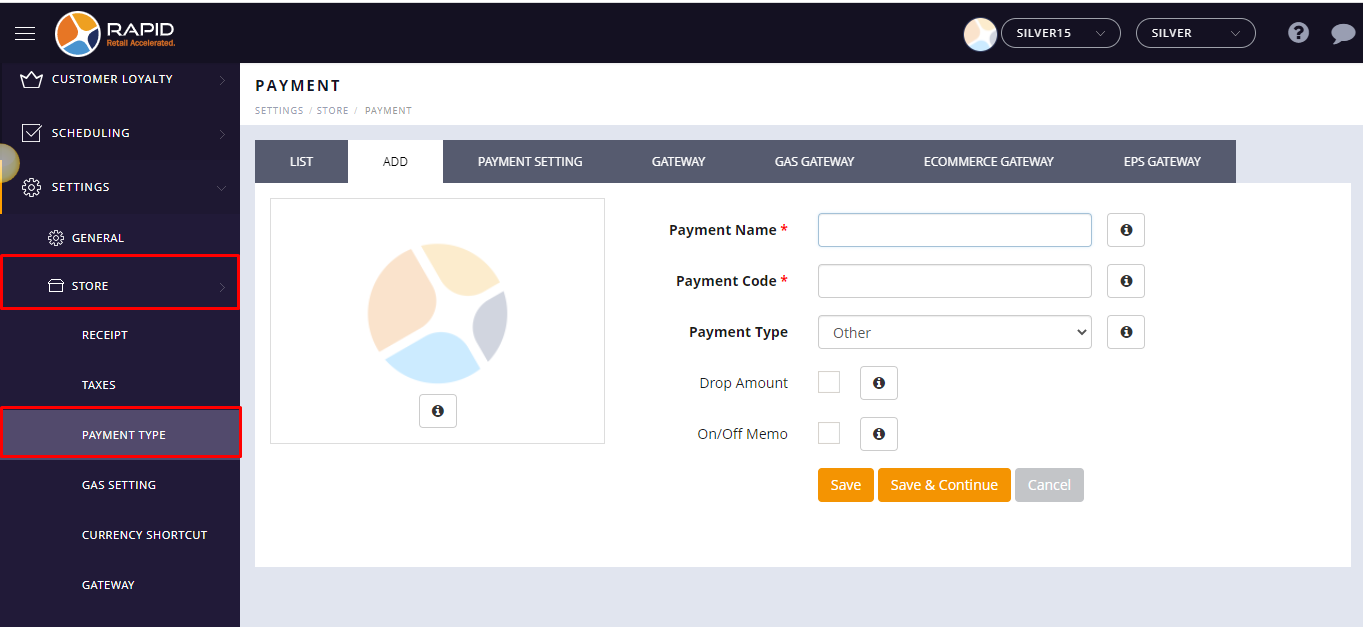
Field Description Payment Name It describes the name of the tender. Payment name is a mandatory field. Payment Code It describes the code of the tender. Payment code is a mandatory field. Payment type It describes the payment type. By default, it is selected other payment type. Drop Amount It allows user to remove excess money from the register to deposit it into a secure location at the store. When you have selected the drop amount check box, it allows the user to drop by the tender. By default, the drop amount check box is unchecked. On/Off Memo It allows the user to enter any remarks or memos for the tender. - Enter the Unique Tender name or payment name.
- Enter the Unique Payment code.
- Select payment type from the drop-down list. Ex:- Credit, Debit, Cash, Check, etc.
- Tap on the Save button.