Support Document
 Support Document
How to create a new department?
A Department is a division or category of product. You can categorize your item or product by department
wise.
Department master is mainly used to create a new department, Edit an existing department, and Delete Department.
Department master is mainly used to create a new department, Edit an existing department, and Delete Department.
- Open RAPID RMS application.
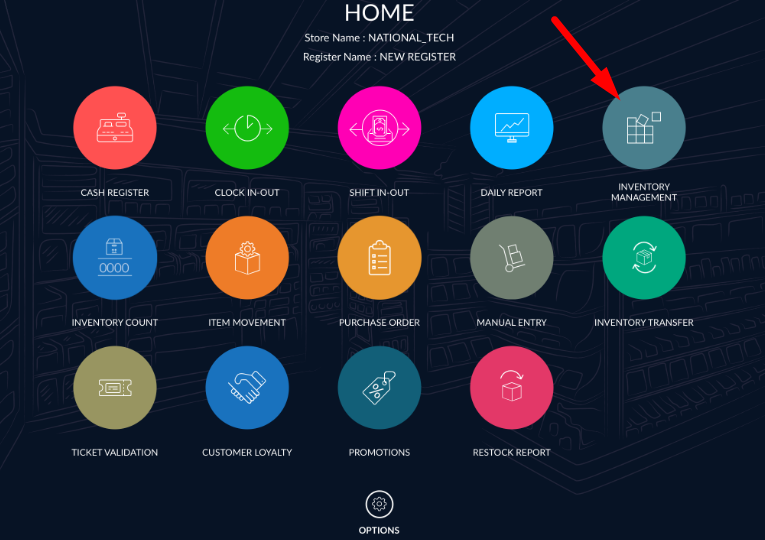
- Select inventory management module from Dashboard.
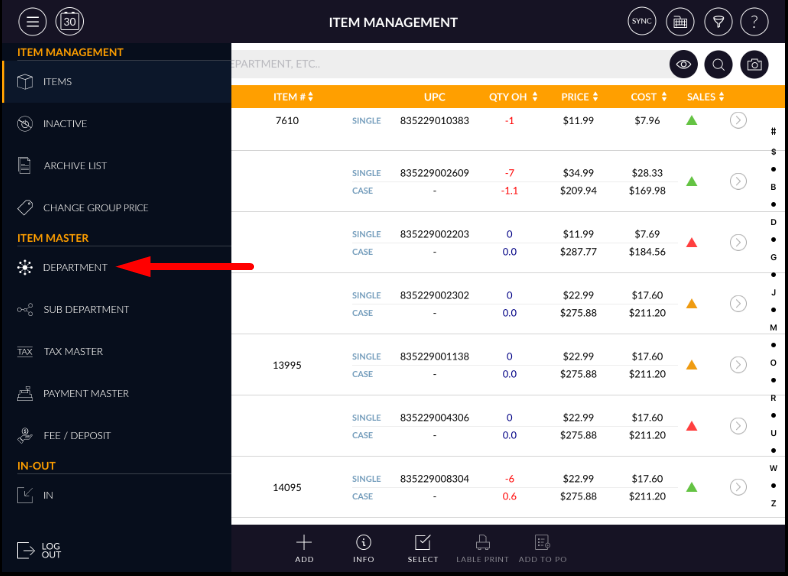
- Click on the three-line button from the top left side corner of the screen.
- Select the department option from the list.
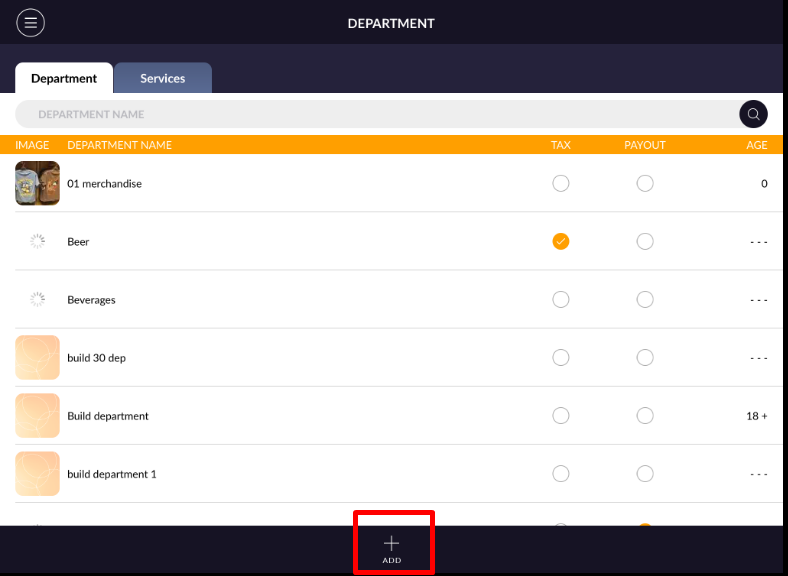
- It will appear the department list.
- To create a new department, click on Add button from the bottom of the screen.
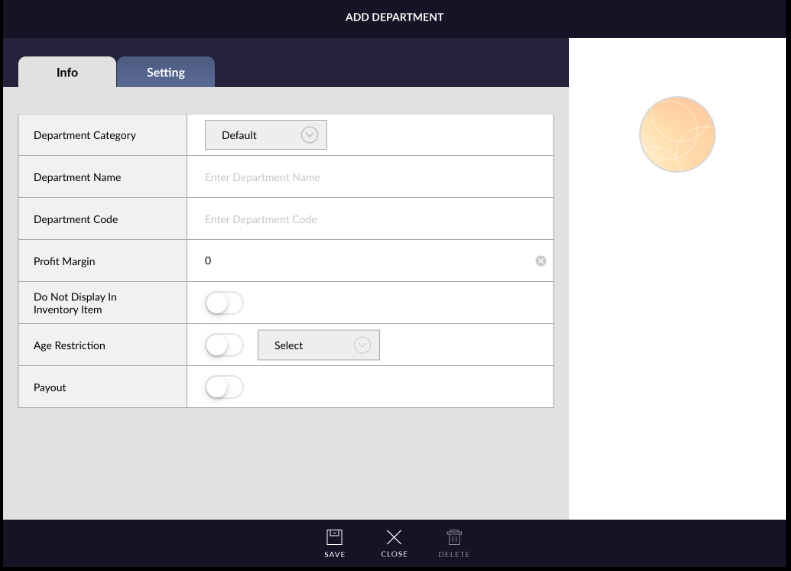
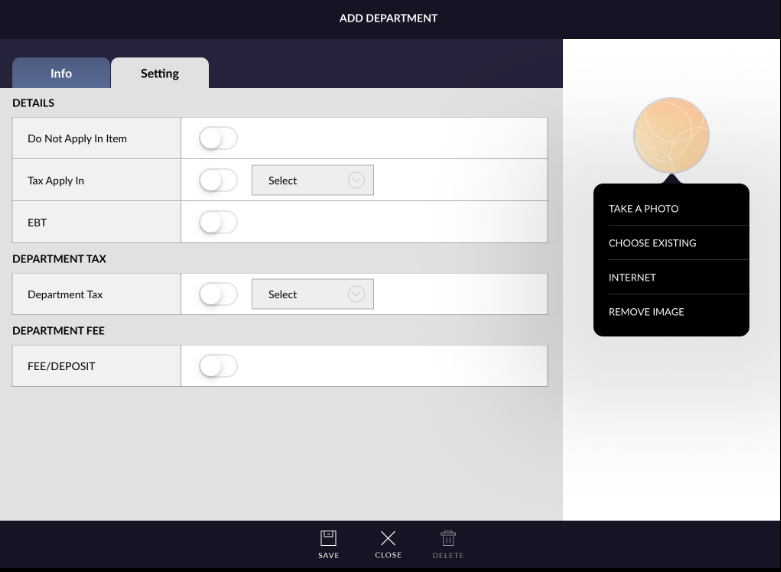
Field Description Department Category It describes the category of Department. By default, it is selected as a default category. You can select merchandise or others also. Department Name It describes the Department Name. I.e:- Liquor can be department name. Department code is used for record-keeping. It can be a numerical value or an alphabet letter. Sub-department code is a mandatory field i.e sub-department code could be 001. Department Code It describes the Department Code. The department code is used for record-keeping. User can enter numeric or alphabet values. For example:- the department Liquor can be department coded as LQ. Profit Margin It describes the profit of the service. If you have only entered the cost of service, it will define the retail price of service as per entered percentage amount in the profit field automatically. Do not Display in Inventory Item When you turn on the Do not Display in Inventory Item button, the department default item will appear in the item master. Age Restriction It describes the Age restriction. In this, you can set an age restriction on the department. Age could be set as 18+ or 21+. Payout Payout is a special type of Department. It is used when a store wants to buy services or goods from outside. The store pays for the service or goods availed. Items from this department ring up with a negative amount, as the amount is paid by the store. Tax does not apply to this type of items. Do not apply in Item When this option is enabled then the department is not displayed in the item department list. Tax Apply In It allows the user to apply tax on Price, Fee and Both. Please turn on the toggle button to select any of option from the drop-down. EBT If you want to apply EBT on any service. Please turn on the toggle button to enable EBT. Department Tax It allows the user to select tax from tax master. Please turn on the toggle button to select tax. Fee/Deposit It allows the user to select Fee/Deposit from the Fee/Deposit master. Please turn on the toggle button to select Fee/Deposit. Image If u would like to distinguish Sub Department by images, you can select the image thumbnail on the right side to add an image that corresponds to the Sub-department. There are three options available to select an image. 1. Take a Photo 2. Choose existing 3. Internet
If you want to remove the photo please select the Remove Image option. - Click on the Save button.