Support Document
 Support Document
How to configure the brother label printer (QL810w, QL820w)?
Before connecting the brother printer to POS, we need to configure the brother printer with the router.
Do one of the following:
If you have a wireless router/access point
If you do not have a wireless router/access point
If you have a wireless router/access point
There are two ways to configure a printer with a wireless router/access point.
1) Connect using a wireless router/access point (WPS)
2) Connect the printer to the wireless router/access point using your computer
1) If your wireless router/access point supports WPS (Wi-Fi Protected Setup™), do the following:
2) Connect the printer to the wireless router/access point using your computer, do the following:
Before you begin, confirm the SSID (Network Name) and the password (Network Key) of your wireless router/access point.
For Mac
Before you begin, confirm the SSID (Network Name) and the password (Network Key) of your wireless router/access point.
If you do not have a wireless router/access point
You can connect the printer using Wireless Direct. If your printer uses the latest firmware, "Wireless Direct" is already selected.
Please follow the below instructions:-
(Brother Label Printer 2022) How do I connect the printer to my mobile device using WPS or using computer?
https://support.brother.com/g/b/faqend.aspx?c=us&lang=en&prod=lpql810weus&faqid=faqp00100064_004#mac
Do one of the following:
If you have a wireless router/access point
If you do not have a wireless router/access point
If you have a wireless router/access point
There are two ways to configure a printer with a wireless router/access point.
1) Connect using a wireless router/access point (WPS)
2) Connect the printer to the wireless router/access point using your computer
1) If your wireless router/access point supports WPS (Wi-Fi Protected Setup™), do the following:
- First, confirm that your wireless router/access point has the WPS symbol, and place the printer close to the wireless router/access point.
- Turn on the printer.
- If you have a QL-810W printer, press and hold the WPS button for one second.
- If you have a QL-820NWB printer, press the Menu button and then
 button to select the WLAN menu, and then press the OK button. Press
the
button to select the WPS Button Push menu, and then press the OK
button.
button to select the WLAN menu, and then press the OK button. Press
the
button to select the WPS Button Push menu, and then press the OK
button. - Press the WPS button on your WLAN router/access point.
- When the connection is established, the Wi-Fi
 LED is lit blue or the WLAN
icon appears on the LCD.
LED is lit blue or the WLAN
icon appears on the LCD. - Connect your POS device to the wireless router/access point. (You can skip this step if your device is
already connected to a Wi-Fi network.)
To connect the Printer to the POS device, click here!
2) Connect the printer to the wireless router/access point using your computer, do the following:
- Connect your computer to your wireless router/access point.
- Connect your printer to the same wireless router/access point.
- Connect your printer and computer.
- Connect your POS device to the same wireless router/access point. (You can skip this step if your
device is already connected to a Wi-Fi network.)
If you have a Window, Click here!
If you have a Mac, Click here!
Before you begin, confirm the SSID (Network Name) and the password (Network Key) of your wireless router/access point.
- Download the printer driver from the Downloads section of this website.
- Double-click the downloaded file to begin the installation.
- Click Next.
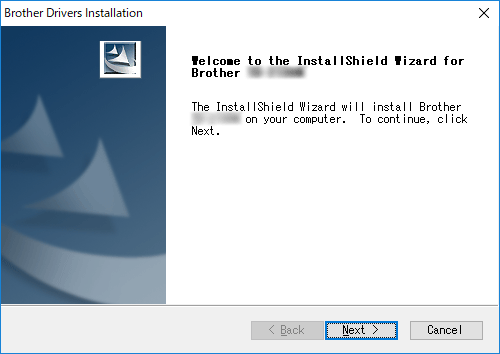
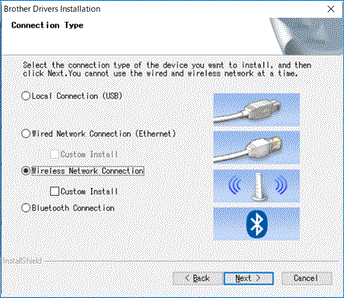
- When the screen for selecting the connection method appears, select Wireless Network
Connection, and then click Next.
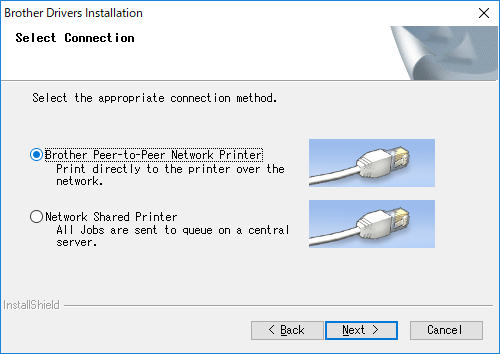
- Select Brother Peer-to-Peer Network Printer and then click Next.
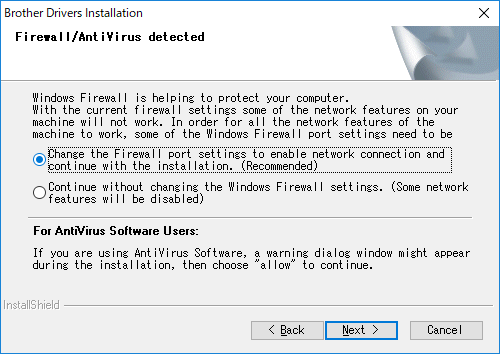
- Select Change the Firewall port settings to enable network connection and continue with the
installation. (Recommended), and then click Next.
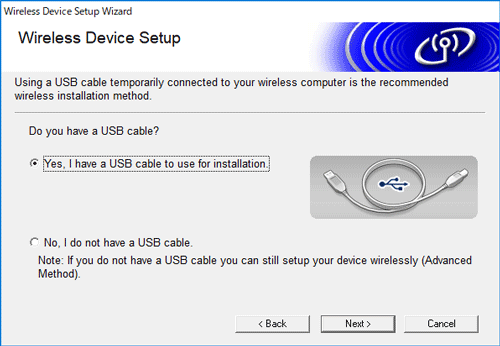
- Prepare the USB cable, select Yes, I have a USB cable to use for installation, and
then click Next.
Follow the on-screen instructions.
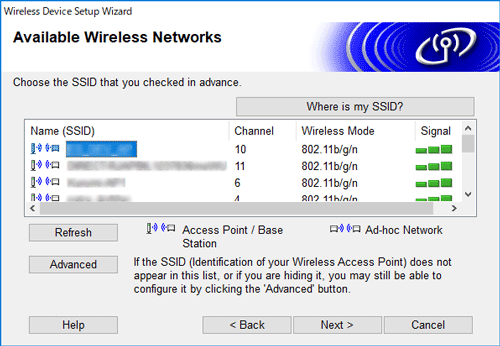
- The wizard will search for wireless networks available to your printer.
- Select the SSID (Network Name) noted beforehand, and then click Next.
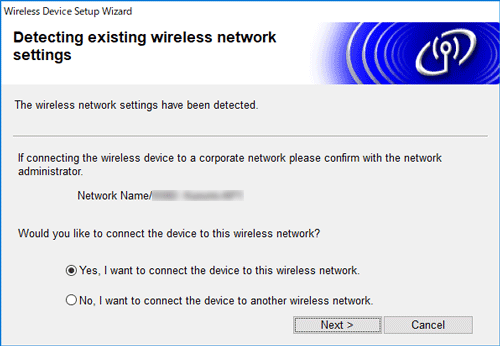
- Confirm the wireless network settings, and then click [Next]. The settings will be
sent to your printer.
- Follow the on-screen instructions to complete the software installation.
- When the installation is complete, click [Finish] to close the installer window.
- When the printer is connected to your wireless router/access point, the Wi-Fi LED lit in blue or the
Wi-Fi
icon appears on the LCD.14. Connect your POS device to the wireless router/access point. (You can skip
this step if your device is already connected to a Wi-Fi network)
- Connect your POS device to the wireless router/access point. (You can skip this step if your device is already connected to a Wi-Fi network)
For Mac
Before you begin, confirm the SSID (Network Name) and the password (Network Key) of your wireless router/access point.
- Download the Full Software Package from the Downloads section of this website.
- Double-click the downloaded file.
- Open the Utility folder and find the Wireless Device Setup Wizard.
- Double-click Wireless Device Setup Wizard. app.
- Follow the on-screen instructions to configure the wireless settings between the printer and your
wireless router/access point.
We recommend using a USB cable to complete the connection.
- When selecting the wireless router/access point, make sure you select the SSID that you confirmed previously.
- Connect your POS device to the wireless router/access point. If you are already connected to a Wi-Fi network.
- Select the SSID that you used previously. The connection between your device and your wireless router/access point will be established.
If you do not have a wireless router/access point
You can connect the printer using Wireless Direct. If your printer uses the latest firmware, "Wireless Direct" is already selected.
Please follow the below instructions:-
- Confirm the Wireless Direct settings of the printer from the computer using the Printer Setting Tool,
or from the printer (QL-820NWB only).
• Specifying the settings from the computer using the Printer Setting Tool:
For Windows
- Connect the printer and computer with a USB cable.
- Start the Printer Setting Tool on your computer, and click Communication Settings.
- Select Infrastructure and Wireless Direct or Wireless Direct for Selected Interface in Communication Settings in the General tab, and confirm the Wireless Direct tab.
- Connect the printer and computer with a USB cable.
- Launch the Printer Setting Tool on your computer.
- Click the Wireless LAN tab
- Confirm that Wireless Direct is set to On
• Specifying the settings from the printer (QL-820NWB only):
- Press the Menu and
buttons to select the WLAN menu, and then press the OK button. Set
WLAN (On/Off) to On.
- Press the Menu and
buttons to select the WLAN menu, and then press the OK button.
- Press the
button to select the Network Mode menu, and then press the OK
button.
- Select Direct Mode, and then press the OK button. The Wireless Direct icon appears on the LCD.
- Turn on the Brother Label printer.
- If you have a QL-810W printer, Press and hold the Wi-Fi
button on the printer for one second to turn the Wi-Fi function On. The Wi-Fi LED starts flashing blue
every three seconds.
- If you have QL-820NWB: Press the Menu button and then
button to select the WLAN menu, and set WLAN (On/Off) to
On.

(Brother Label Printer 2022) How do I connect the printer to my mobile device using WPS or using computer?
https://support.brother.com/g/b/faqend.aspx?c=us&lang=en&prod=lpql810weus&faqid=faqp00100064_004#mac