Support Document
 Support Document
How to change a new imported item’s package type single to case/pack?
After importing a new item, if a store wants to change its type from single to case/pack then they can do
it.
Follow below steps to import EDI File.
Follow below steps to import EDI File.
- Open any browser, Go to https://www.rapidrms.com/Account/Branchlogin
- In the Sign in page, Login with your store credential.
- In the Left side menu, in Inventory go to EDI File option.
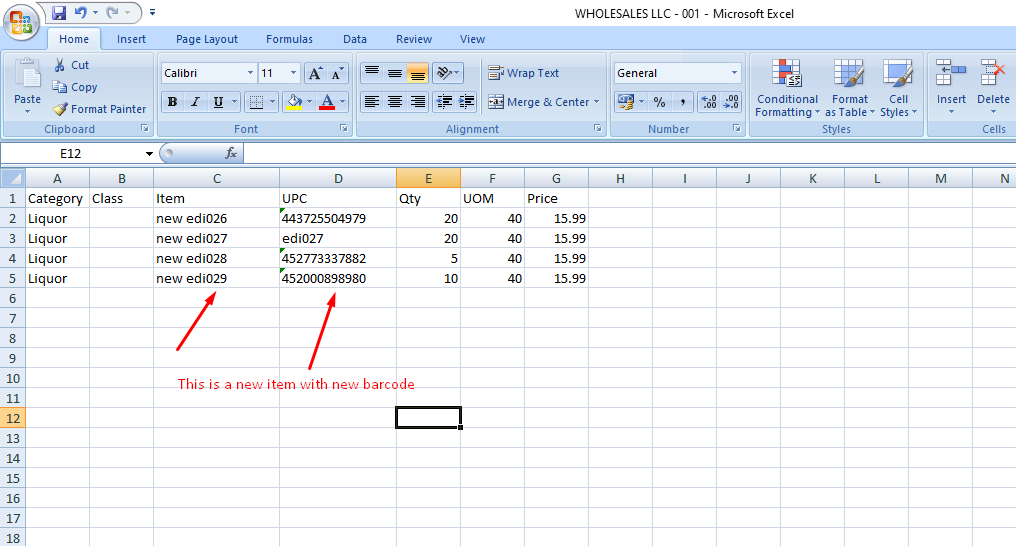
- Before doing the EDI file import process, under EDI file add new item with other compulsory fields.
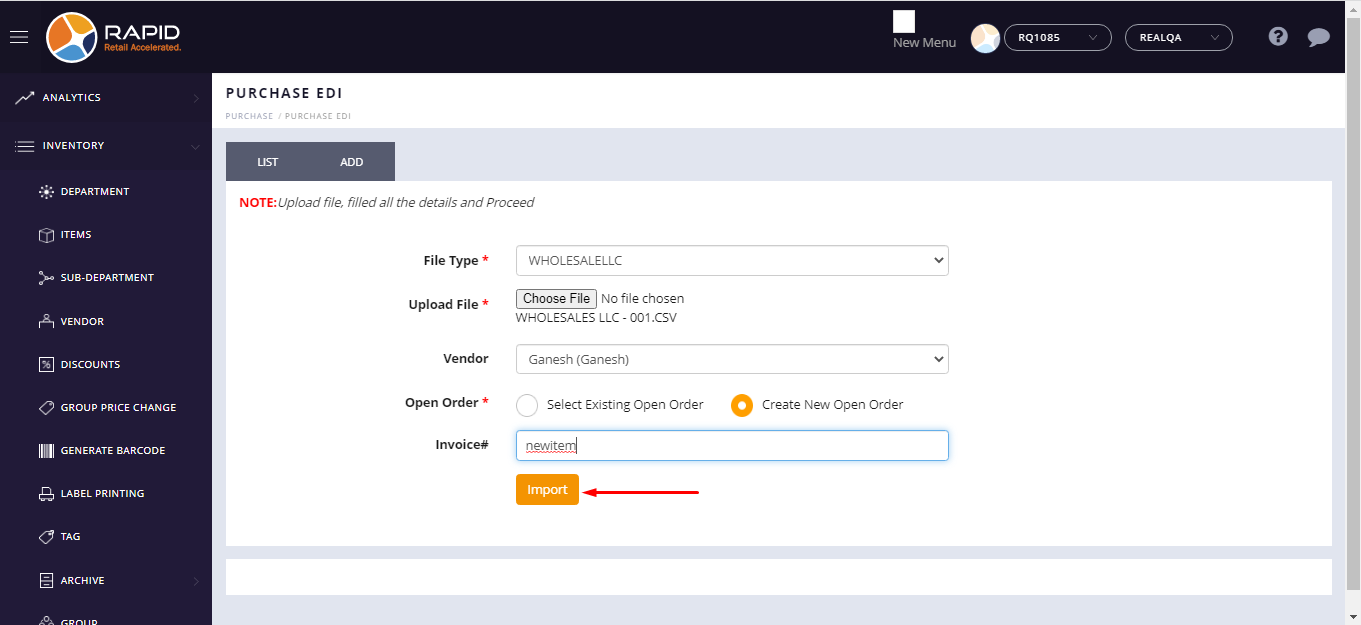
- For adding a new EDI file click on add new option.
- After clicking on add new option then window for import EDI file data would open.
- From the drop down list, select file type (Ex. Fintech, EbyBrown, WLpetrey, Amcon, WholeSalellc and HTHackney) which is already defined.
- Upload file from your pc based on selected file type and after it, uploaded file would display with its name and extension.
- In Vendor field, select vendor if vendor not present under uploaded file if present then it automatically fetch from EDI file.
- From the Open order field, choose ‘Create new open order’ for new order.
- Enter Invoice number.
- Click on ‘Import’ button
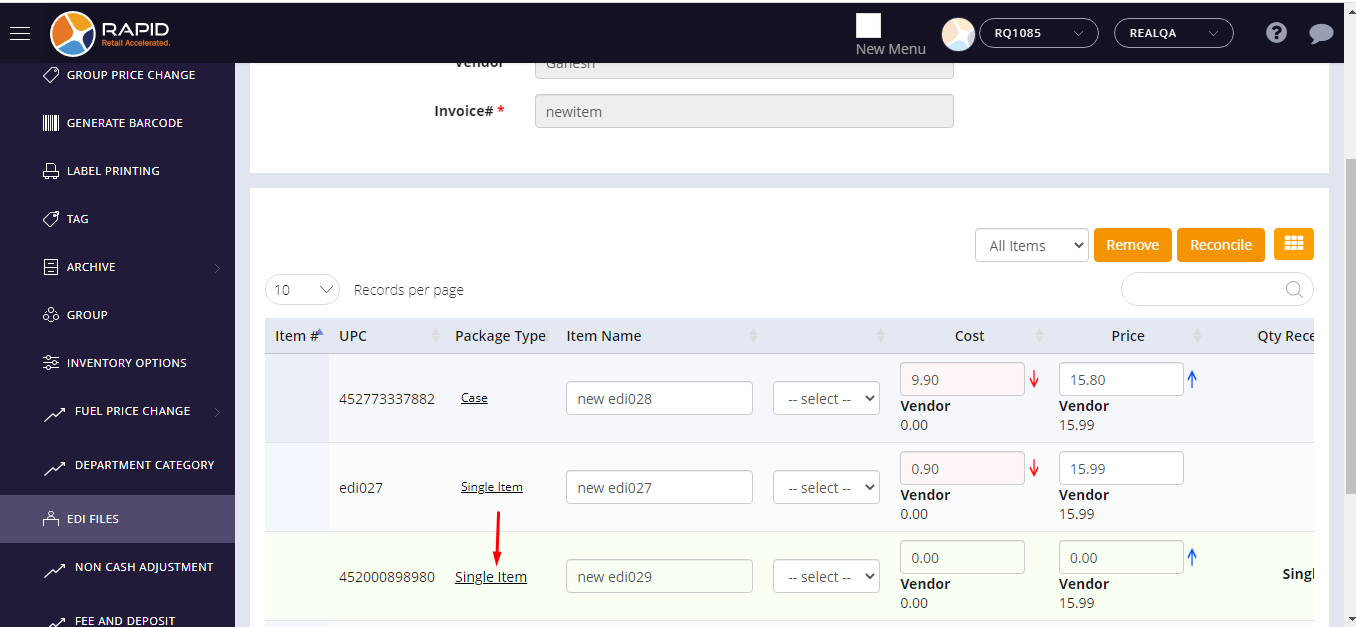
- After import, the page will redirect on the reconcile and imported EDI file’s data would be displayed there.
- In the item list, there would be new items with different colors.
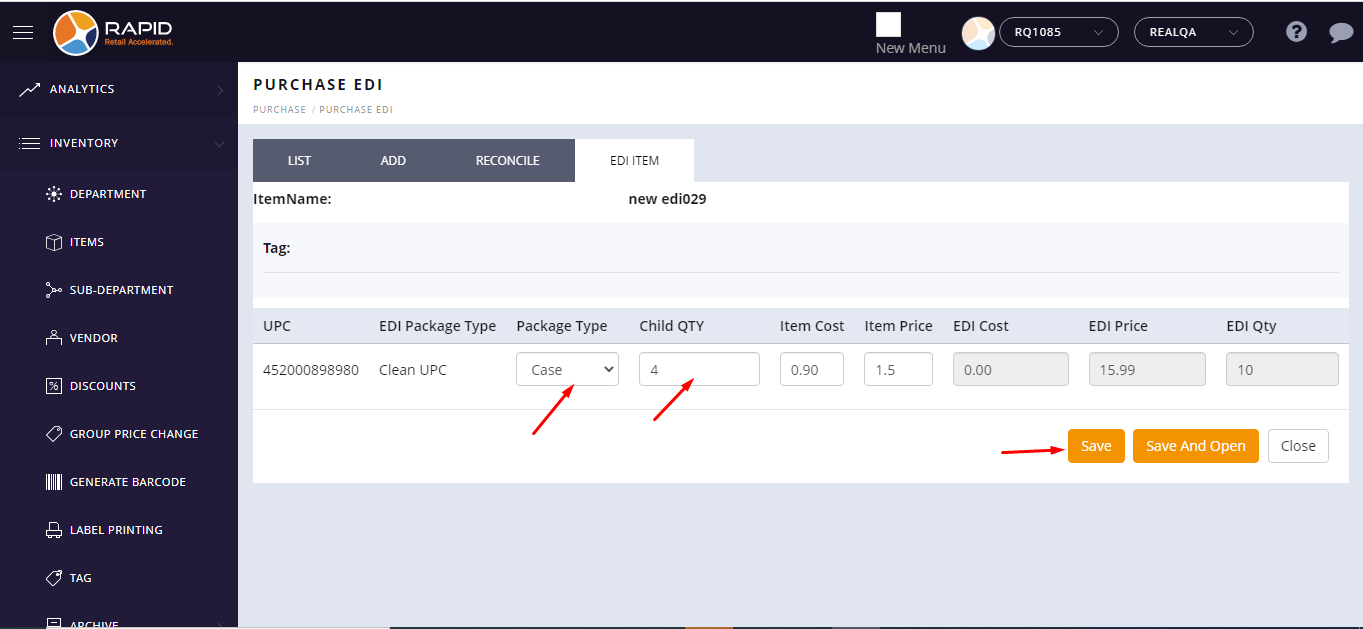
- On that item, click on package type.
- In Edi item page, select package type (case) and enter child qty if selected package type is single then child qty would be non editable mode with 1 qty.
- Click on the ‘Save’ button.
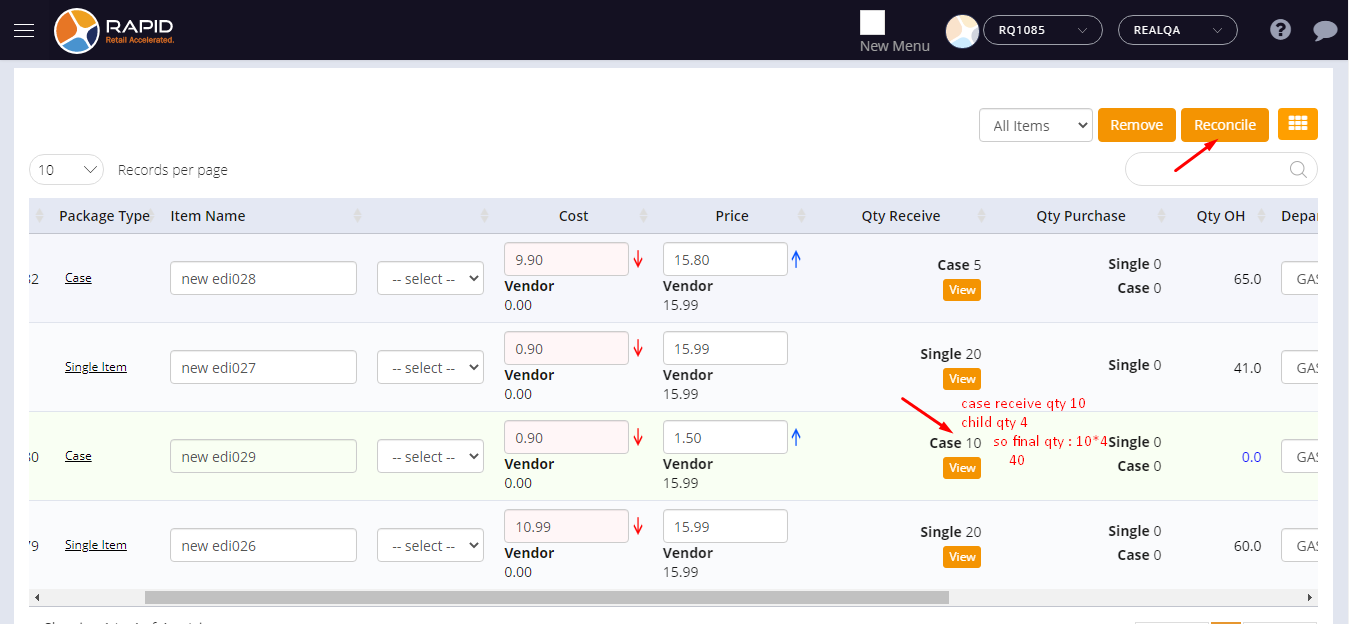
- EDI receive qty would be displayed under the reconcile page -> qty receive column with selected package type (case).
- Click on the reconcile button.
- In item master page -> item qty would be update (case receive qty 10, child qty 4 ) -> 10*4 -> 40