Support Document
 Support Document
How to add item in PO list from Purchase order?
Before creating Open Order, We need to add items in the purchase order list.
There are three ways to add items in the PO list.
1) From search bar item can be added in PO list.
- Go to rapid RMS application.
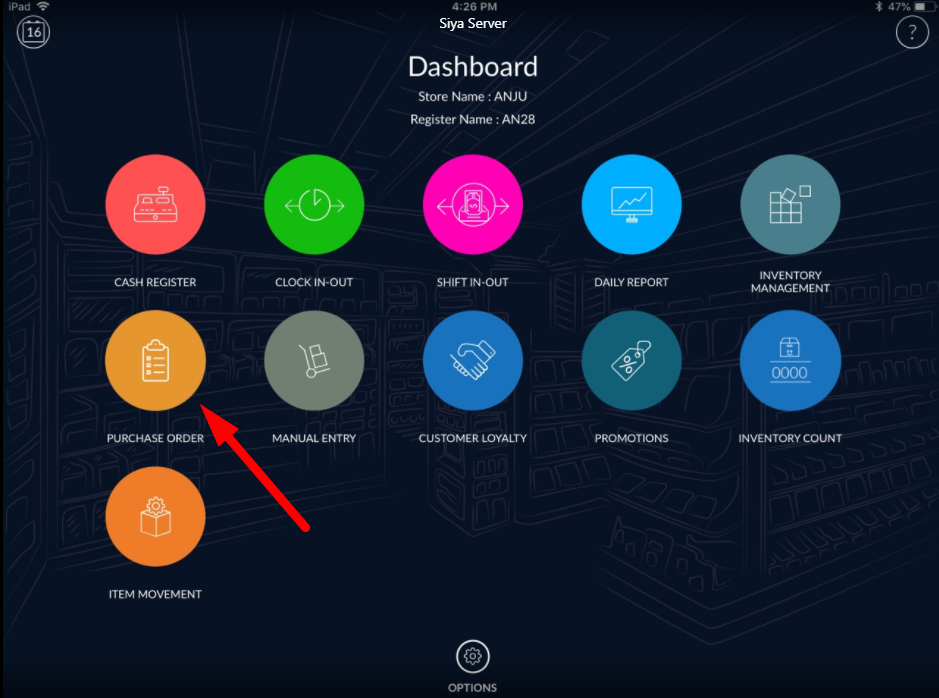
- Open purchase order module from the dashboard.
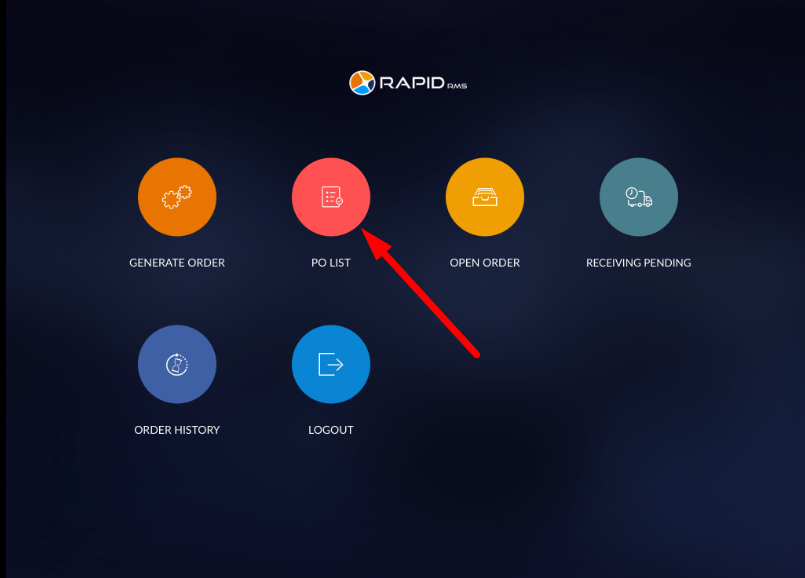
- Select PO list option.
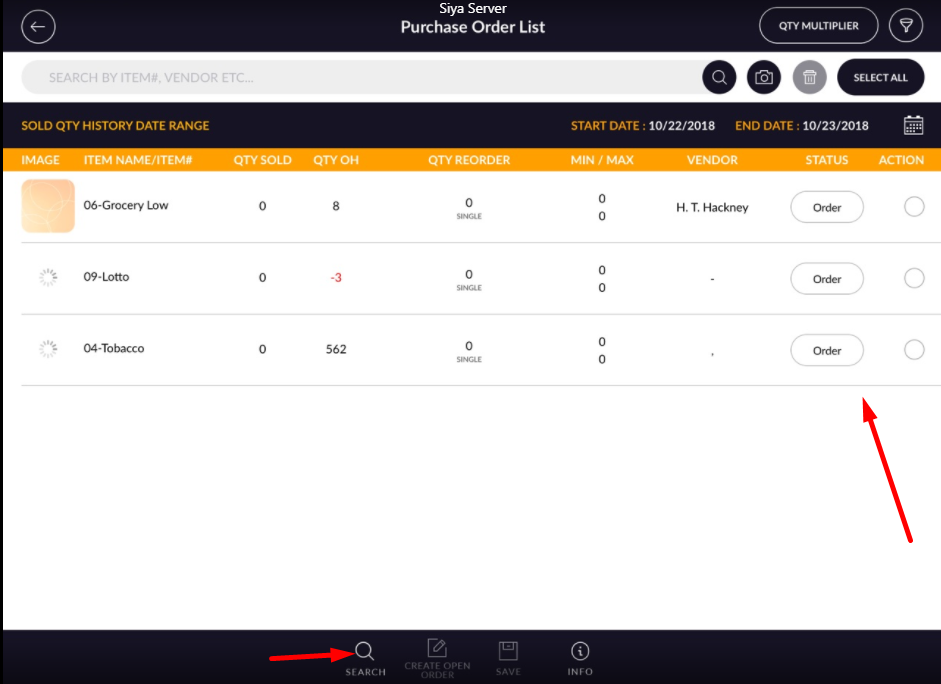
- If you have not added any item before, it will not appear any item in the list.
There are three ways to add items in the PO list.
1) From search bar item can be added in PO list.
- Enter any text in the search bar. I.e. item name, UPC etc.
- It will appear item in list.
- Select item.
- At bottom, click on add button.
- If item does not exist in inventory, it will appear an error message.
- At bottom, click on search button. It will appear list of items.
- Select items which you want to add.
- At bottom, click on add button.
- Selected item will added into PO item list.
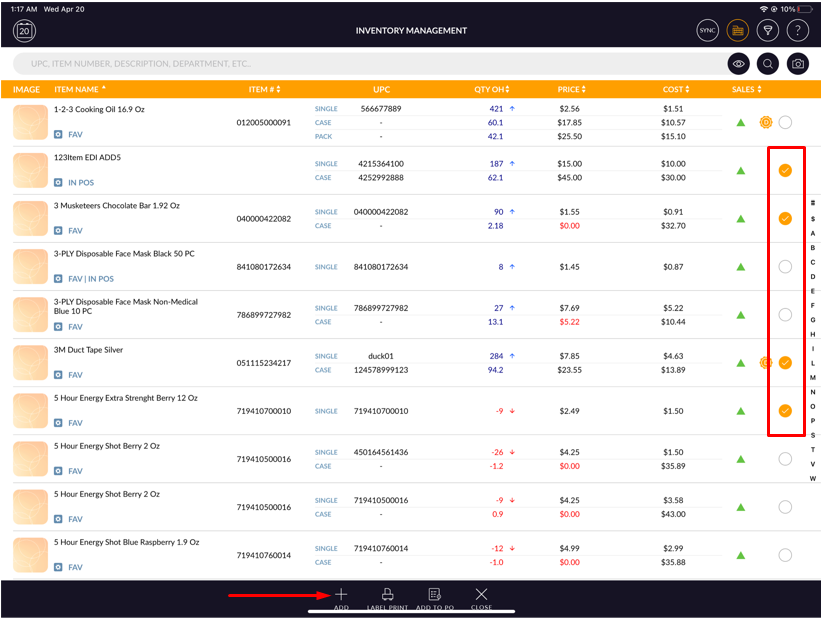
- You can also select and add items to PO list by filtering records.
- There is a filter button available at the top right side corner of the purchase order list screen.
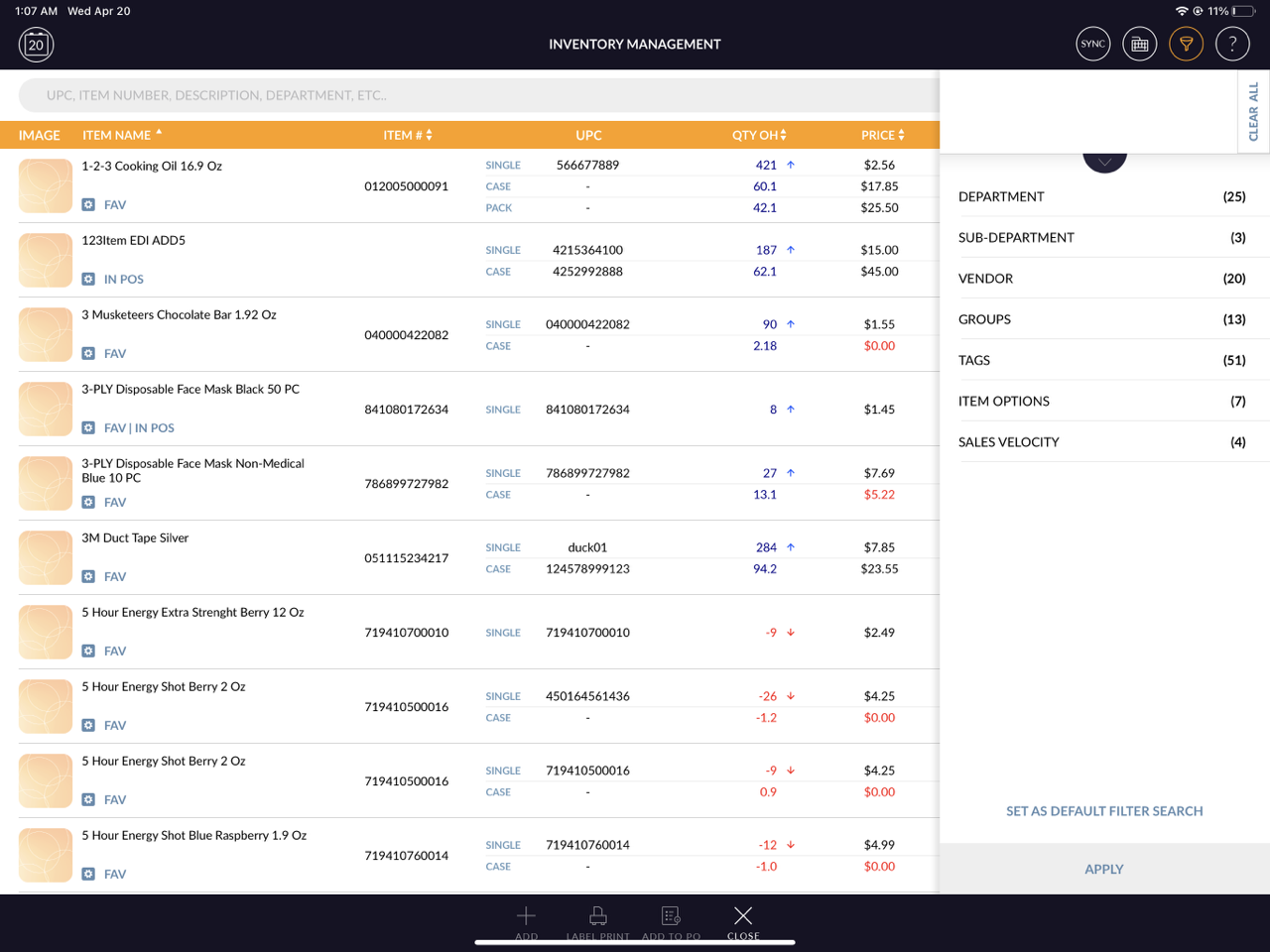
- Click on filter option.
- Select any of categories from department, sub-department, vendor, groups, tags etc.
- Select records from categories which you want.
- Tap on Apply button.
- When you select categories, it will filter and appear item as per selected categories accordingly.
- Select the item.
- Click on add button from the bottom of the screen.