Support Document
 Support Document
How to add an item from manual entry?
- Open the Manual entry module from DashBoard.
- Enter the Quick access password.
There are Four ways to add an item from Manual entry
- Item number
- UPC or Barcode number
- Search option
- Camera scanning
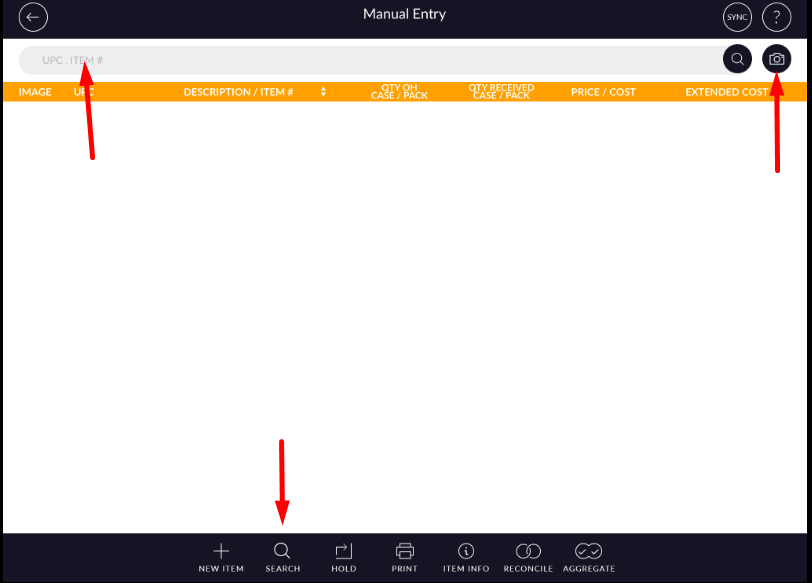
After you create new invoices or recall a hold invoice from manual entry, you will need to click on the new item button from the bottom bar to create a new item. Review these articles to learn how to create a new invoice and recall hold invoice from manual entry.
How to create a new Invoice?
How to Recall hold Invoices?
Add an item by Item number:-
- Enter the Item number in the search bar.
- Once you enter the Item number, it will open the Received tab.
There are two ways to update quantity from Manual entry.
- Received Tab.
- Free Goods Tab.
Field Description Received It allows you to enter the received quantity of an item. Free Goods When you get free items with the purchased item. - It will open the Received tab.
- If you want to update a free good item, Click on the Fee goods tab.=
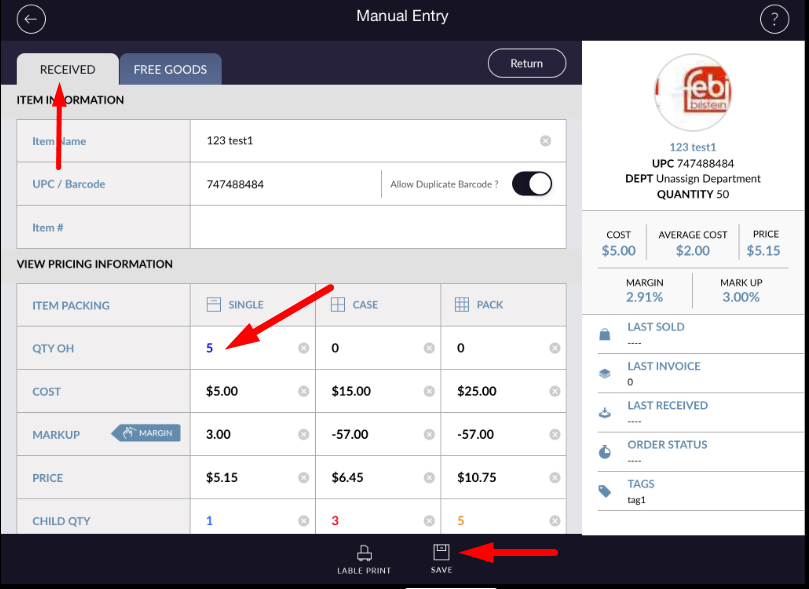
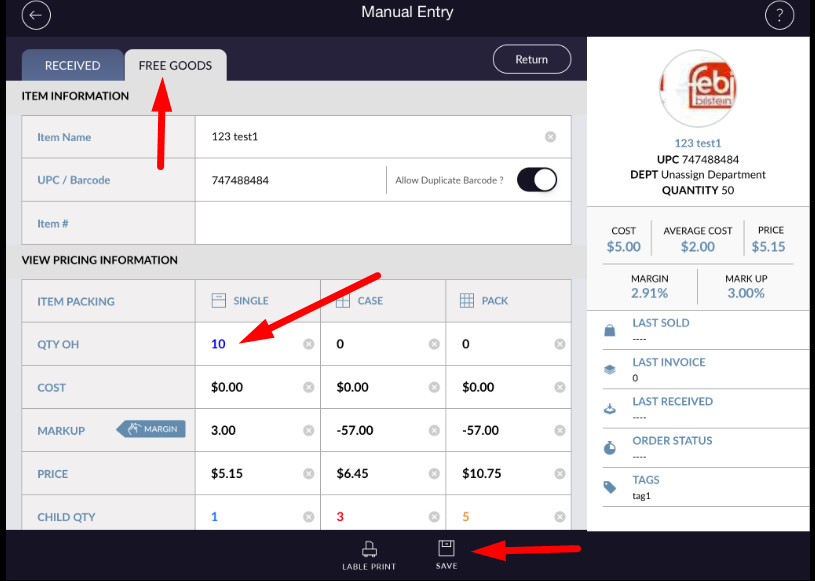
- Enter Qty OH field.
- Click on the Save button.
- If you do not want to enter anything click on
 button
available at the top right side corner of the screen.
button
available at the top right side corner of the screen.
Add an item by UPC or Barcode number:-
- Enter the Item number in the search bar.
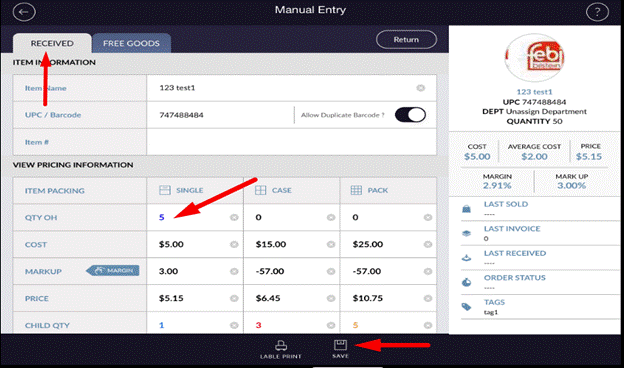
- It will open the Received tab.
- Enter Qty OH field.
- Click on the Save button.
- If you do not want to enter anything click on button
available at the top right side corner of the screen.
Add an item by search option:-
- Click on the Search option from the bottom bar.
- Select an item from the list.
- Click on the Save button.
- If you do not want to enter anything click on
 button
available in the middle bottom side corner of the screen.
button
available in the middle bottom side corner of the screen.
Add an item by Camera Scanning:-
 the Camera
option from the top right side corner of the screen.
the Camera
option from the top right side corner of the screen.
 button
available at the top right side corner of the screen.
button
available at the top right side corner of the screen.