Support Document
 Support Document
How do I open Imported EDI file in edit mode?
Store can open the imported file in edit mode after the imported EDI file from the add page but has not
reconciled yet.
Follow below steps to reconcile items
Follow below steps to reconcile items
- Open any browser, Go to https://www.rapidrms.com/Account/Branchlogin
- In the Sign in page, Login with your store credential.
- In the Left side menu, in inventory go to EDI File option.
- For adding a new EDI file click on add new option.
- From import EDI window, select file, upload EDI file, select vendor, select vendor, choose open order, enter invoice # and click on the ‘import’ button.
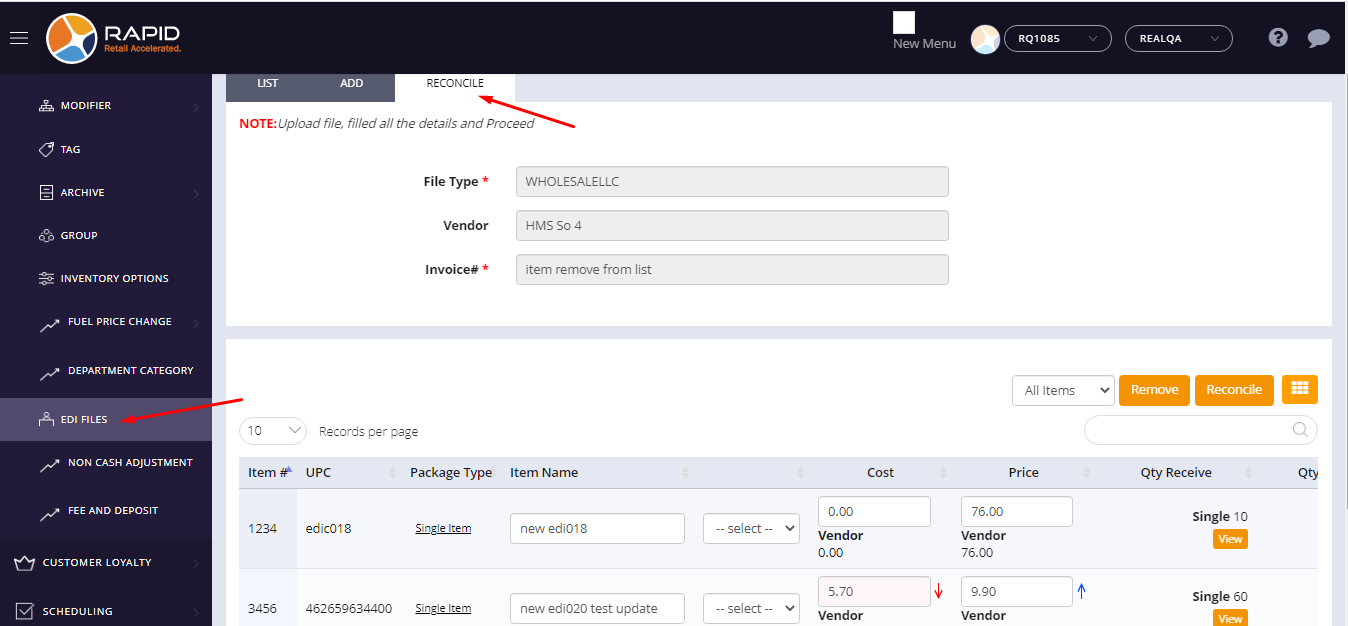
- After importing the EDI file, the page would be redirected to the reconcile page.
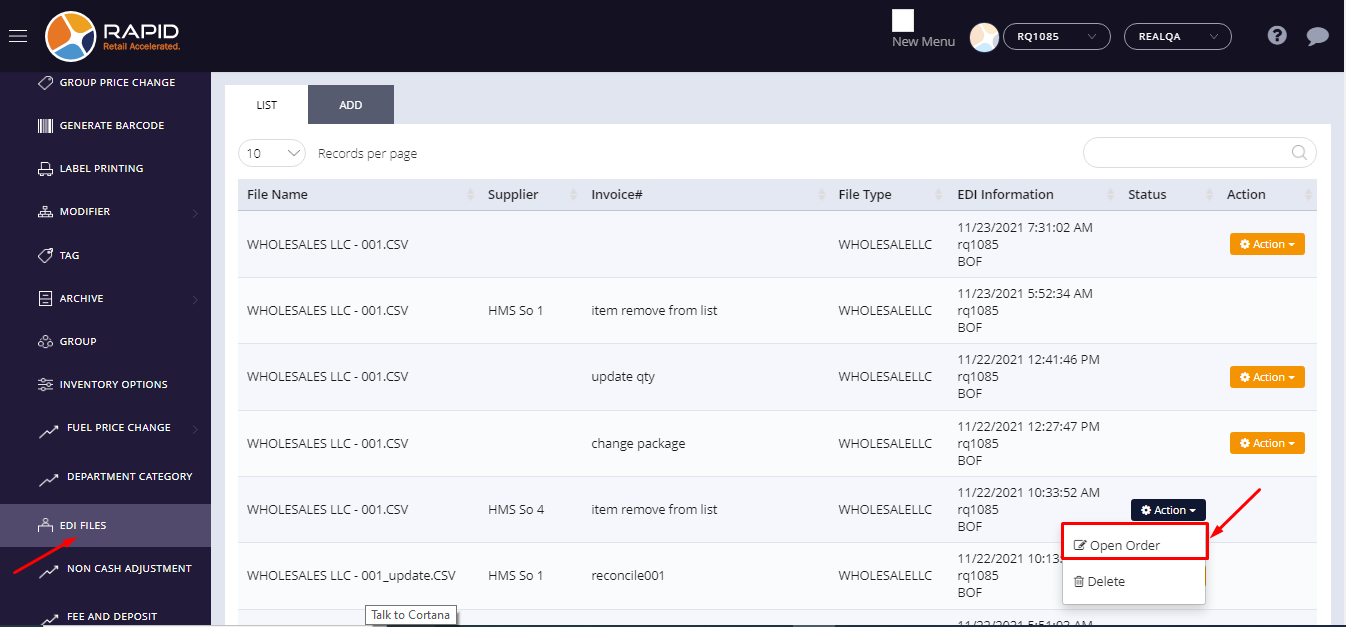
- Go to the list page and from there you can open any EDI order in edit mode.
- From the Status column, click on Action -> Open order button.
- You can see, open order would be open in edit mode.