Support Document
 Support Document
How do I add users for RapidRMS?
You must have an Rapidrms profile with an assigned RapidRMS POS role to use the application.
There are three ways to add a user
Users can create a user from the login screen and send a request to the admin. And after admin approval user can become part of that store.
Please follow the below steps:-
Admin create a user
Admin can create user and send request to user directly from Back office. Once user approve the request. User will be consider as part of the store.
Please follow the below steps:-
Admin/store search an existing user and create user from a central database
If user is already exist in the system and it works in other store. When we search user with it email address and if the is already listed in the system, admin can invite user to join their Rapid RMS store from here directly.
Admin/store can search user through it’s email address and contact No. and can send request directly to user.
Please follow the below steps:-
There are three ways to add a user
- Create a user from the Login screen.
- Admin create user
- Admin/store search an existing user and create user from a central database
Users can create a user from the login screen and send a request to the admin. And after admin approval user can become part of that store.
Please follow the below steps:-
- Open below link to any browser.
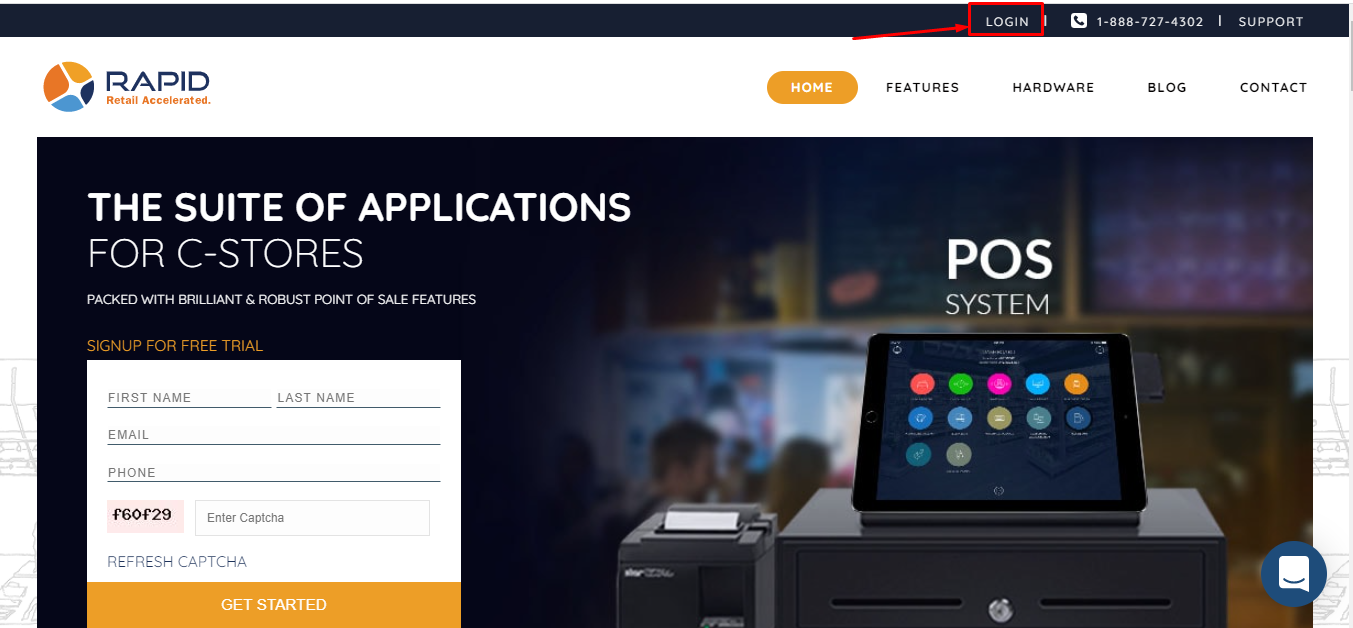
https://www.rapidrms.com/App/ - Click on Login button at the top right side corner of the screen.
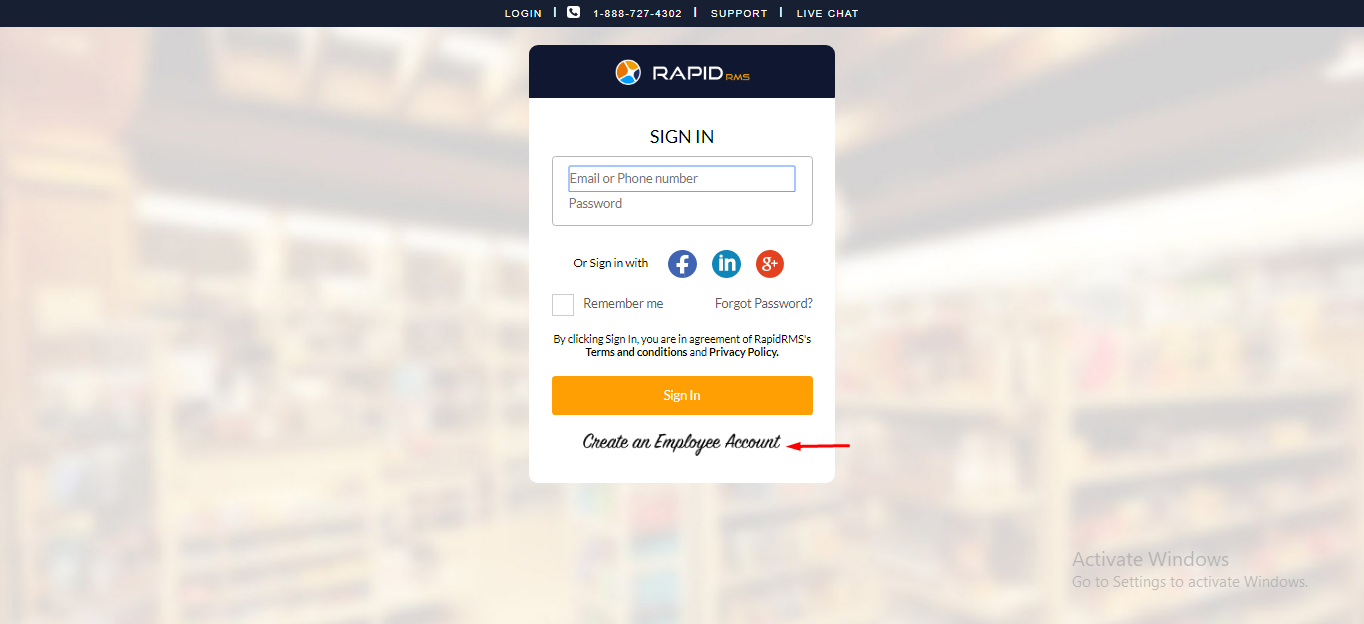
- On sign in screen, click on ‘Create an Employee Account’ option available below
Sign up button.
- It will open Create login page to add or create user.
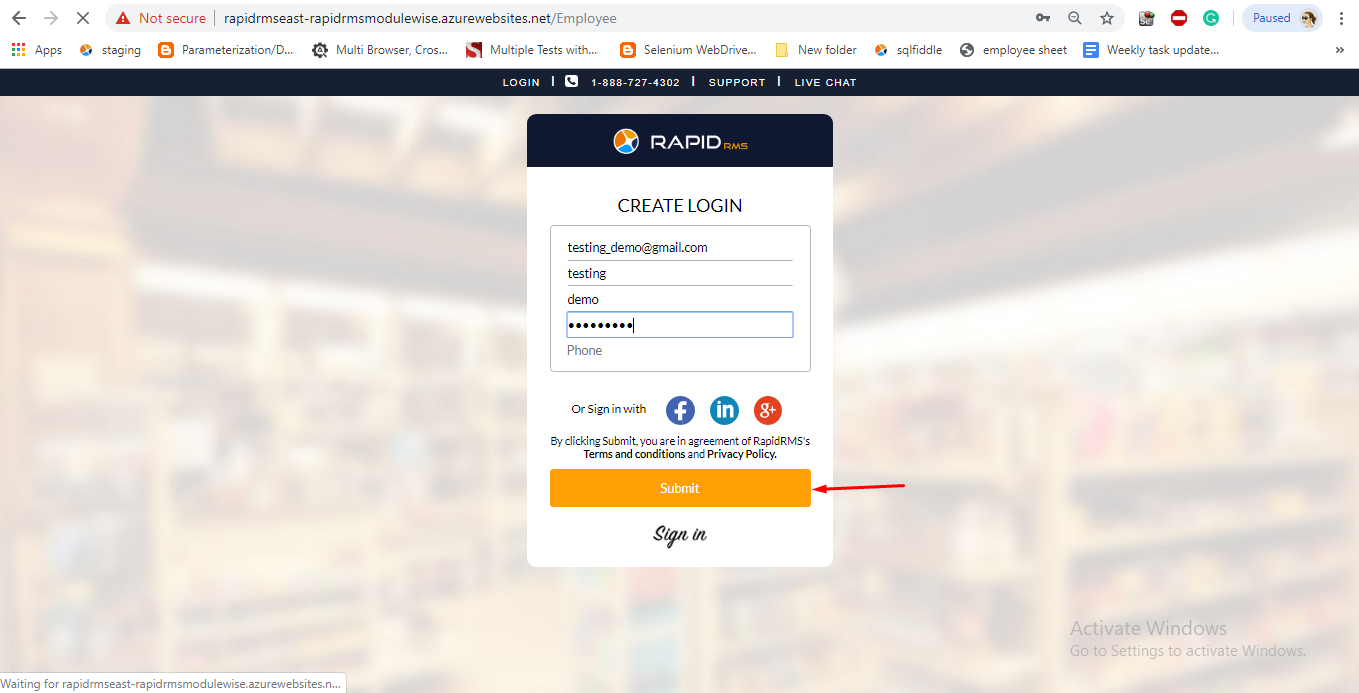
- Enter the User’s Email, First name, Last name, Password and Phone number.
- Click Submit. When you click on Submit button, it will redirect to create Employee’s Information screen.
- In the Employee’s Information screen, enter all required details.
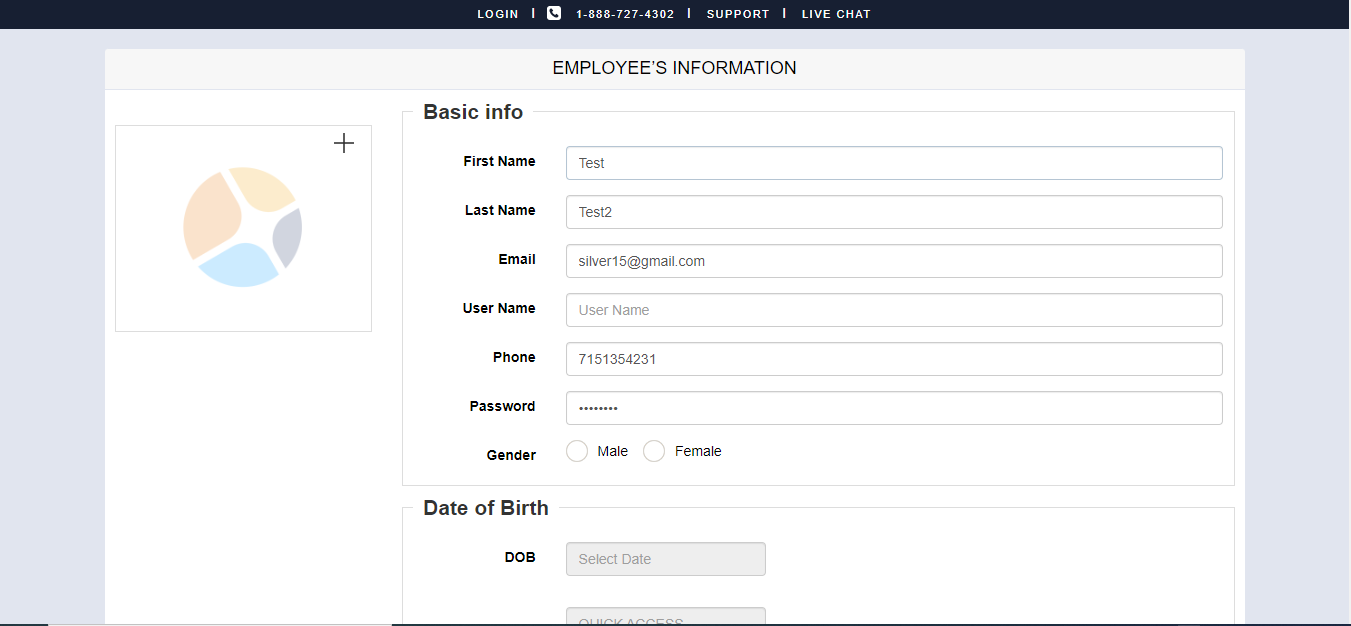
- The details like First name, Last name, Email, Phone number, and Password will appear in Employee’s Information screen which you have entered in Create Login page automatically.
- Enter Username.
- Enter Date of Birth.
- Click on Generate password button to generate quik access password.
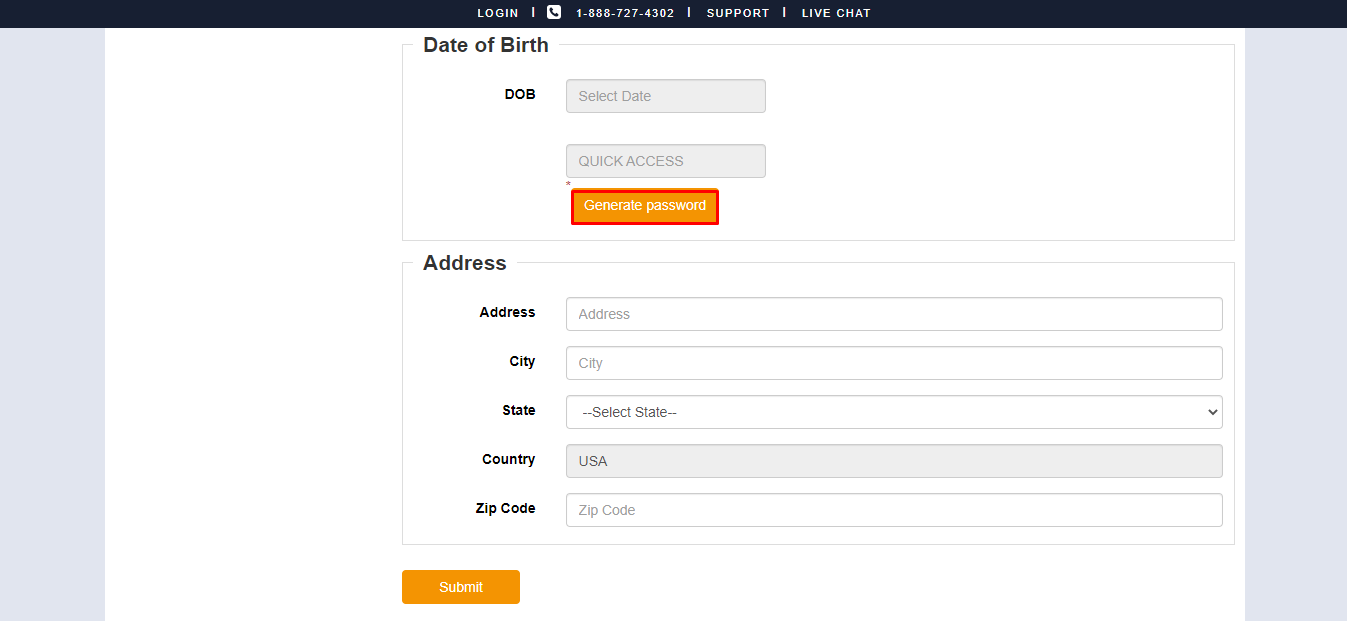
- Enter address details.
- After entering all require details, click on Submit button.
- It will redirect to select store page.
- Enter the store name in which you want send request to become user of the store.
- Click on search button next to search bar.
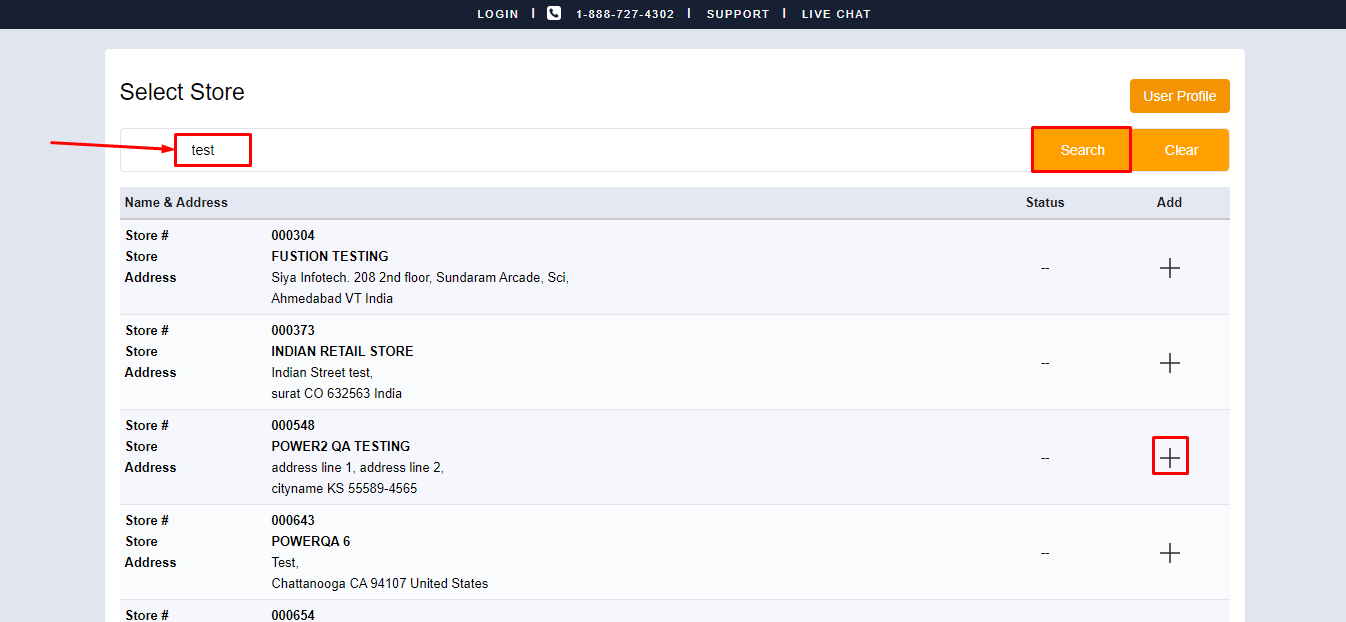
- To send request, click on add + button available next to store.
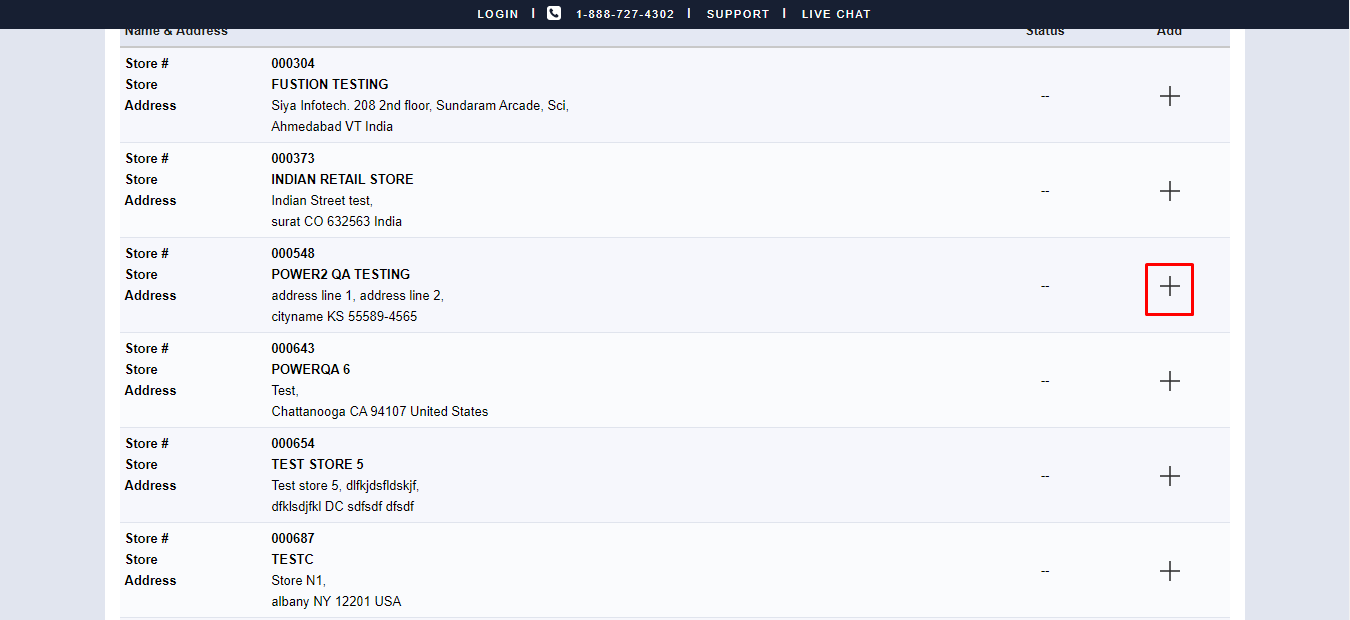
- If you want to cancel request, click on “_” button.
- After seding request to store, it will appear “waiting for Admin approval” in status until Admin accept your request.
Admin create a user
Admin can create user and send request to user directly from Back office. Once user approve the request. User will be consider as part of the store.
Please follow the below steps:-
- Open below link to any browser.
https://www.rapidrms.com/App/ - Click on Login button at the top right side corner of the screen.
- To login, enter your credentials. It will redirect to Sign in page.
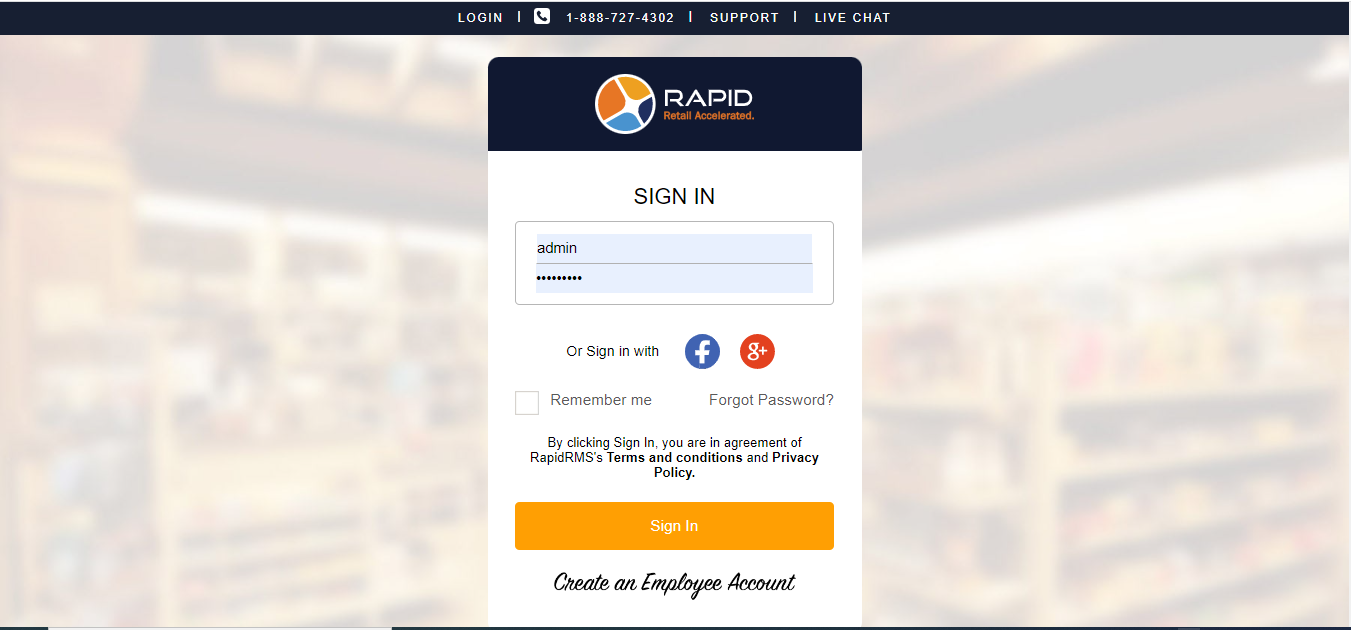
- Enter your store credentials.
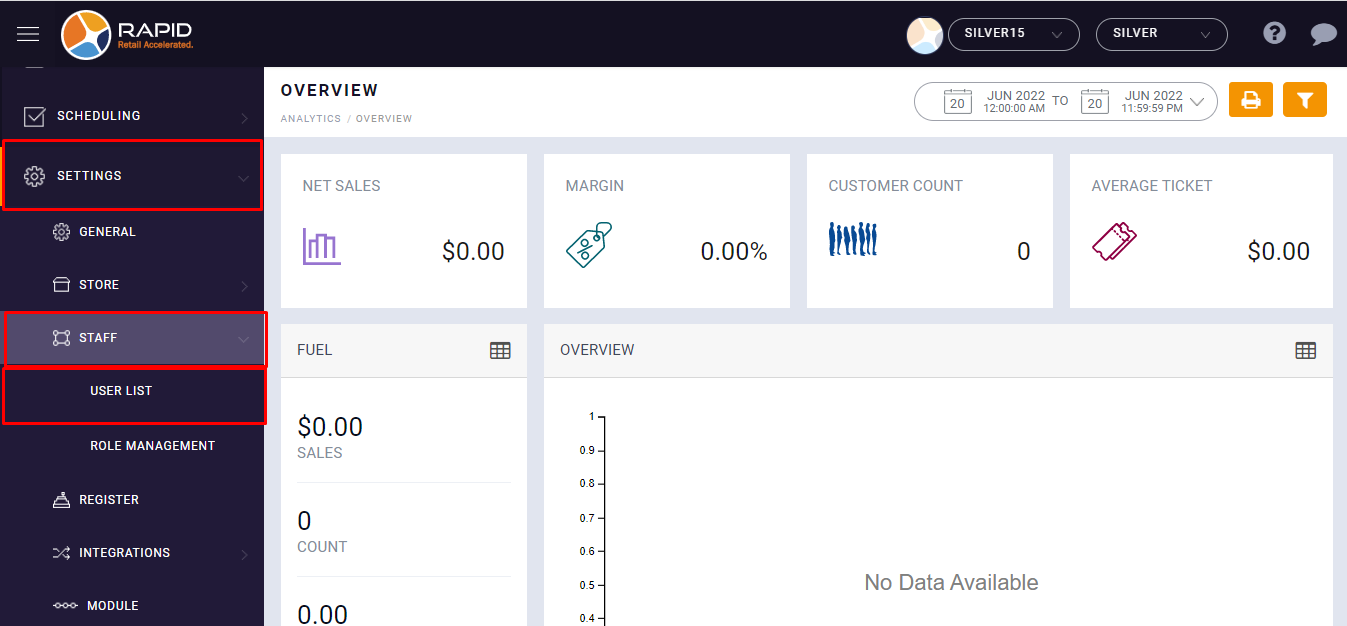
- Go to settings.
- Select User list.
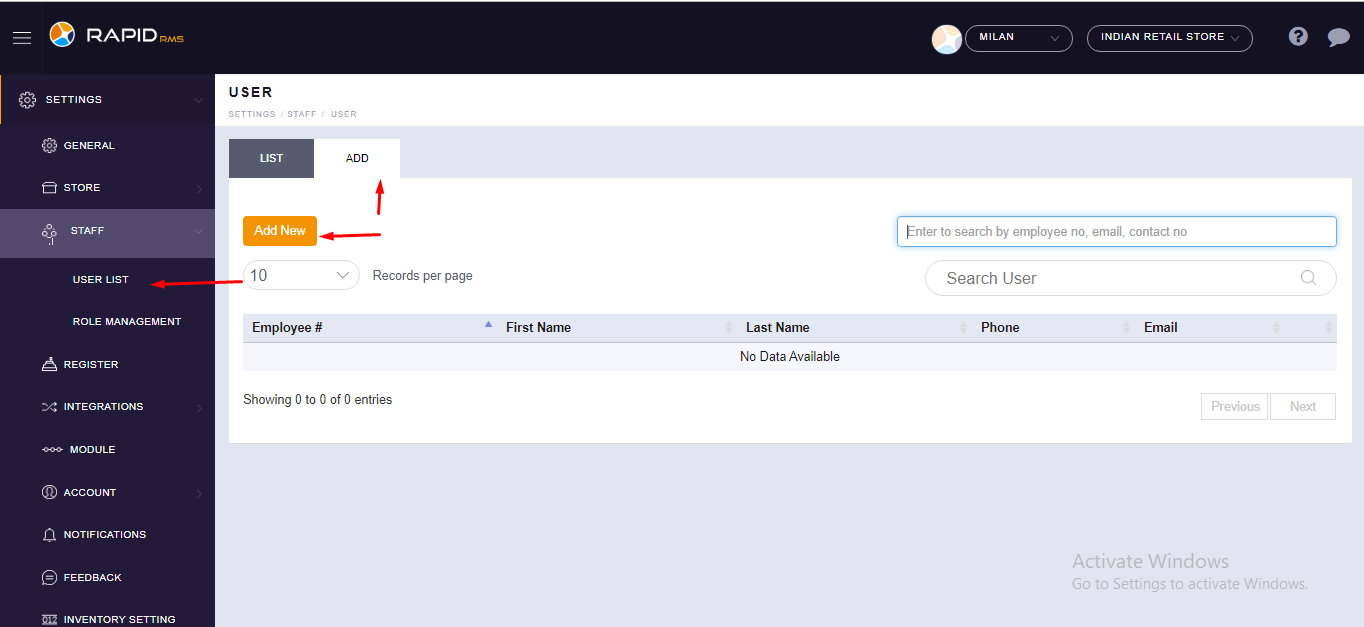
- Select
Add Tab. - Click on
Add New button to create new user.
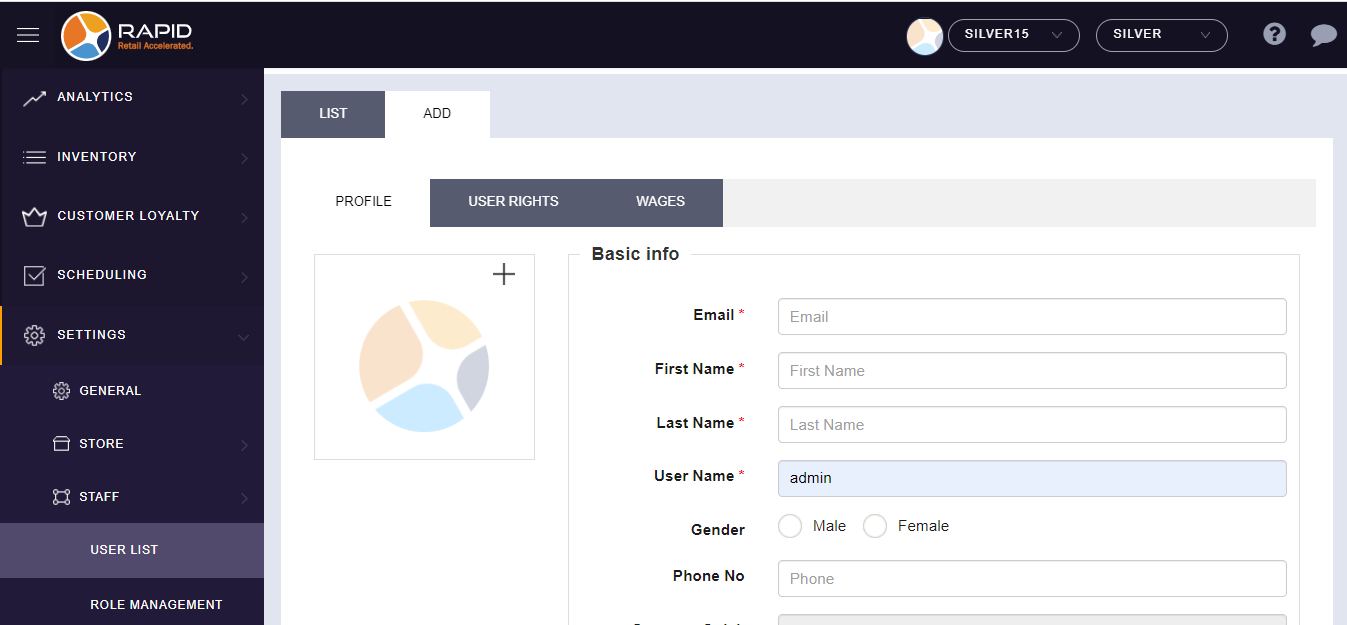
- Enter all require details like Email, First name, Last name, User name, and Phone number.
- Click Generate Quick Password button to generate quick access password.
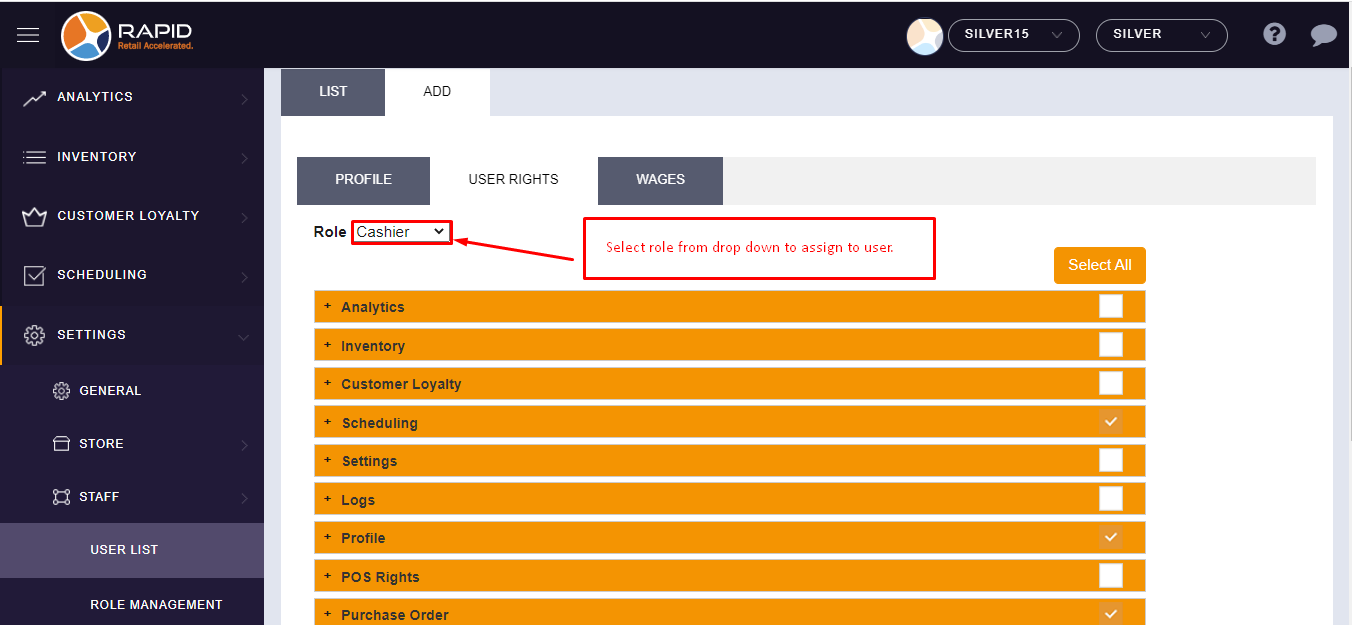
- Now, click on User rights tab.
- Select the User role from drop down.
- Click on Save button.
- When you click on save button, the user will be created and email will go to the entered Email id to
accept user request.
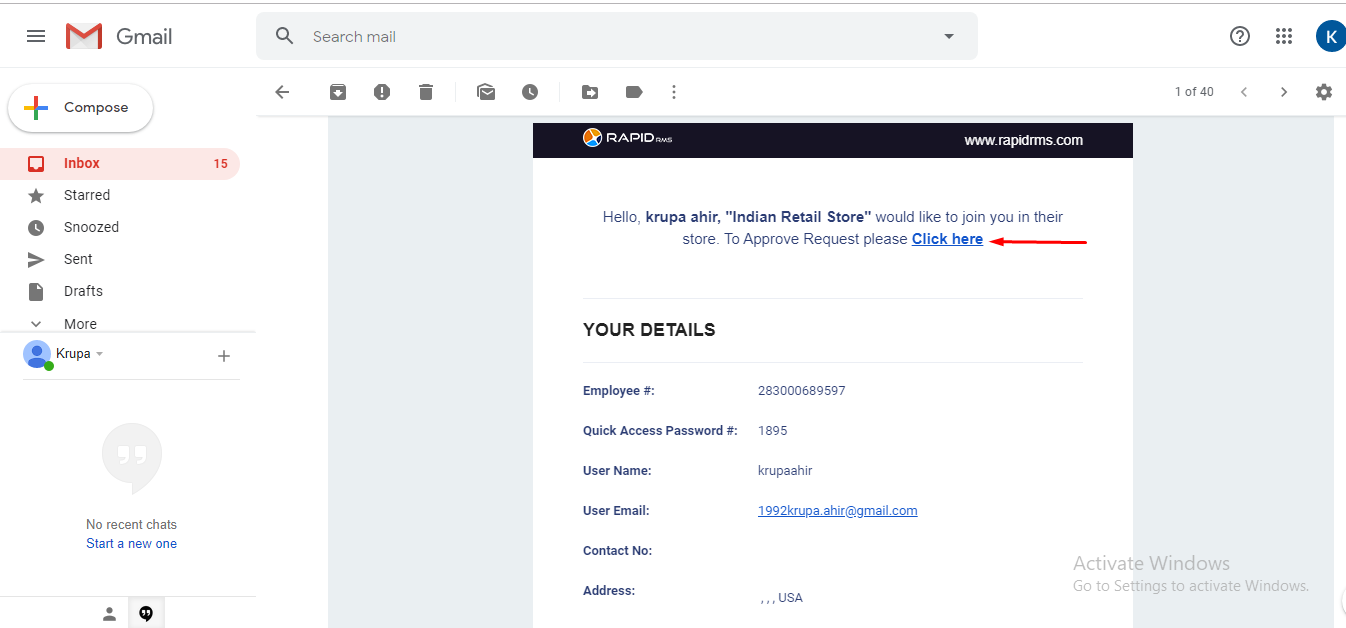
- Go to you email and check the email received from store.
- Click on Click here link.
- It will open sign in Page with entered email Id.
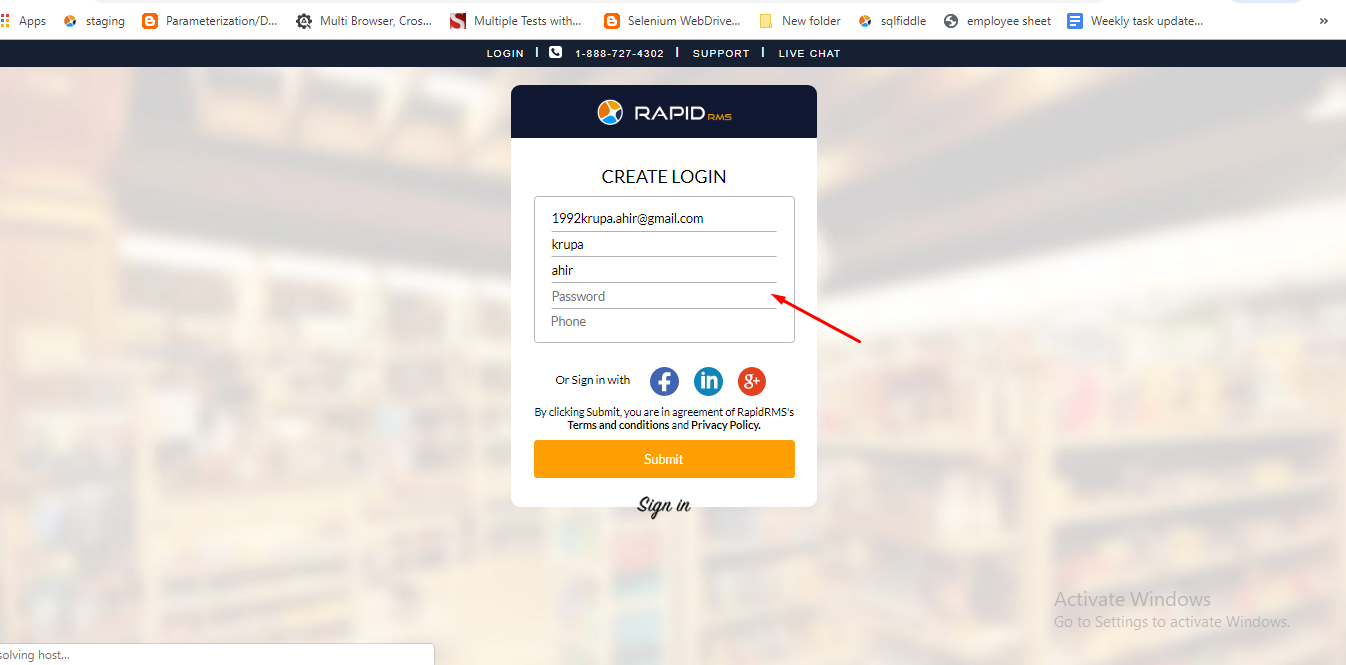
- Enter your First name and Last name.
- Enter Password.
- Enter your phone number.
- Click on Submit button.
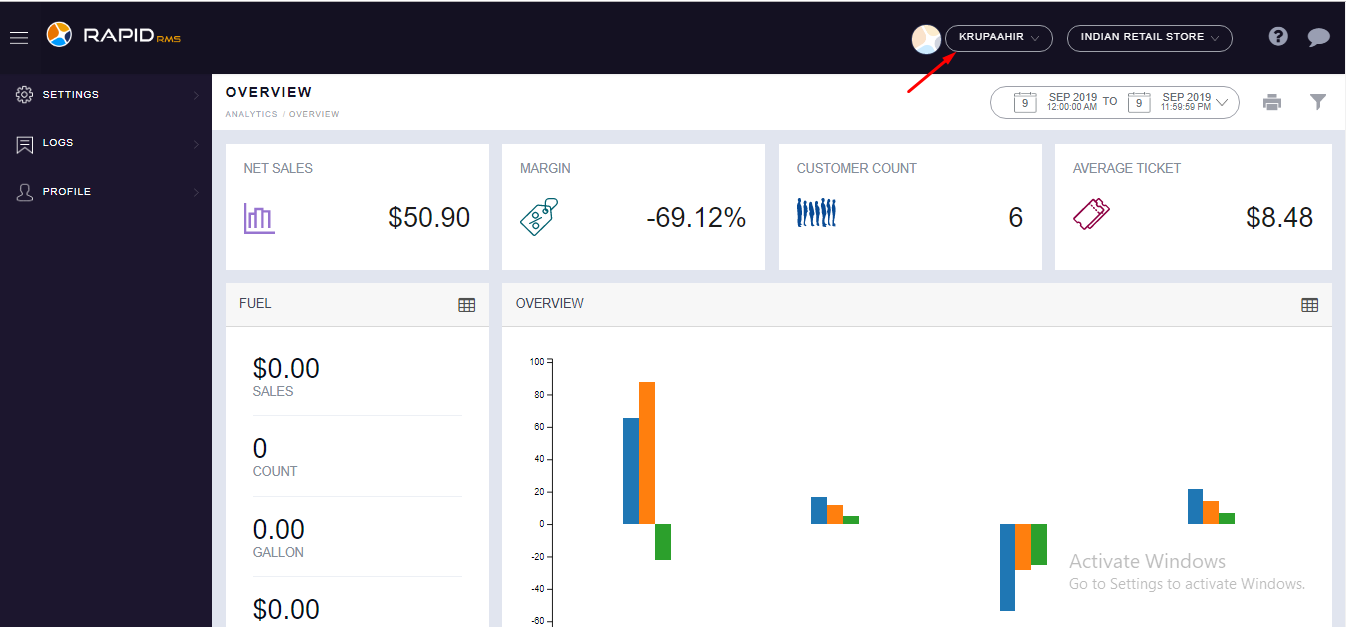
- As per given or assigned rights by admin, user will be able to access the store.
Admin/store search an existing user and create user from a central database
If user is already exist in the system and it works in other store. When we search user with it email address and if the is already listed in the system, admin can invite user to join their Rapid RMS store from here directly.
Admin/store can search user through it’s email address and contact No. and can send request directly to user.
Please follow the below steps:-
- Open below link to any browser.
https://www.rapidrms.com/App/ - Click on Login button at the top right side corner of the screen.
- To login, enter Admin or Store credentials.
- Go to Setttings.
- Select User list.
- Select Add Tab.
- Click on Add New button to create new user.
- There is search bar over top right side corner of the screen.
- Enter Email address of the user which is already exist in another store and which you wish to add to the store.
- Click on Enter button.
- The User will appear in the list.
- Click on Invite button to invite user to be the user of the store.
- The invite mail will be sent to the user on it’s email address.
Note:- If the user is already added to the store, it will not appear user in the list.