Support Document
 Support Document
How to manage barcode in an inventory item?
In inventory, item facilitates to add a barcode to identify different items in store.
- Open RAPID RMS application in IOS.1. Open RAPID RMS application in IOS.
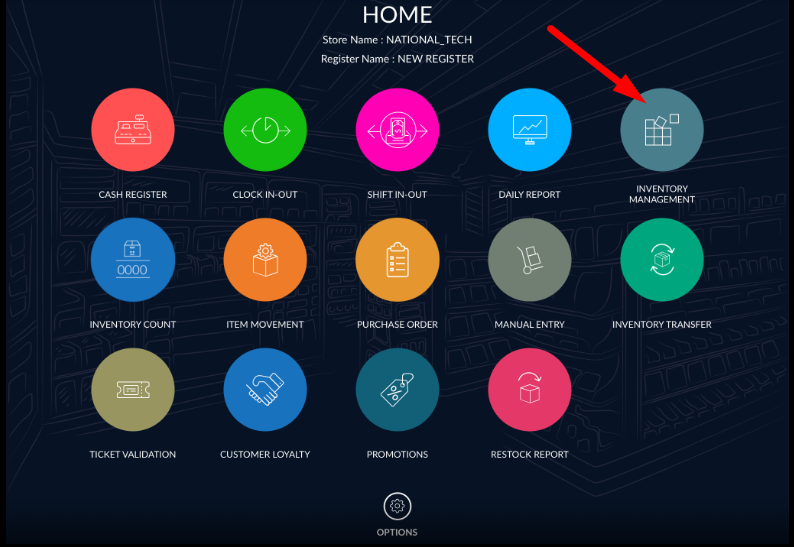
- Select inventory management from the Dashboard.
- Create new item or Open any item in edit mode.
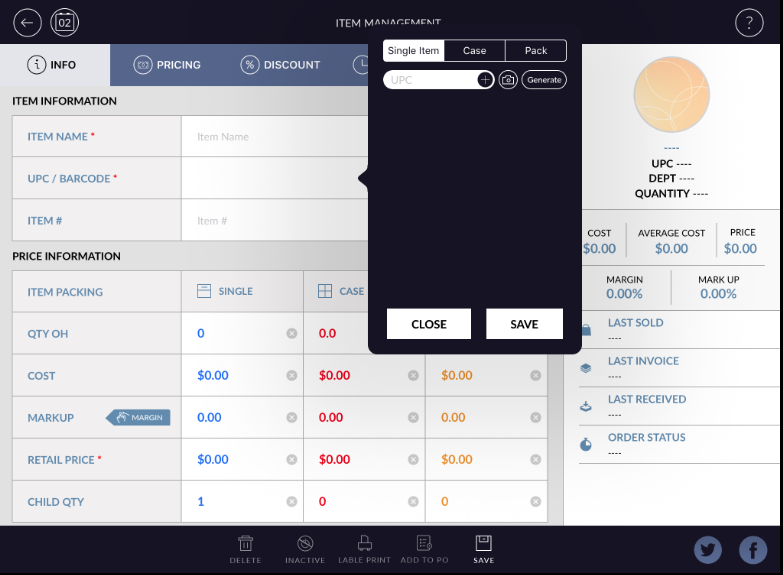
- Click on barcode field.
- In item, the barcode can add in a different manner.
- In a single case and pack, you can add various barcode. And also in one field multiple barcode addition is possible.
- For adding barcode two ways
- Generate barcode
- Manually enter barcode
Generate barcode
- Click on the barcode/UPC field. One window will open.
- Select any from single/case/pack.
- Click on generate. One barcode will generate automatically by the system.
- Click on add button.
- Click on done button.
- Barcode will add in the item.
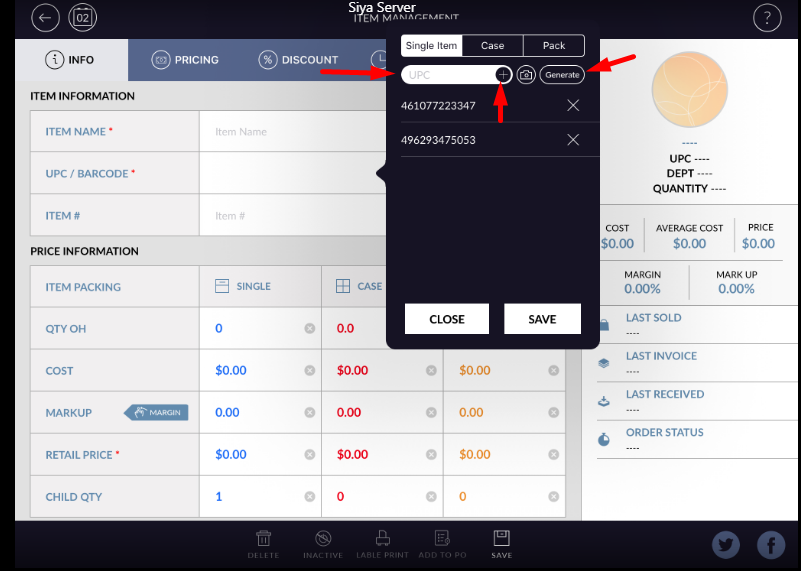
Manually enter barcode.
- Click on barcode field.
- One window will open.
- Select any from single/case/pack.
- Enter data into barcode field. It could be numerical value and also alphabetical value possible.
- Click on add button.
- Click on the save button.
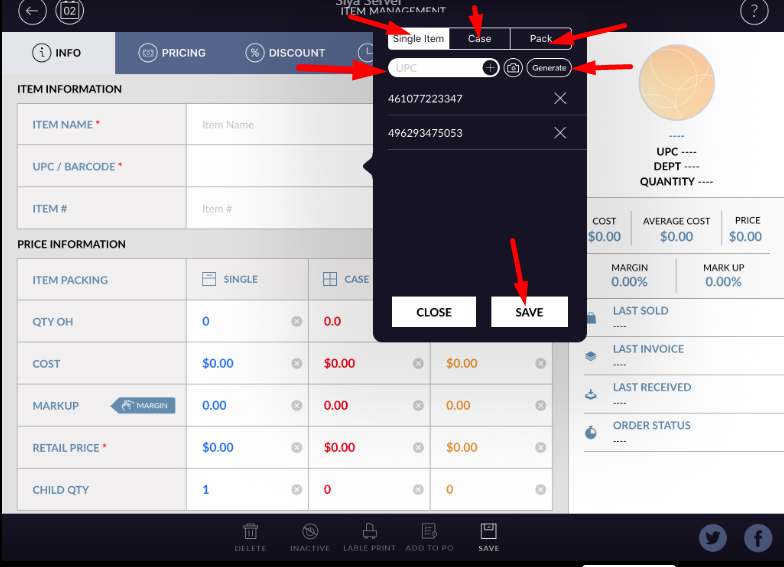
- Barcode will add in item.
- Duplication of barcode
- It is possible to add duplicate barcode in item.
- There is one button for duplicate barcode.
-
When barcode button is set OFF.
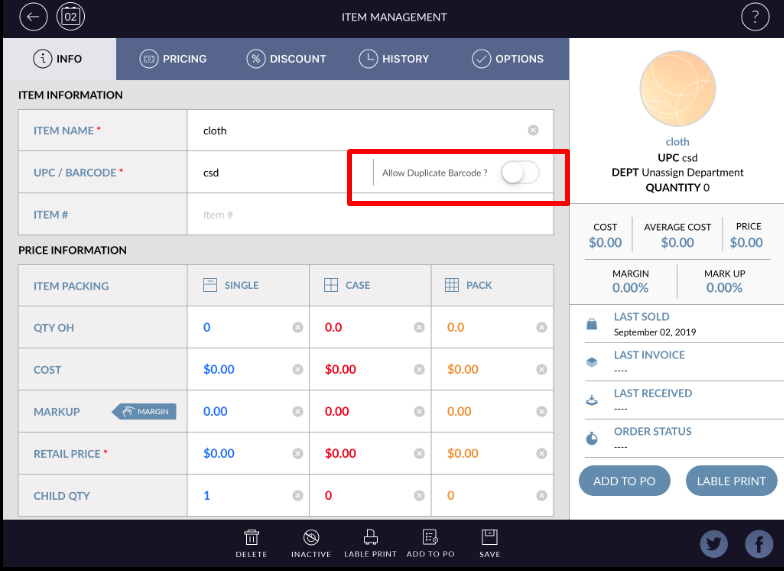 When barcode button is set off then you cannot add duplicate barcode in item. Every time you
have to add different barcode which is not present anywhere in system.
When barcode button is set off then you cannot add duplicate barcode in item. Every time you
have to add different barcode which is not present anywhere in system.
- When barcode set to ON
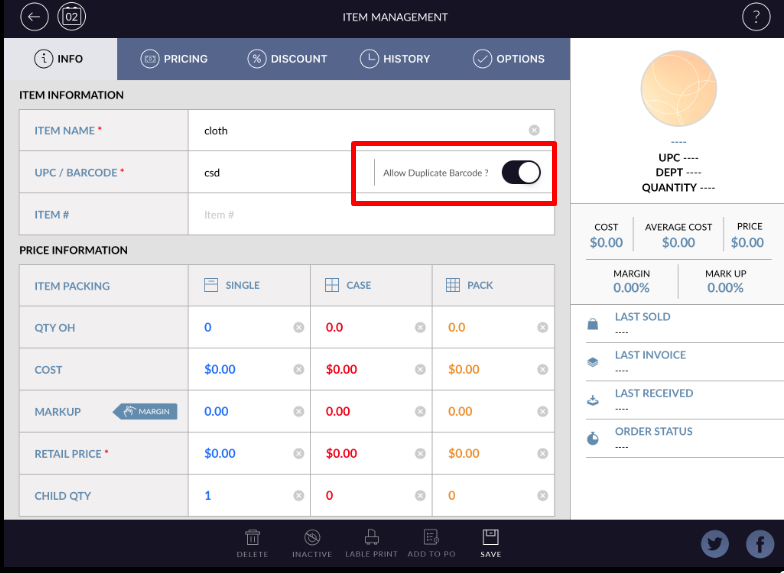
When barcode button is set to ON, you can add duplicate barcode in item. It is possible to add multiple time duplicate barcode.
-
When barcode button is set OFF.
- Delete barcode
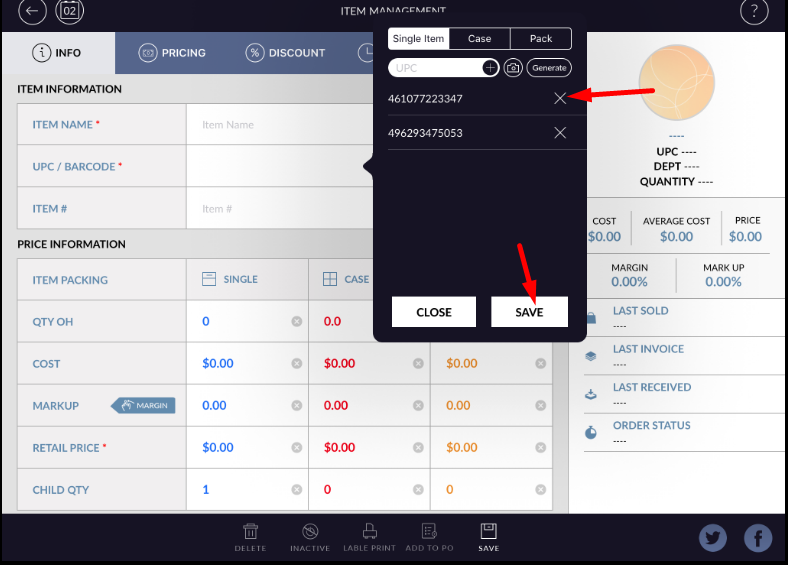
- For delete barcode click on barcode field. Window for barcode will open.
- Click on delete button of barcode, which barcode you want to remove from item.
- Click on done button.
- Barcode will remove from that item.
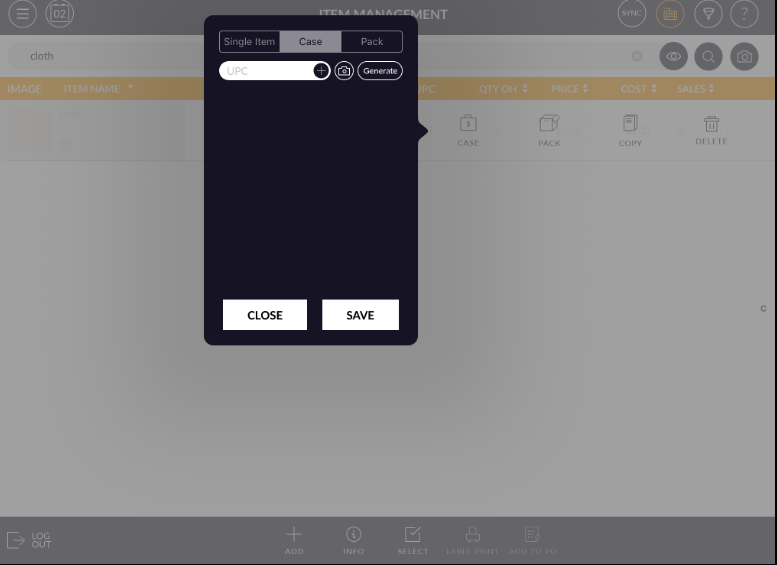
- Barcode addition is also possible by swipe item.
- Open inventory management.
- Swipe item.
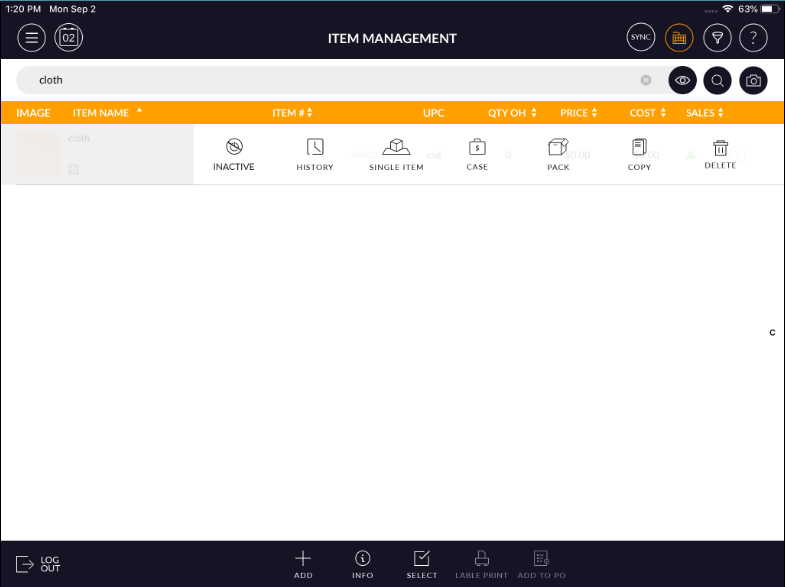
- Click on one option in which you want to add barcode.
- i.e if you want to add barcode in case then click on case.
- One window will open add barcode and click on done
- Barcode will add in case of item.