Support Document
 Support Document
How Drop Amount Notification Work?
There are 2 ways for Drop Amout in POS.
NOTE : Drop Amount will be work in both mode (Online & Offline).
1. Drop Amount from Profile Menu
follow the below steps:-
2. Drop Amount from Profile Menu
Please follow the below steps:-
- Drop Amount from Profile Menu
- Drop Amout from Notification
NOTE : Drop Amount will be work in both mode (Online & Offline).
1. Drop Amount from Profile Menu
follow the below steps:-
- Open Rapid RMS application in iPad.
- Go to Cash Register module.
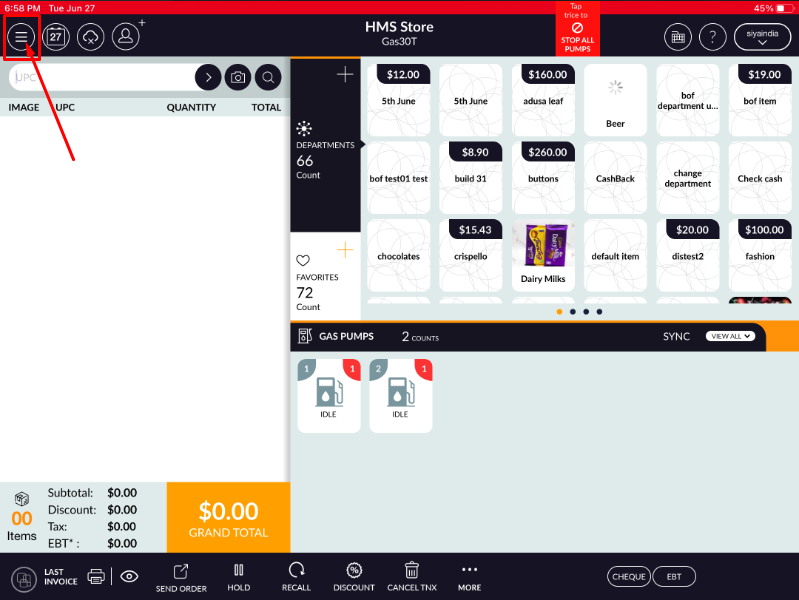
- Left Side, Click on Prifle Menu.
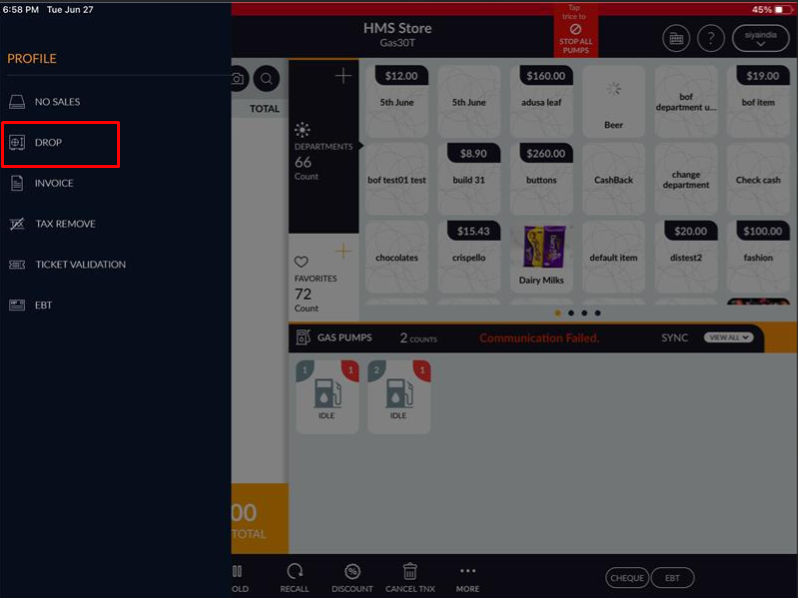
- In Profile Menu, Click on “DROP” option.
-
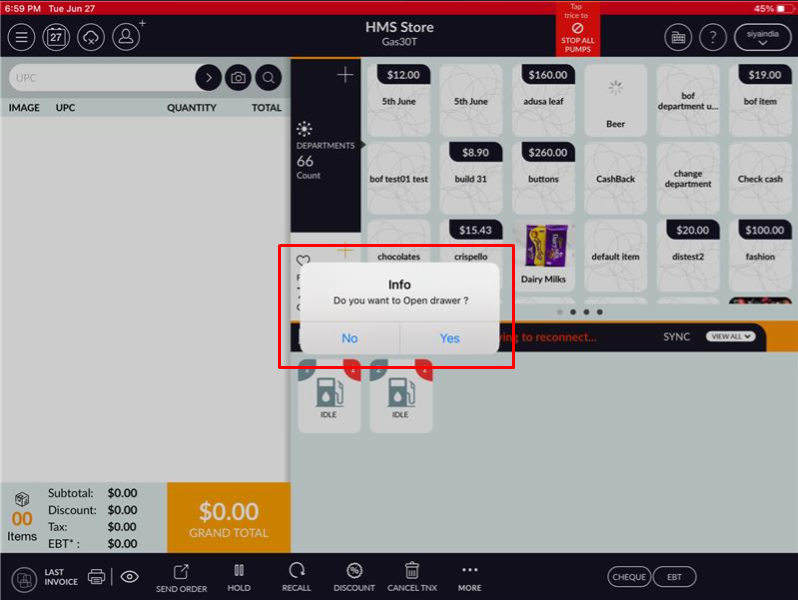
Popup message will be display on screen with “Do you want to open drawer?” Click on
Yes.
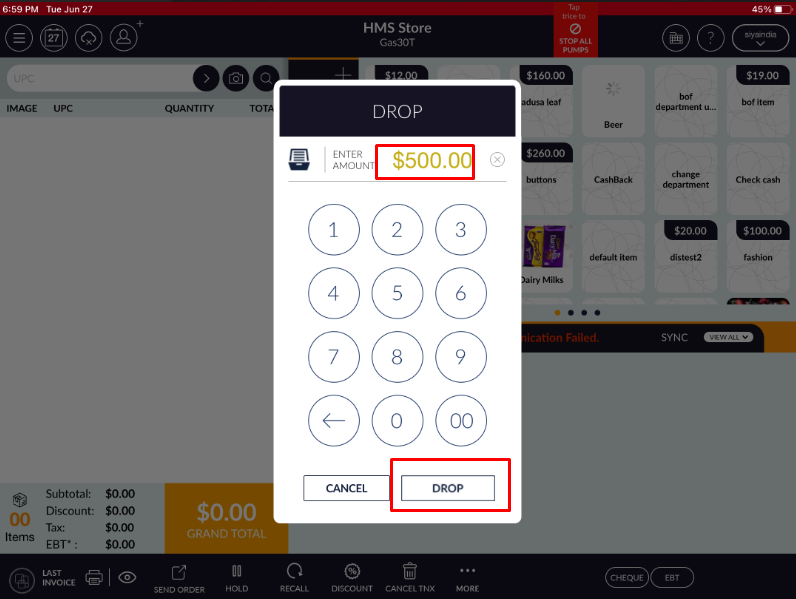
- Enter your drop amount and click on “DROP” button.
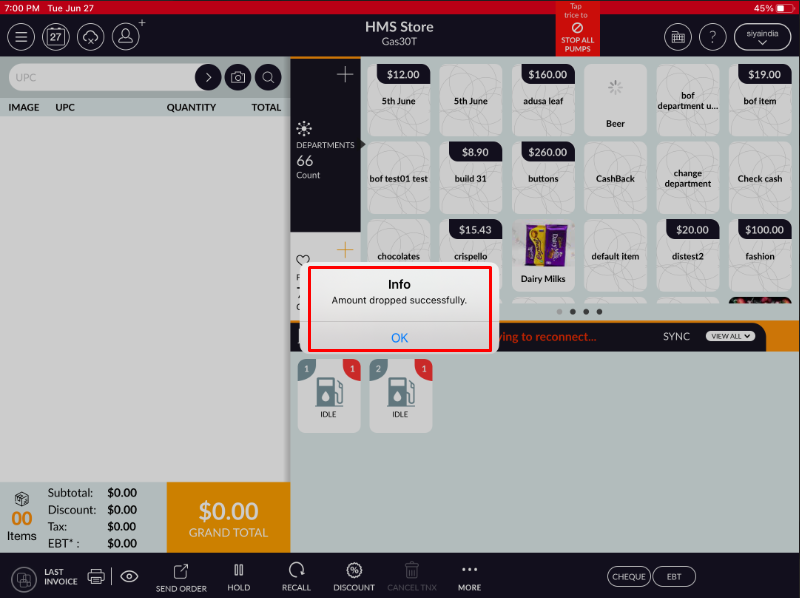
- You will get info message “Amont dropped successfully”.
2. Drop Amount from Profile Menu
Please follow the below steps:-
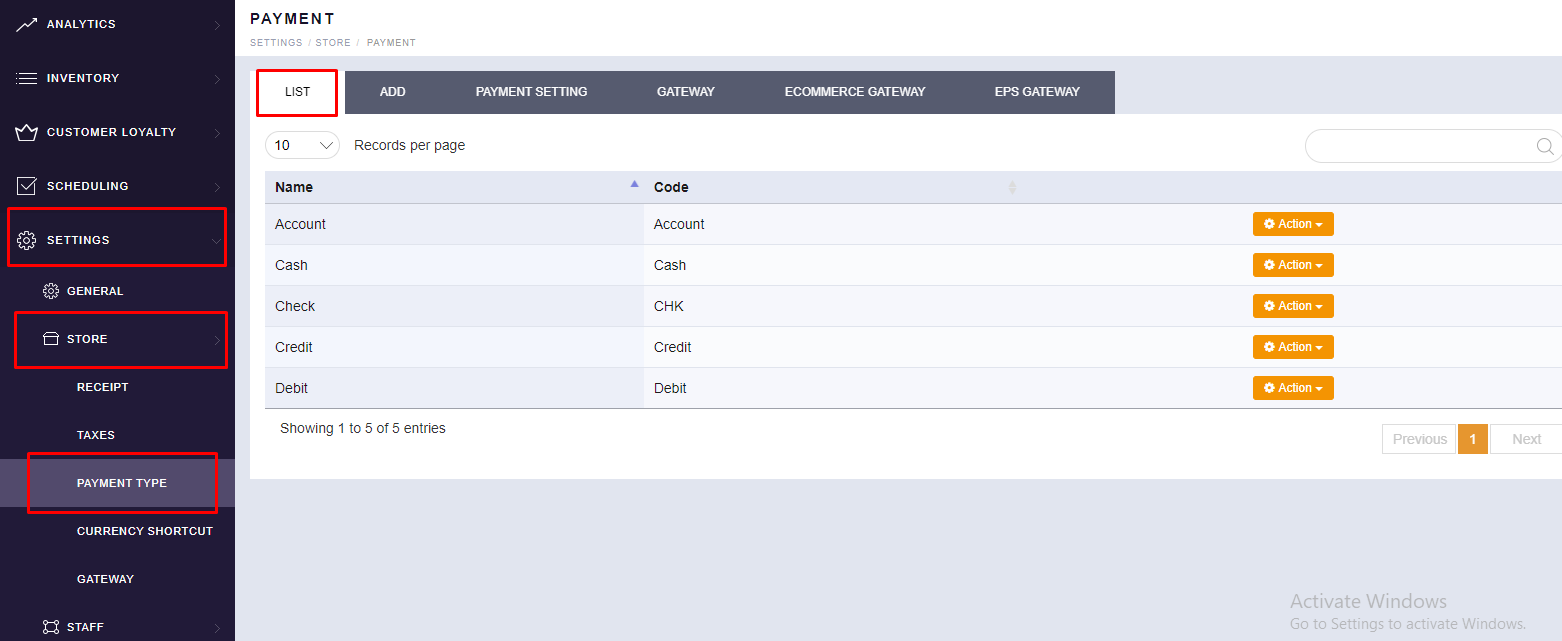
- Login to BackOffice(BOS) with your user credentials.
- Tap menu
 (located on
the top left side).
(located on
the top left side). - Tap SETTINGS.
- Tap STORE.
- Scroll to see the “PAYMENT TYPE” option. You will find your existing list of Tender.
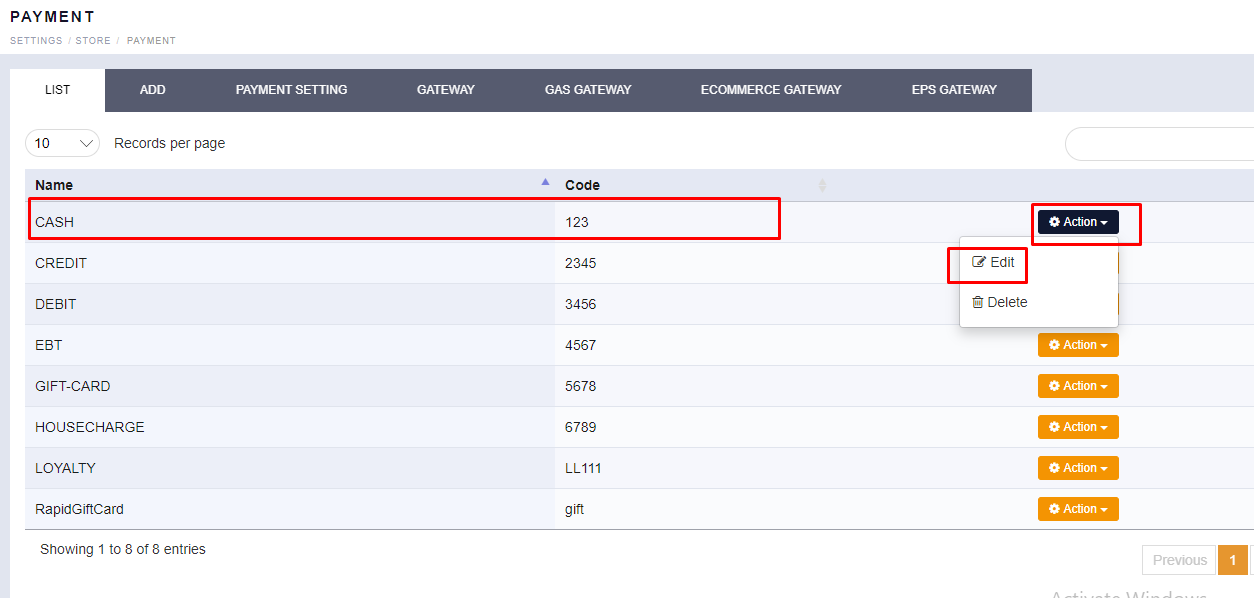
- For “CASH” Payment, In right side click on “ACTION” then click on
“EDIT” to update the Drop Amount Notification.
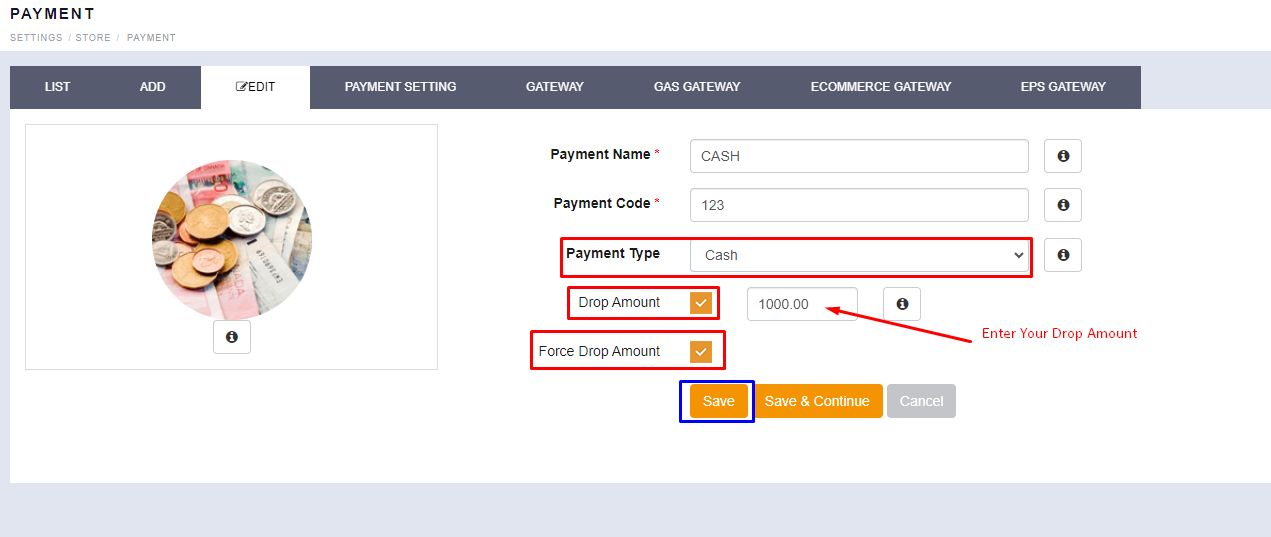
- Please select “CASH” in Payment Type.
Please tick “Drop Amount” option.
Please tick “Force Drop Amount” option ( if you want to do Drop Amout Forcefully by Cashier, it will not allow to cancel from notification).
Please click on “SAVE” button.
- In POS, once you reach your Invoice limit $1000 then it will popup info notification message to do the
drop amount. Please click on “Drop”.
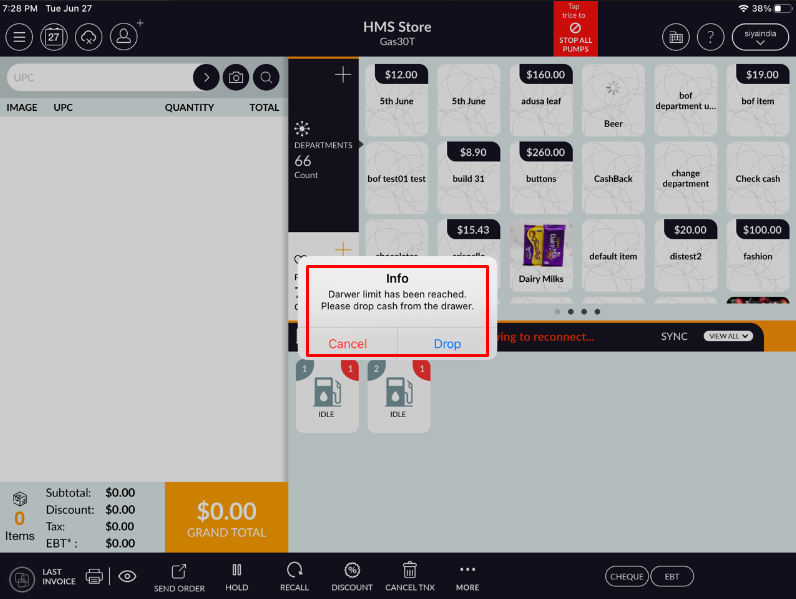
- Popup message will be display on screen with “Do you want to open drawer?” Click on
Yes.
- Enter your drop amount and click on “DROP” button.
- You will get info message “Amont dropped successfully”.