How to download an app from Test flight or update?

  1. Start IPad.
  2. Hit app test flight from the dashboard.
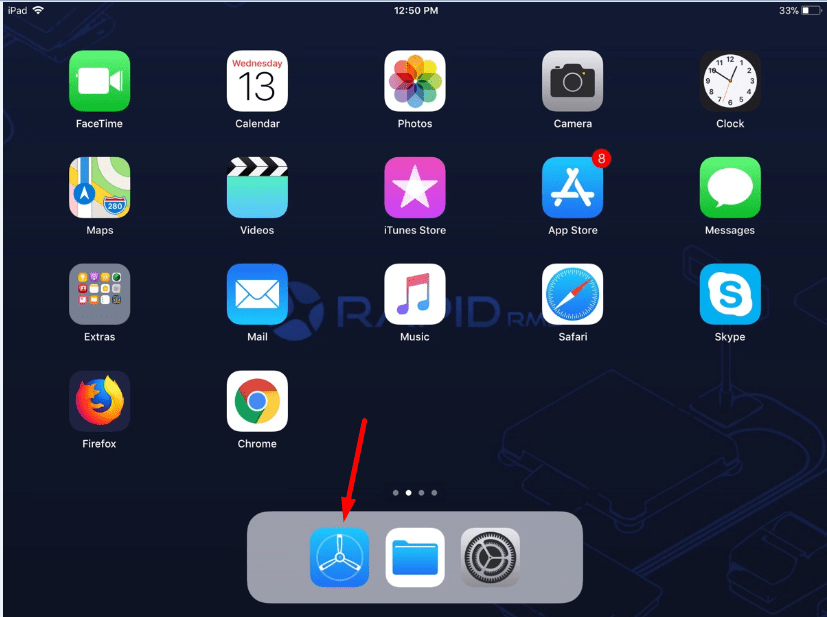
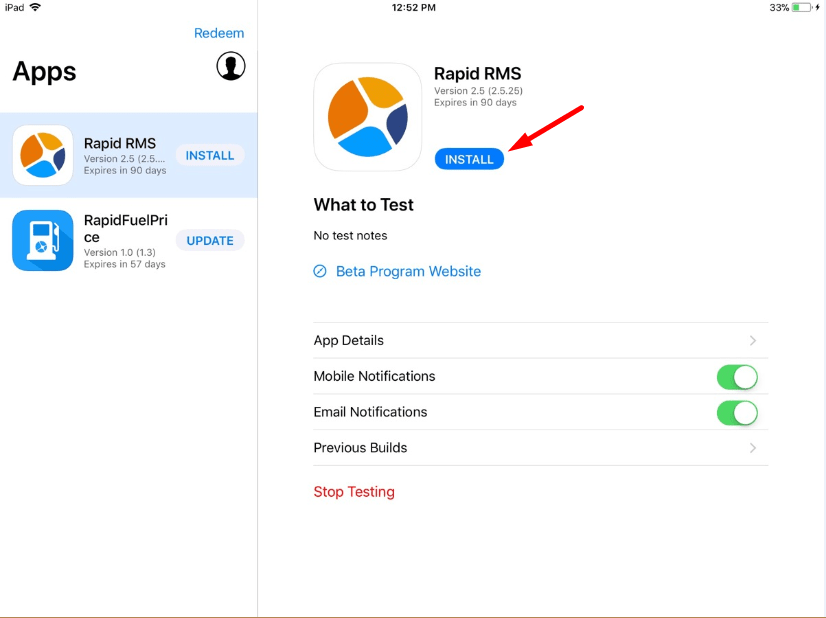
  3. If there is already test flight build available then display open option in a test flight.
  4. If test flight build version is not available in iPad then it should display install.
  5. Hit the install button.

  6. Pop up for conformation would display. Click on install.
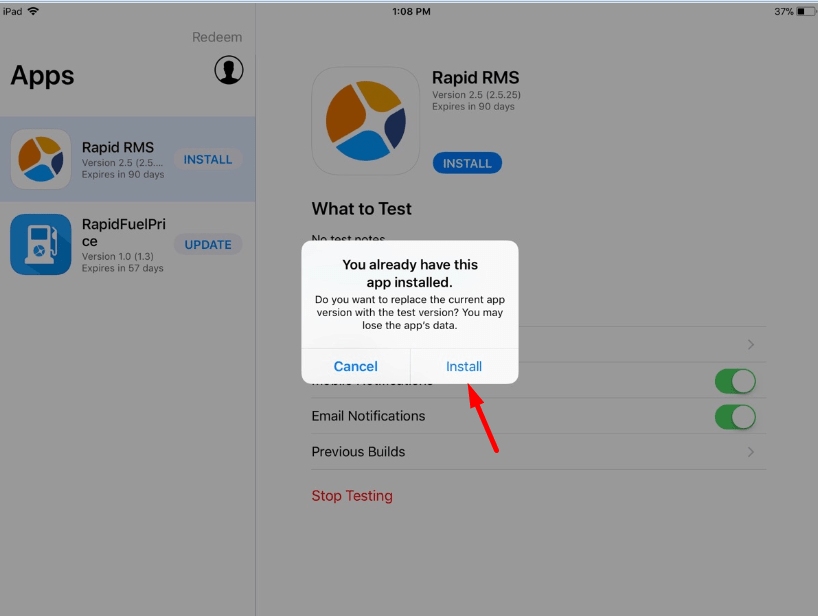
  7. The installation process will start, Which is display on the dashboard?
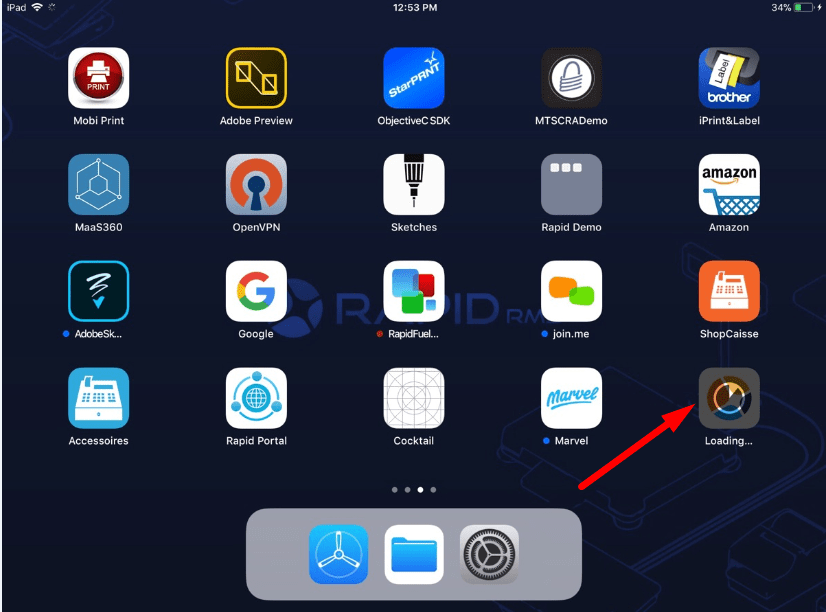
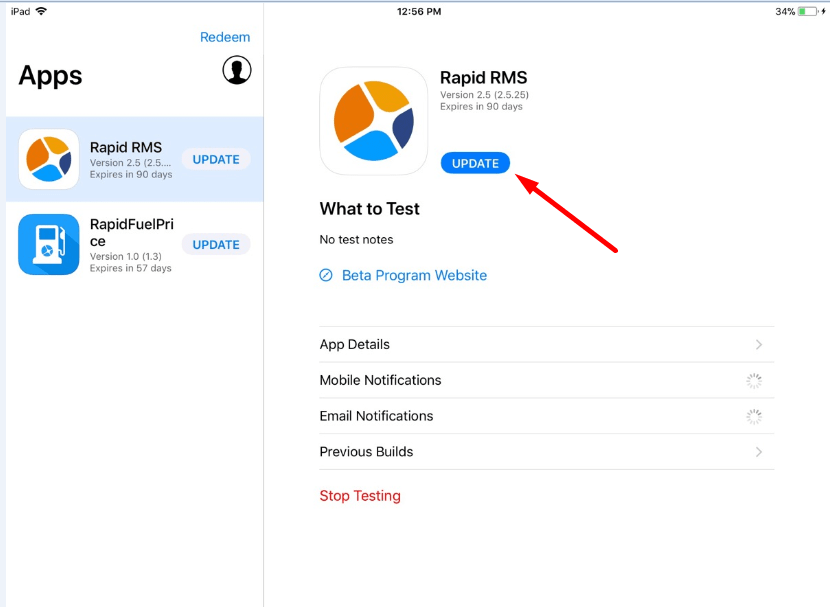
  8. If there is previous build version available of test flight then it should display with an update option.
  9. Hit the update button.

  10. Test flight latest version build start downloading.
How to delete and re-download app?


  1. Go to the dashboard of the iPad.
  2. Visualize the application available on the dashboard.
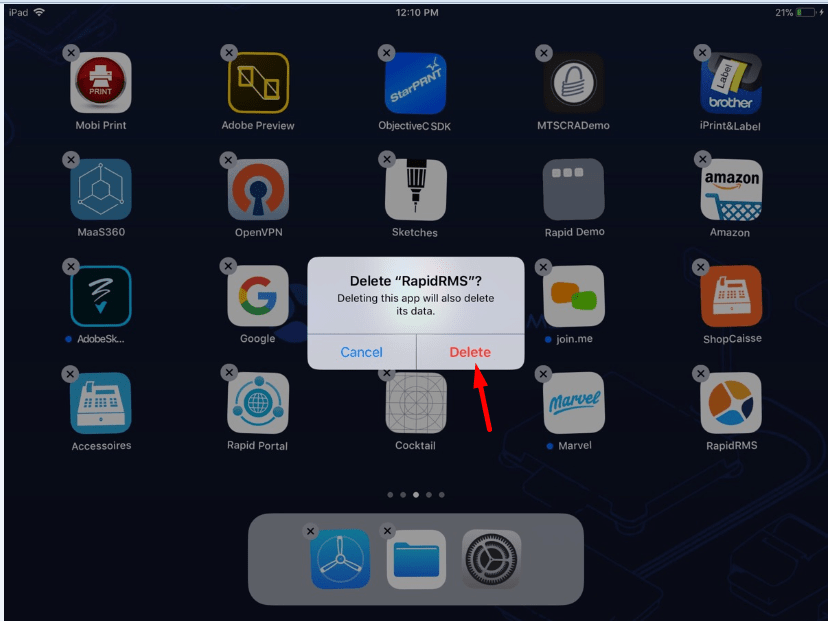
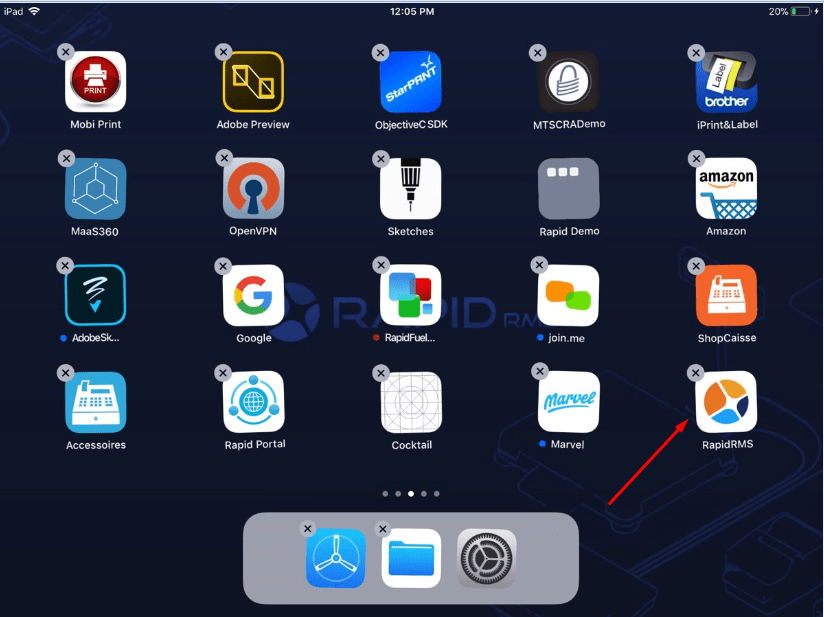
  3. Continuous press rapid RMS application icon.

    How-to-delete-and-redownload-app
  4. Click on the close button available on top of the application icon.
  5. When clicking on close button then validation message popup.
  6. Click on delete.

    How-to-delete-and-redownload-app
  7. Application deleted and the app icon will remove from the dashboard.
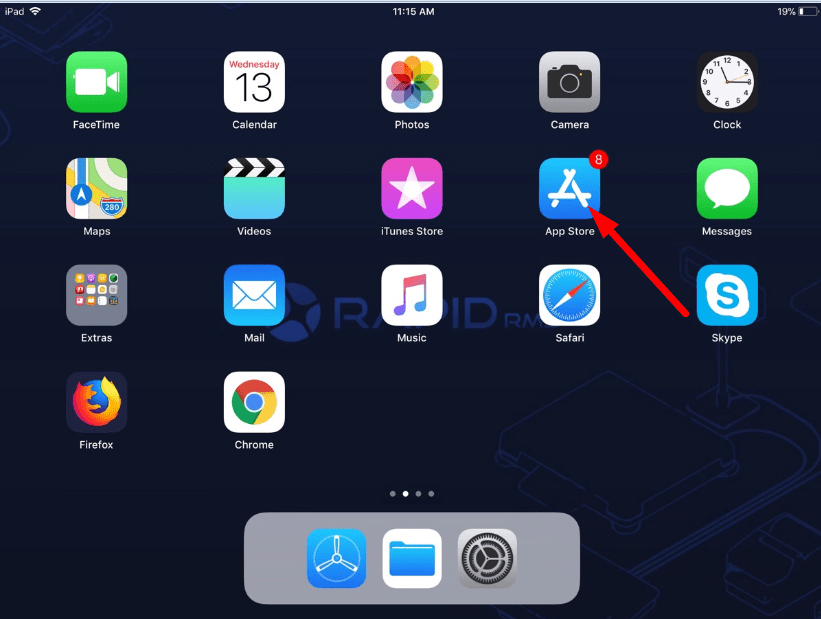
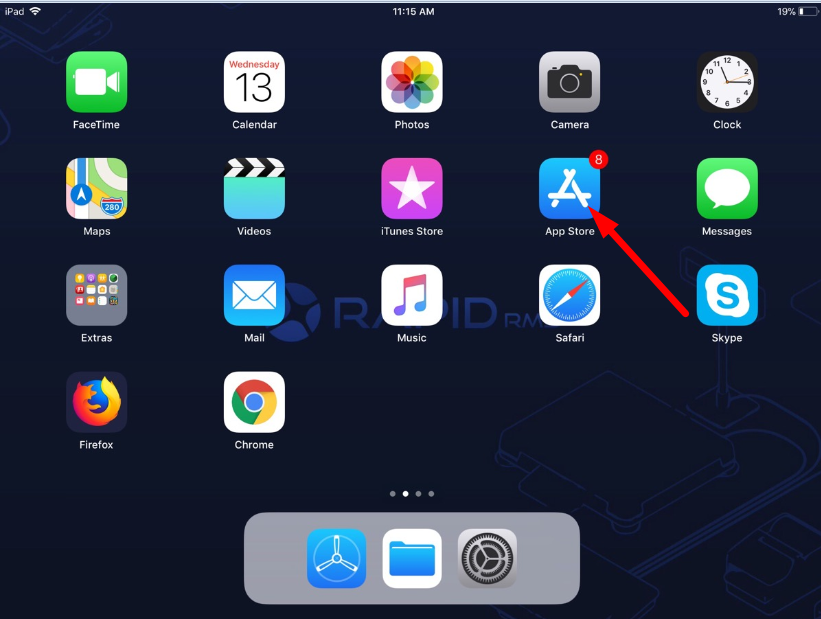
  8. For re-downloading app Hit app store icon from dashboard.

    How-to-delete-and-redownload-app
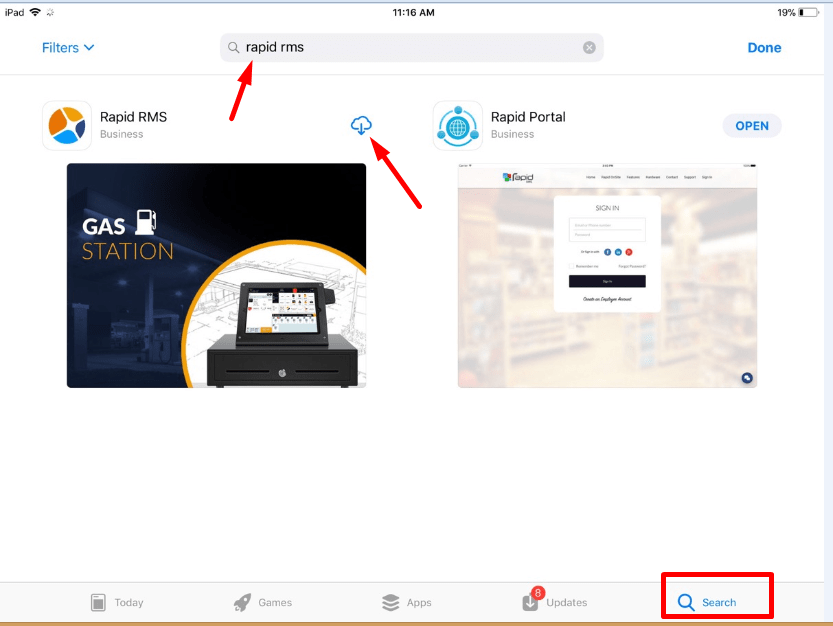
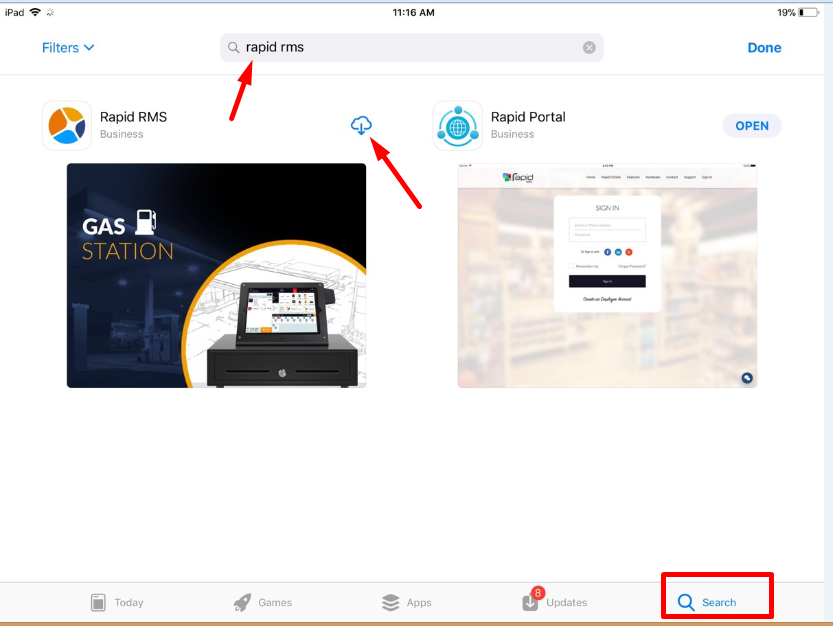
  9. Click on the search button and enter text Rapid rms.
  10. Click on download option which is available at beside of application name.

    How-to-delete-and-redownload-app
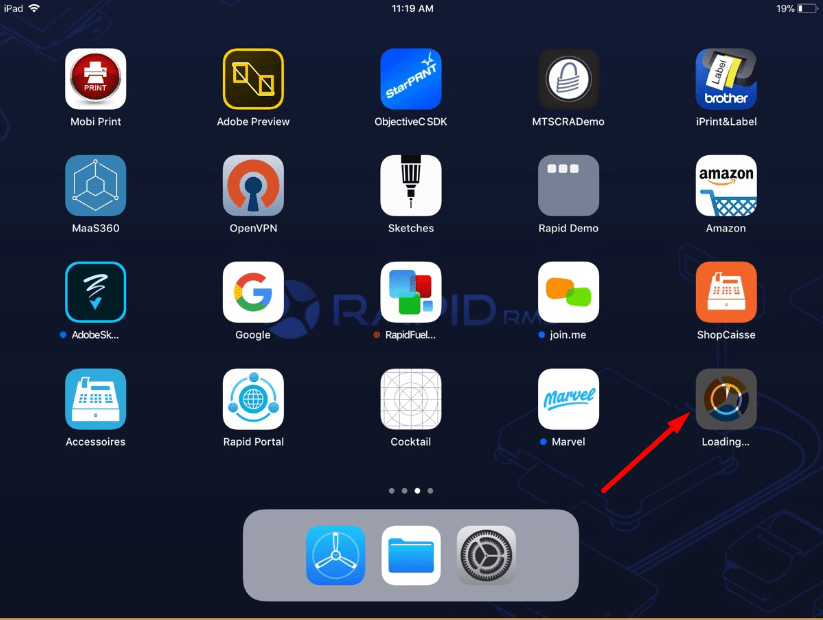
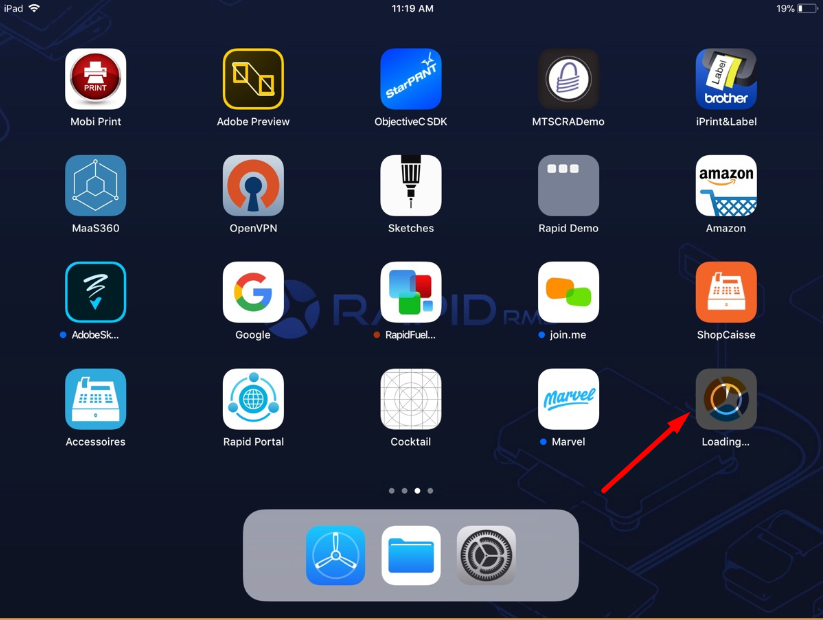
  11. When application downloading start then downloading process display on the dashboard.
    How-to-delete-and-redownload-app
  12. It will take a few minutes to download the app.
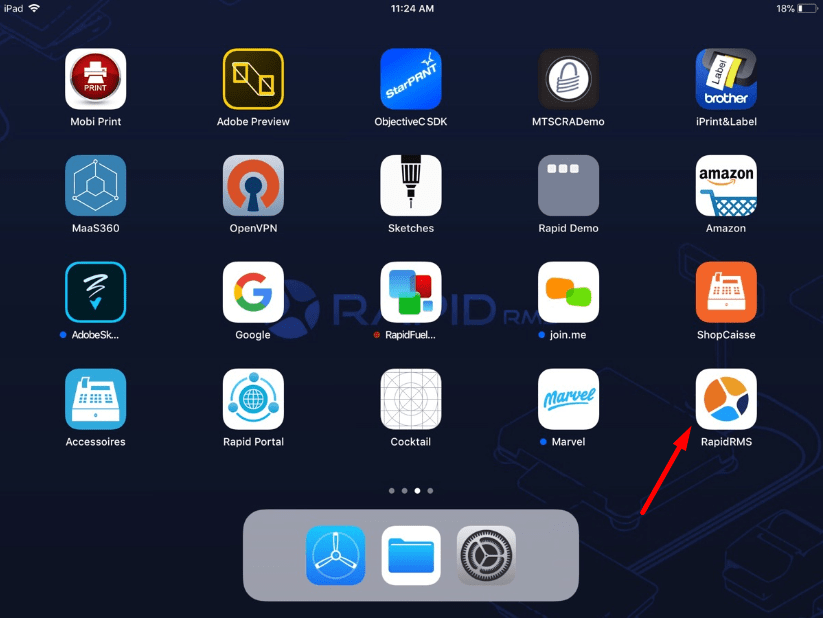
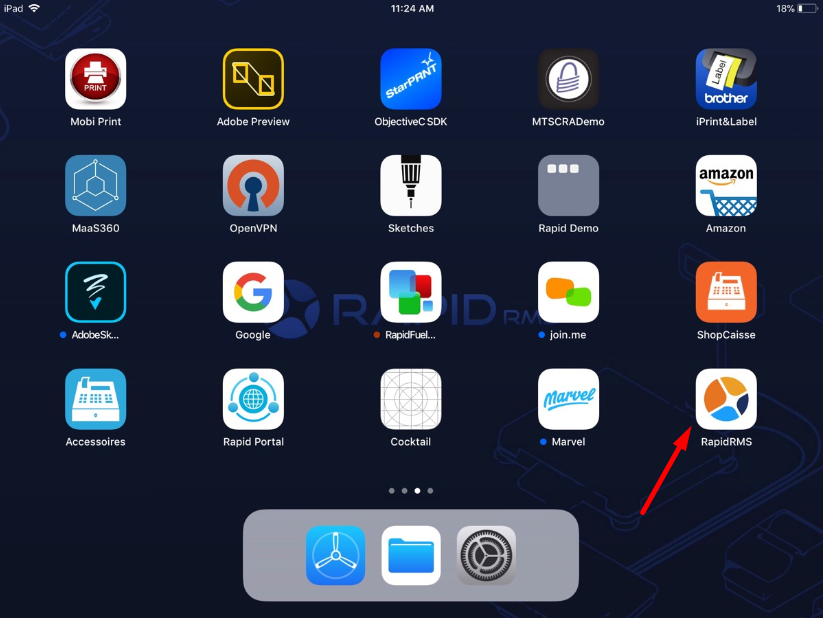
  13. After completion of download app will display on an iPad dashboard.

    How-to-delete-and-redownload-app
  14.  

How to download the app from the app store?

  1. Start IPad.
  2. Hit app store icon from dashboard.

  3. Click on the search button and enter text Rapid RMS.
  4. Click on download option which is available at beside of application name.

  5. When application downloading start then downloading process display on the dashboard.

  6. It will take a few minutes to download the app.
  7. After completion of download app will display on an iPad dashboard.