Support Document
 Support Document
How to Delete Item in iPad
If you have created Item which is by mistake created or you don’t need that Item in your application then
there is delete item functionality in RapidRMS.
Here are the steps on how to delete your Item.
Here are the steps on how to delete your Item.
- Open RapidRMS application in your iPad.
- Select Inventory Management from the dashboard.
- Enter your valid passcode to access Inventory Management Module.
- You can delete Item from two methods.
-
Method 1:
- Click on an item from the list to delete existing Item.
- Edit Item screen will open.
- Click on Delete button from the bottom of the screen.
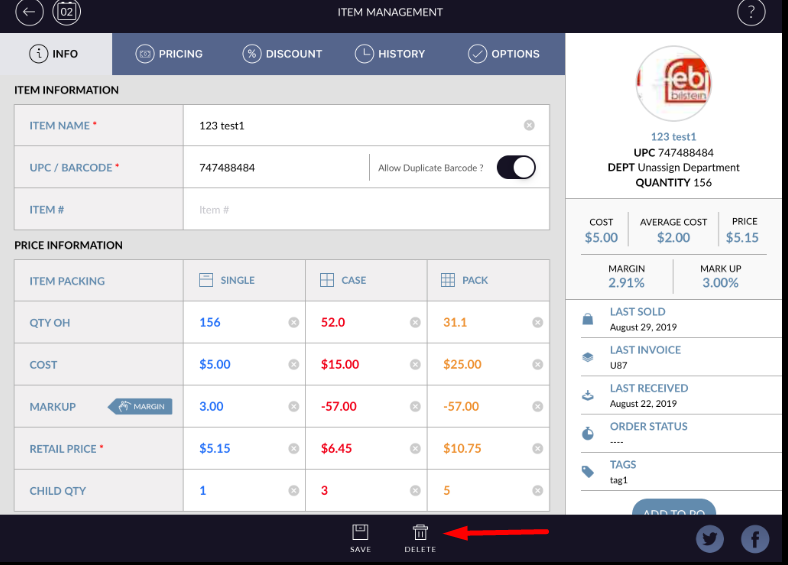
- Click Yes on Confirmation window to delete Item.
- Click No if you don’t want to delete Item.
- Click on item from the list to delete existing Item.
- Edit Item screen will open.
- Click on Delete button from bottom of the screen.
- Click Yes on Confirmation window to delete Item.
- Click No if you don’t want to delete Item.
-
Method 2:
- Slide right in any Item from the list.
- Option bar with single, case, pack, copy and delete options available.
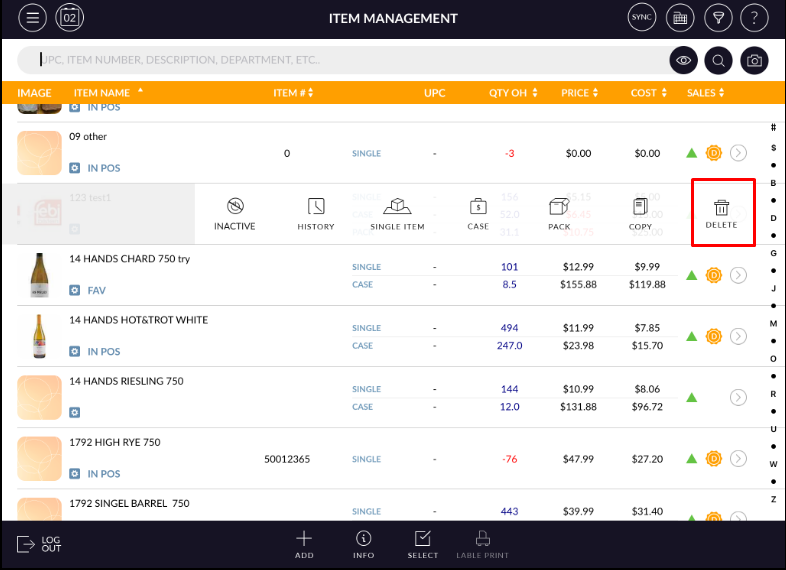
- Click on the delete button.
- Click Yes on the confirmation window to delete Item.