Support Document
 Support Document
How Customer can get hose report from iPad?
Hose report is the detail of fuelling with unit and amount.
For hose report in iPad follow below steps.
If you want to see hose report of x report then follow below steps.
If you want to see hose report in manager history then follow below steps.
For hose report in iPad follow below steps.
- Configure store in iPad with the gas module.
- Take some transactions of gas or outside the pump.
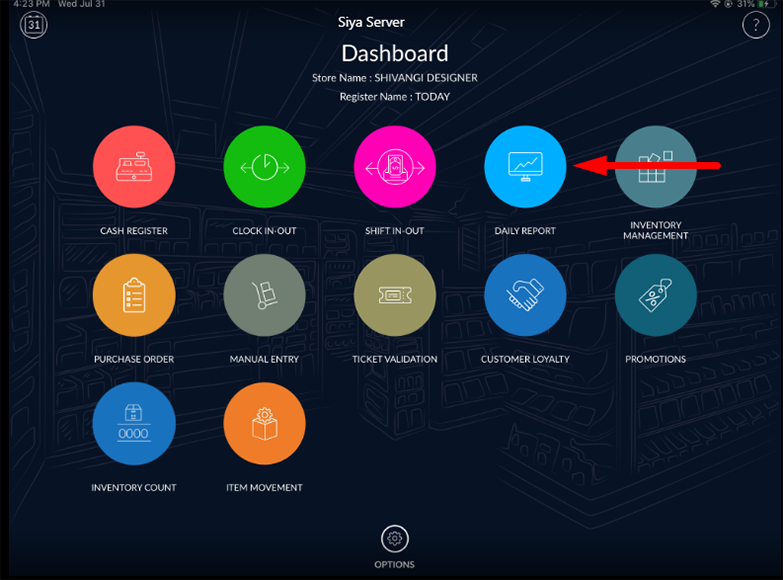
- Now go to daily report module from the Dashboard.
- In shift report scroll shift report and go to the bottom section of shift report.
- In the last section, the hose report would display.
- In hose report there are four column would be there. Fuel name with unit and amount, strat, sold and total.
- In the fuel name column, all available fuel display with unit and amount.
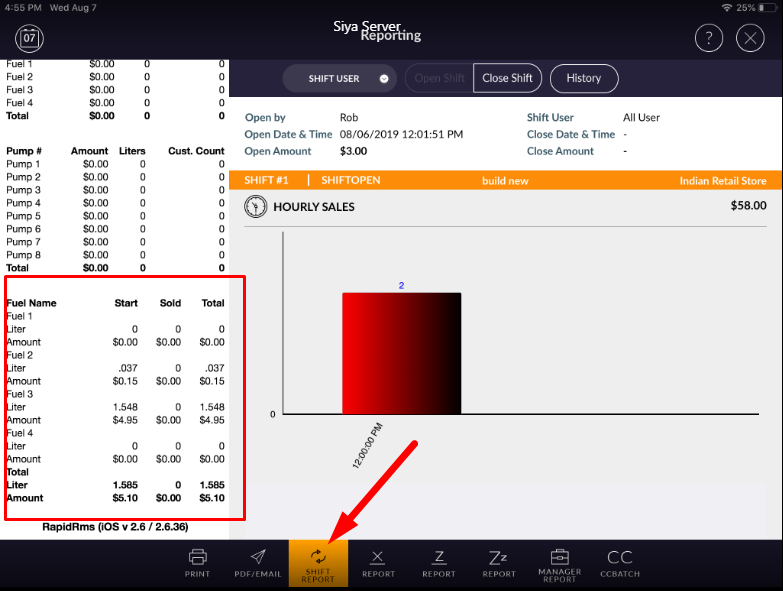
- In start column data would display when shift was started and that time fule status when last shift close.
- In sold column current shift sold data display according to fuel selling.
- In total column, a total of start data and current shift data display.
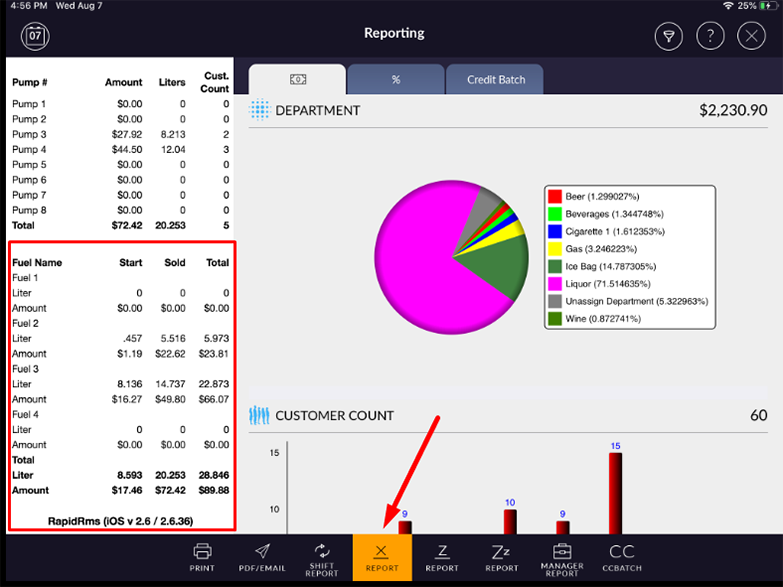
If you want to see hose report of x report then follow below steps.
- Open daily report.
- Go to x report.
- Scroll report section and go to the bottom of x report.
- Total data of all shifts in current x would display.
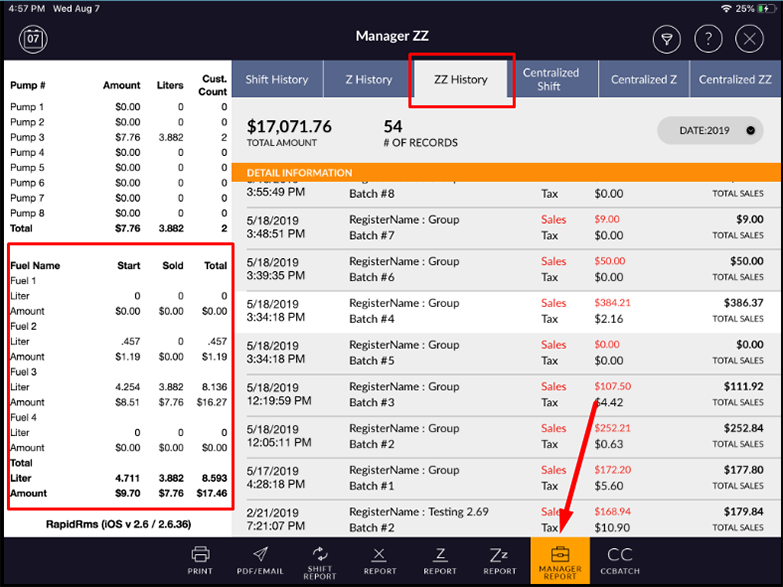
If you want to see hose report in manager history then follow below steps.
- Open daily report.
- Go to the manager report.
- In manager Z report hose report of shift history, Z history, ZZ history, centralized shift, centralize
Z and centralized ZZ should display.
Transaction is completed or not
By mistake I get out from daily report how do I get z report? When I go to again daily report it
shows me zero on left side report now what I do?
If by mistake come out from daily report then restart application and again go to daily report module now it
will not display zero on left side report.
For getting Z report. Go to daily report and apply manager report option.
Z report history will display.