Support Document
 Support Document
How will customers earn points through invoice ?
- Open RapidRMS application.
- Go into the Cash Register Module (RCR).
- Ring Up items for generating customer invoices.
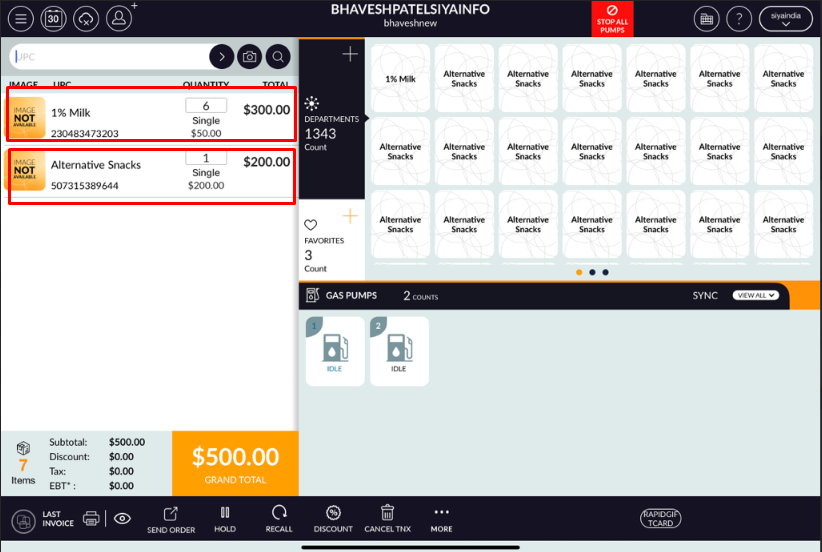
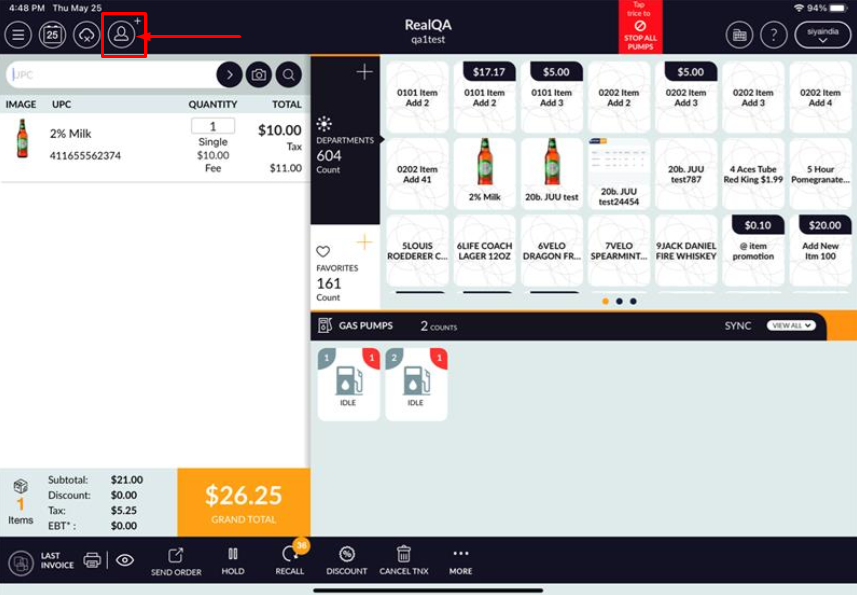
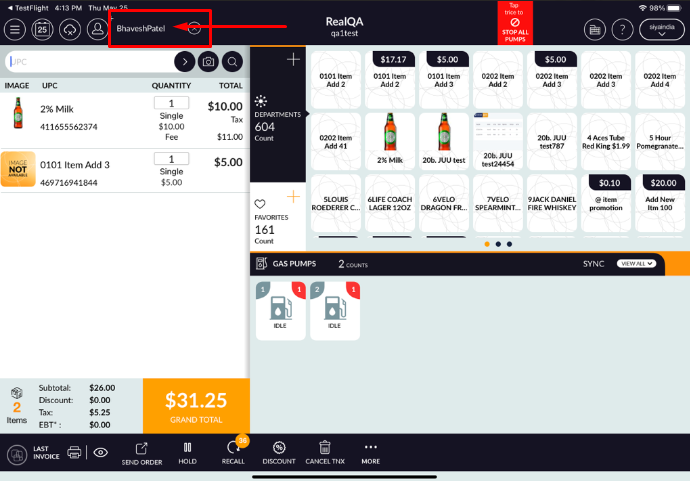
- Click on the “Customer Add” option, which is available at the top of the bill.
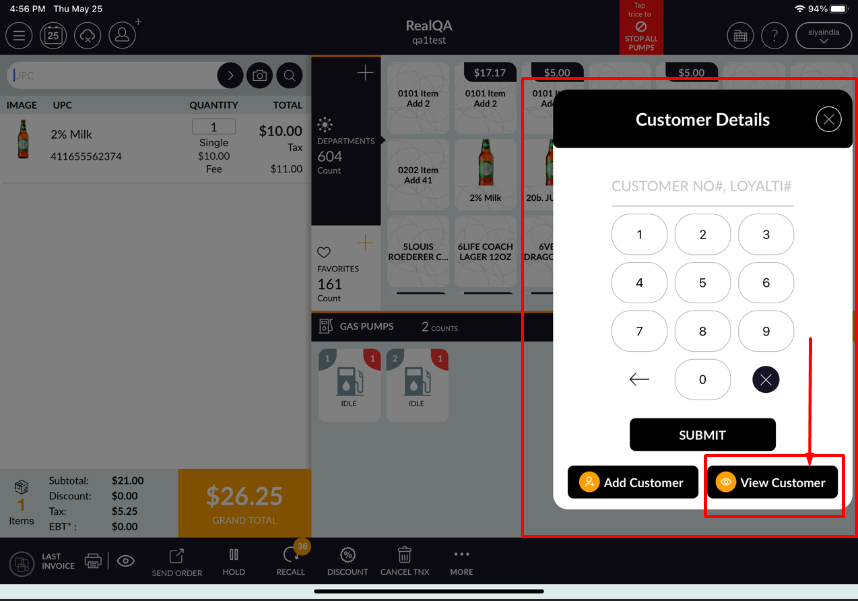
- The Customer Details screen will be open.

- Please enter your Customer Mobile No., then related customers will display as per your enter number.
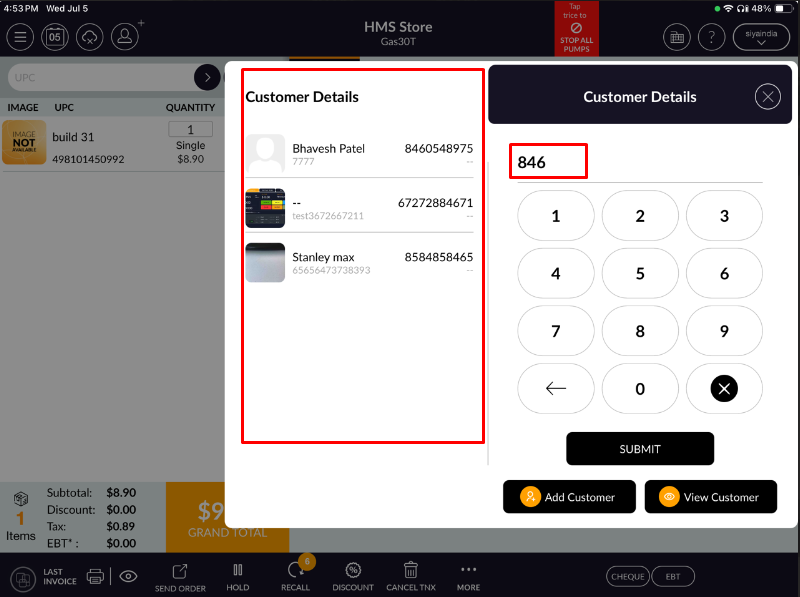
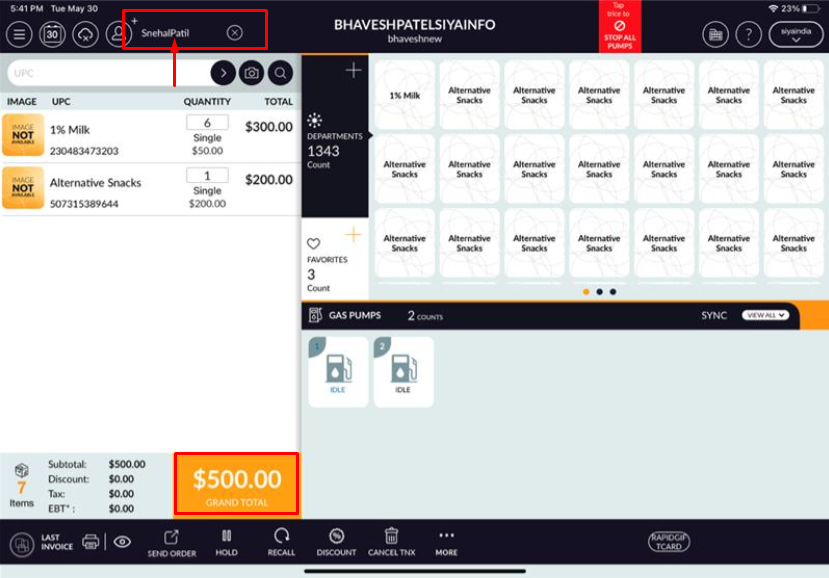
- Once you select a customer from the list then it will be added.
- If any NEW Customer then it will give you a popup that says ‘There is no Record”.
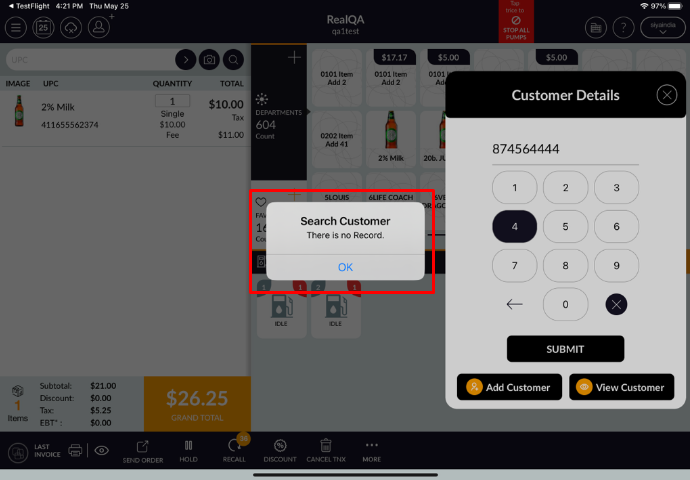
- Once you click on “OK” button then it will give you the screen below with 3 options
(Mobile No., Full Details and Skip)
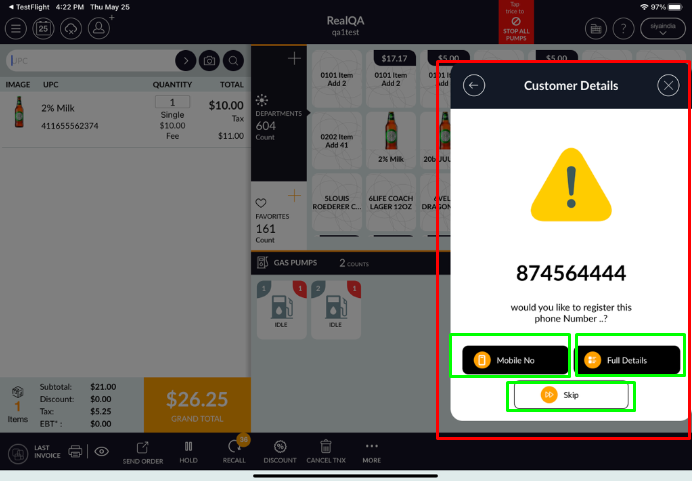
● Mobile No. : Click on this option, if you want to add customers directly with mobile no.
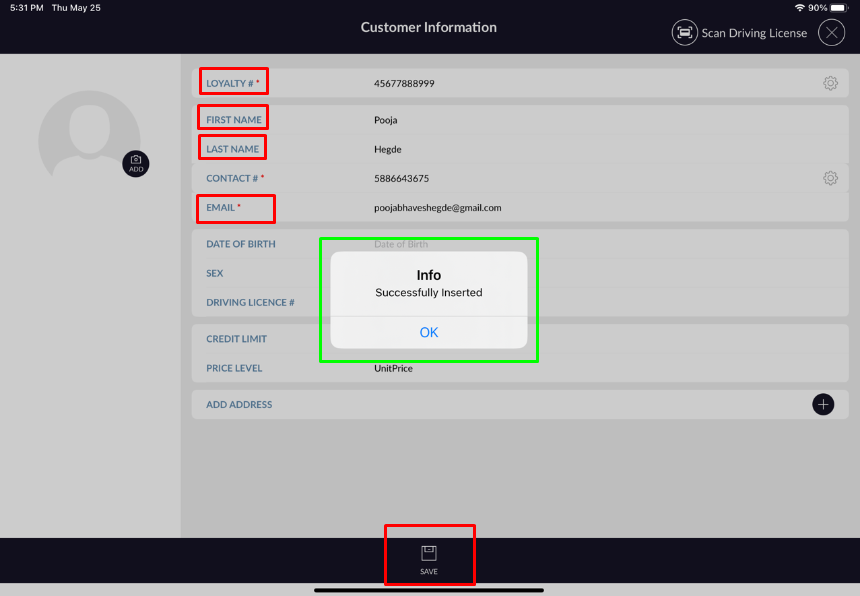
● Full Details : Click on this option, if you want to fill up full details of the customer.
Please fill up Loyalty ID, First Name, Last Name, Email ID and click on the SAVE button.
Once you click on the SAVE button, you will get the message ‘Successfully Inserted”.
Once you click on the Ok button then your customer will be added.
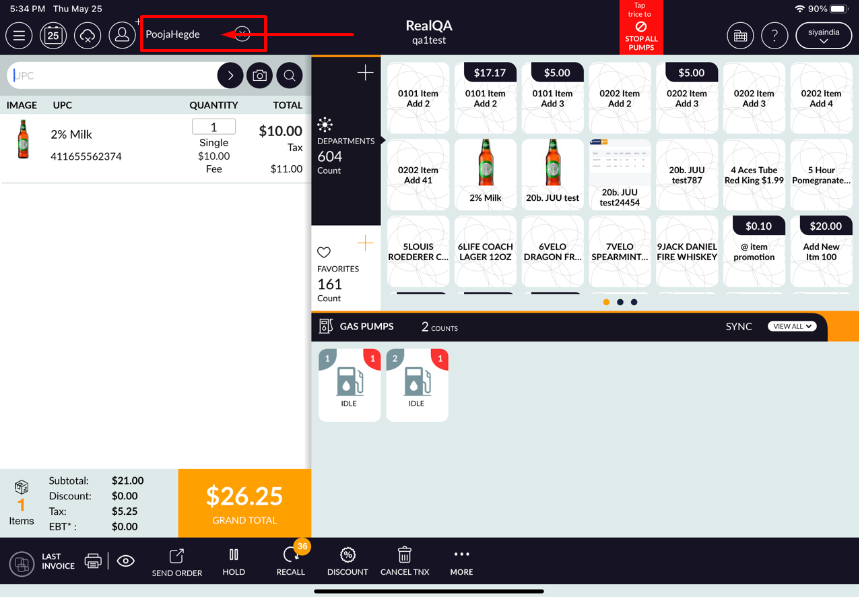
● Skip: Click on this option, if you want to cancel that screen. -
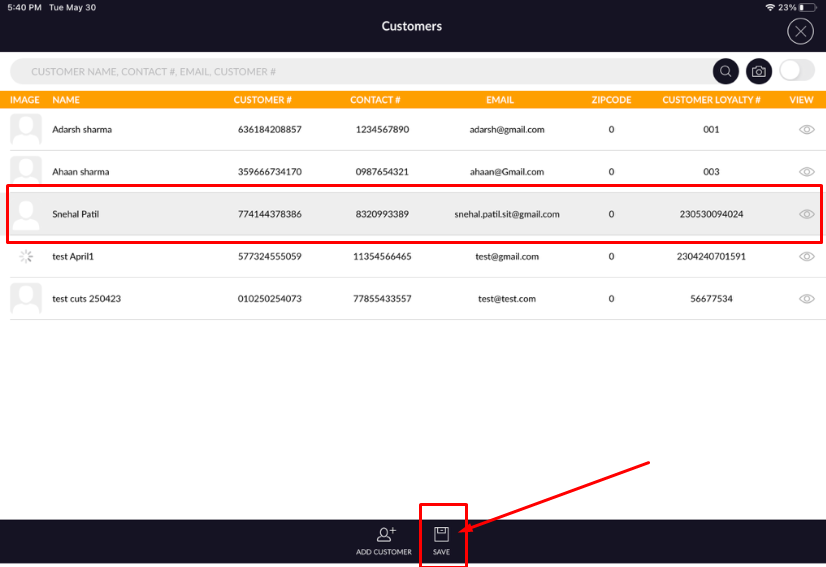
If you know the customer then you can select the “View Customer” option and it will
open your existing customer list. Here you can select your customer from this list.
-
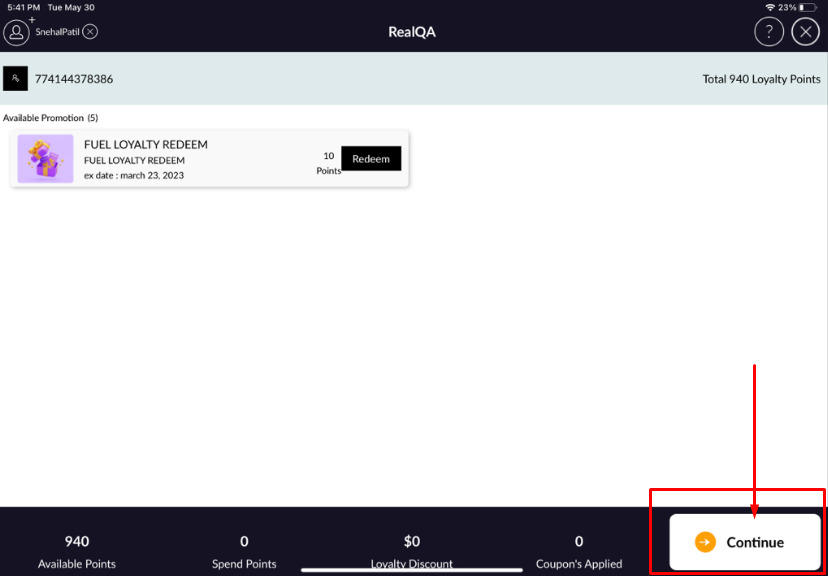
In the next screen, please click on the “Continue” button.
-
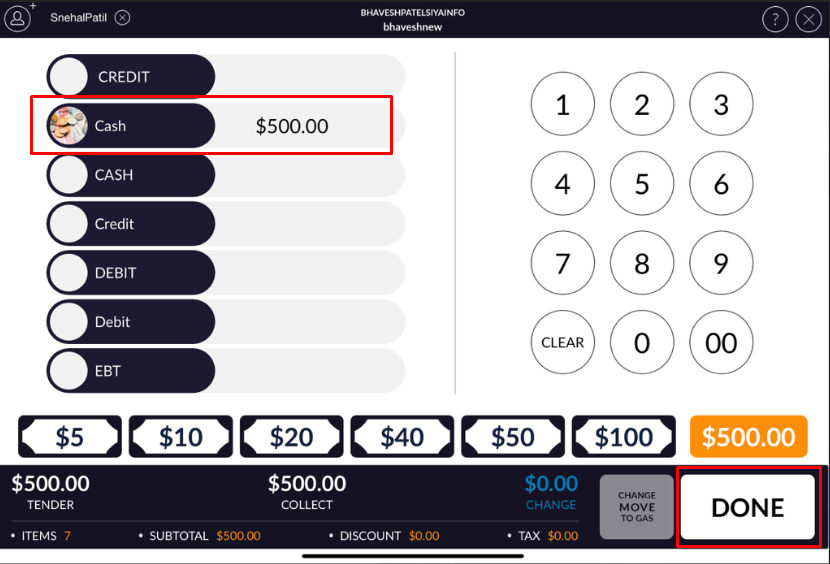
Select your tender (Cash / Debit / Credit) as per customer requirement and finish your transaction with
the DONE button.
-
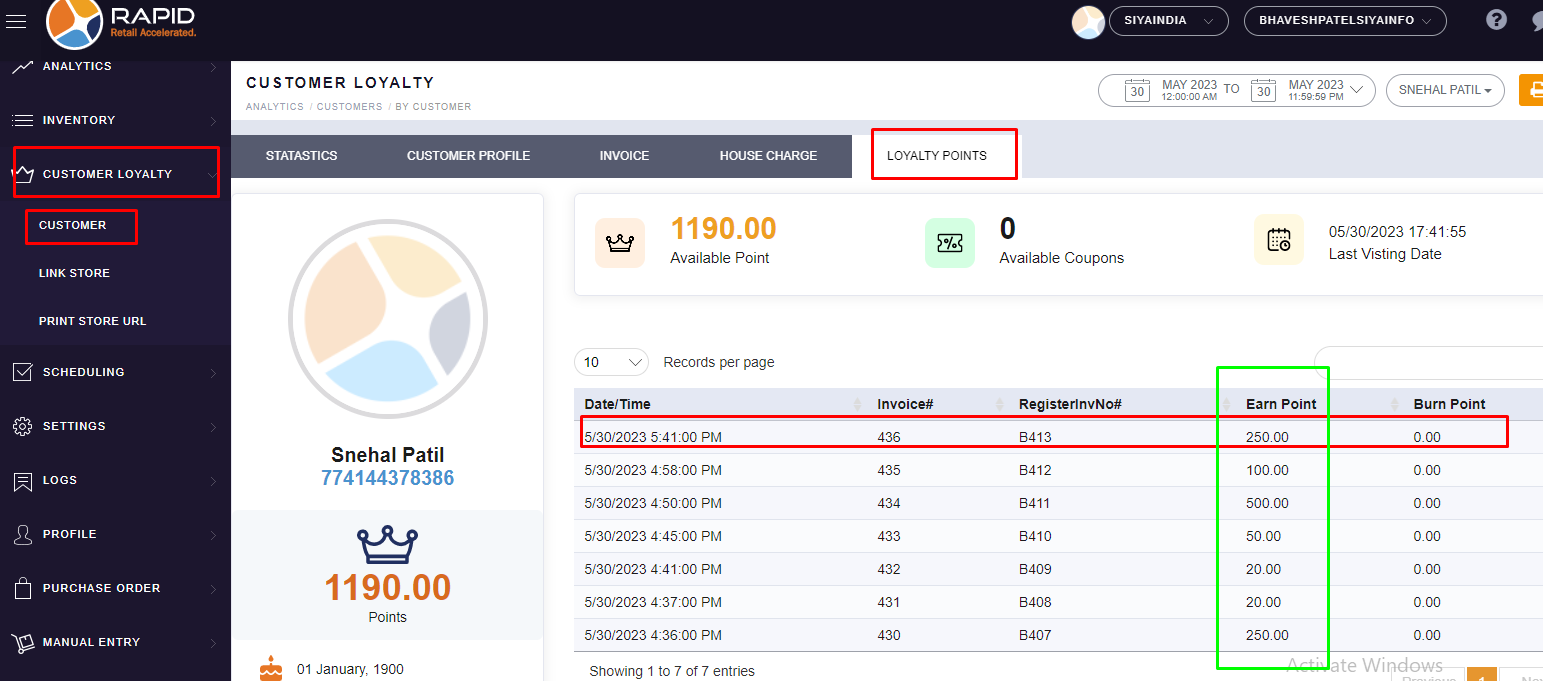
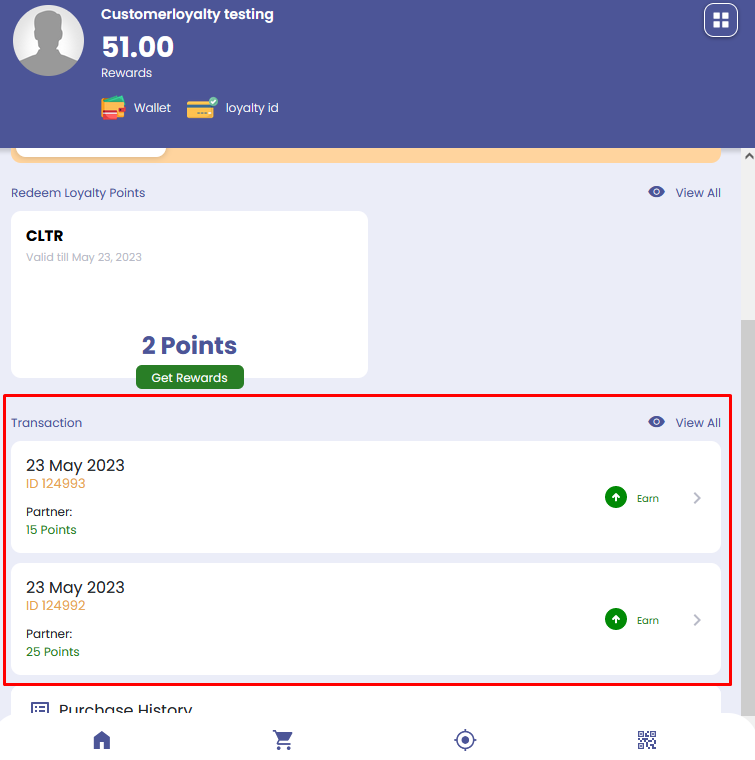
Now customers can see their earn point on his/her mobile application in transaction history.
-
And you can also see customers earn points in the customer section.