Support Document
 Support Document
How to apply compulsory modifier in ring up item ?
In rapid cash register when ring up item then modifier can be added into item.
There are two ways to add modifier in bill item.
Ring up process for modifier selection option OFF:
Ring up process for mandatory modifier selection:
When select min and max option :
There are two ways to add modifier in bill item.
- In QSR group if mandatory modifier selection is not require then first item ring up and then modifier can be customize.
- In QSR group if mandatory modifier selection require then before item ring user have to select defined modifier.
Ring up process for modifier selection option OFF:
- Open inventory management module.
- Go to QSR group and open it in edit mode.
- There is one option available as modifier selection.
- Keep that option OFF.
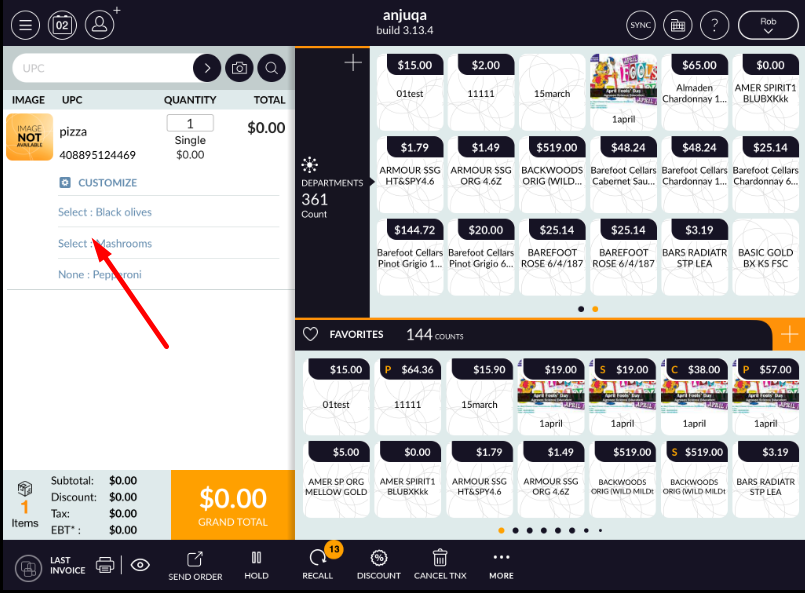
- Now go to RCR and ring up item in which all qsr groups this option OFF.
- Item will ring up without any compulsory modifier selection pop up.
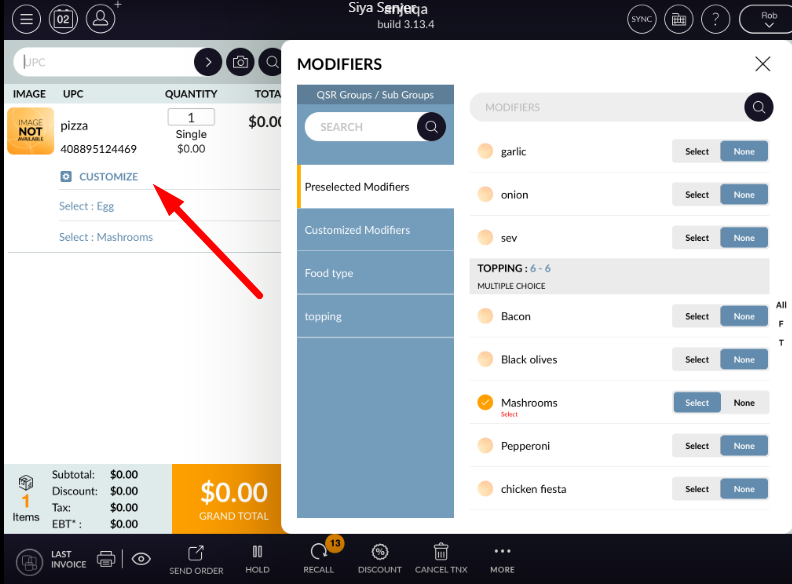
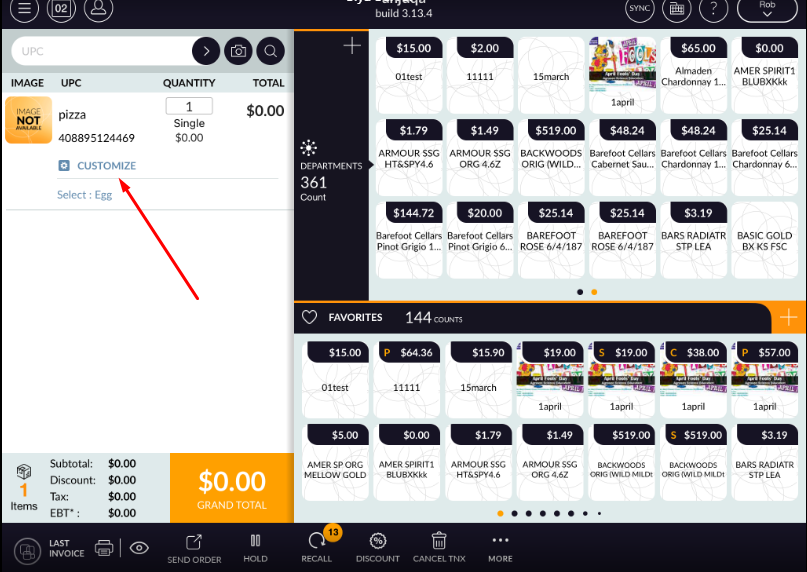
- There is one customize option.
- From that window modifier can be selected and apply to item.
Ring up process for mandatory modifier selection:
- Open inventory management module.
- Go to QSR group and open it in edit mode.
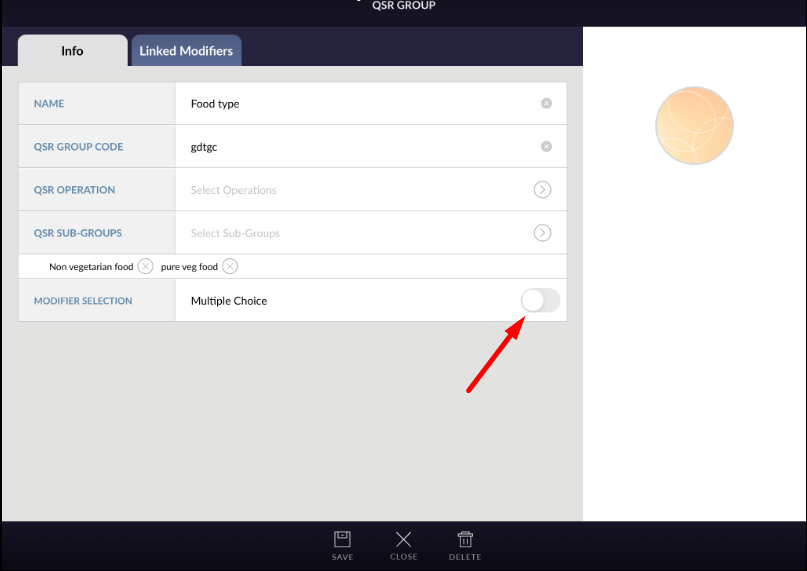
- There is one option available as modifier selection.
- Keep that option ON.
- When option ON then you have two option selection.
- Select ‘select one’ option.
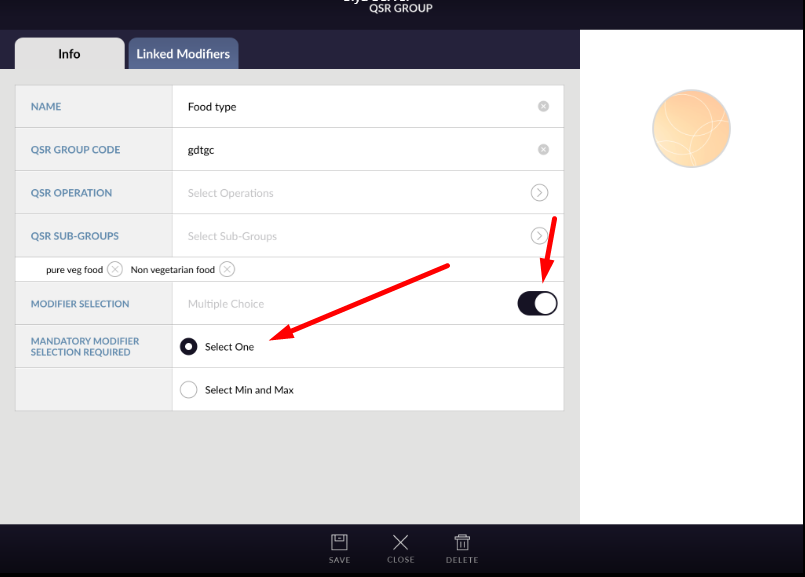
- If you ‘select one’ option then when in rcr ring up that item then before ring up item one pop up will
open and from qsr group you need to select one modifier compulsory from that group.
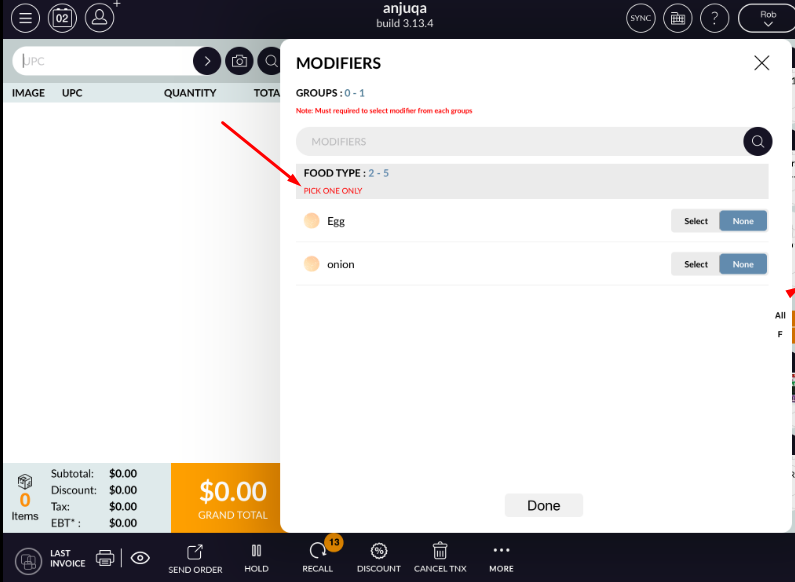
- After select any one modifier, item will ring up and selected modifier will apply on it.
- After that you can customize modifier but compulsory modifiers are need to select previously.
When select min and max option :
- Open inventory management module.
- Go to QSR group and open it in edit mode.
- Keep modifier selection option ON.
- Select min and max option.
- Add value in min and max value.
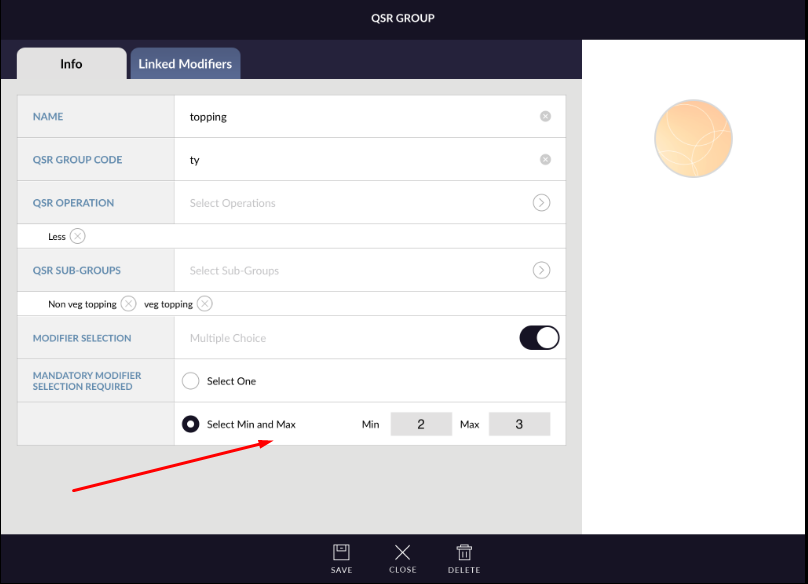
- That means for item ring up minimum 2 modifier selection is compulsory and up to 3 modifier it can select more then that modifier selection is not possible.
- Go to RCR and ring up that item.
- Pop up open and compulsory selection group will display.
- Select modifier from that.
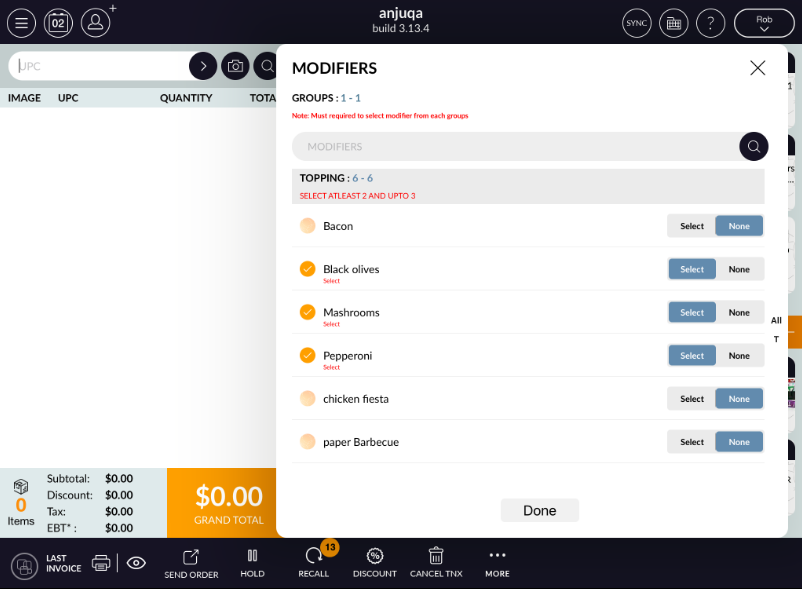
- Item will ring up.
- Note that if modifier is connected with any QSR sub group then it will not display in this pop up.
- For compulsory selection condition is that modifier must connected with qsr group only not with qsr
sub group.