Support Document
 Support Document
How can I apply the qty multiplier?
If the user wants to order so many items and does not want to add every item quantity individually, the user can use the qty multiplier functionality from where the user can select the predefined options to increase or decrease the quantities of items via percentage or factor wise accordingly.
Please follow the below steps:-
- Go to rapid RMS application.
- Open the purchase order module from the dashboard.
- Select the PO list option.
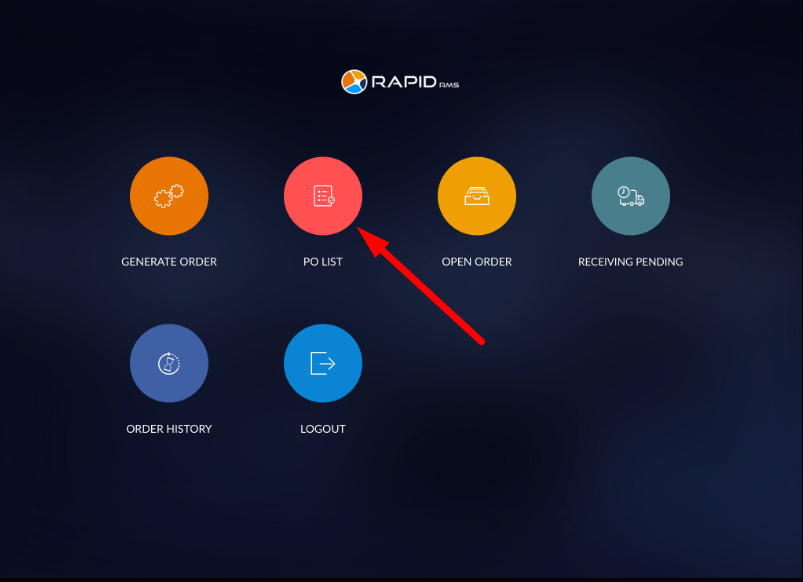
- It will open a purchase order list screen.
- Select items in which you want to set reorder quantity.
- From the top right side corner, Click on the qty multiplier option.
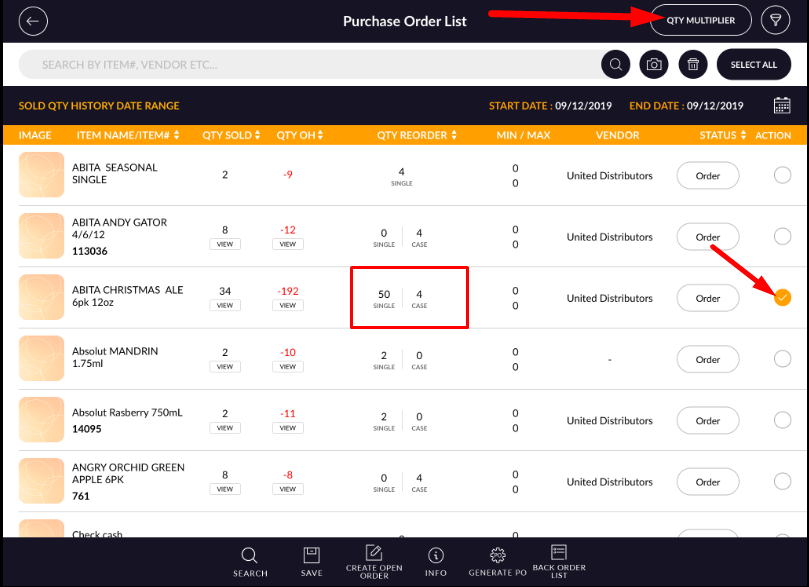
- It will open the pop-up window.
- You can increase or decrease items quantity by percentage and factor wise.
FIelds Description Percentage You can set the quantity percentage-wise. Factor Or you can set the quantity percentage-wise.. Increase When you select the increase option, it will increase the quantity reorder of an item. Decrease When you select the increase option, it will increase the quantity reorder of an item. Enter value Enter your value manually. Predefined value Select the predefined value as you want to set the quantity of an item.
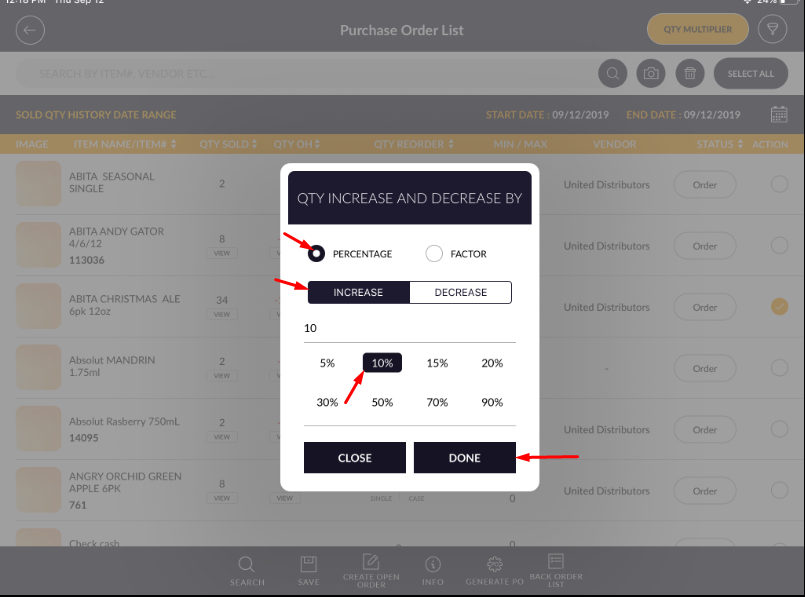
- To increase quantity percentage-wise, select the percentage radio button option.
- Select the Increase option.
- Enter the percentage value in the text box or select a predefined percentage value from the list.
- Click on Done.
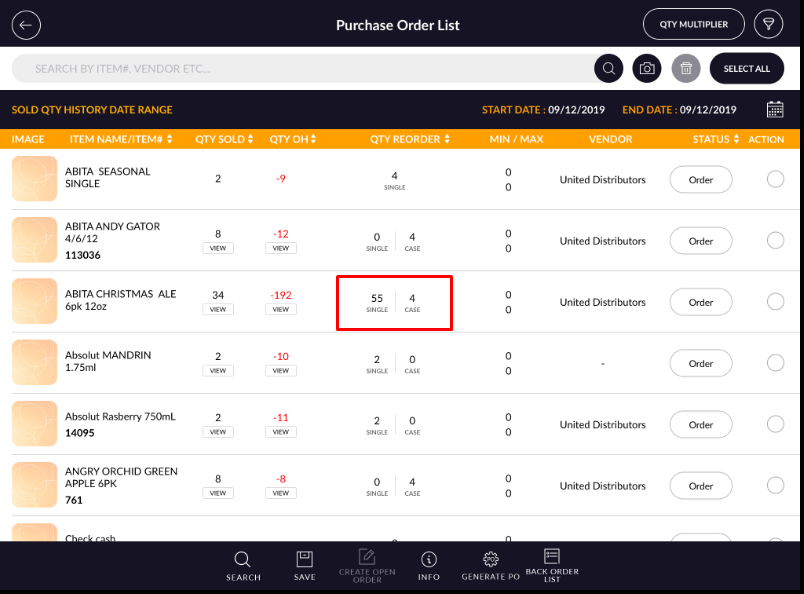
- As you can see from the below image, the quantity of an item is increased.