Support Document
 Support Document
How to add a tag in an item?
You can specify product in different tag as per your requirement in an item.
Here are the steps how manage Item Tags.
Here are the steps how manage Item Tags.
- Open RapidRMS application in your iPad.
- Select Inventory Management from the dashboard.
- Enter your valid passcode to access Inventory Management Module.
- Click on New Item from the bottom of the page to add new Item or click on an item from the list to
edit existing Item.
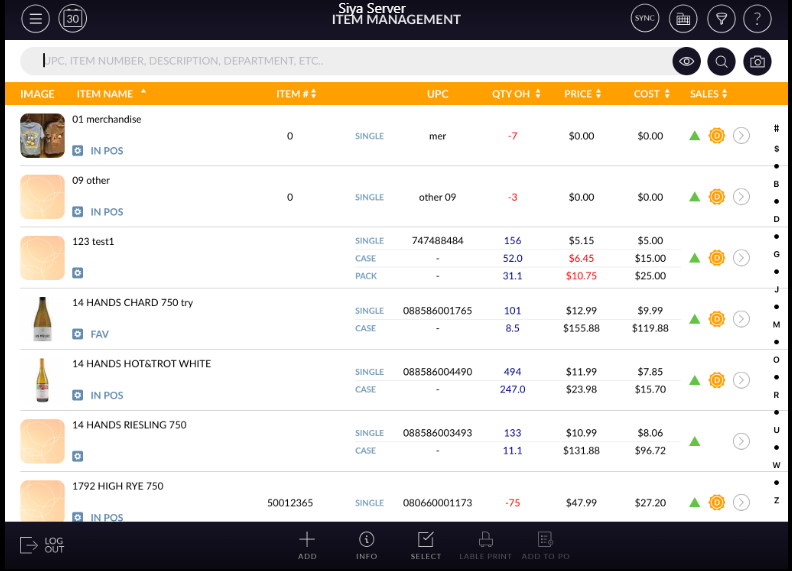
- Add/Edit Item screen will open.
- In the top of the screen, it has Info, Pricing, Discount, History and Options tabs.
- It has Product Info section under Info tab.
- There are Group and Tag fields under Product Info section.
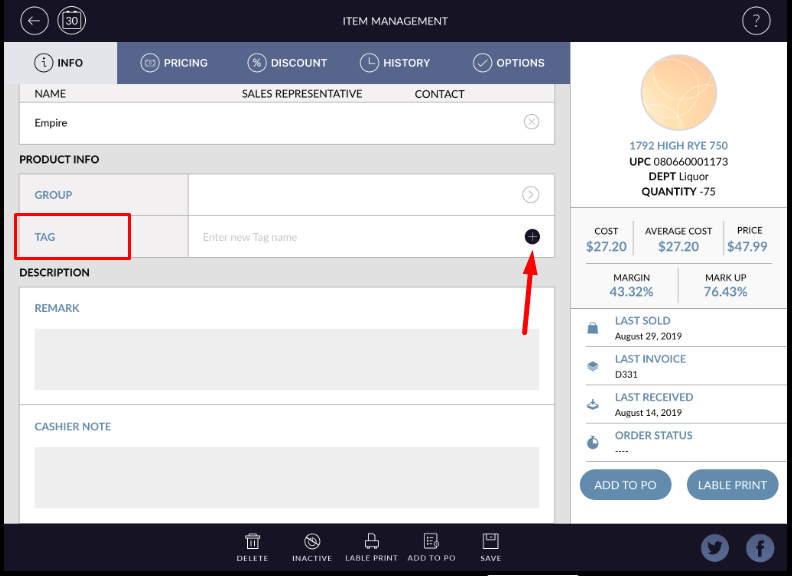
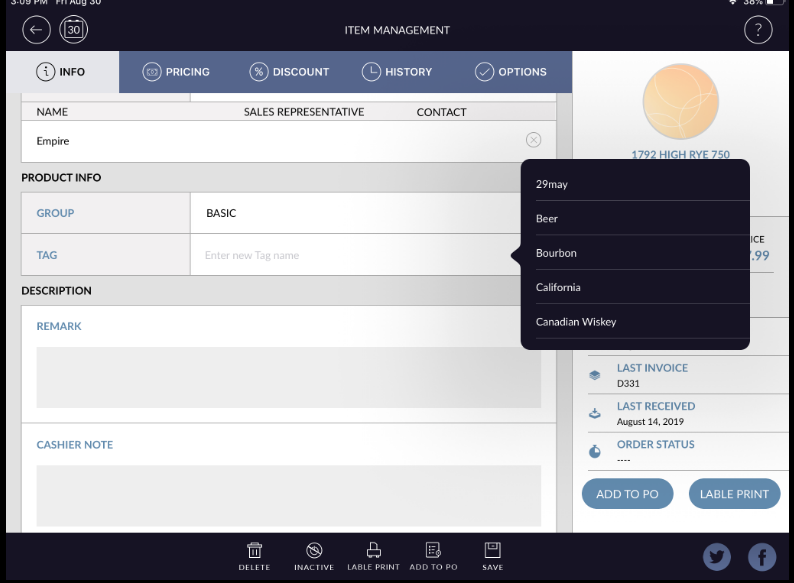
- Click on Tag. Tag list will appear.
- Select a tag from the list or enter a new tag in a textbox.
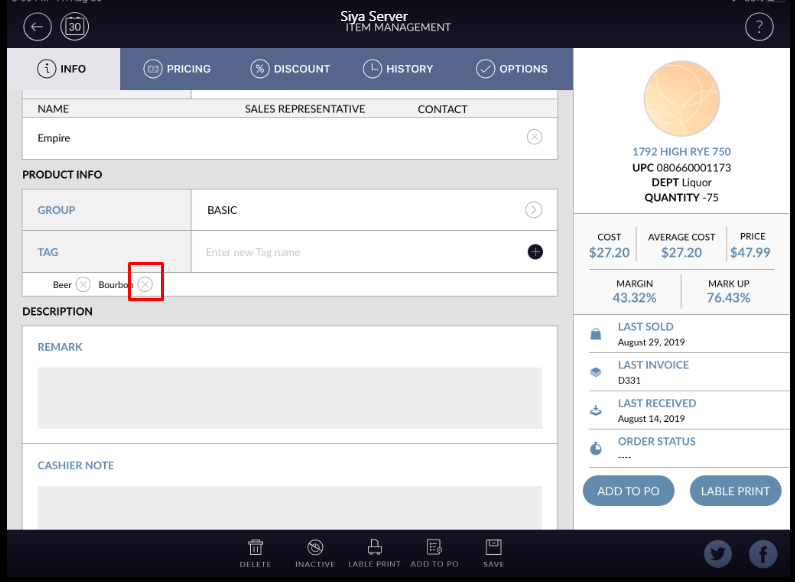
- Click on + sign to add a tag. An added tag will appear below the tag field. You can add one or more
tags for the same item.
- Click on the cross button to delete the added tag.
- Click on Save button to apply changes in Item.