Support Document
 Support Document
How to add QSR sub group ?
In inventory there are groups and sub groups are available for adding modifier category.
For adding new QSR sub group follow below procedure
For adding new QSR sub group follow below procedure
- Open inventory management.
- Open side pane available on left side.
- In item master there is one section available name as QSR sub group.
- Click on that.
- All QSR sub group will listed.
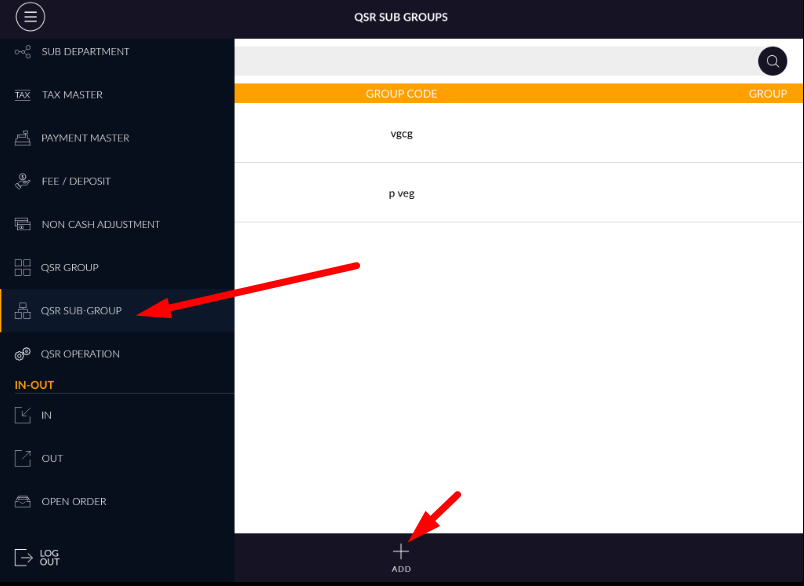
- At bottom bar there is one icon available”+”.
- Click on that add button.
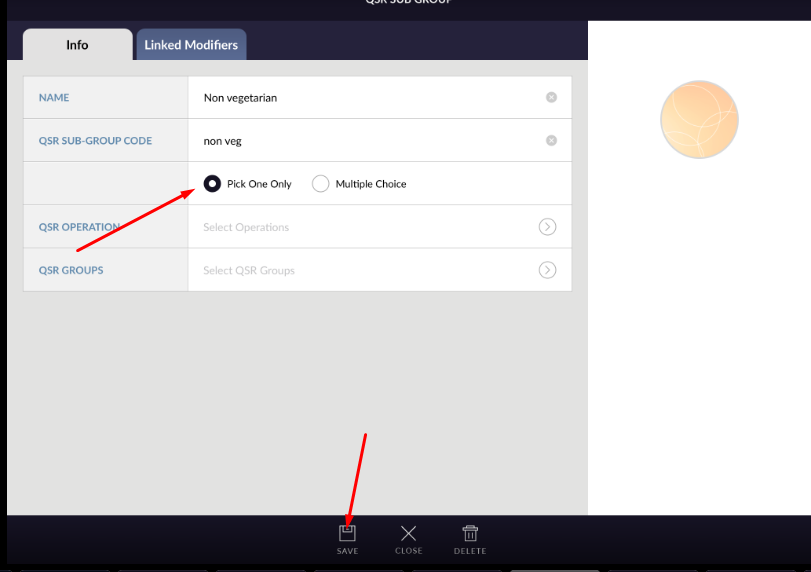
- When click on add button then one window will open for adding new QSR sub group with require detail.
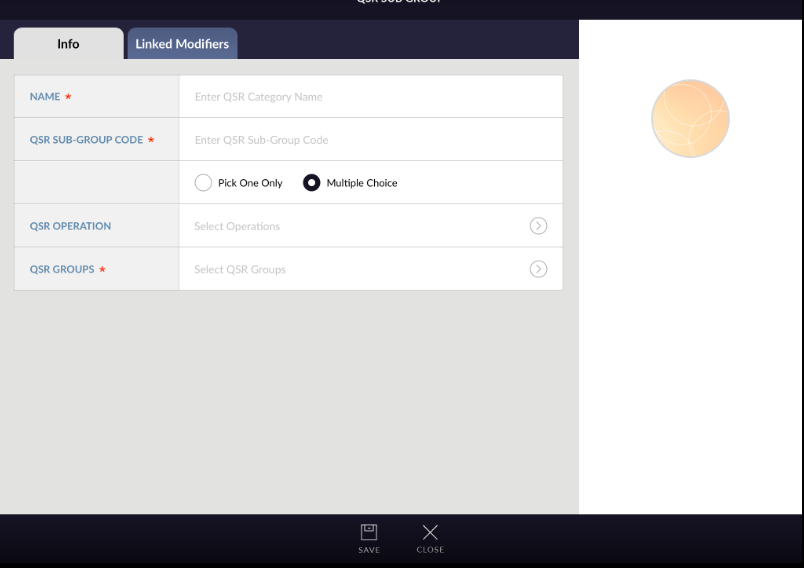
- First is QSR sub group name. This is text field. Add proper name for QSR sub group.
- QSR sub group name should be unique.
- Another field is QSR sub group code.
- Add any convenient QSR sub group code.
- QSR sub group code is compulsory and unique field.
- With these two option QSR sub group can be save by save button which is available at the bottom of
window.
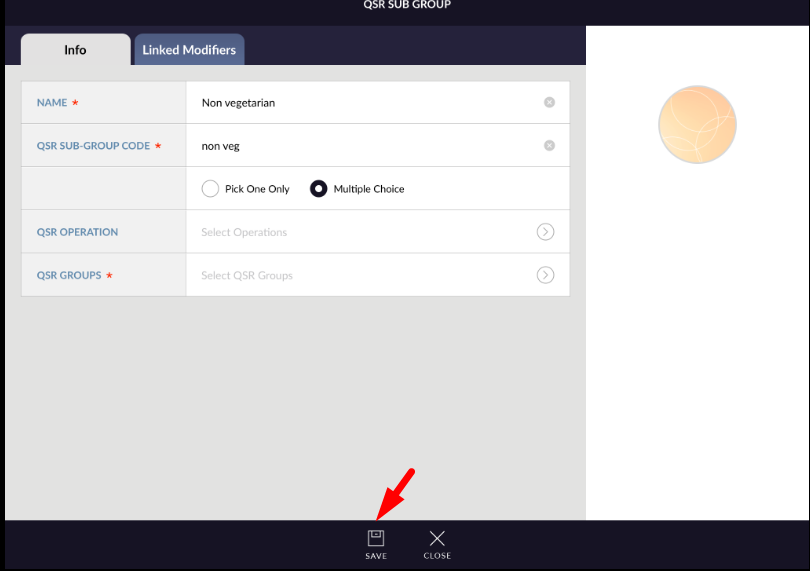
- There are two radio button for selecting modifier in sub group.
- If you select pick only one then in item only one sub group can be added.
- If you select multiple choice then in item you can add multiple modifier from this sub group
belonging.
- In QSR group there are another useful fields are also there.
- QSR operation : QSR operation is not text field. From available operation few of operations can be select.
- For adding operation in QSR group, click on arrow which available in field QSR operation.
- When open operation window then select operation from available list. Also from add button new operation can be created.
- At a time multiple operations are allow to enter in QSR group.
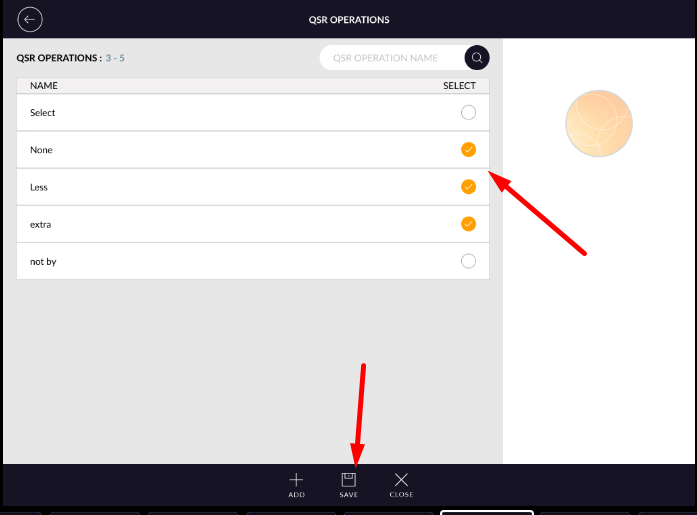
- Select operation which you want to add and click on save.selected operations are added.
- In QSR group there are another useful fields are also there.
- QSR operation : QSR operation is not text field. From available operation few of operations can be select.
- For adding operation in QSR group, click on arrow which available in field QSR operation.
- When open operation window then select operation from available list. Also from add button new operation can be created.
- At a time multiple operations are allow to enter in QSR group.
- Select operation which you want to add and click on save.selected operations are added.
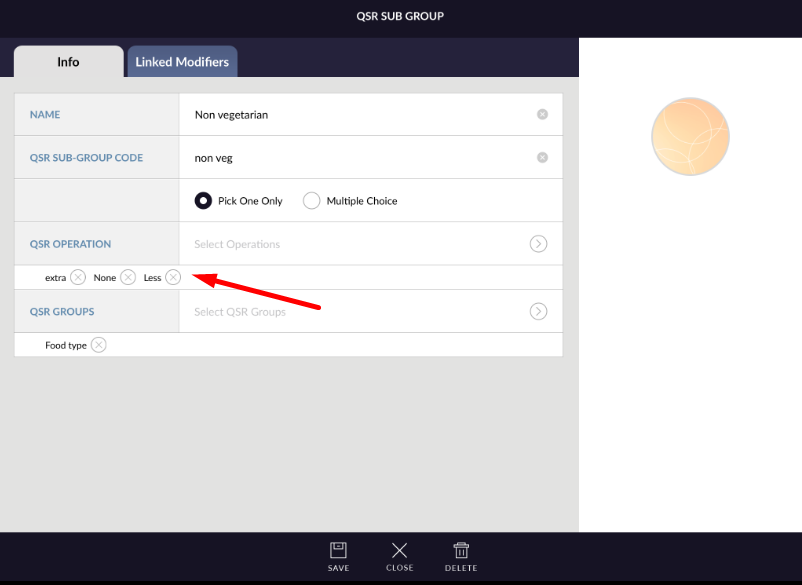
- Now next field is selection of QSR group.
- For qsr sub group, qsr group selection is compulsory field.
- Every sub group is belonging to any one of qsr group.
- At a time only one qsr group selection is possible.
- Click on side arrow which is available in field of qsr group.
- All available qsr group will listed.
- Select any one group.
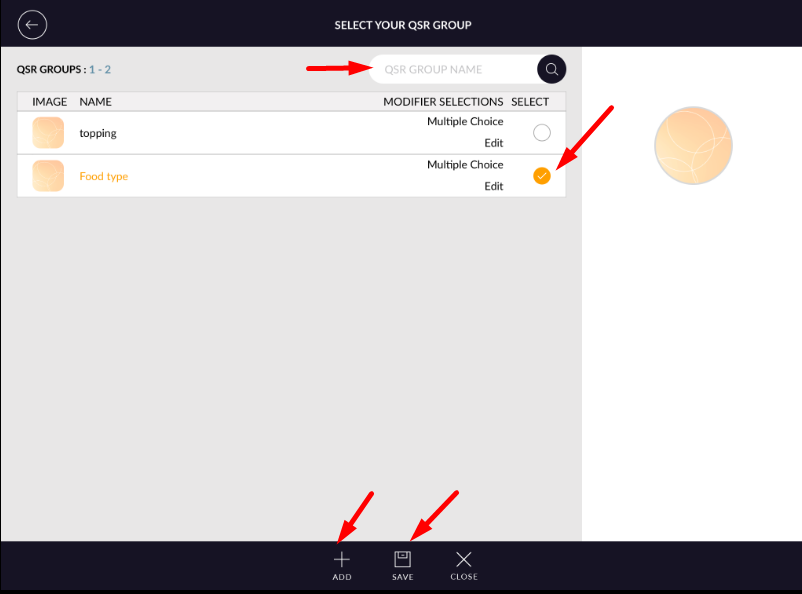
- There is also search bar available to search qsr group from list.
- Also you can add new qsr group from add button.
- Added qsr group will added to qsr sub group.
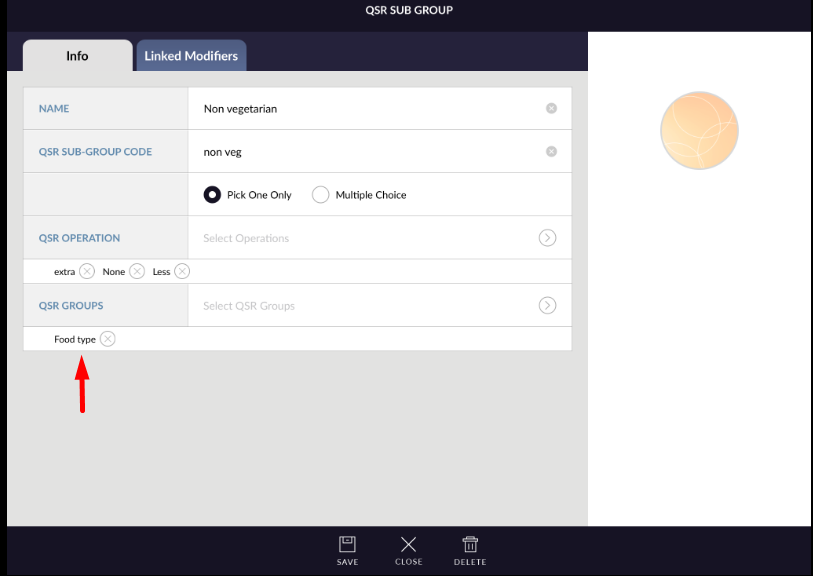
- Now click on save button.
- All added detail will save in qsr sub group.
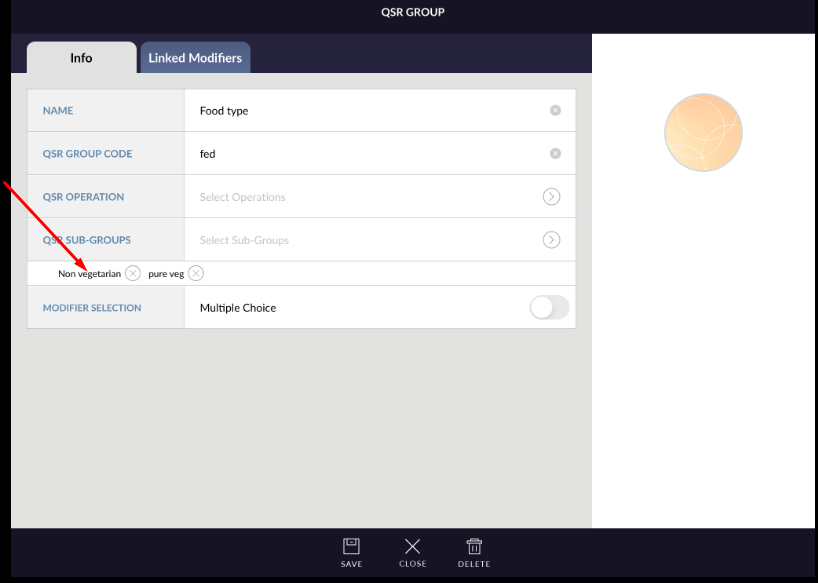
- Added qsr sub group is listed in selected qsr group detail.