Support Document
 Support Document
How to add modifier in item ?
Add modifier in item
For adding modifier into item follow below procedure.
For adding modifier into item follow below procedure.
- Open rapid rms application.
- Go to inventory management module.
- Open any item in edit mode.
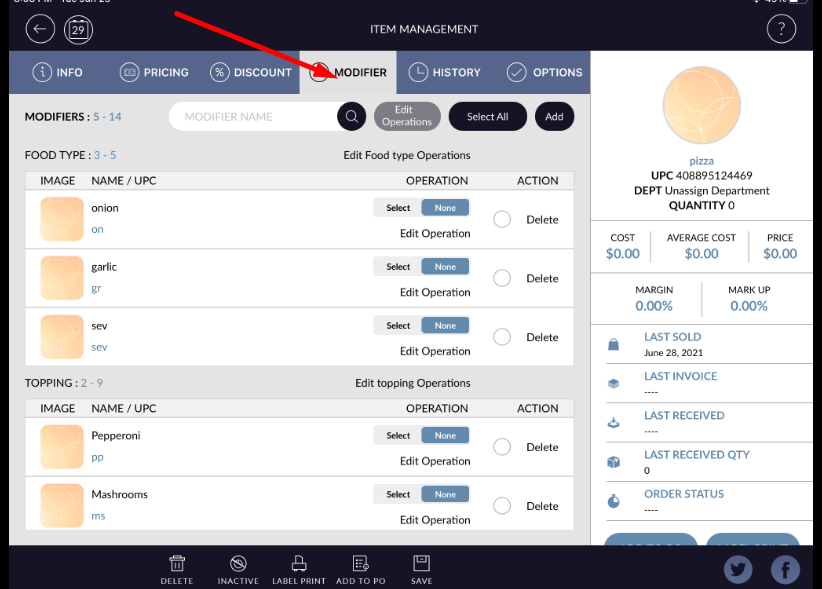
- Open any item in edit mode. When open normal item in edit mode then there is one tab available in item named as ‘Modifier’
- When open modifier then below screen will display.
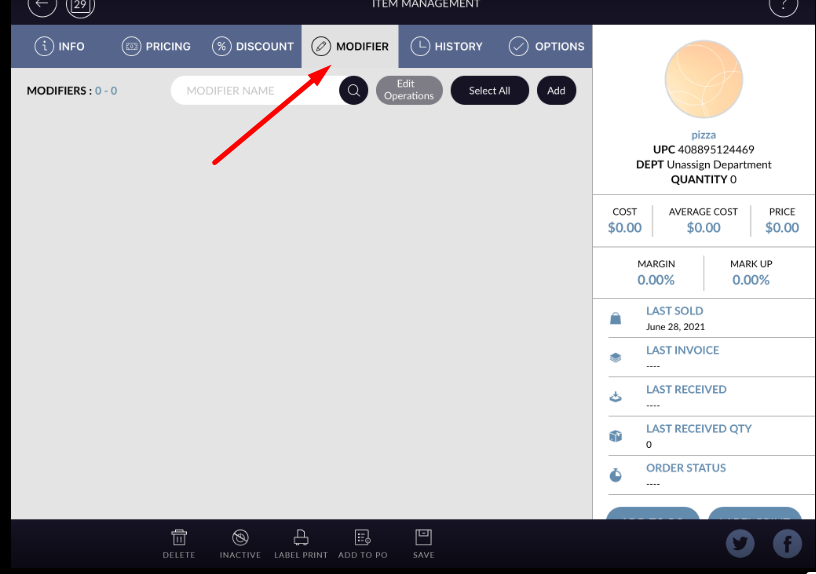
- If in item modifiers are available then it will display in page. Initially it display blank.
- If modifiers are not available then can be added by add button.
- Click on ADD button.
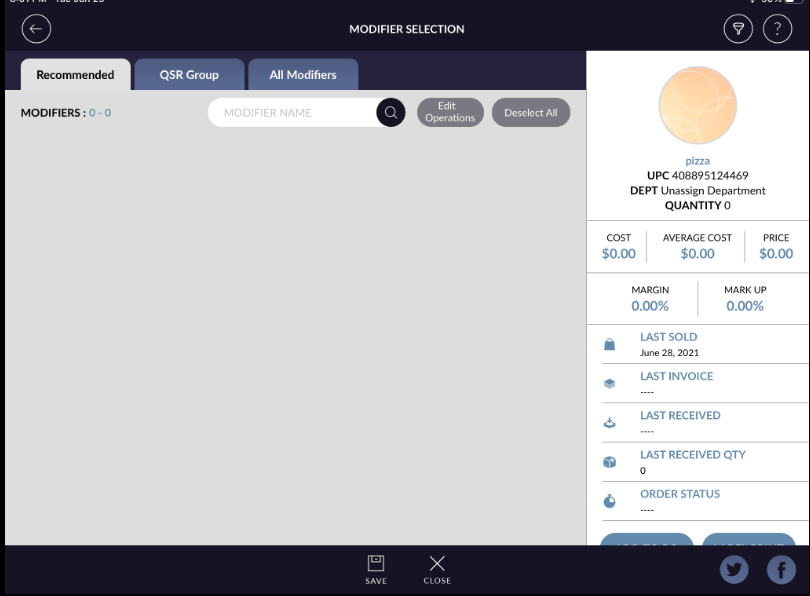
- When click on add button and if there is no data available in qsr group and qsr sub group then recommended and qsr group tab it display blank.
- In all modifier tab, all available modifier will display with operation.
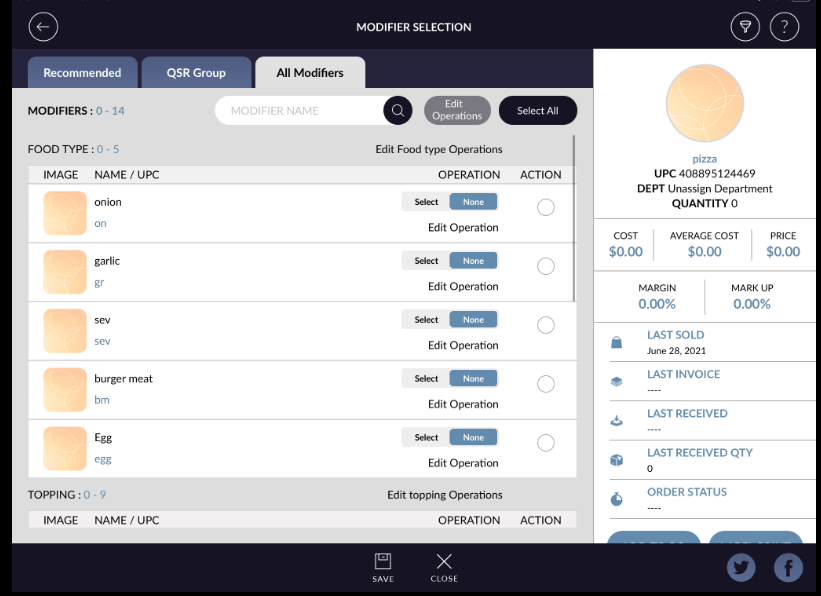
- Select modifier from list.
- At a time multiple modifier selection can possible.
- After selected modifier click on save.
- Selected modifiers are listed.
- Now apply save option.
- Selected modifiers added in item.
- From search bar selected modifier can search.
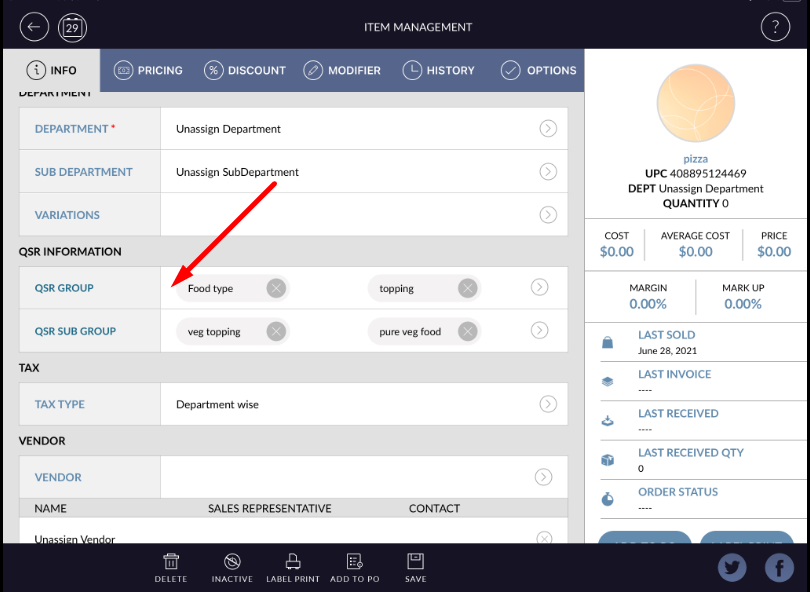
- As modifiers are added according to that qsr group and sub groups are also added into item.