Support Document
 Support Document
How to Generate PO from Generate order module?
For creating open order need to add items in the purchase order list.
From search bar item can be added in PO list.
There is a filter button available at the top of the purchase order list screen. By that item can be added in PO list.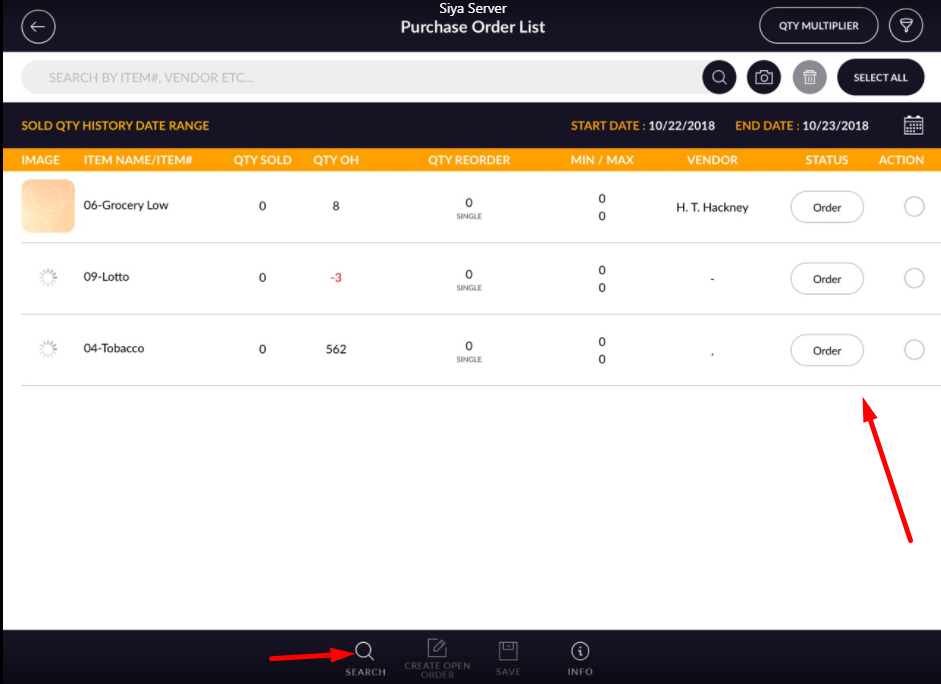
- Go to rapid RMS application.
- Open purchase order module from the dashboard.
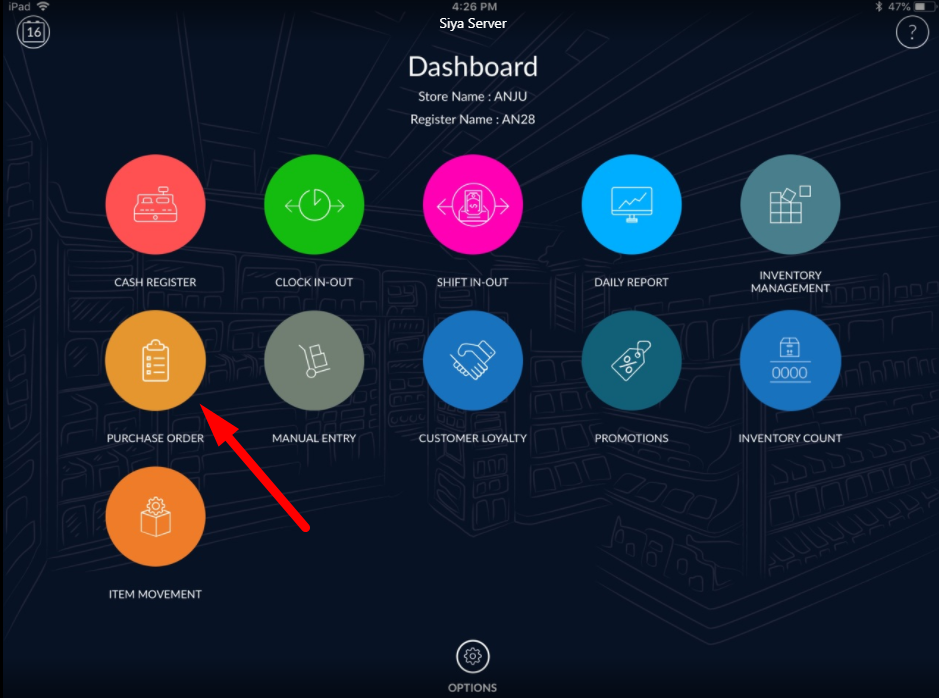
- Click on PO list.
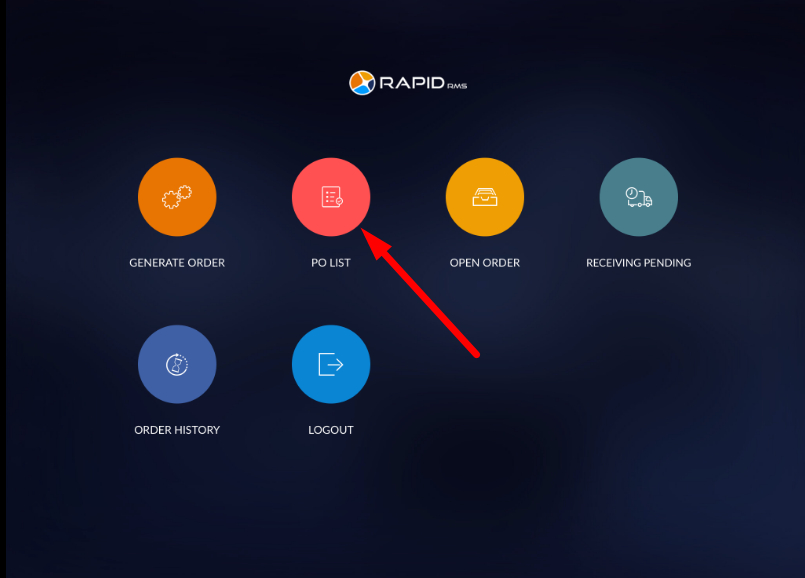 There would be display blank list if none of the item available in Po.
From search bar item can be added in PO list.
- Enter any text in the search bar. i.e item name, UPC etc.
- If item available in inventory then directly it will be added to list.
- And if not then validation message appears for the not availability.
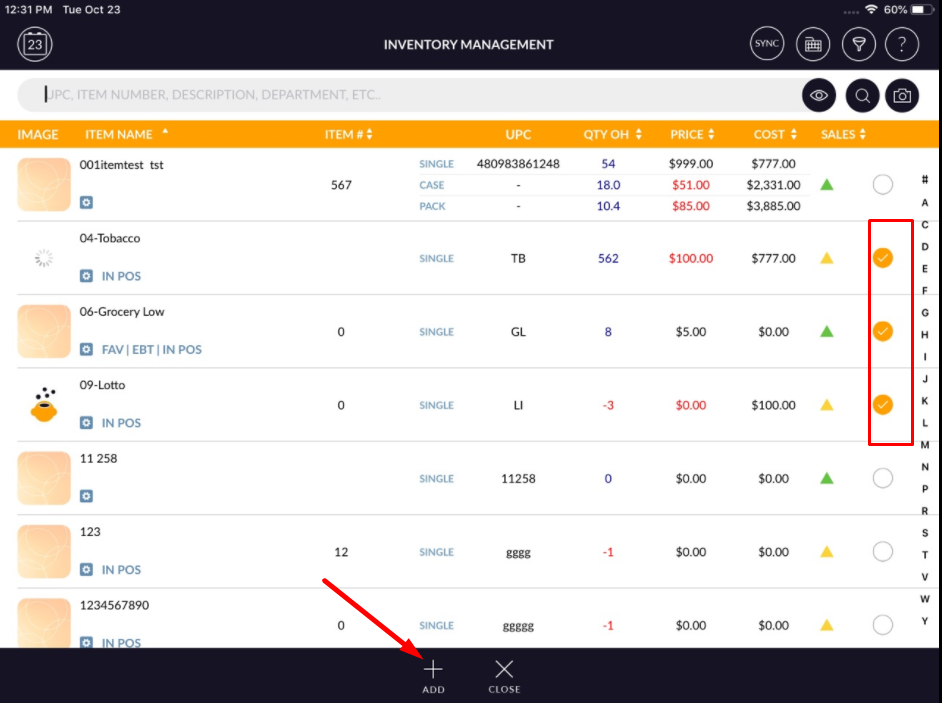
- When click on search option then item list display.
- Select item(S) you want to add.
- Click on add button.
- Selected item will added into PO item list.

There is a filter button available at the top of the purchase order list screen. By that item can be added in PO list.
- Click on filter options display in the screen
- Select any of category from department, sub-department, vendor, groups, tags etc.
- Select subsection from the main section.
- An item which are available in filtered data will display in PO list screen after hit ‘apply’ option.