Support Document
 Support Document
How to add item in PO order
There are many ways to add items in PO list.
Item added via add to PO option in the item.
Item added to PO via inventory management
Cash register.
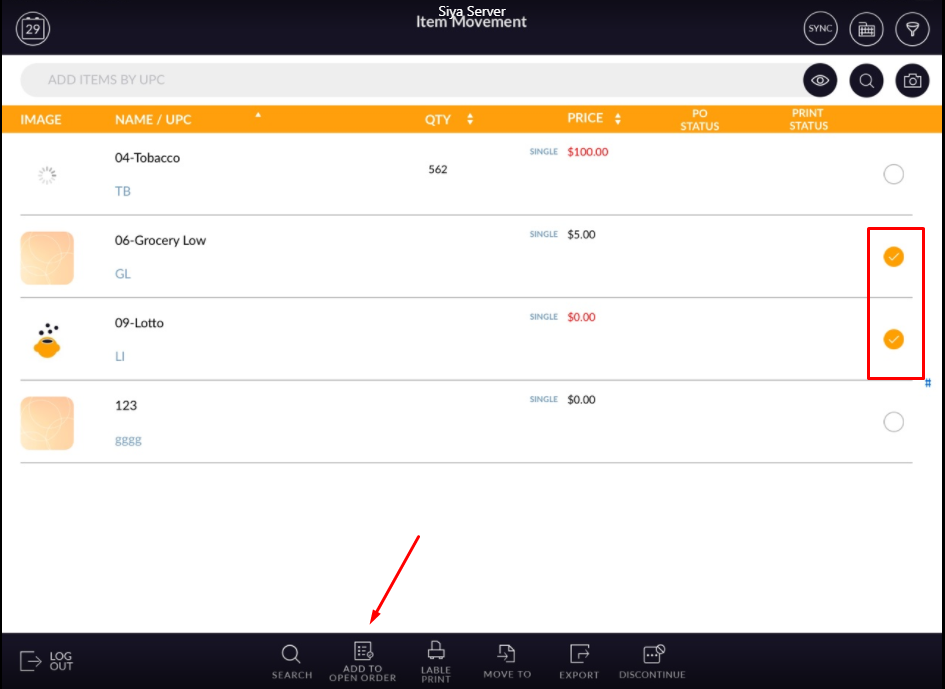
Item movement
- From the particular module, the item can add directly add into PO list via ‘Add to PO’ option.
- From generate order module.
- From PO module.
Item added via add to PO option in the item.
- Go to module .i.e inventory management or cash register or Item movement.
- Inventory management.
- Go to the inventory management module.
- Open any item in edit mode.
- There is one option available named as ‘Add to PO’.
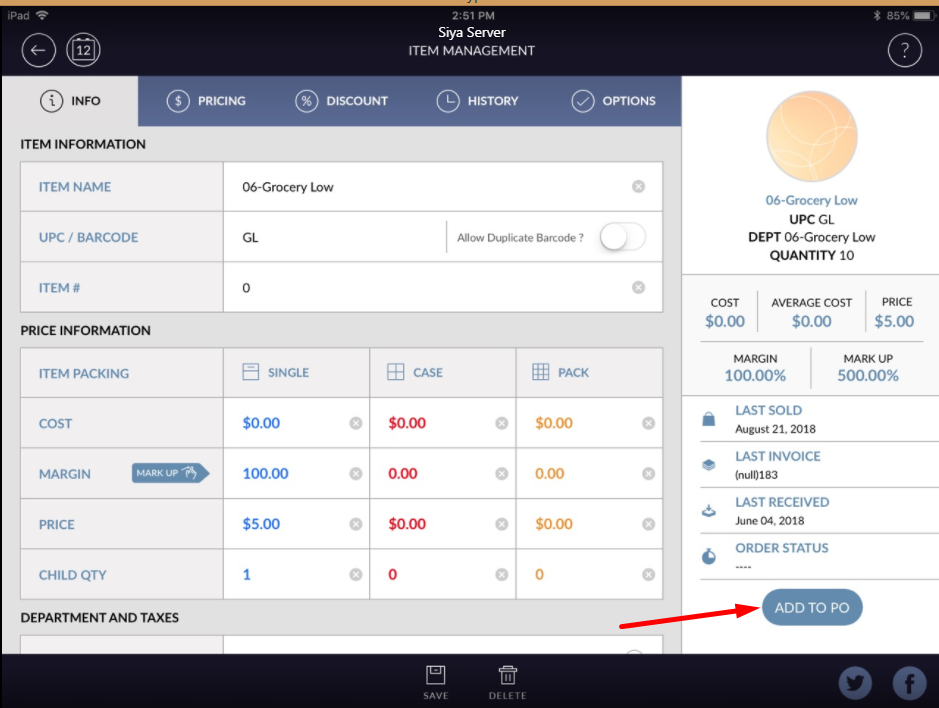
- When clicking on Add to PO then that item will add to PO.
Item added to PO via inventory management
- Go to the inventory management module.
- Hit the select button.
- Select items from the list which you want to add in PO.
- Apply to add to PO button which is available at the bottom bar.
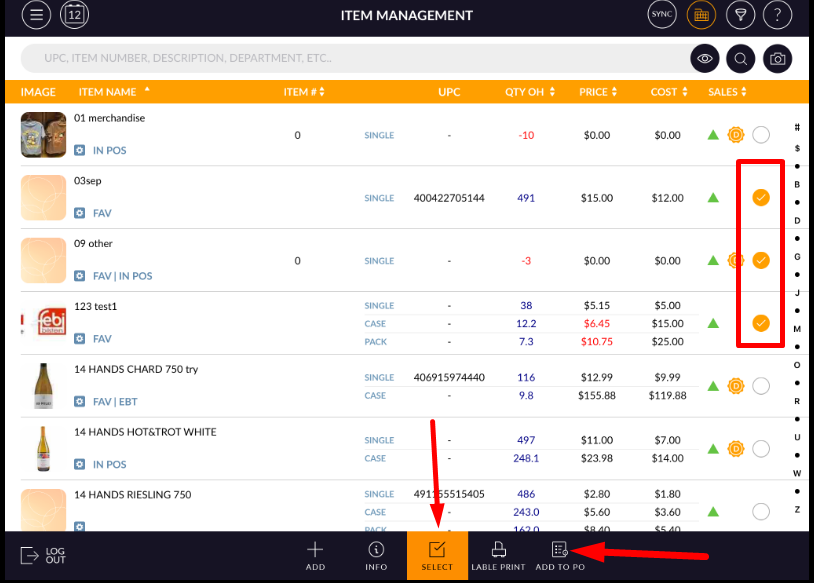
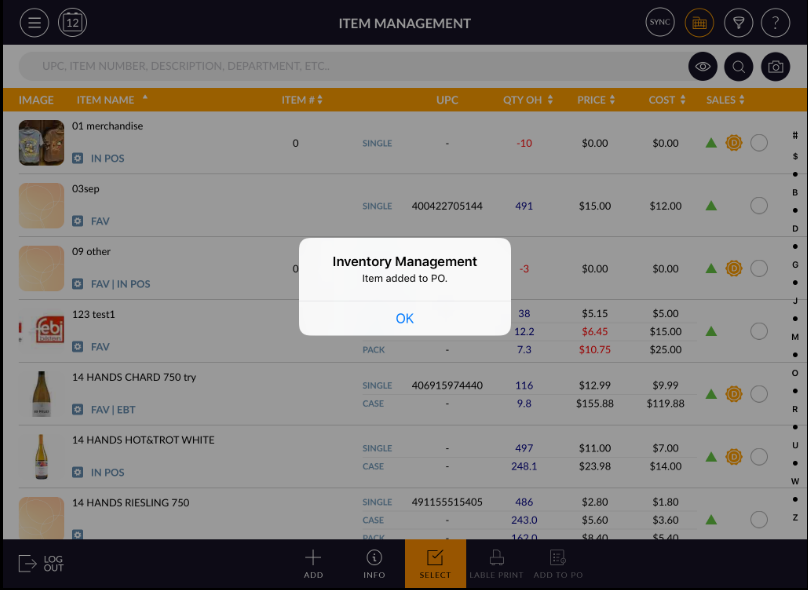
- Selected items will be added to the PO.
Cash register.
- Open cash register module.
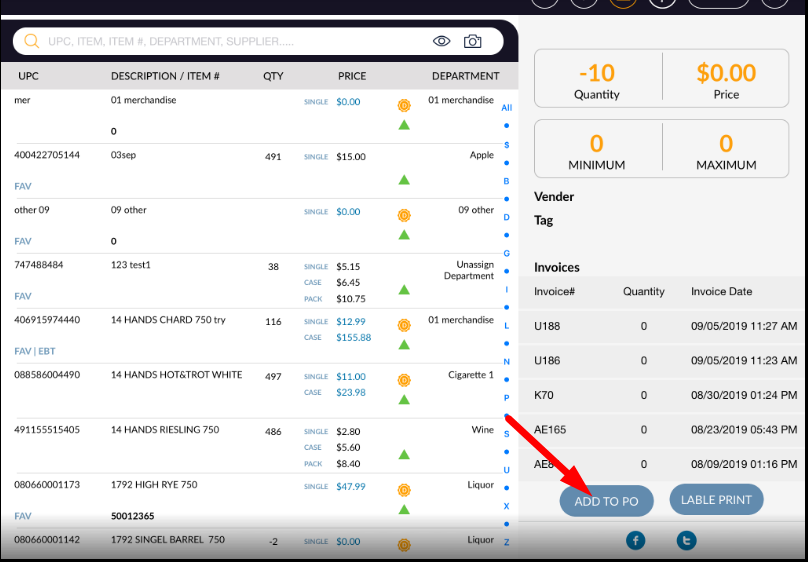
- For every item, there is option ‘ADD TO PO’ for adding item directly in PO list.
Item movement
- Open item movement module.
- Add some item in the list.
- Select item(S) which you want to add in the purchase order.
- Apply to add to open order option.
- Selected items will added to PO list.