Support Document
 Support Document
How to add Fee/Deposit?
Fee/Deposit is mainly used when stores want to collect extra charges on any item.
Fix:-
By Amount:-
- Open Rapidrms application.
- Go to the Inventory management module.
- Enter your quick access password. How-to-set-up-Age-verification-4
- At the top left, click on the three lines (Hamburger) button.

- Select the Fee and Deposit option from the Item Master menu.
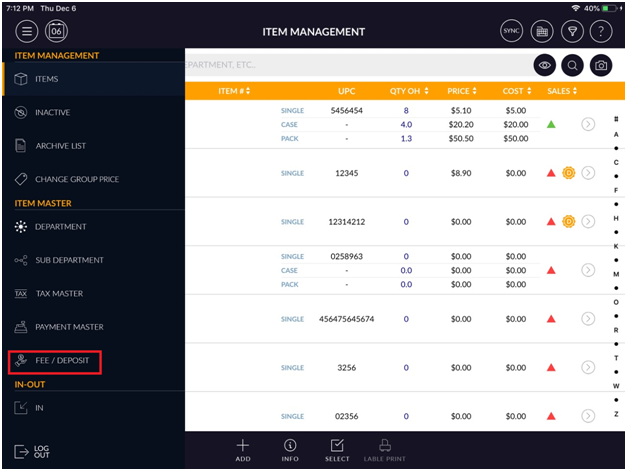
- Select the Fee/Deposit option from the list.
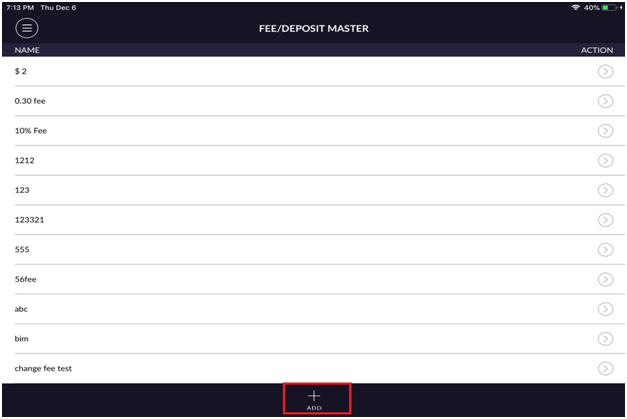
- It will appear existing Fee/Deposit list.
- At the bottom, click on Add button.
Field Description Name It describes the Fee/Deposit Name. Fee/Deposit Select the Fee and Deposit Radio button. Note: You can select any one of them. Slab Fix:- It allows you to create a fixed charge to impose a charge on an item or service. Fix charge remains the same regardless of an item's price.
By Amount:- It allows you to create a charge in a particular range to impose a charge on an item or service. The charges are applicable only when any item or service price is within a specified range.Charge Type Dollar:- It allows you to create charges in Dollar charge type.
Percentage:- It allows you to create charges in Dollar charge type. charge amounts do vary as per the item’s price.
Price at POS:- If you select the Price at POS radio button instead of Dollar and percentage charge type. It will ask ysou to enter the charge amount when you ring up an item or service from Cash Register.Taxes The taxes option appears when you create a charge type. If you turn on the tax toggle button, It will allow you to select tax to apply on Fee/Deposit. - Enter Fee/Deposit Name.
- Select the Fee and Deposit radio button.
- When you select the Fee and Deposit option, it will appear slab section.
- There are two charge types available 1) Fix 2) By Amount.
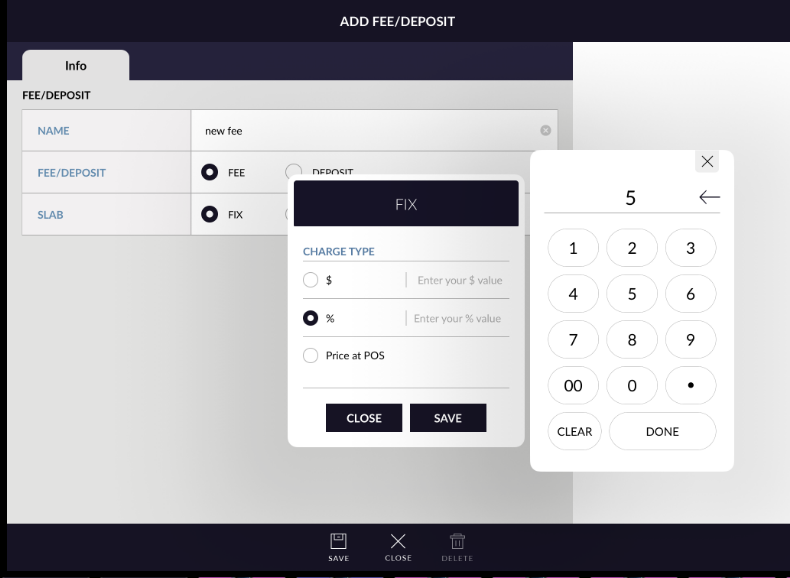
Fix:-
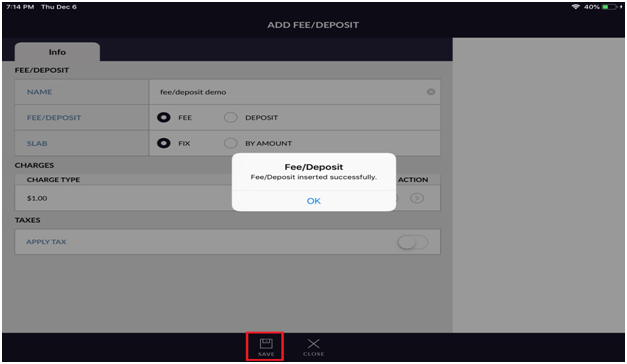
- Select the radio button to enter the value in dollar or Percentage.
- Enter the value in the Dollar or Percentage section.
- Click on the Save button.
- If you want to apply tax, turn on the toggle button, It will appear the list of tax.
- Select any existing tax. You can as many taxes as you want to select.
- Click on the Done button.
- Selected tax will appear.
By Amount:-
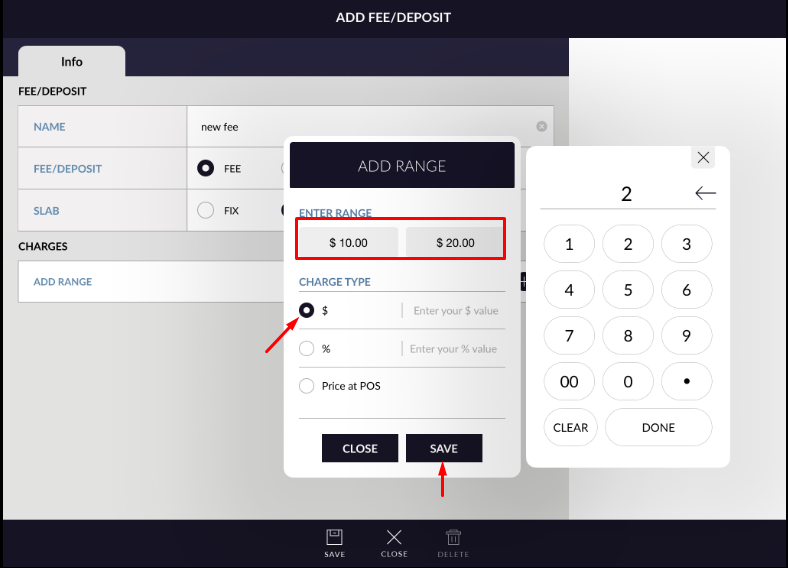
- If you select the By range section.
- Click on add
 button
from the end of the add range section.
button
from the end of the add range section. - Enter the Start and end range amount.
- Enter the value in the Dollar or Percentage section.
- Click on the Save button.
- If you want to apply tax, turn on the toggle button, It will appear the list of tax.
- Select any existing tax. You can as many taxes as you want to select.
- Click on the Done button.
- Selected tax will appear.
Note:- The Fee/Deposit charges will apply only when any item or service price is
set within specified range.