Support Document
 Support Document
ADD AND EDIT TAXES
Tax master is a module in which you can add a new tax, Edit existing tax and delete tax.
- Open RAPID RMS application in IOS.
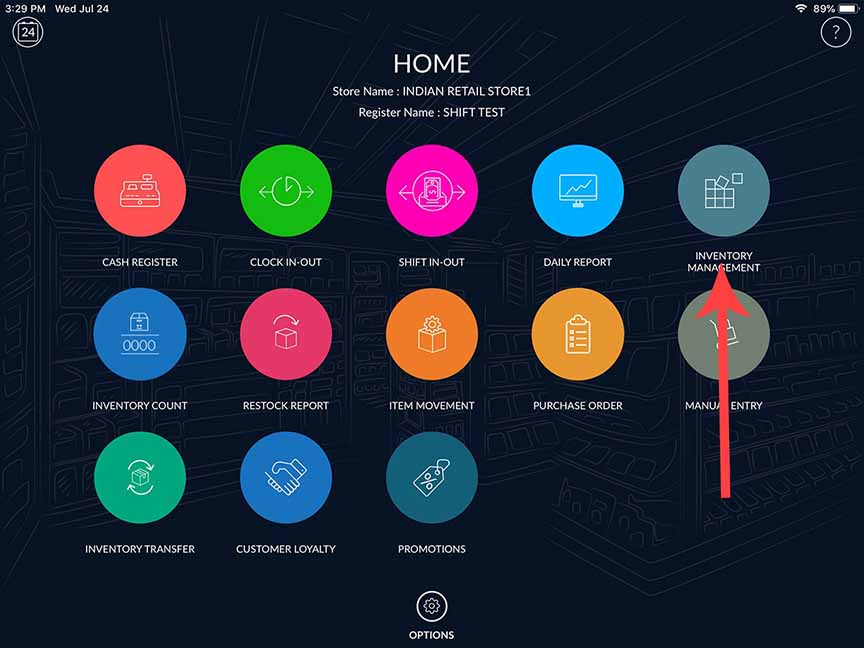
- Select inventory management from Dashboard
- Enter passcode.
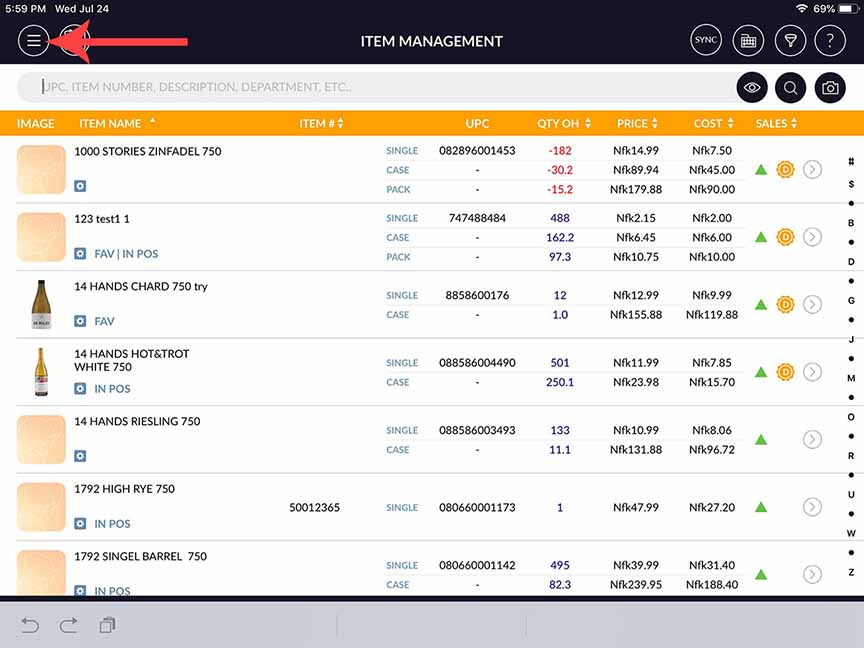
- Click the Item Management menu icon.
ADD NEW TAX
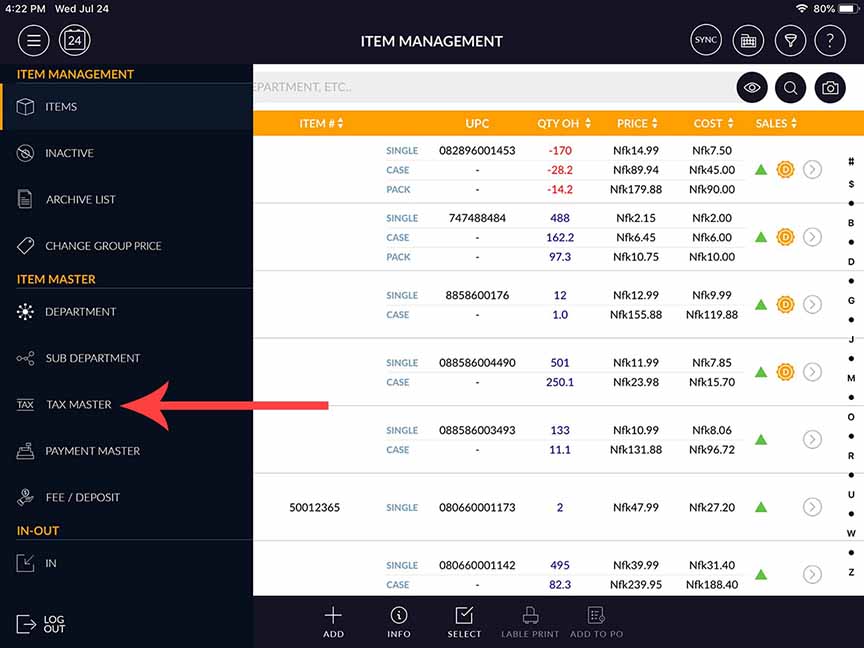
- Click Tax Master.
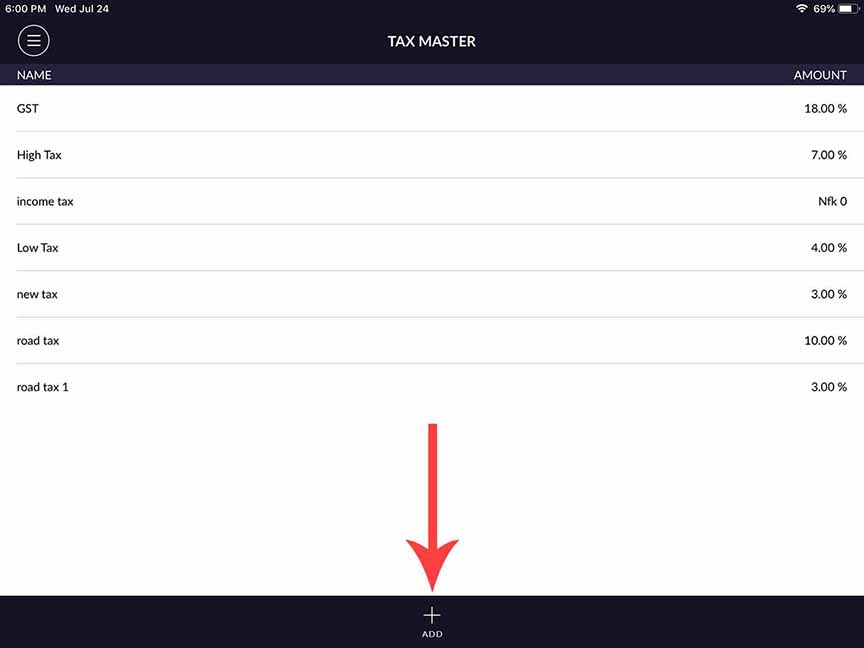
- Click on new tax button for adding new tax.
- When clicking on new then the following screen will open.
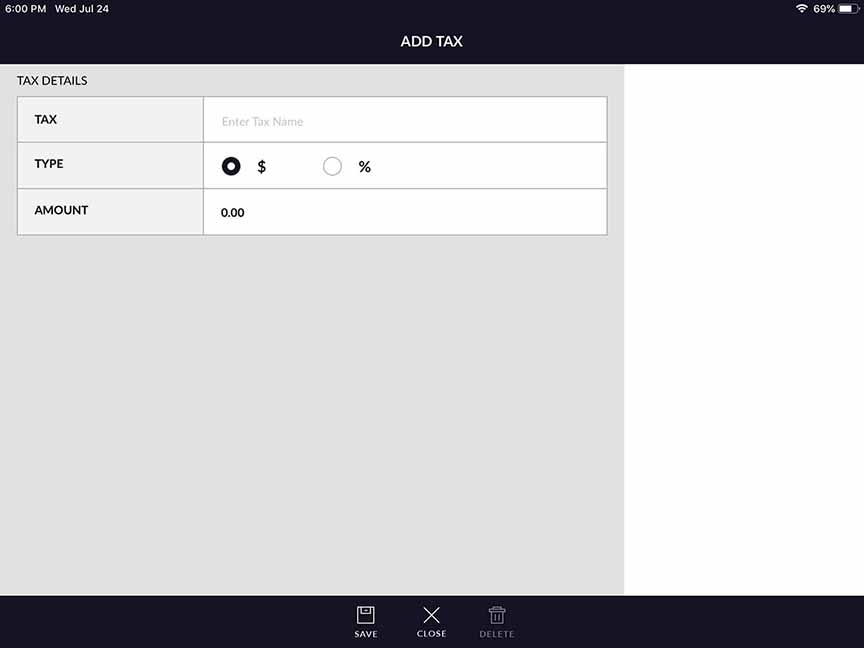
- The first row is for tax name. Enter tax name in this field.
- Another is a selection for tax type. If the dollar is selected then created tax would be in the dollar and if % is selected then created tax is with percentage amount.
- The last one is the field for the tax amount. Enter the tax amount and click on save.
- They created tax would display in the tax list screen.
EDIT TAX
You can edit already existing tax detail.-
Click on any tax name for editing tax detail. Tax will open in edit mode.
The following screen will open when clicking any tax in edit mode.
- When open tax in edit mode then tax appears with tax name and amount. If you want to change any detail then edit the detail and click on save button.
- Tax will edit and if you don’t want to edit then click on cancel button.
DELETE TAX
- From tax master tax can be delete.
- From tax, master tax can be deleted.
- Click on delete.
-
When clicking on delete and if there is nothing in tax that means selected tax not applied in any item
then confirmation message for tax delete would pop up.
- Apply yes.
- The tax would delete successfully.
-
If there is selected tax apply in item(S) then it would not allow deleting tax and warning alert message
will display.
- If you want to delete this tax then from item need to remove tax then you can delete tax.