Support Document
 Support Document
How to do(Add/edit/delete) sub department in inventory management?
Sub-department master is a module in which you can add new sub-department, Edit/delete existing sub-department and add department into sub-department.
Sub-department module is available in the restaurant.
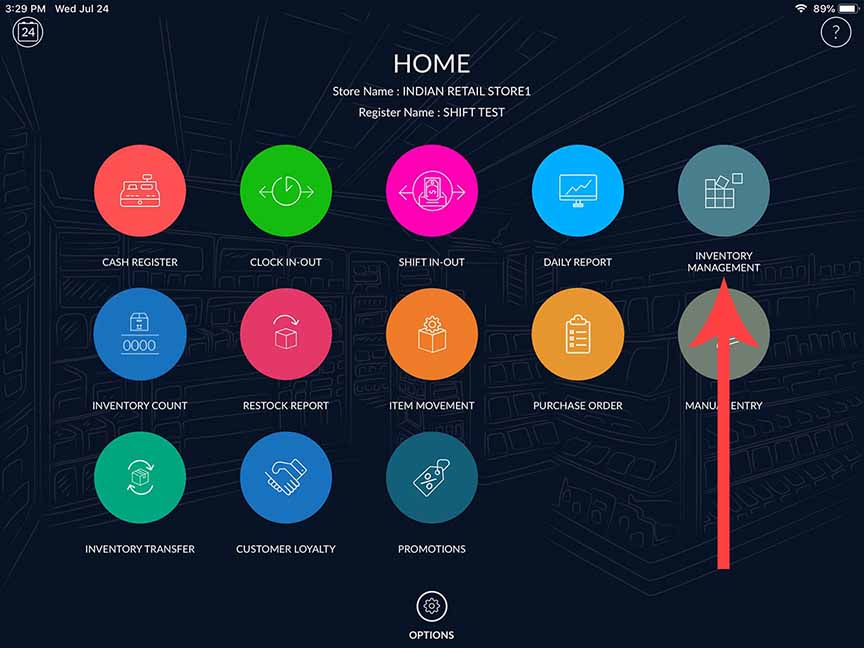
- Open RAPID RMS application in IOS.
- Select inventory management from Dashboard
-
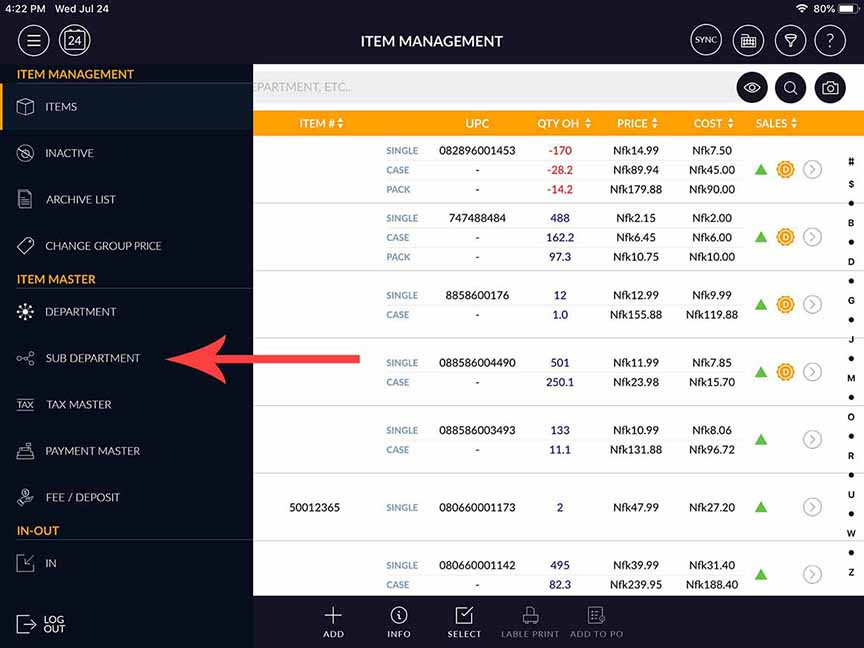
Select sub-department master from item management menu from the top left corner.
ADD SUB-DEPARTMENT
-
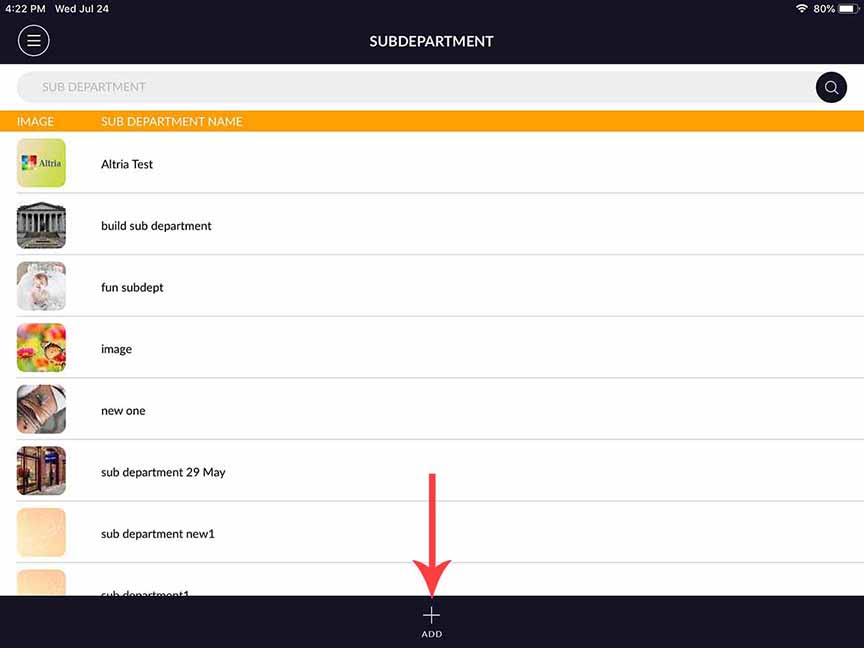
Click on new sub-department button for adding new sub-department in sub-department master.
-
When clicking on a new sub-department button then the following screen will open.
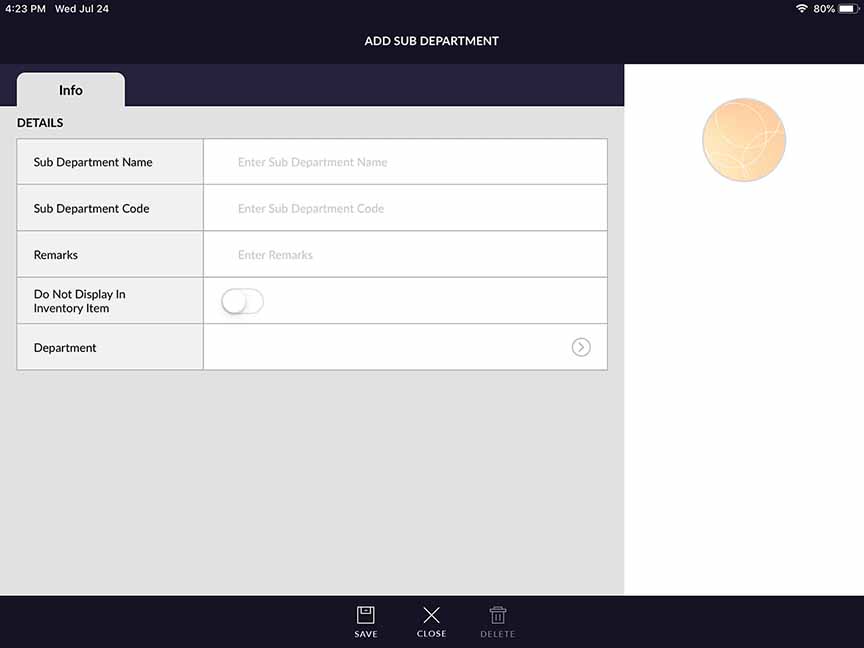
- Sub-department name: It is for the name of sub-department. Enter the name of sub-department. I.e. cold drinks could be the name of sub-department. Name of sub-department must be unique.
- Sub-department code: Sub-department code is used for record-keeping. It can be a numerical value or an alphabet letter. Sub-department code is compulsory to add for adding new sub-department. i.e sub-department code could be 001.
- Do not display in inventory: This button is for visibility of sub dept item in inventory. If you keep this button on then sub-department item would not display in item master(inventory)
- Department: It is a field for to allot department to the sub-department. You can assign any of department from the list. Current sub-department is part of the Selected department.
-
Add image of sub-department
If u would like to distinguish departments by visual images, then you can select the image thumbnail on the right side to add an image that corresponds to the department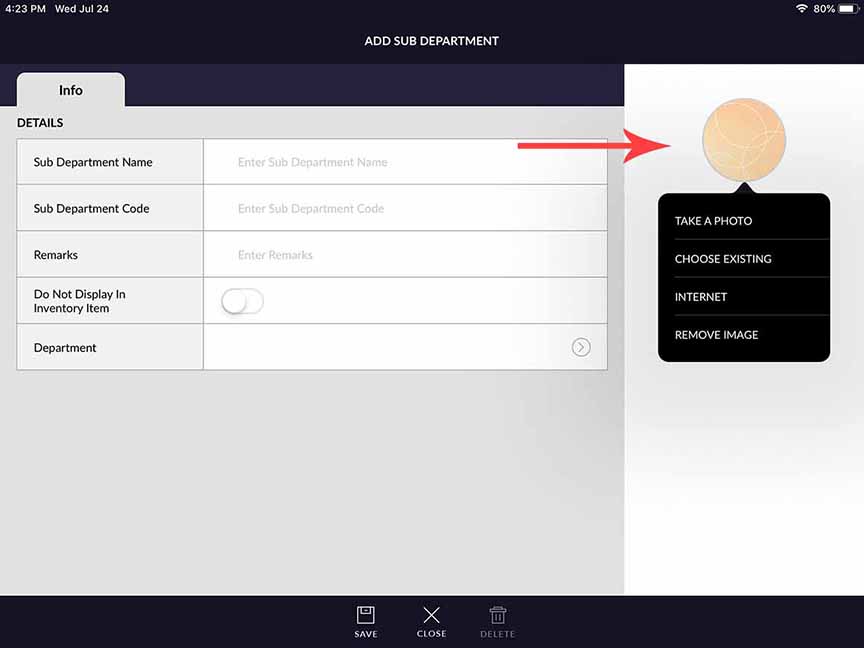
- Select one of the following options: Take A Photo, Choose Existing or Internet.
- By remove image option you can remove the added image.
- Click on the Save button.
EDIT SUB-DEPARTMENT
- You can edit already exist sub-department detail.
- Click on any Sub-department name for editing detail. Sub-department will open in edit mode.
- The following screen will open when clicking any sub-department in edit mode.
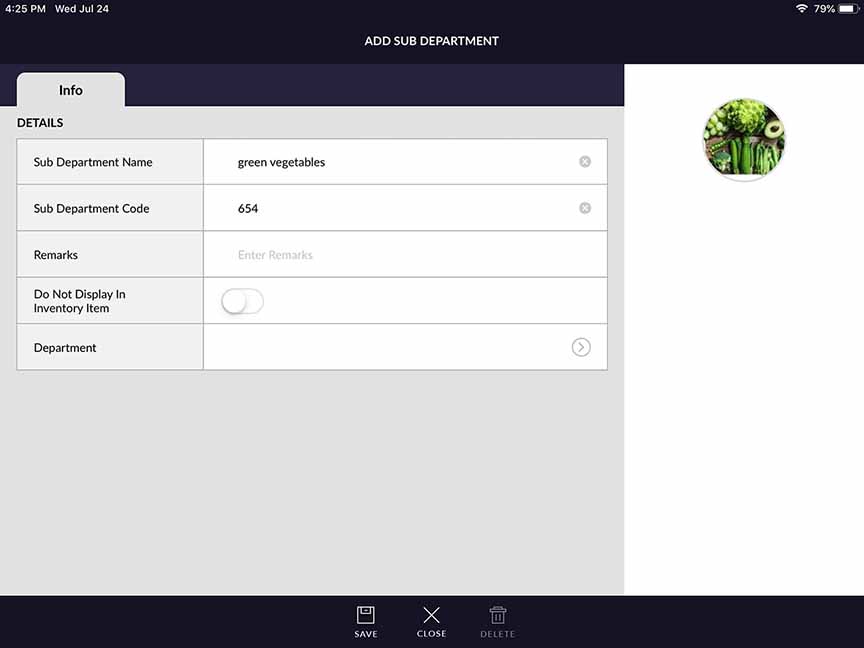
- When open sub-department in edit mode then sub-department is appeared with sub-department name, code, department name and with an image. If you want to change any detail then edit the detail and click on save button.
- If you don’t want to edit then click on cancel button.
- One tab is of item. This displays all items available in sub-department.
- And another tab is of the department. This displays the department list in which this sub-department is linked up.
DELETE SUB-DEPARTMENT
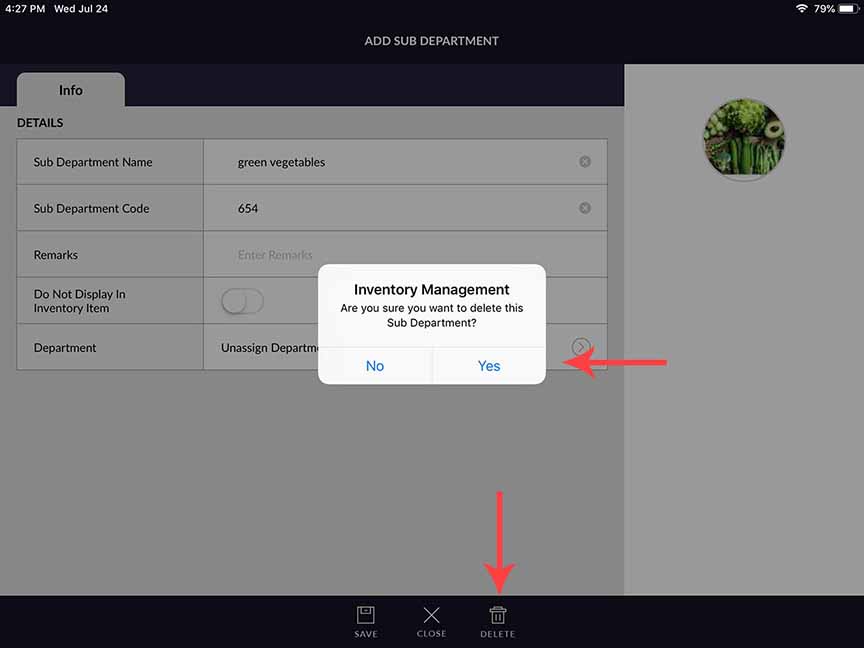
- When want to delete already exist sub-department then open that sub-department in edit mode and click on the delete button. And click on yes then sub-department will be deleted.
- At the time of creation, sub-department you are not able to delete. Only existing sub-department you can delete.
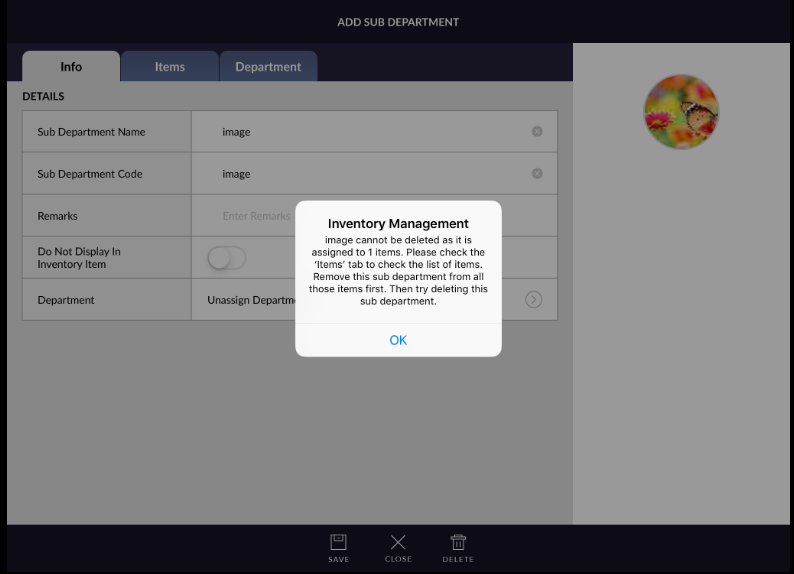
- If there is any item in which sub-department added then sub-department can not be deleted.
-
If in sub-department there is none of the item available then sub-department can be deleted.