Support Document
 Support Document
Add, Edit and Delete Payment Master
Payment master is a module in which you can add new payment, Edit existing payment and delete the payment.
- Open RAPID RMS application in IOS.
- Select inventory management from the Dashboard.
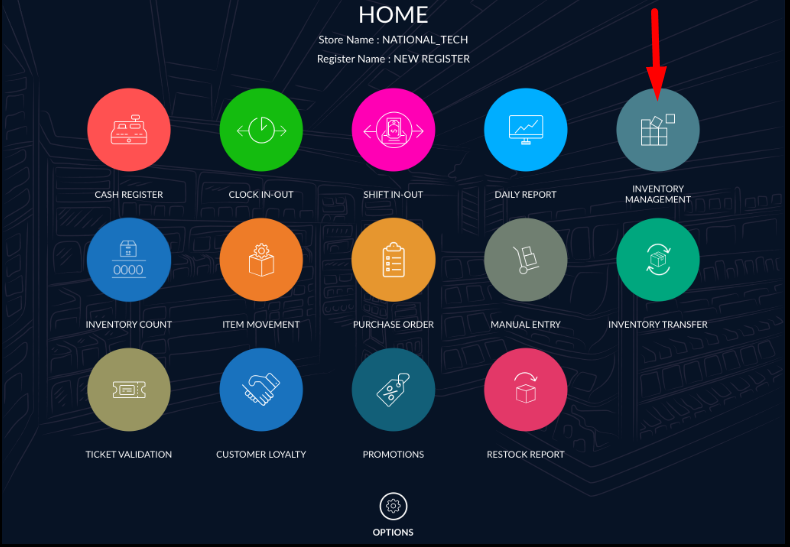
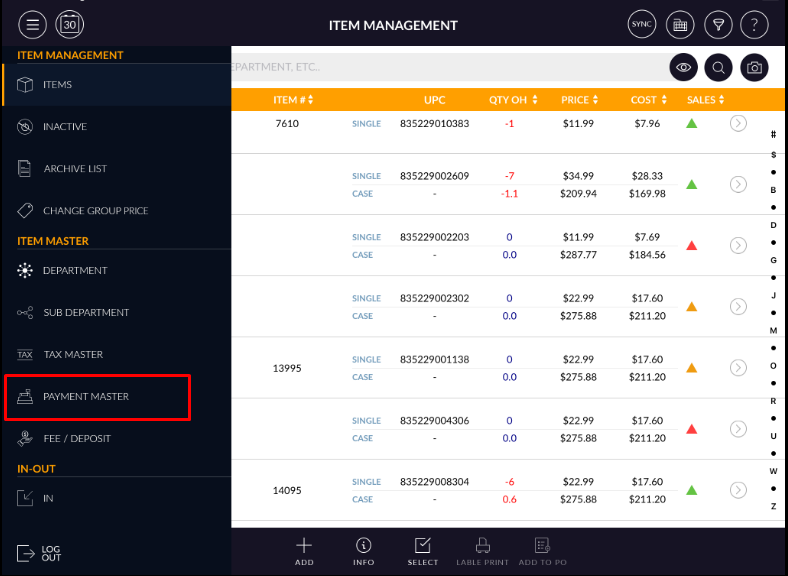
- Select payment master from the item management menu from the top left corner.
ADD NEW PAYMENT
- Click on new payment button for adding new payment in payment master.
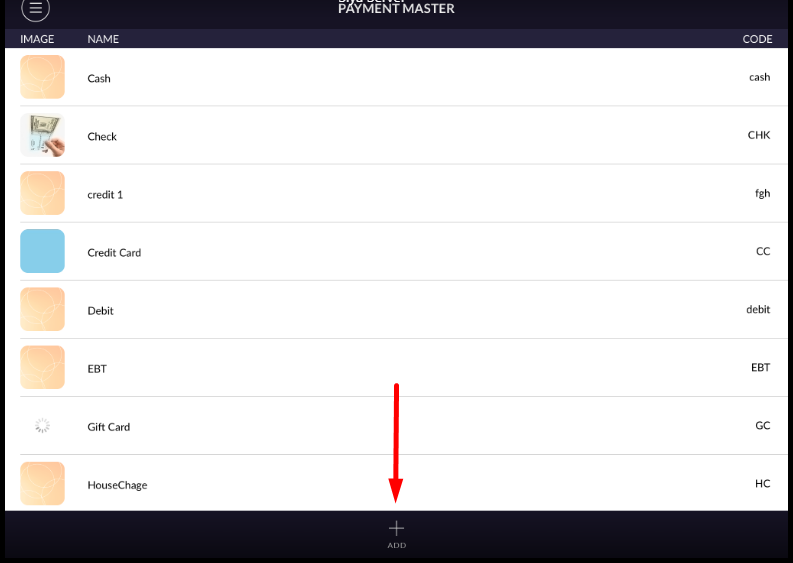
- When clicking on new payment button then the following screen will open.
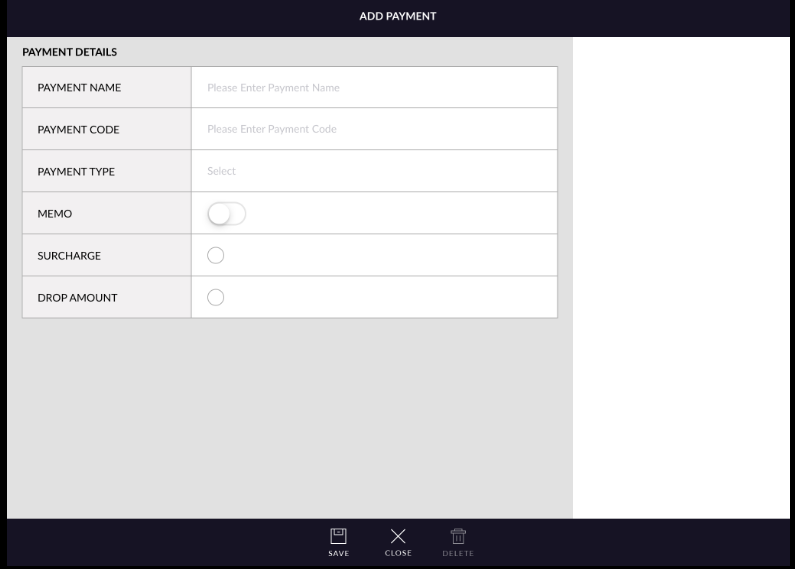
- Payment name: This is a field for payment name. Enter payment name in this field. i.e credit card could be payment name.
- Payment code: The payment code is used for record-keeping. It can be a numerical value or an alphabet letter. Unique payment code is compulsory to add for adding new payment. i.e For credit card payment code could be CC.
- Payment type: Payment type is a type of payment method by which you can pay ordered value. There is
one pop up window for payment type selection. From all, you can select only one payment type at a time
for payment.
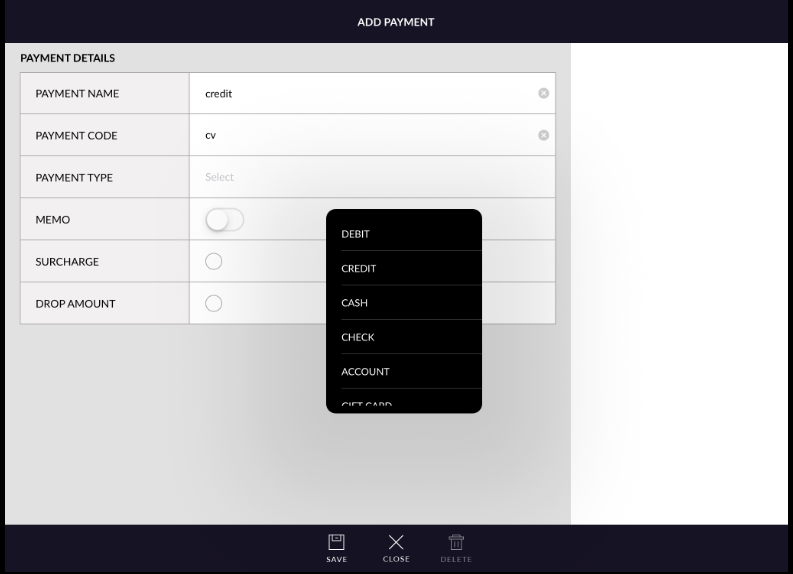
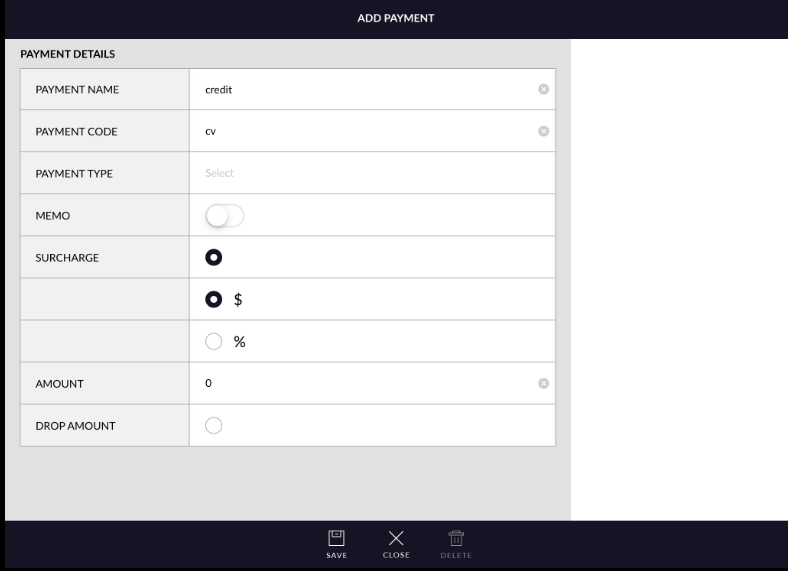
- Surcharge: Surcharge is for extra charge or fee. If you would like to charge the customer on this payment method then select surcharge. Amount of surcharge could be in % or $. For i.e for credit card payment method want to apply 10$ surcharge on it.
- Drop amount: Only select drop amount for a particular method if you want to take cash out from the drawer. If the drop amount is selected then any amount charged will be in a negative value.
- Click on the Save button.
- You can edit already existing payment detail.
- Click on any payment name for editing payment detail. Payment will open in edit mode.
The following screen will open when clicking any payment in edit mode.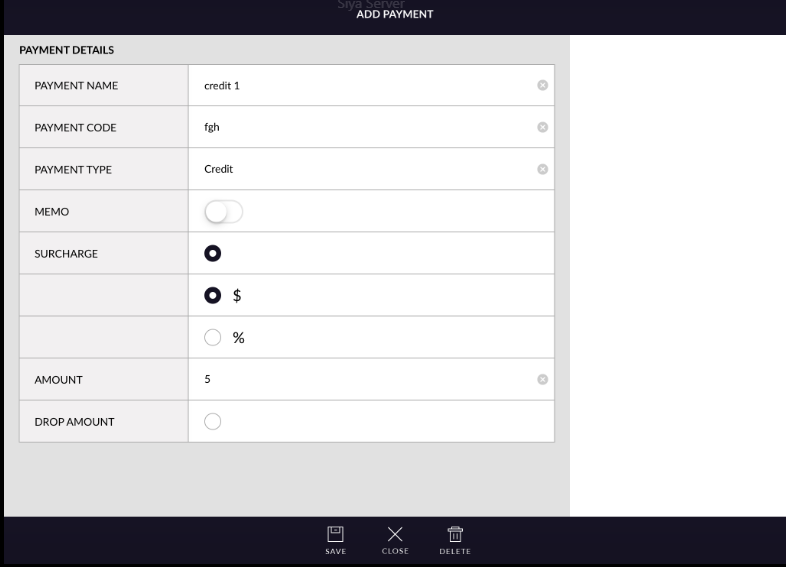
- When open payment in edit mode then payment appears with payment name, code and type. If you want to change any detail then edit the detail and click on save button.
- If you don’t want to edit then click on cancel button.
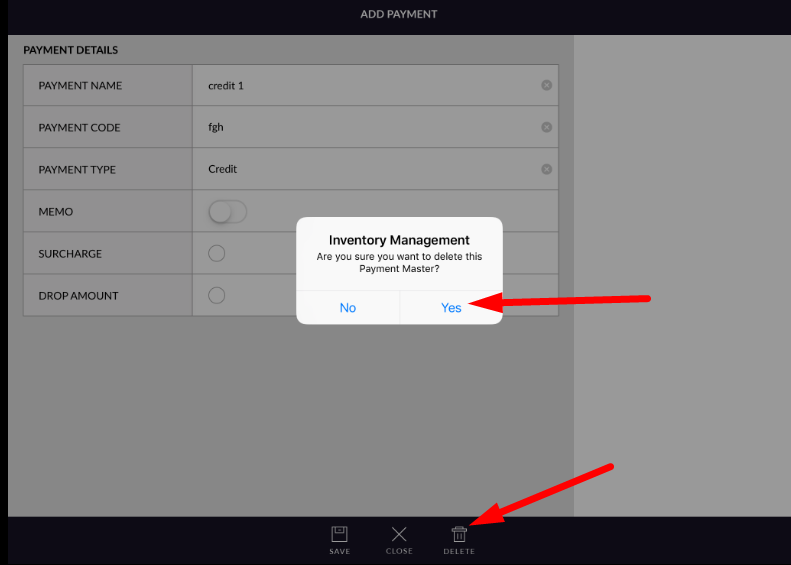
- When want to delete already exist payment then open that payment in edit mode and click on the delete button. And click on yes then payment will be deleted.
- Newly create payment you are not able to delete. The only existing payment you can delete.