Support Document
 Support Document
How to add department/subdepartment in an item?
If you want to categorize your items department/subdepartment wise then add department/subdepartment in your
Item.
Here are the steps on how to manage your Department/subdepartment in an item.
Here are the steps on how to manage your Department/subdepartment in an item.
- Open RapidRMS application in your iPad.
- Select Inventory Management from the dashboard.
- Enter your valid passcode to access Inventory Management Module.
- Click on New Item from the bottom of the page to add new Item or click on an item from the list to
edit existing Item.
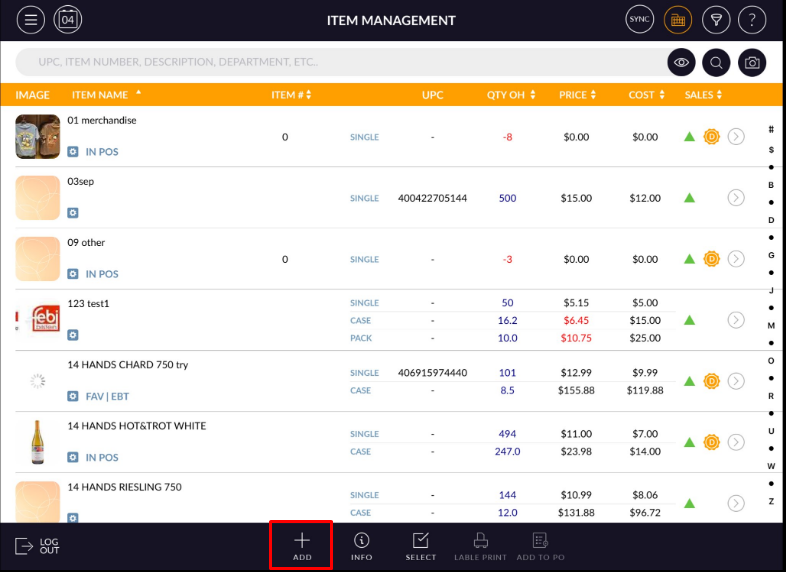
- Add/Edit Item screen will open.
- In the top of the screen, it has Info, Pricing, Discount, History and Options tabs.
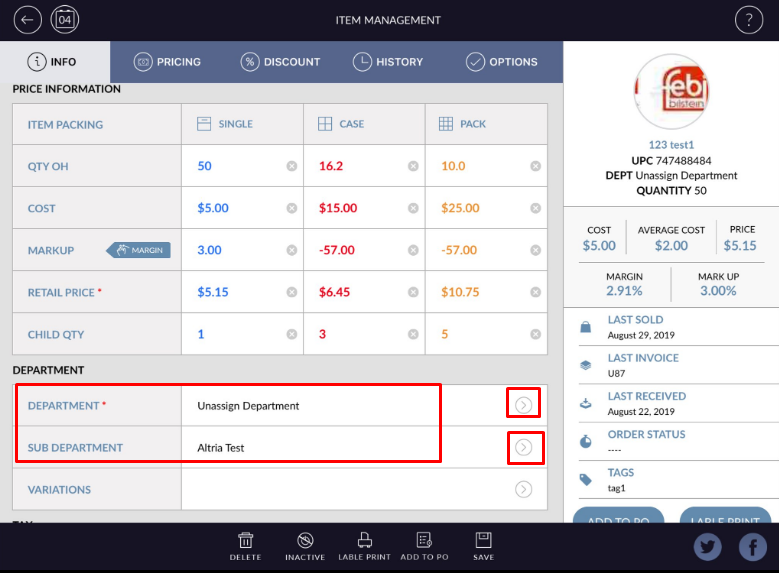
- It has Department section under Info tab.
- In Department section.
- Default it display unassign department/subdepartment.
- Click on department/subdepartment.
- List of department/subdepartment will appear. You can select any department/subdepartment from the
list.
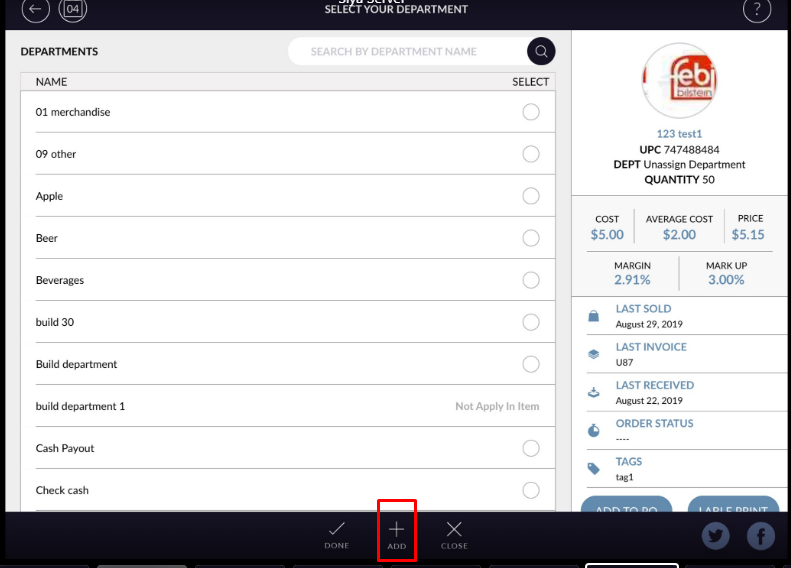
- If you want to add a new department/subdepartment then click on “Add New Department/subdepartment” button from the bottom of the page.
- Fill necessary detail and click on save button.
- Newly added department/subdepartment will appear in list.
- Select department/subdepartment from list. and hit done.
- At a time only one epartment/subdepartment can be set in item.
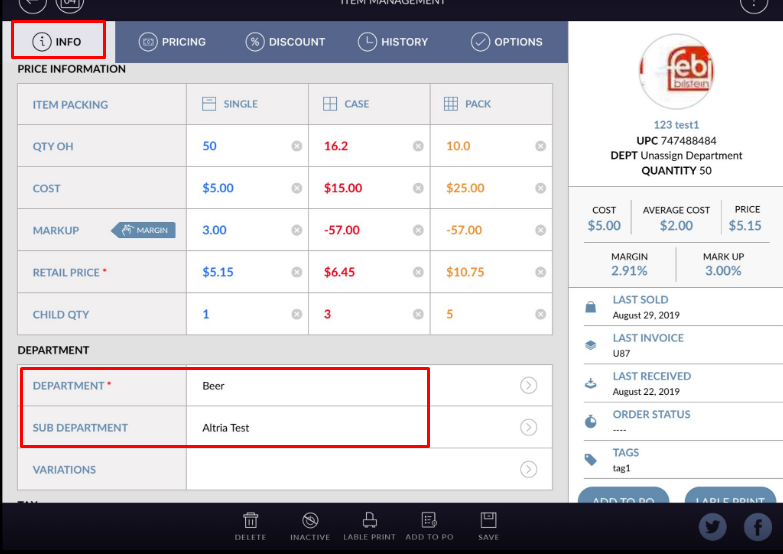
- Department/subdepartment will added to item.
- Click on Save button to apply changes in Item.