Support Document
 Support Document
How can I “ADD / CREATE” new Loyalty Points?
- Login on the Back-Office website.
- Left side, you can see an option with “LOYALTY”, click on it.
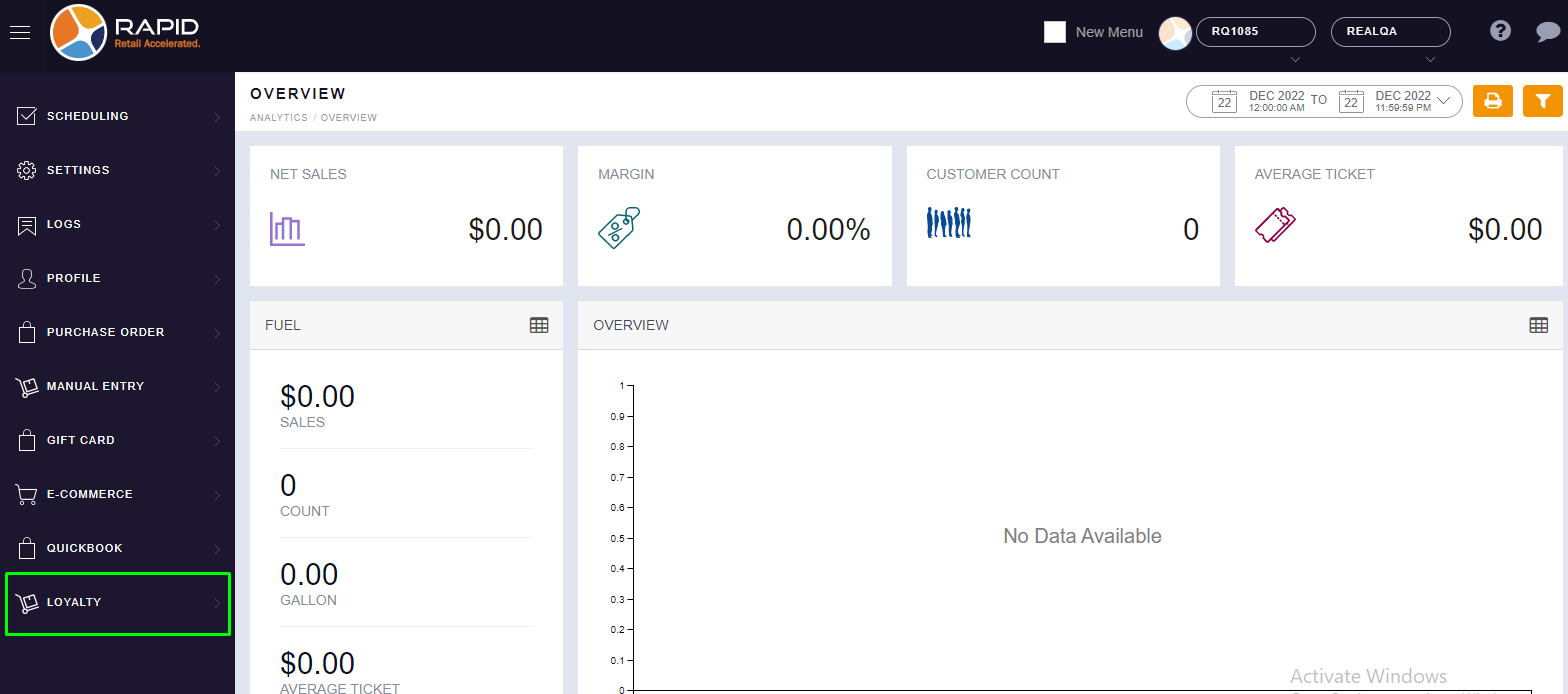
- You will find the “LOYALTY POINT” option, click on it and you can click on the
“ADD” section.
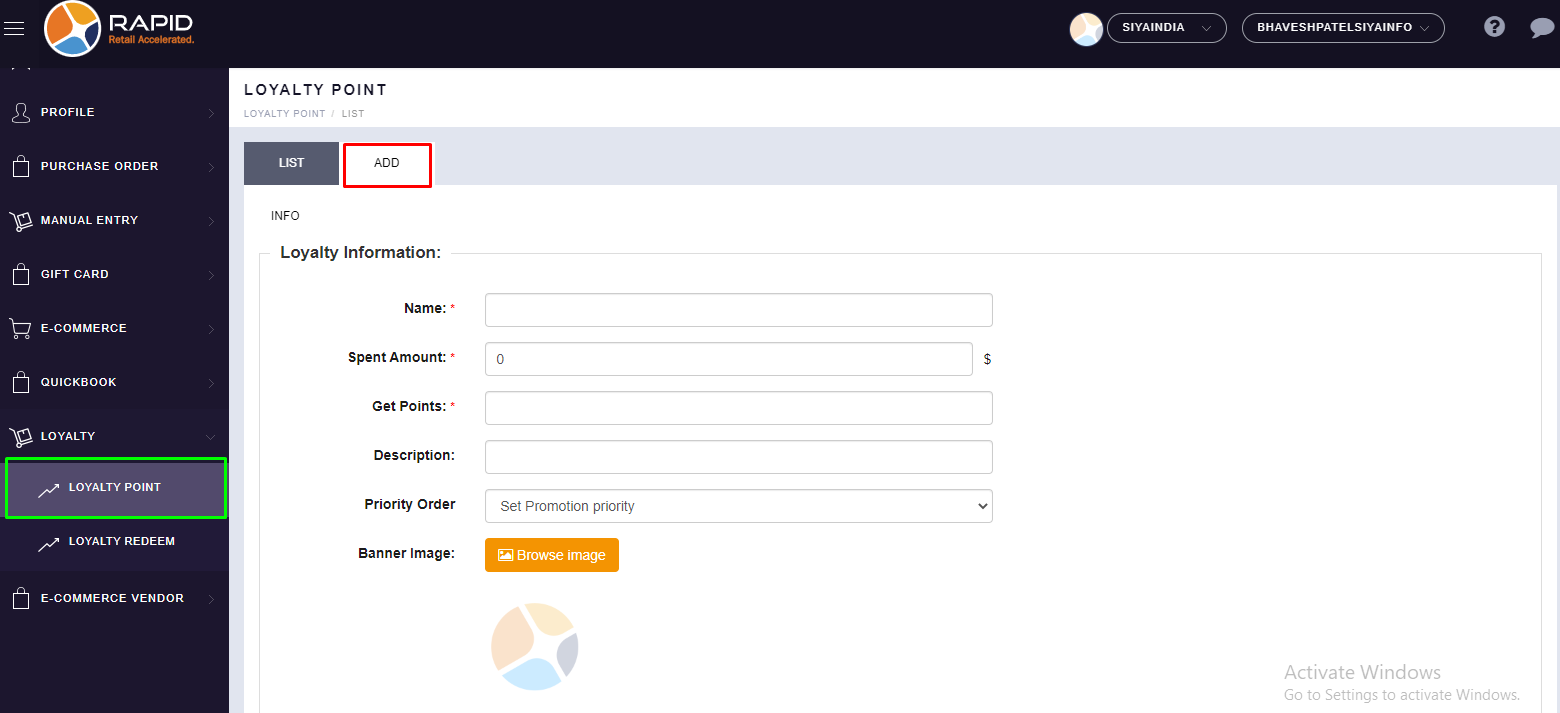
- You have to fill in all details as per your requirement.
INFO Section
Loyalty Information:
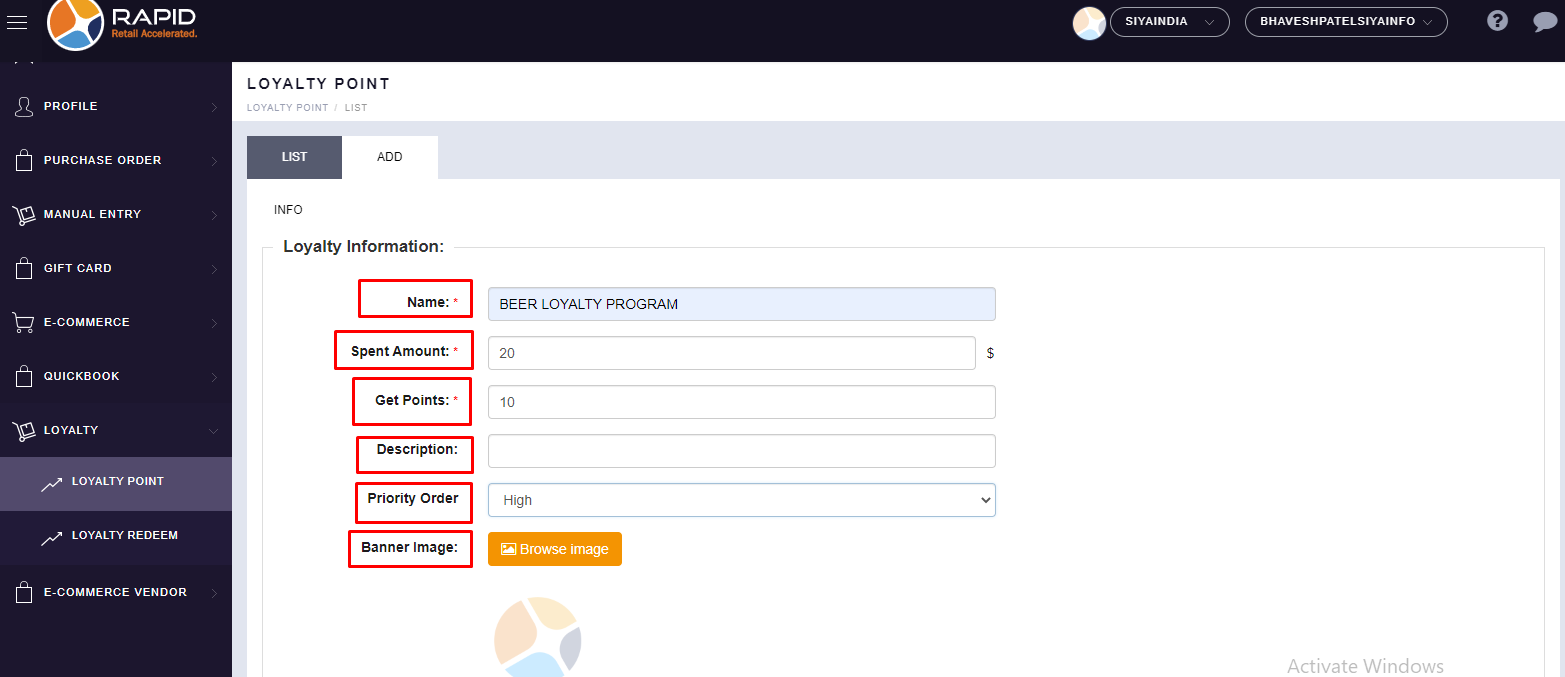
● NAME: You can put your Loyalty Point Name. (For Example : BEER LOYALTY PROGRAM)
● Spent Amount: This is where you can put your customer buying amount, like minimum how much they want to spend to eligible this loyalty Program and getting points against this Program. (For Example : 20 $)
● Get Points: you can put Points here like how much points your customer will receive after spending a specific amount against the Program. (For Example : 10 Points)
● Description: you can put your description details if you want to put it, otherwise you can leave it blank.
● Priority Order: You can set Priority (High, Medium, Low) as per your store priority and it will display the same base on priority set. Here we have selected “HIGH”.
● Banner Image: You can set images for your Loyalty Point Program.
Loyalty Settings:
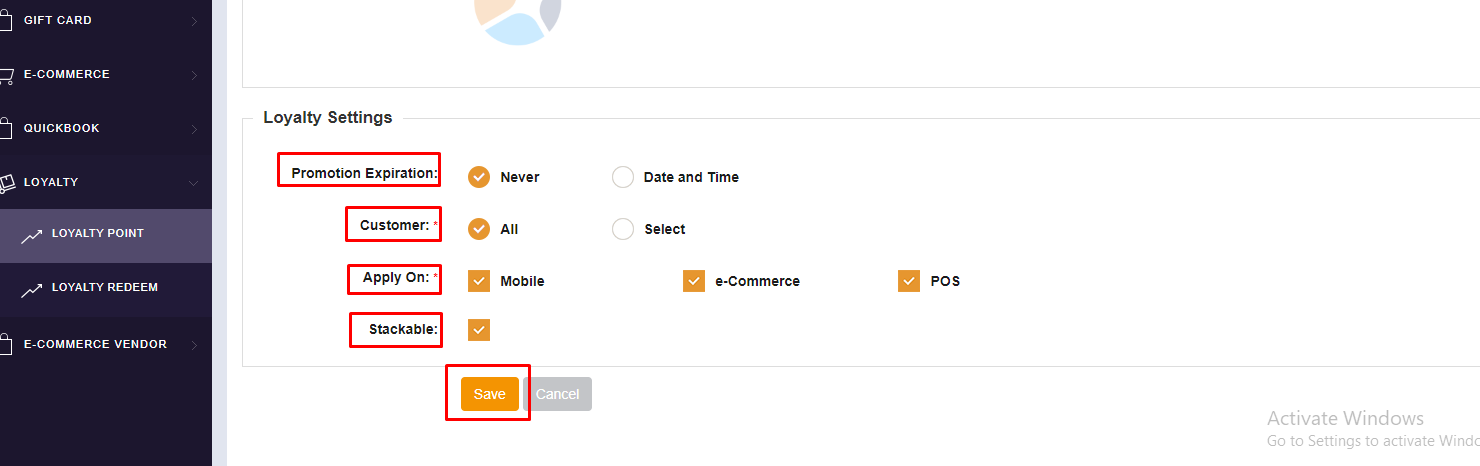
● Promotion Expiration : You can choose one option out of 2 options. (1. Never & 2. Date and Time)
● Customer: You can choose one option out of 2 options (1. All & 2. Select), If you want to create for all customers then select “ALL”, and if you want to create for a specific customer then you can choose the “SELECT” option then select your customer.
● Apply On: Here, you can choose an option according to your loyalty in a specific Platform (Mobil, E-commerce, POS), you can choose all together also as per your requirement.
● Stackable: Please tick this option, we need to select this option for applying multiple discounts along with offers.
● Click on the “SAVE” button. - You will find the “LOYALTY POINT” option, click on it and you can click on the
“ADD” section.
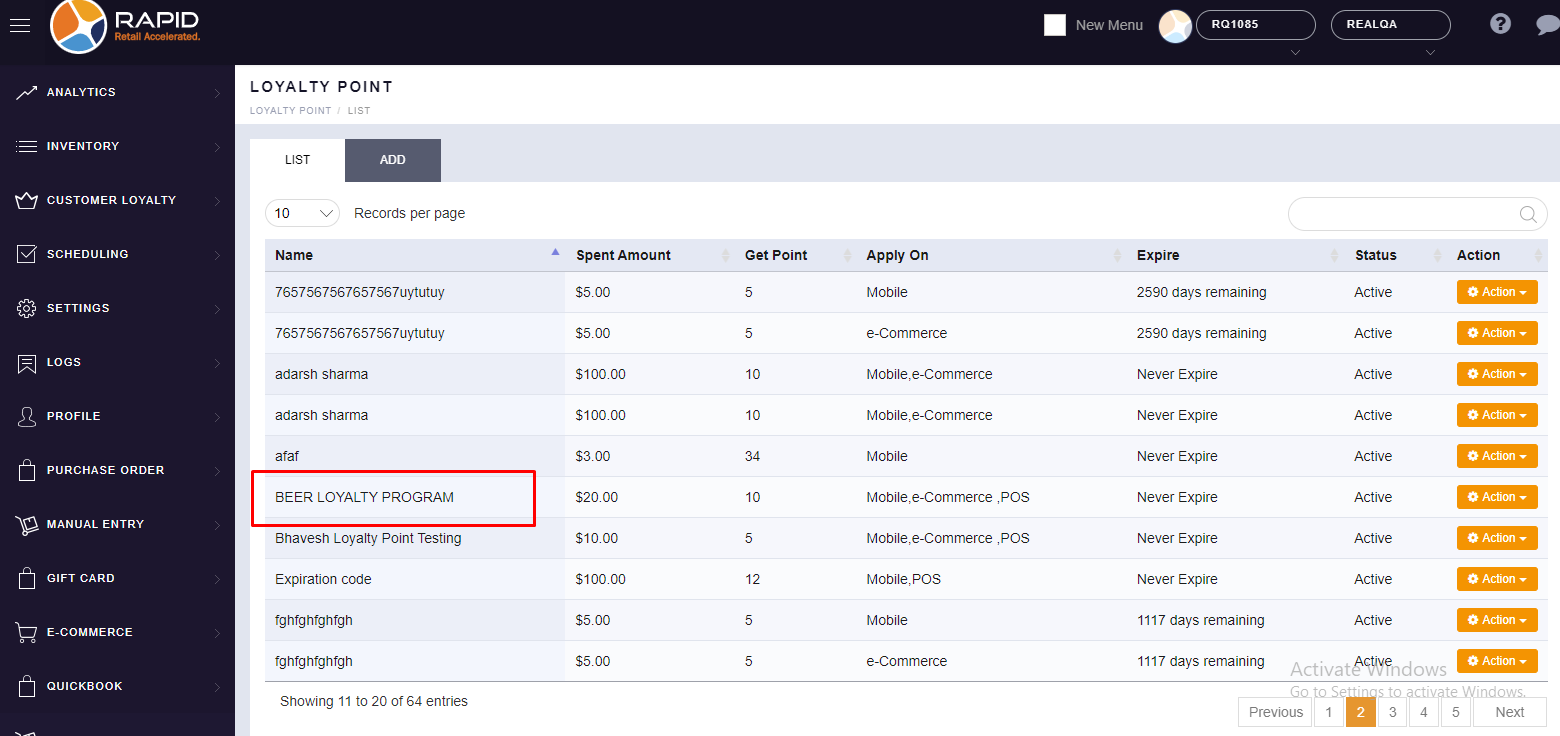
- Now, here if you want to run your Loyalty Point Program on a specific item then you can put a specific item also under this Loyalty Point Program.
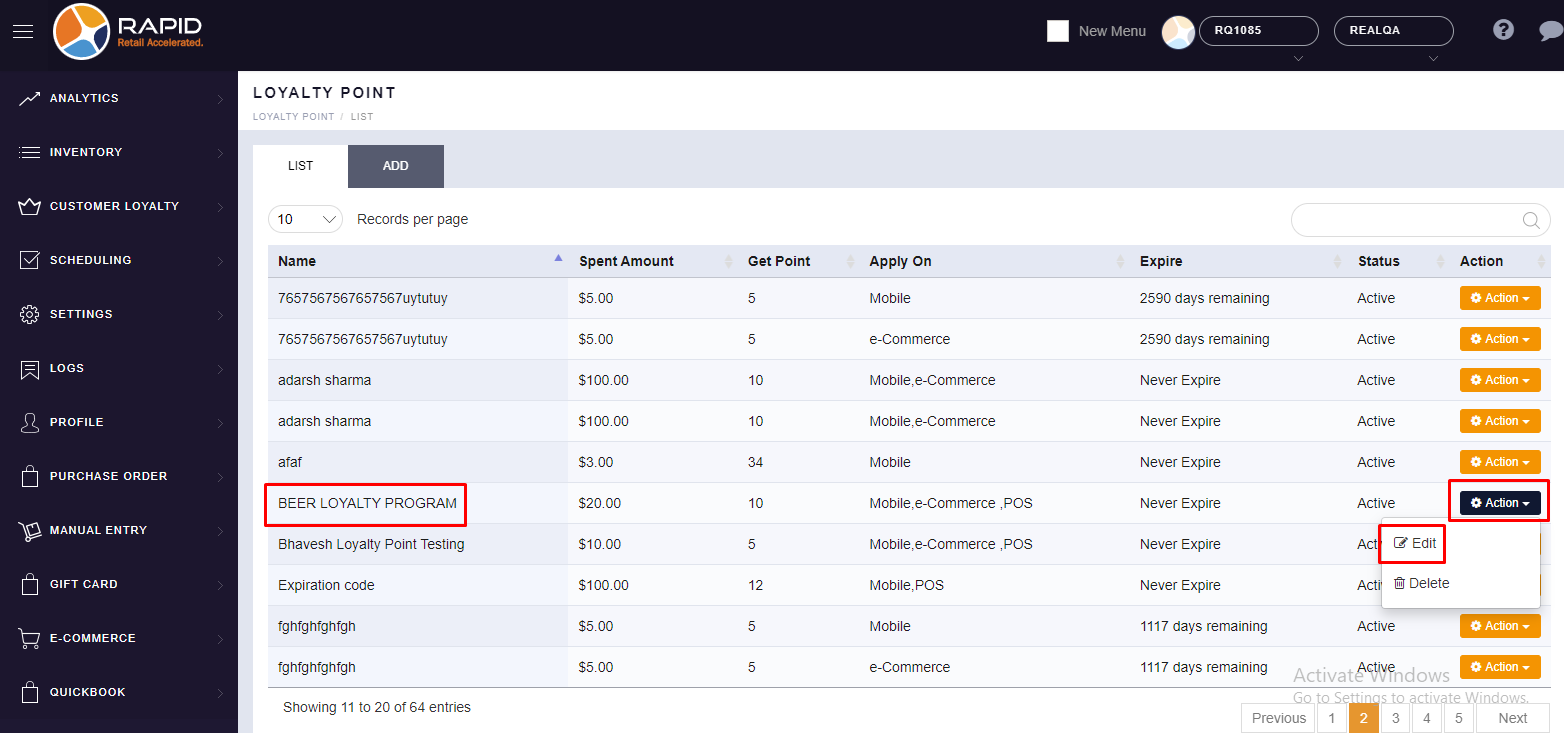
- Click on the “ACTION” button on the right side corner then click on the “EDIT” button.
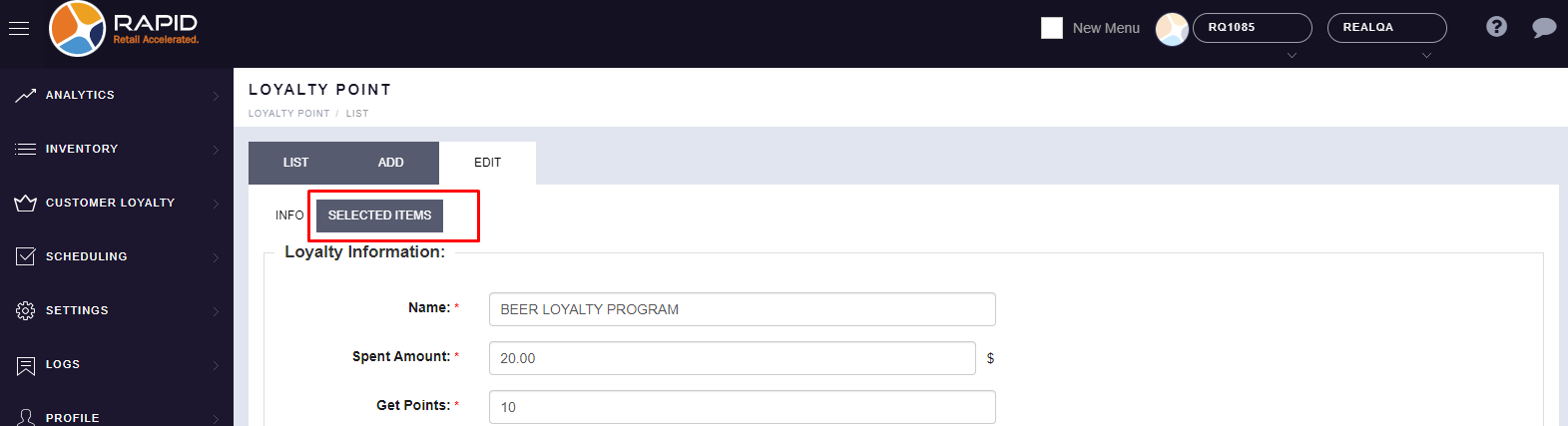
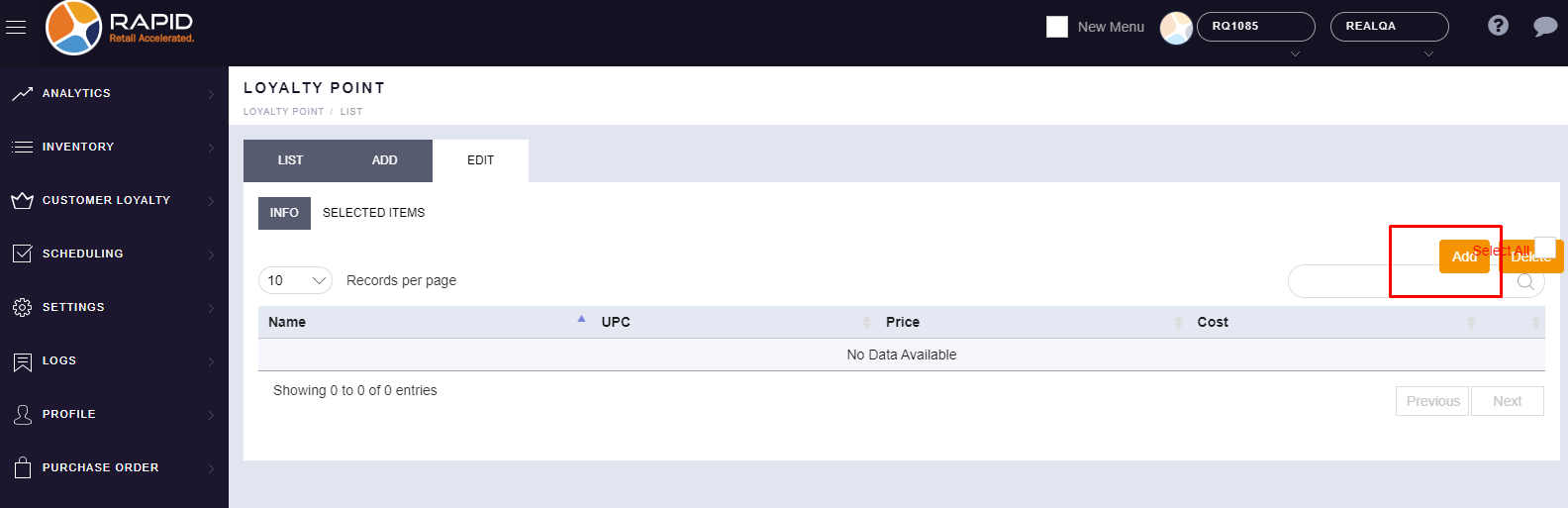
- You will find the “SELECTED ITEM” option after clicking on “EDIT”, click on it.
- Click on the “ADD” option.
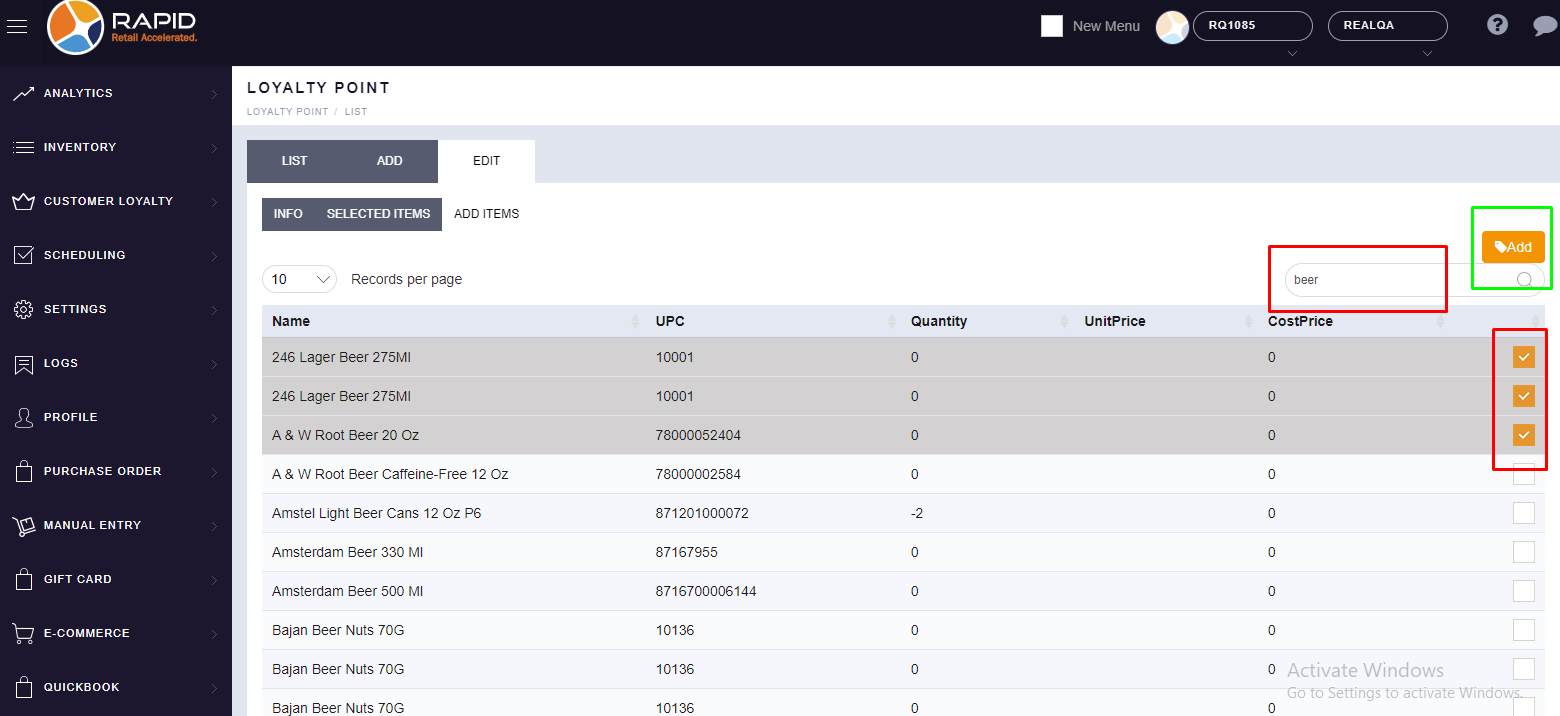
- Now, search your item from the search box and select your particular item from the right side box and
click on the “ADD” button.
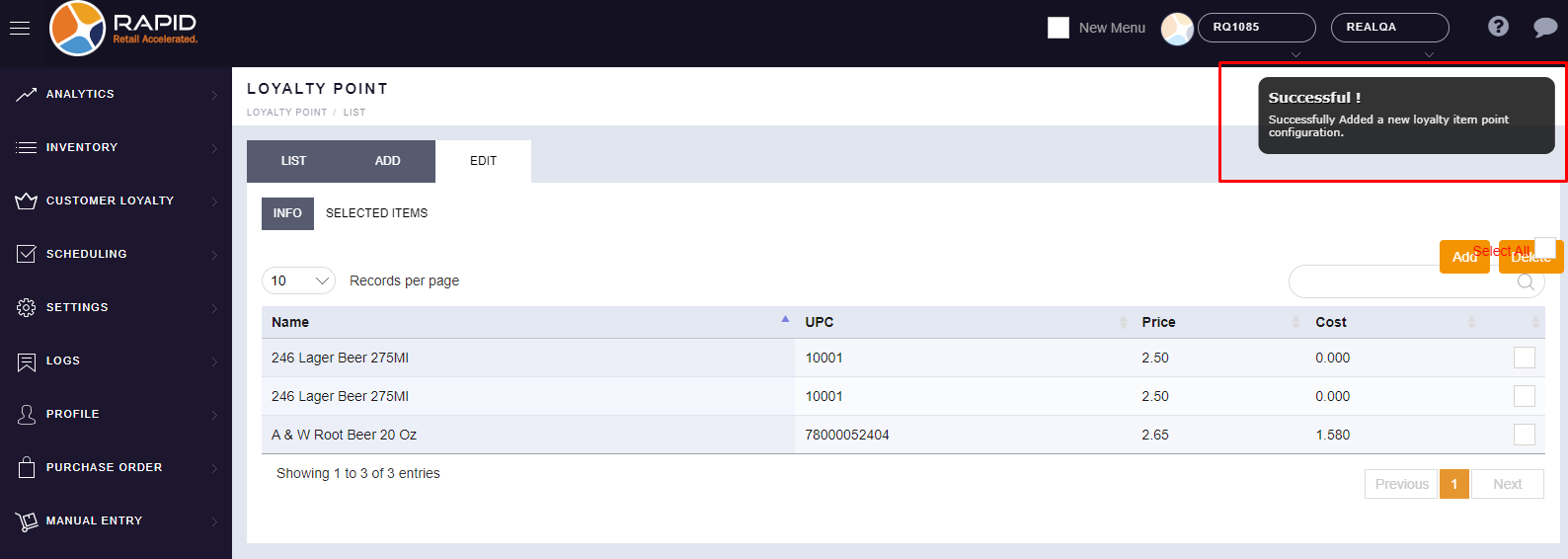
- You will get a popup message for successfully finished.