Support Document
 Support Document
How to Add/Create LOYALTY tender in the Back-Office ?
- Login on the Back-Office website.
- Left side, you will find the “SETTING” option, click on it.
- In Settings, click on the “STORE” option.
- In the Store, click on the “PAYMENT TYPE” option.
- In Payment Type, click on the “ADD” button.
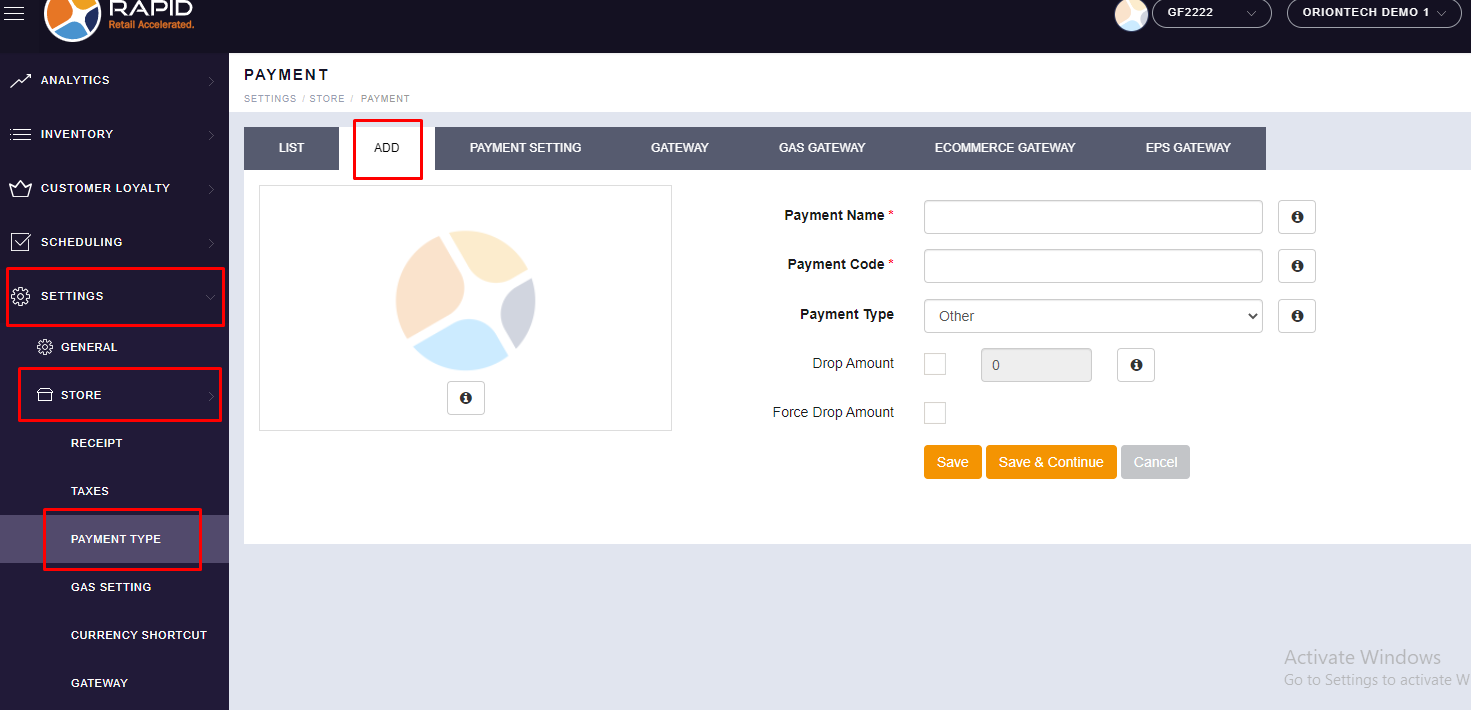
- Please fill up the Tender details and Click on the “SAVE” button.
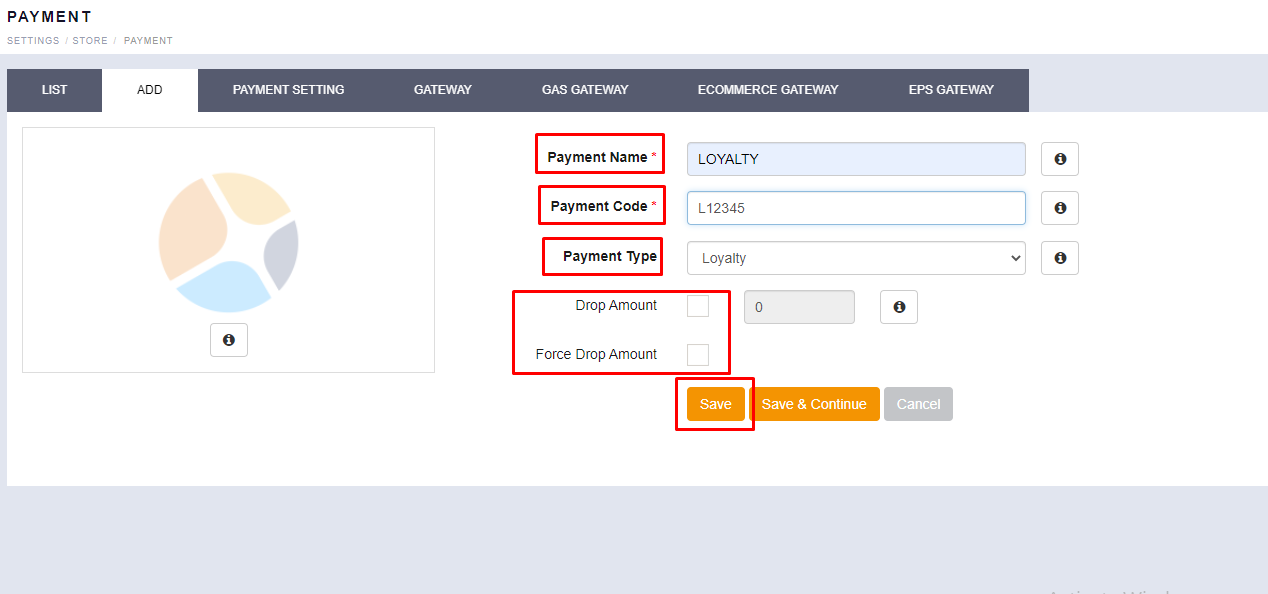
● Payment Name: You can put the Tender Name as “LOYALTY”.
● Payment Code: You can put any code as per your requirement.
● Payment Type: You have to select the “Loyalty” type from the given list.
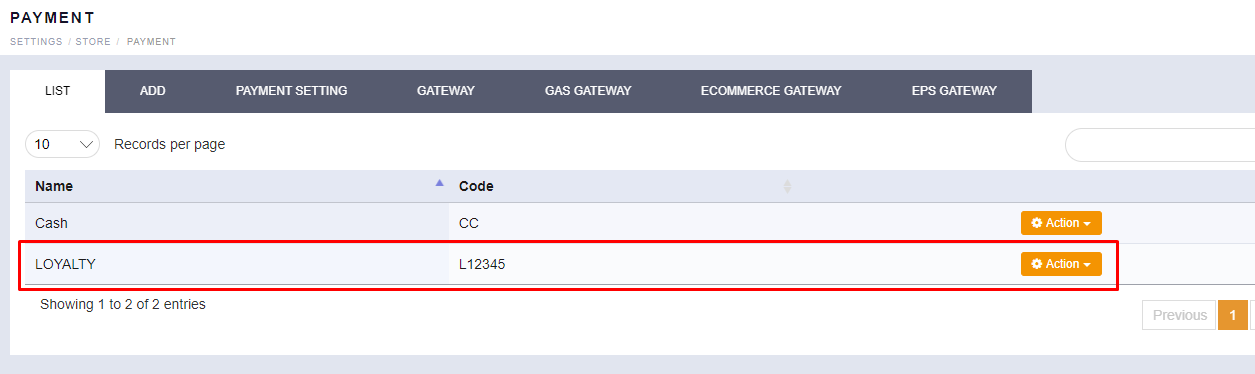
● Drop Amount: It's optional, you can tick the drop amount option if you want notification for the same against the loyalty tender, otherwise you can leave it blank. - Now you can see Loyalty Tender in your Tender list.