Support Document
 Support Document
How can I “ADD / CREATE” a new Loyalty Redeem?
- Login on the Back-Office website.
- Left side, you can see an option with “LOYALTY”, click on it.
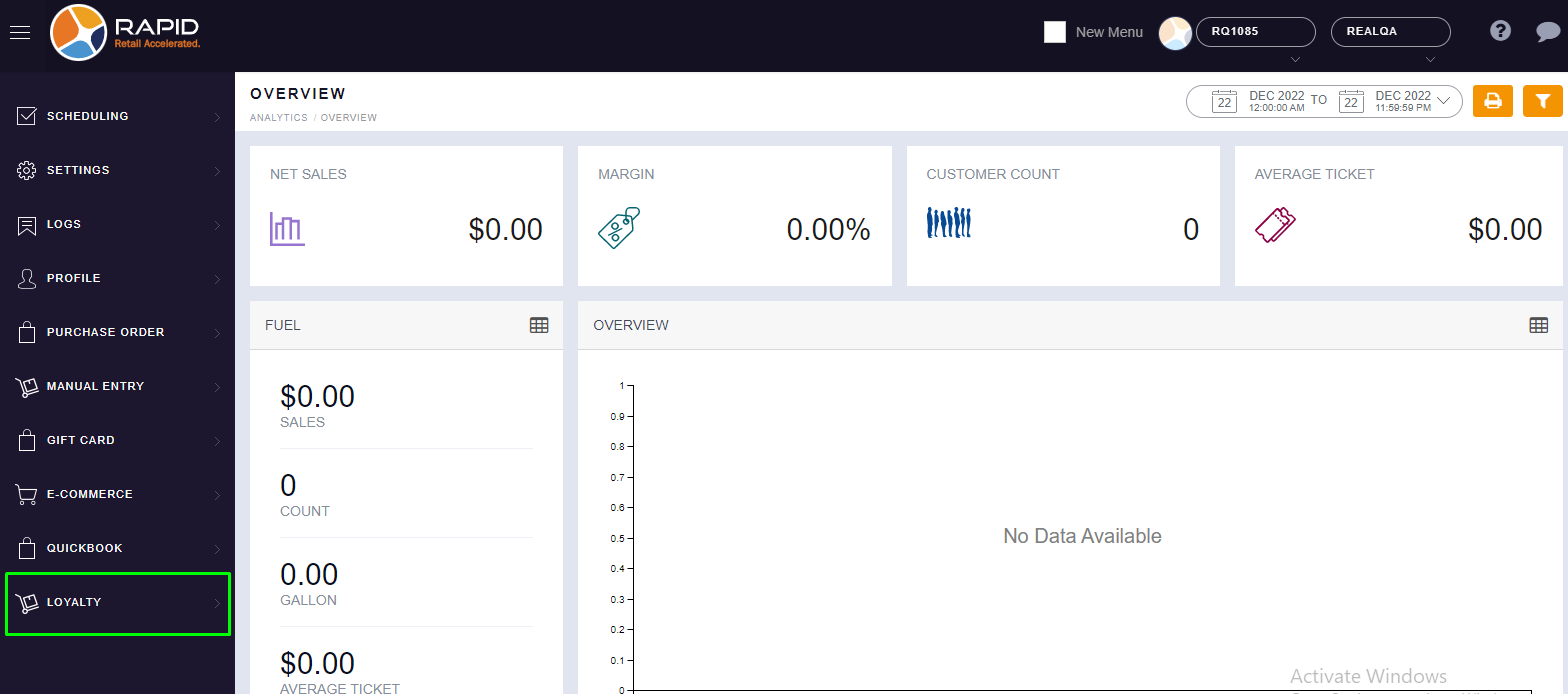
- 3. You will find the “LOYALTY REDEEM” option, click on it and you can click on the “ADD” section.
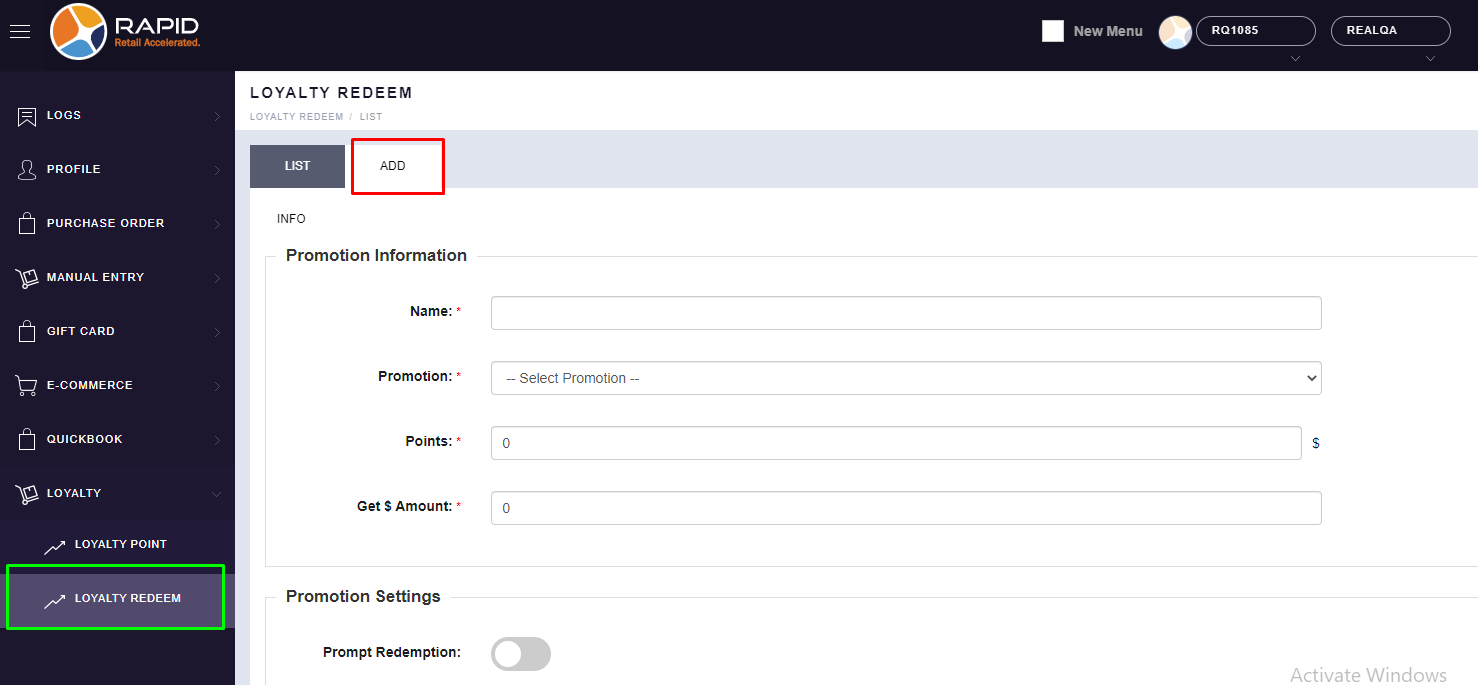
- You have to fill in all details as per your requirement.
INFO Section
Promotion Information:
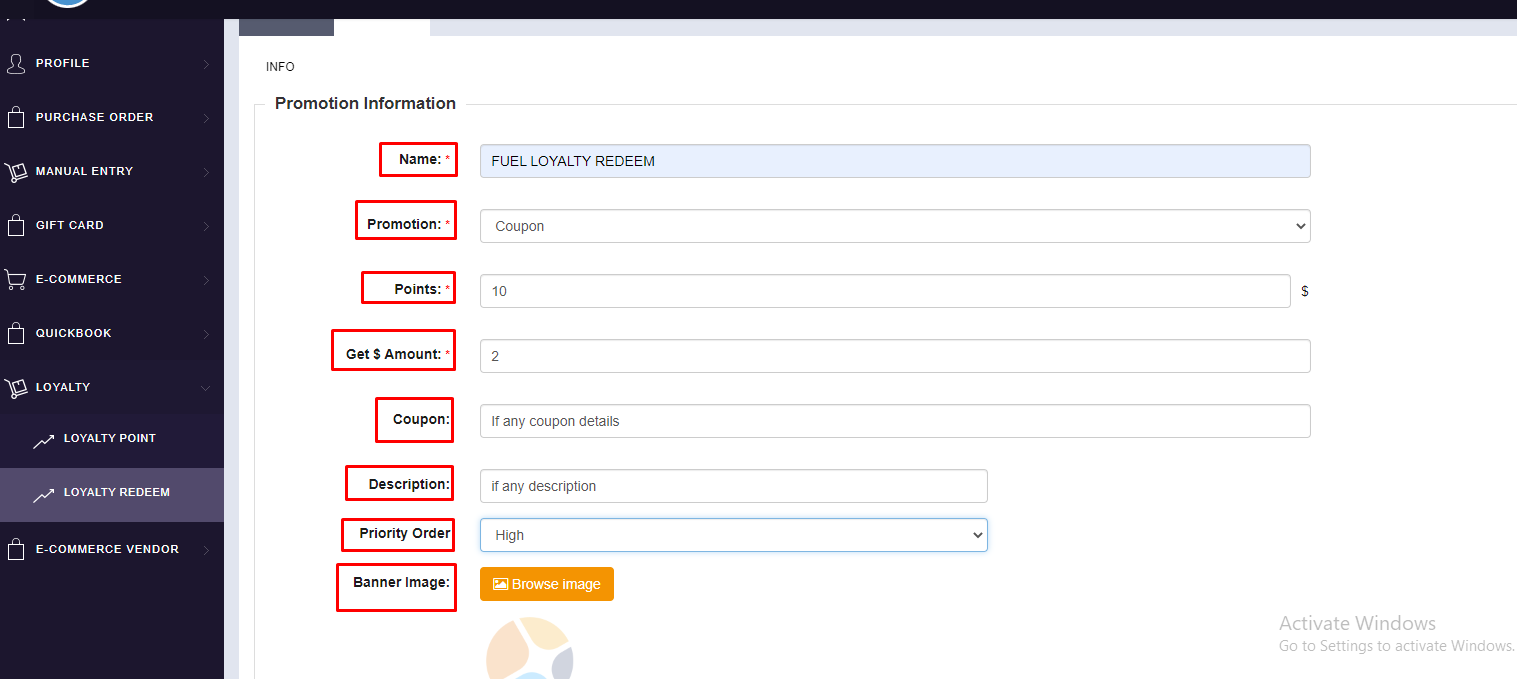
● NAME: You can put your Loyalty Redeem Name. (For Example : FUEL LOYALTY REDEEM)
● Promotion: You can choose your Promotion Type from here. (For Example : Fuel)
● Points: you can put Points here like how much points your customer will spend here so they will get a specific amount against the Program. (For Example : 10 Points)
● Get $ Amount: Here you can put your amount like how much amount the customer will receive after redeem mentioned points. (For Example : 2 $)
● Coupon : You can put your coupon details, otherwise you can leave it blank.
● Description: you can put your description details if you want to put it, otherwise you can leave it blank.
● Priority Order: You can set Priority (High, Medium, Low) as per your store priority and it will display the same base on priority set. Here we have selected “HIGH”.
● Banner Image: You can set images for your Loyalty Point Program.
Promotion Settings:
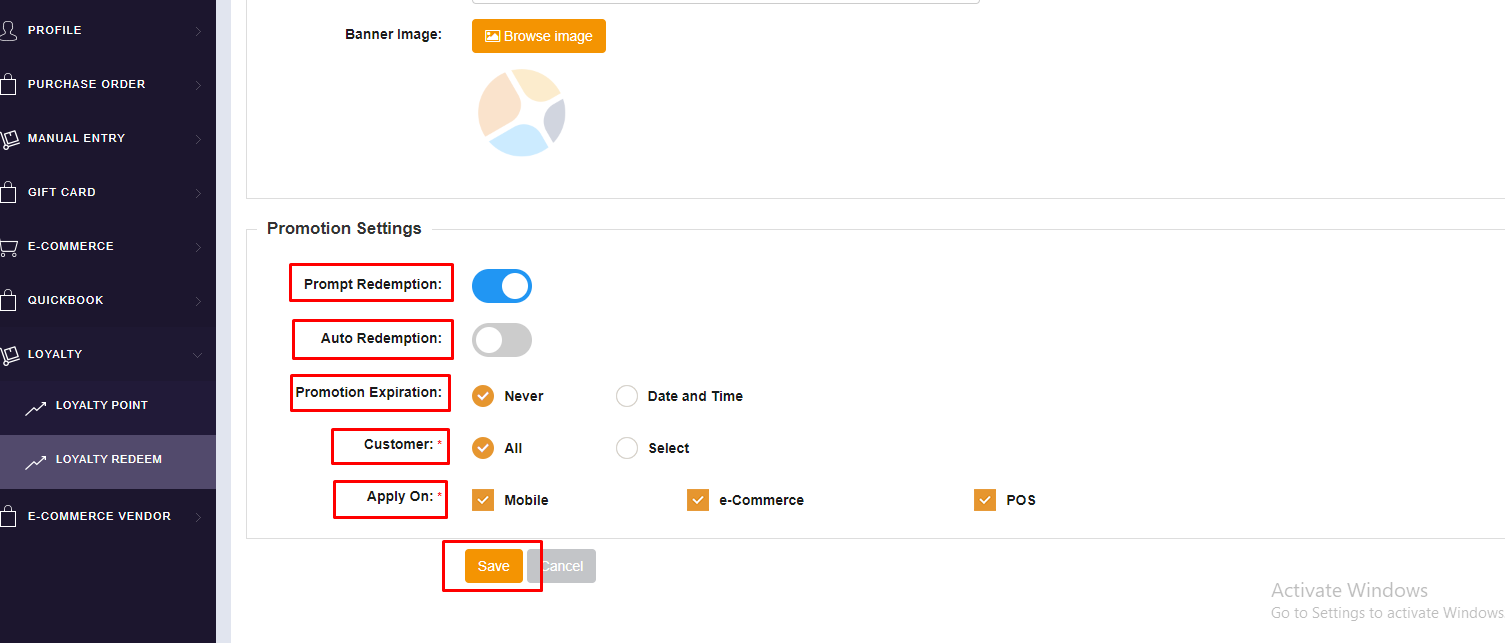
● Prompt Redemption: You can select this option when you want to give options to customers whether they want to use points OR not.
● Auto Redemption: You can select this option when you want to run your loyalty redeem automatically.
● Promotion Expiration: You can choose one option out of 2 options. (1. Never & 2. Date and Time)
● Customer: You can choose one option out of 2 options (1. All & 2. Select), If you want to create for all customers then select “ALL”, and if you want to create for a specific customer then you can choose the “SELECT” option then select your customer.
● Apply On: Here, you can choose an option according to your loyalty in a specific Platform (Mobil, E-commerce, POS), you can choose all together also as per your requirement.
● Click on the “SAVE” button. - Once you click “SAVE” then you are able to see your Loyalty Redeem Program in LIST.
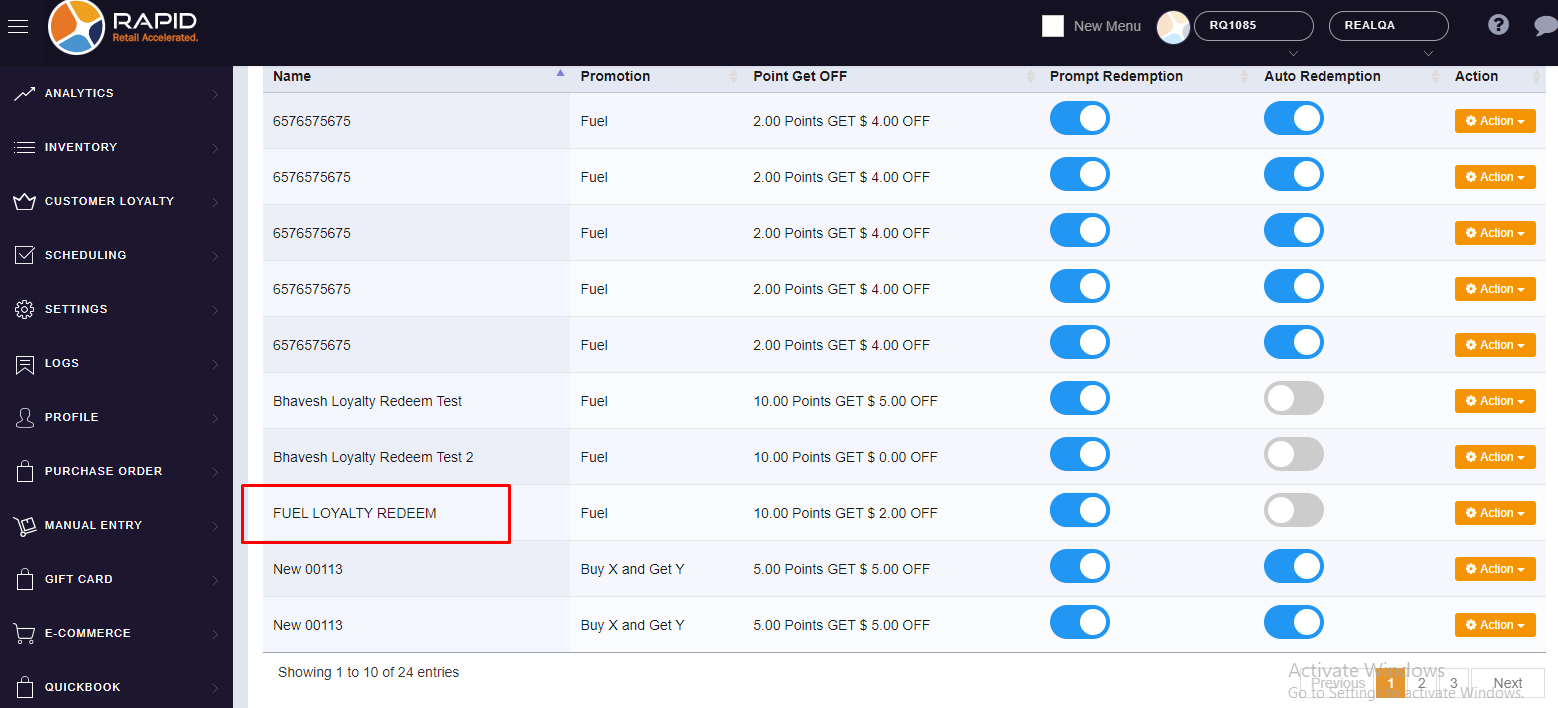
- Now, here if you want to run your Loyalty Redeem Program on a specific item then you can put specific item also under this Loyalty Redeem Program.
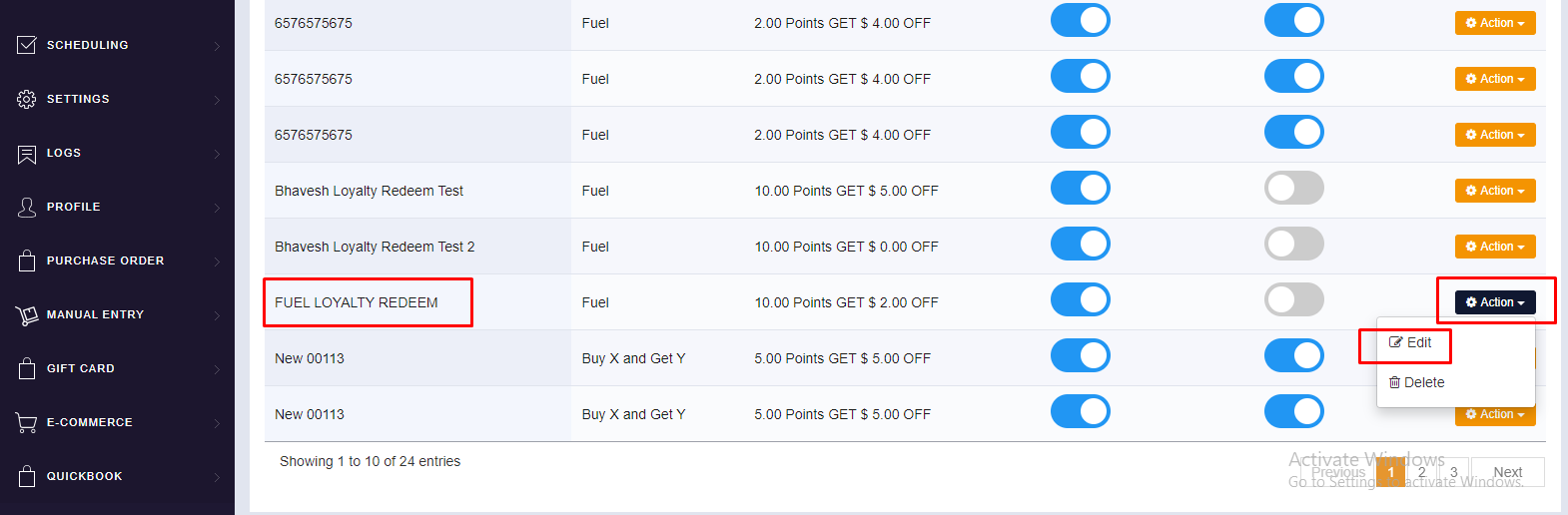
- Click on the “ACTION” button on the right side corner then click on the
“EDIT” button.
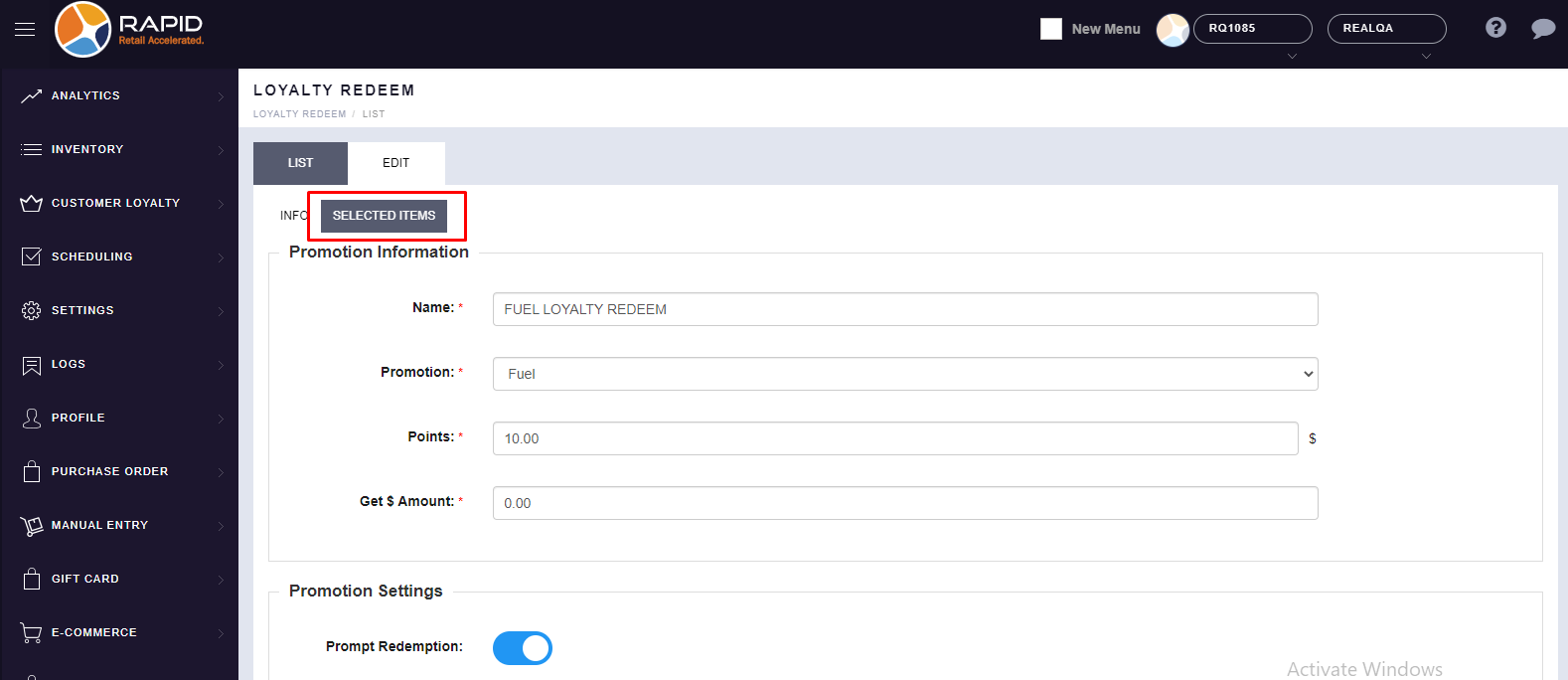
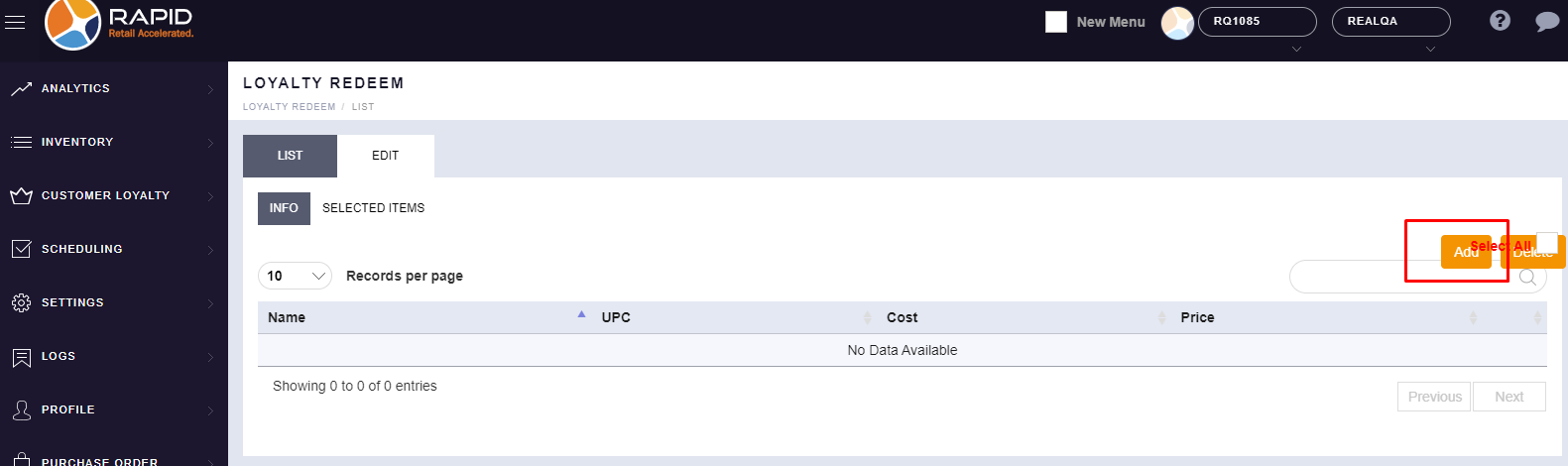
- You will find the “SELECTED ITEM” option after clicking on “EDIT”,
click on it.
- Click on the “ADD” option.
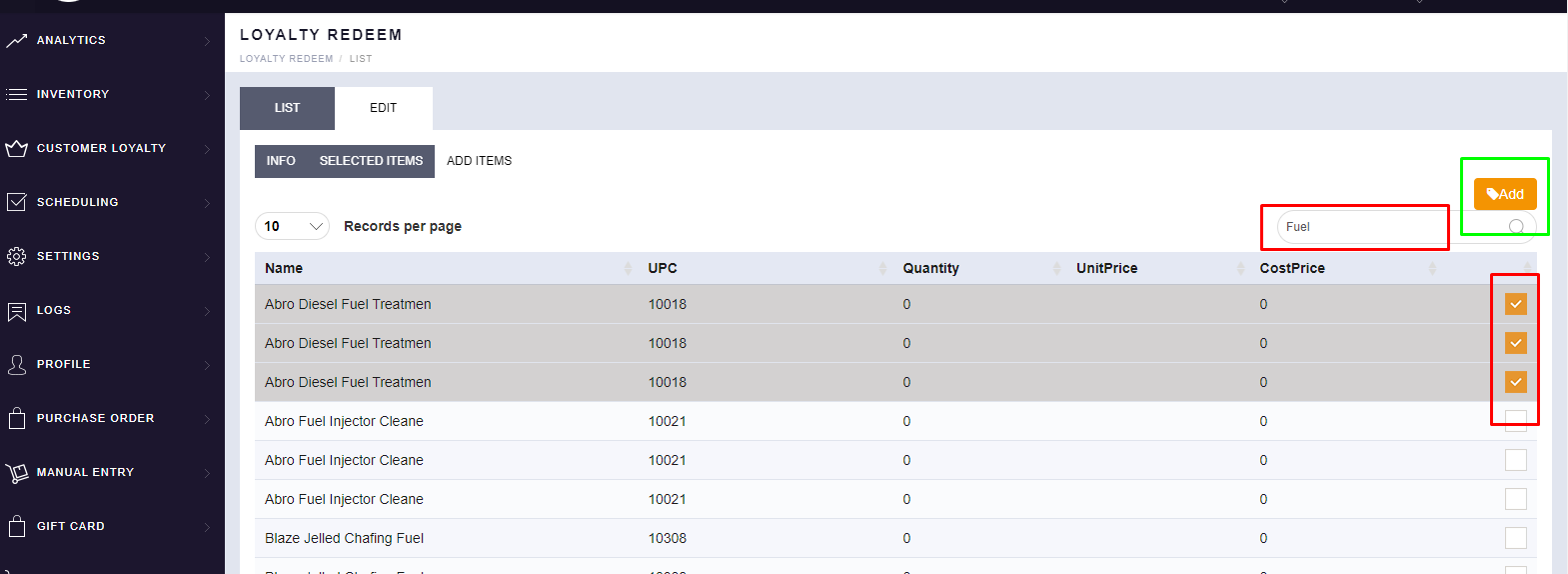
- 10. Now, search your item from the search box and select your particular item from the right side box
and click on the “ADD” button.
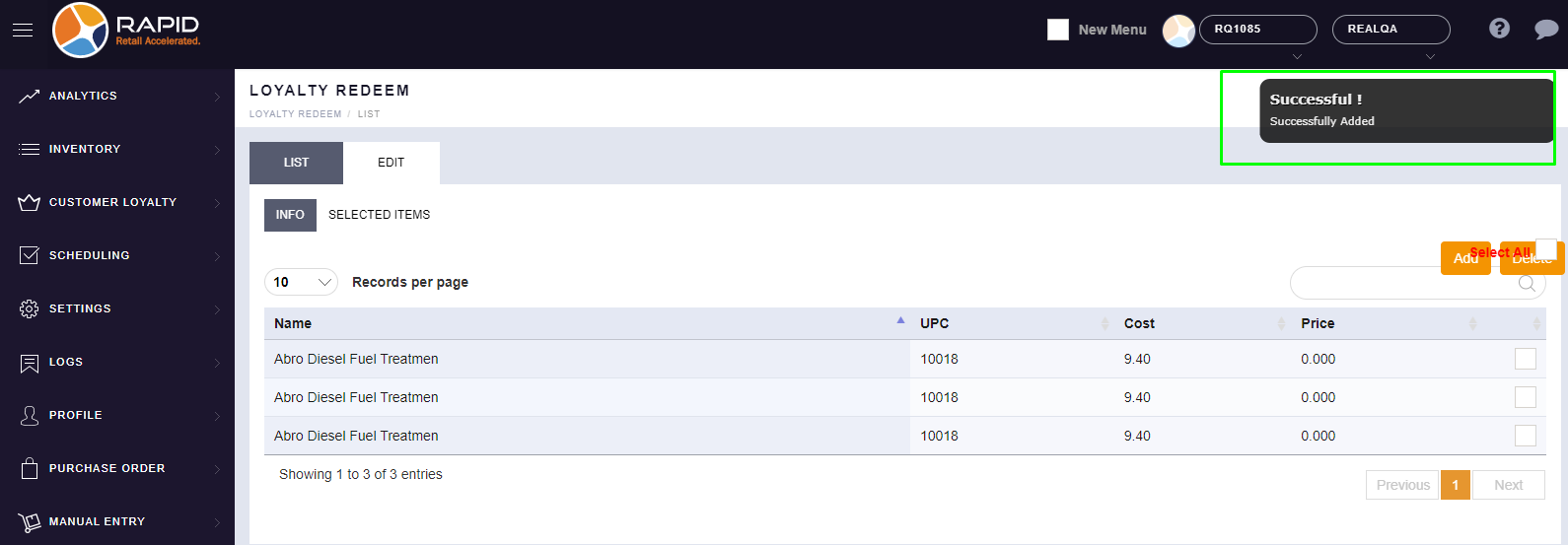
- You will get a popup message for “Successfully Added”.