Support Document
 Support Document
How do I set up and active register?
Follow the below steps to activate new register
- Download Rapid RMS application from App store.
- Open the app, then login with your main account email and password.
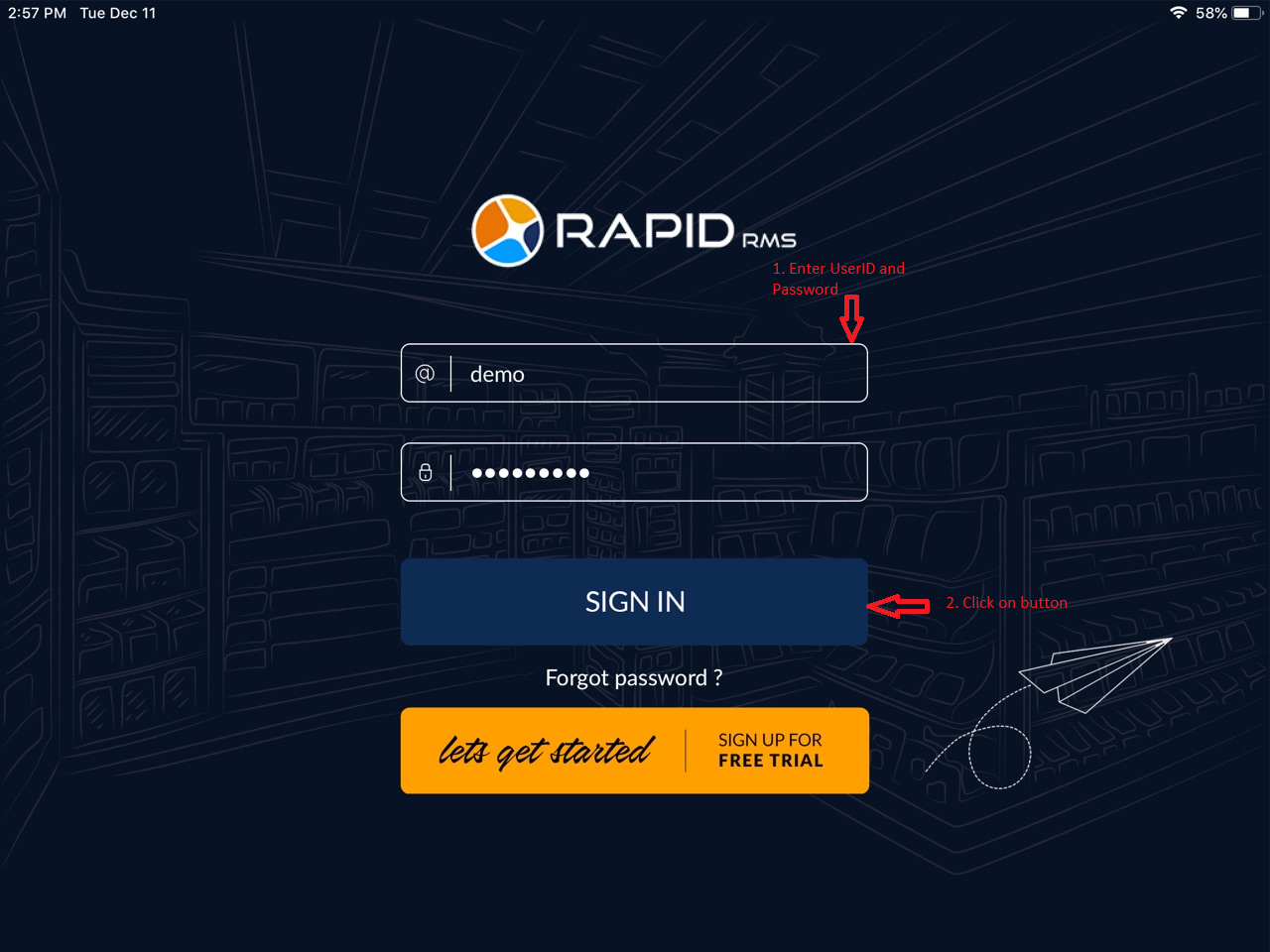
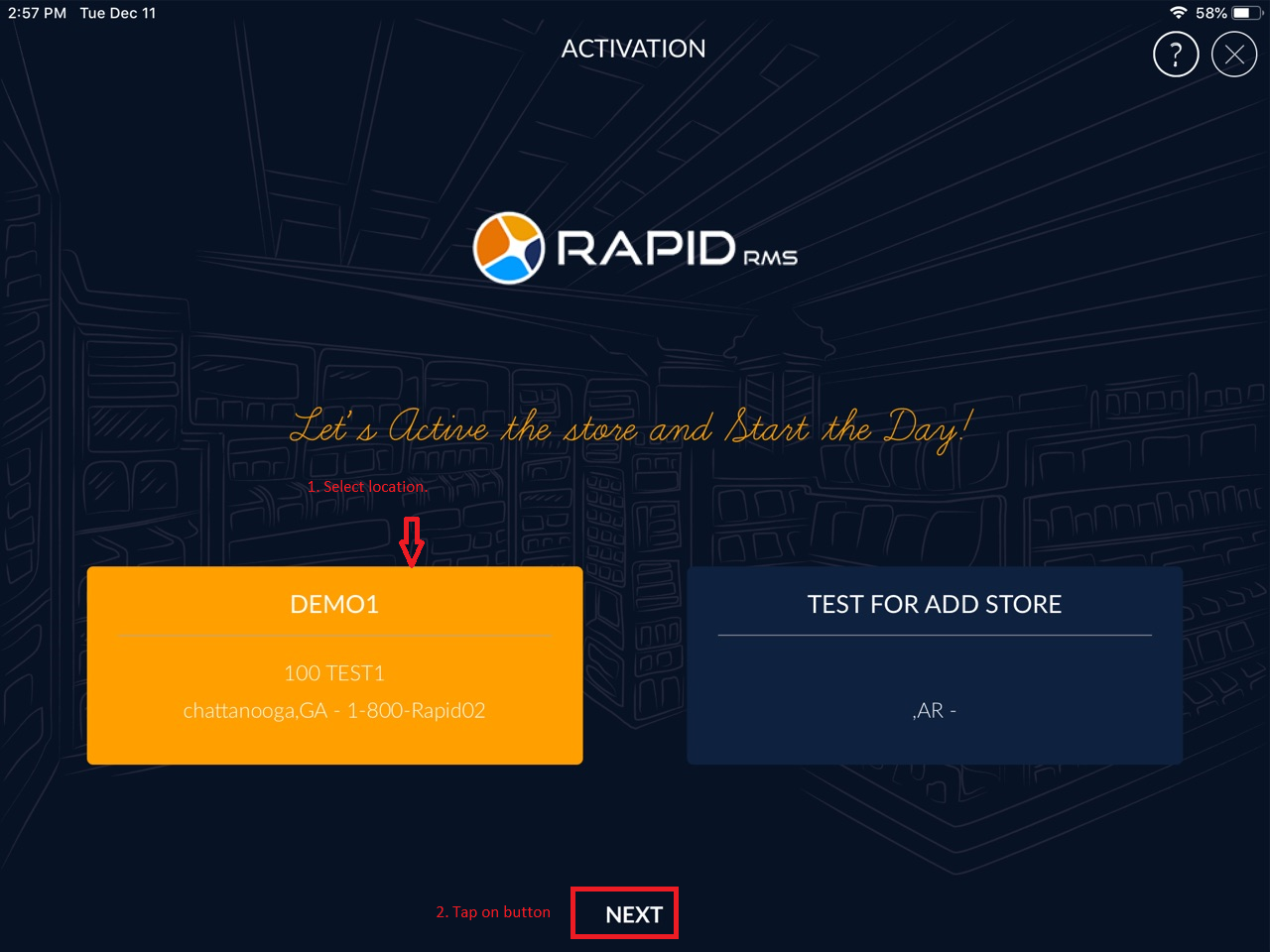
- If you have signed up for multiple locations, you will have the option to select which store you want to activate for this device.
- Select location and click on ‘Next’ button.
- After choosing a location Activation page will open.
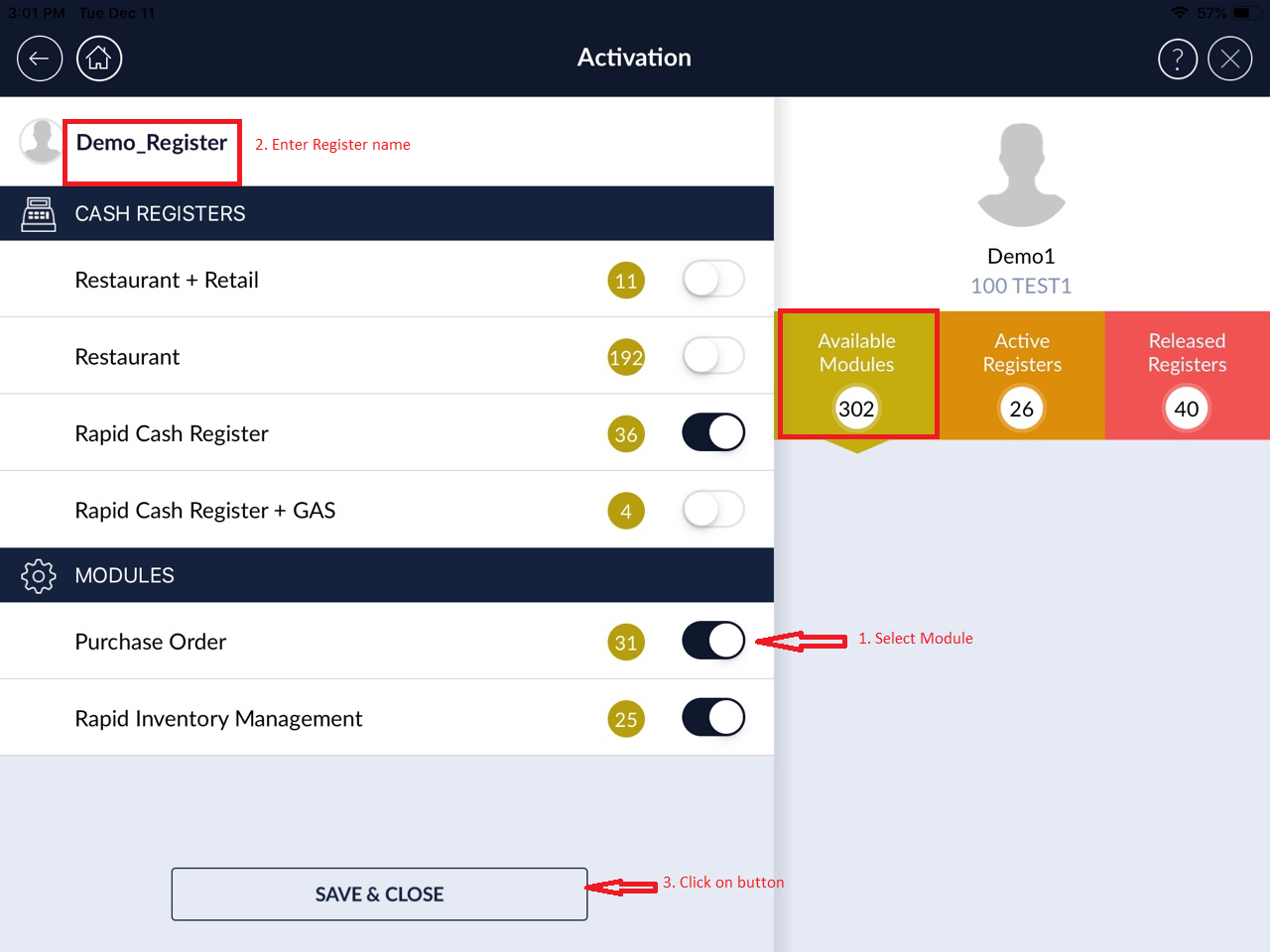
- At there, Select Module according to store choice (Ex: Rapid Cash Register, Purchase Order, Rapid Inventory Management).
- If you have signed up for multiple locations, you will have the option to select which store you want to activate for this device.
- At the top, enter a device name. it can be anything, but each device’s name must be unique (e.g. POS1 and POS2).
- Now, activate the modules needed.
- if you are using Rapid onsite to control fuel dispenser, you will need to select Rapid Cash Register + GAS.
- If you do not have a store that sells fuel or uses Rapid onsite, you need to select Rapid Cash Register.
- We recommend all stores to select Inventory Management as well. This will allow you to manage your inventory within the app.
- Click on ‘Save & Close’ button.
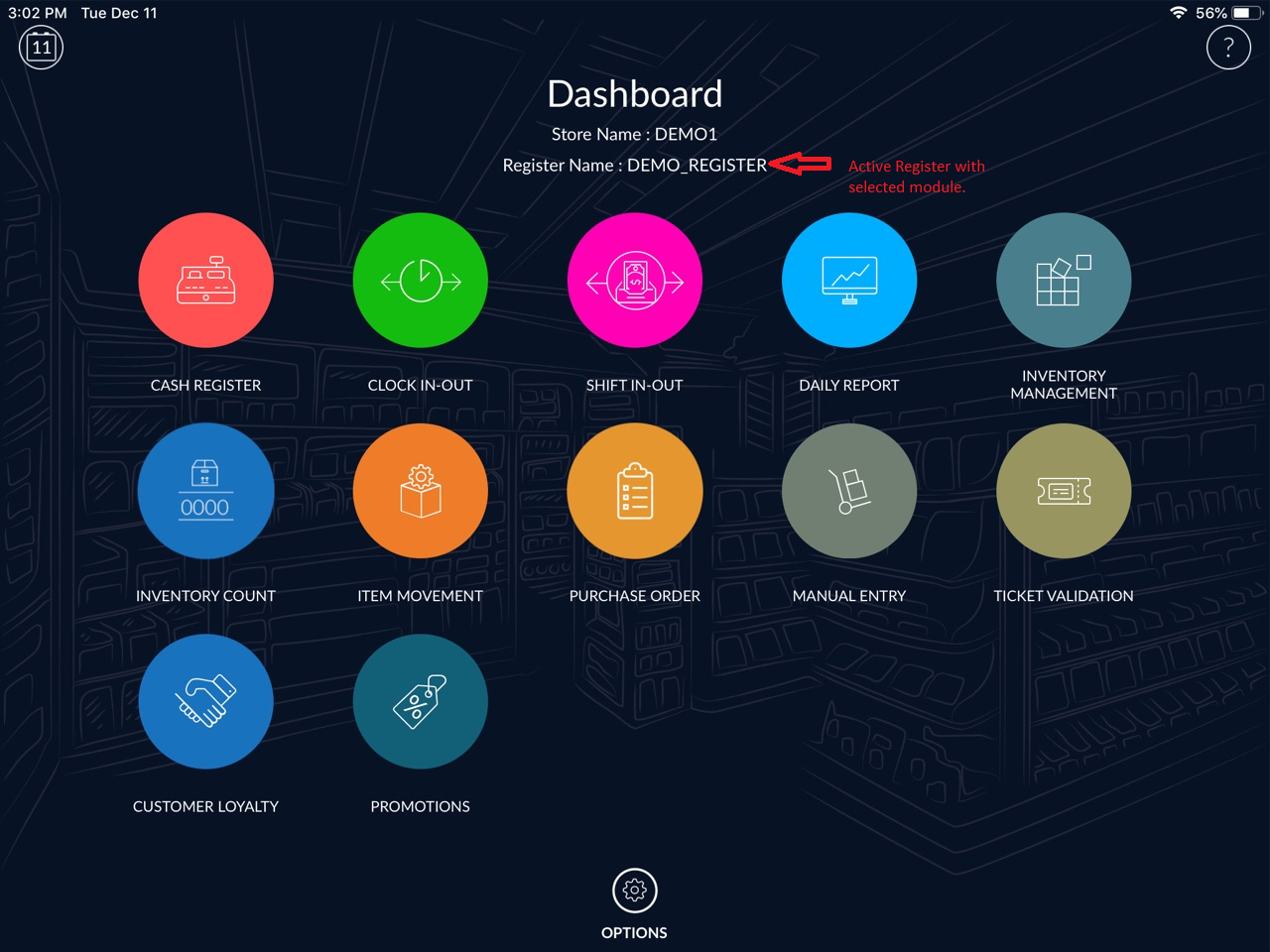
- After active new register from Activation page system will take a few time to active register.
- After configuration, New register will be active with the selected module.